🤖
Vercel AI SDK と Next.js で Gemini 搭載のイケてるチャットアプリを作る






こんにちは!雷(らい)です。
今回は、Vercel AI SDK + Next.js でGemini搭載のイケてる(かっこいい)モダンなチャットアプリを作ります。
今回の技術スタック
APIキーを取得する
-
https://aistudio.google.com/ にアクセスします
-
右上らへんにある、"Get API key" をクリックします。
-
右上の、"Create API Key" をクリックします。
-
Google Cloud プロジェクトを選択し、作成します。
-
"Create API key in existing project" を選択して"Copy"ボタンをクリックします。
-
完了です!
環境構築
Next.js でアプリを作る
$ bun create next-app
AI SDK をインストールする
$ bun install ai @ai-sdk/react @ai-sdk/google
.envをセットアップする
GOOGLE_GENERATIVE_AI_API_KEY=AIza...
shadcn/ui をセットアップ
$ bunx shadcn@latest init
$ bunx shadcn@latest add button input
アプリを作成する
APIを作成する (サーバー)
app/api/chat/route.ts にAPIを作成します。
import { streamText, UIMessage } from 'ai';
import { google } from '@ai-sdk/google';

export async function POST(req: Request) {
  const { messages }: { messages: UIMessage[] } = await req.json(); //メッセージをクライアントから取得

  const result = streamText({
    model: google('gemini-2.5-flash'), // Gemini 2.5 Flash を使う
    system: 'You are a helpful assistant.', // システムプロンプト
    messages,
  });

  return result.toDataStreamResponse(); // レスポンスをクライアントへ返す
}
UIを作成する (クライアント)
app/page.tsx を編集してUIを作成します。
'use client';

import { Button } from '@/components/ui/button';
import { Input } from '@/components/ui/input';
import { useChat } from '@ai-sdk/react';
import { Send, Bot, User, Zap } from 'lucide-react';
import { useRef, useEffect } from 'react';

export default function Page() {
  const { messages, input, handleInputChange, handleSubmit, isLoading } = useChat({});
  const messagesEndRef = useRef<HTMLDivElement>(null);

  const scrollToBottom = () => {
    messagesEndRef.current?.scrollIntoView({ behavior: "smooth" });
  };

  useEffect(() => {
    scrollToBottom();
  }, [messages]);

  return (
    <main className='flex flex-col h-screen bg-gradient-to-br from-slate-900 via-purple-900 to-slate-900'>
      {/* Header */}
      <div className='flex items-center justify-center p-6 border-b border-purple-500/20'>
        <div className='flex items-center gap-2'>
          <Zap className='w-6 h-6 text-yellow-400' />
          <h1 className='text-2xl font-bold bg-gradient-to-r from-purple-400 to-pink-400 bg-clip-text text-transparent'>
            AI Chat
          </h1>
        </div>
      </div>

      {/* Messages */}
      <div className='flex-1 overflow-y-auto p-6 space-y-4'>
        {messages.length === 0 && (
          <div className='flex items-center justify-center h-full text-slate-400'>
            <div className='text-center'>
              <Zap className='w-12 h-12 mx-auto mb-4 text-purple-400' />
              <p className='text-lg'>Start a conversation!</p>
            </div>
          </div>
        )}

        {messages.map(message => (
          <div
            key={message.id}
            className={`flex gap-3 ${
              message.role === 'user' ? 'justify-end' : 'justify-start'
            }`}
          >
            <div
              className={`flex gap-3 max-w-[80%] ${
                message.role === 'user' ? 'flex-row-reverse' : 'flex-row'
              }`}
            >
              <div className={`flex-shrink-0 w-8 h-8 rounded-full flex items-center justify-center ${
                message.role === 'user'
                  ? 'bg-gradient-to-r from-blue-500 to-purple-600'
                  : 'bg-gradient-to-r from-purple-500 to-pink-600'
              }`}>
                {message.role === 'user' ? (
                  <User className='w-4 h-4 text-white' />
                ) : (
                  <Bot className='w-4 h-4 text-white' />
                )}
              </div>

              <div
                className={`px-4 py-3 rounded-2xl ${
                  message.role === 'user'
                    ? 'bg-gradient-to-r from-blue-600 to-purple-600 text-white'
                    : 'bg-slate-800 text-slate-100 border border-slate-700'
                }`}
              >
                <p className='whitespace-pre-wrap'>{message.content}</p>
              </div>
            </div>
          </div>
        ))}

        {isLoading && (
          <div className='flex gap-3 justify-start'>
            <div className='flex gap-3 max-w-[80%]'>
              <div className='flex-shrink-0 w-8 h-8 rounded-full bg-gradient-to-r from-purple-500 to-pink-600 flex items-center justify-center'>
                <Bot className='w-4 h-4 text-white' />
              </div>
              <div className='px-4 py-3 rounded-2xl bg-slate-800 border border-slate-700'>
                <div className='flex space-x-1'>
                  <div className='w-2 h-2 bg-purple-400 rounded-full animate-bounce'></div>
                  <div className='w-2 h-2 bg-purple-400 rounded-full animate-bounce' style={{ animationDelay: '0.1s' }}></div>
                  <div className='w-2 h-2 bg-purple-400 rounded-full animate-bounce' style={{ animationDelay: '0.2s' }}></div>
                </div>
              </div>
            </div>
          </div>
        )}

        <div ref={messagesEndRef} />
      </div>

      {/* Input Form */}
      <div className='p-6 border-t border-purple-500/20'>
        <form onSubmit={handleSubmit} className='flex gap-3'>
          <div className='flex-1 relative'>
            <Input
              name="prompt"
              value={input}
              onChange={handleInputChange}
              placeholder="Type your message..."
              className='pr-12 bg-slate-800 border-slate-700 text-white placeholder-slate-400 focus:border-purple-500 focus:ring-purple-500'
              disabled={isLoading}
            />
          </div>
          <Button
            type="submit"
            disabled={isLoading || !input.trim()}
            className='bg-gradient-to-r from-purple-600 to-pink-600 hover:from-purple-700 hover:to-pink-700 disabled:opacity-50 disabled:cursor-not-allowed'
          >
            <Send className='w-4 h-4' />
          </Button>
        </form>
      </div>
    </main>
  );
}
テストしてみる
開発サーバーを起動
$ bun run dev
UIを確認
http://localhost:3000 にアクセスして確認してみましょう!
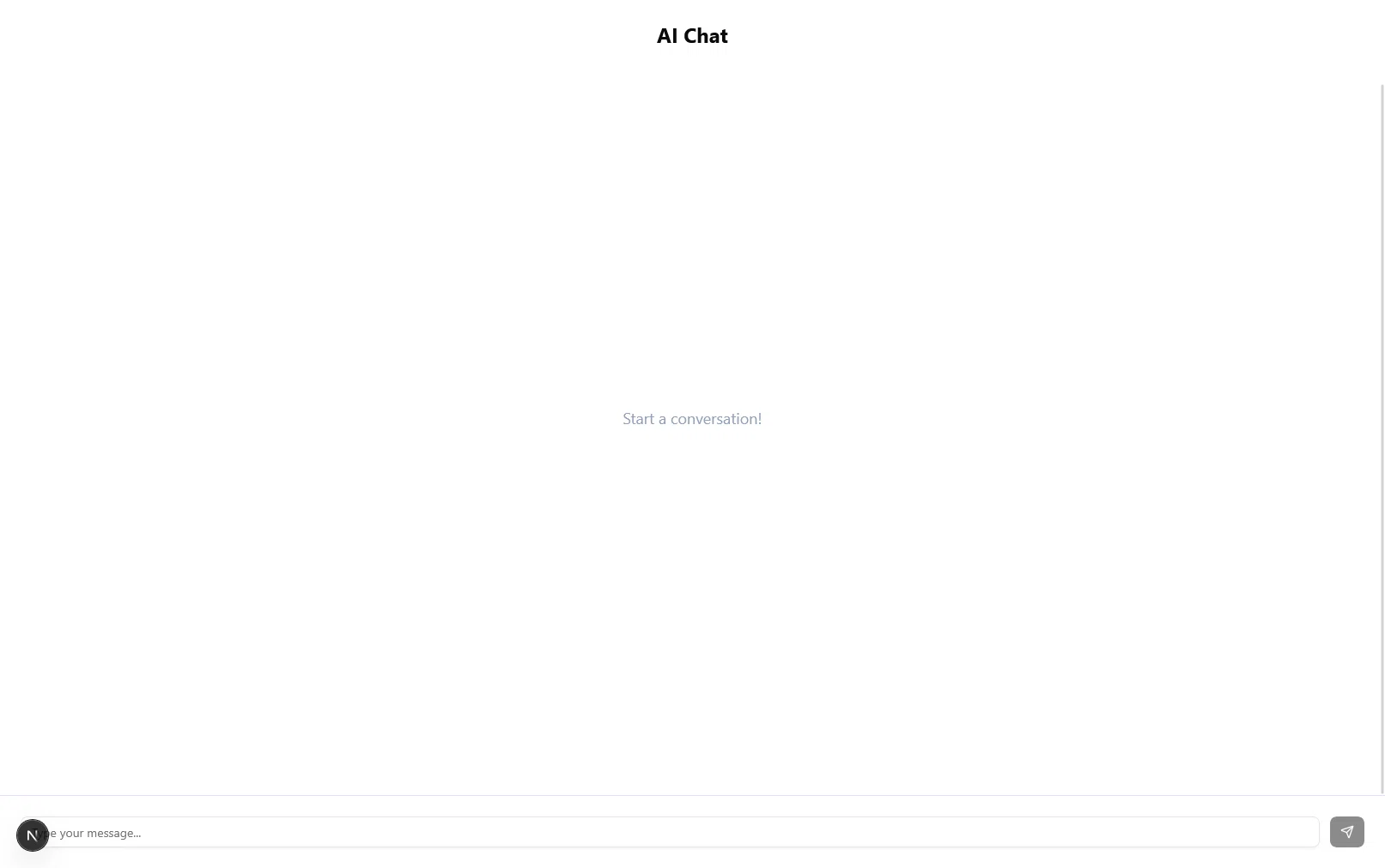
このような画面が表示されていたら基本的なUIは完成です!お疲れさまでした。
Discussion