gemini cli install / setup



Update History
-
2025/9/22
- Updated the minimum required Node.js version from 18 → 20
- Added support for installation via Homebrew (
brew install gemini-cli)
What Is Gemini CLI?
Gemini CLI is the official command-line tool that lets you interact with Gemini right from your terminal.
It can execute shell commands on your behalf, automating tasks such as code generation and file operations.
Installation Video (Windows)
A 54-second short video (Japanese). Recommended if you want a quick overview.
Prerequisites
- Node.js 18 or later (LTS recommended)
What is Node.js?
Node.js is an execution environment that allows you to run JavaScript (or TypeScript) without a web browser.
Built on the same JIT-powered V8 engine used in Google Chrome, it adds a wrapper layer—a set of wrapper functions—so JavaScript can directly access OS features such as file I/O and networking.
Example of a wrapper function: fs.readFile(), which rolls the open → read → write → close system-call sequence into a single call.
Installation
There are two ways to install it.
1. Stable release (npm)
npm install -g @google/gemini-cli
gemini
2. Development build (npx)
Fetches and runs the latest commit from GitHub on-the-fly.
Great for trying the newest features without worrying about manual updates, but stability may vary.
Issue I encountered (now resolved)
I once ran into a problem where Japanese input didn’t work properly.
This issue has since been fixed.
npx https://github.com/google-gemini/gemini-cli
Configuring Gemini CLI
-
Configuring Gemini CLI
Right after the first launch, Gemini CLI lets you pick a color theme.
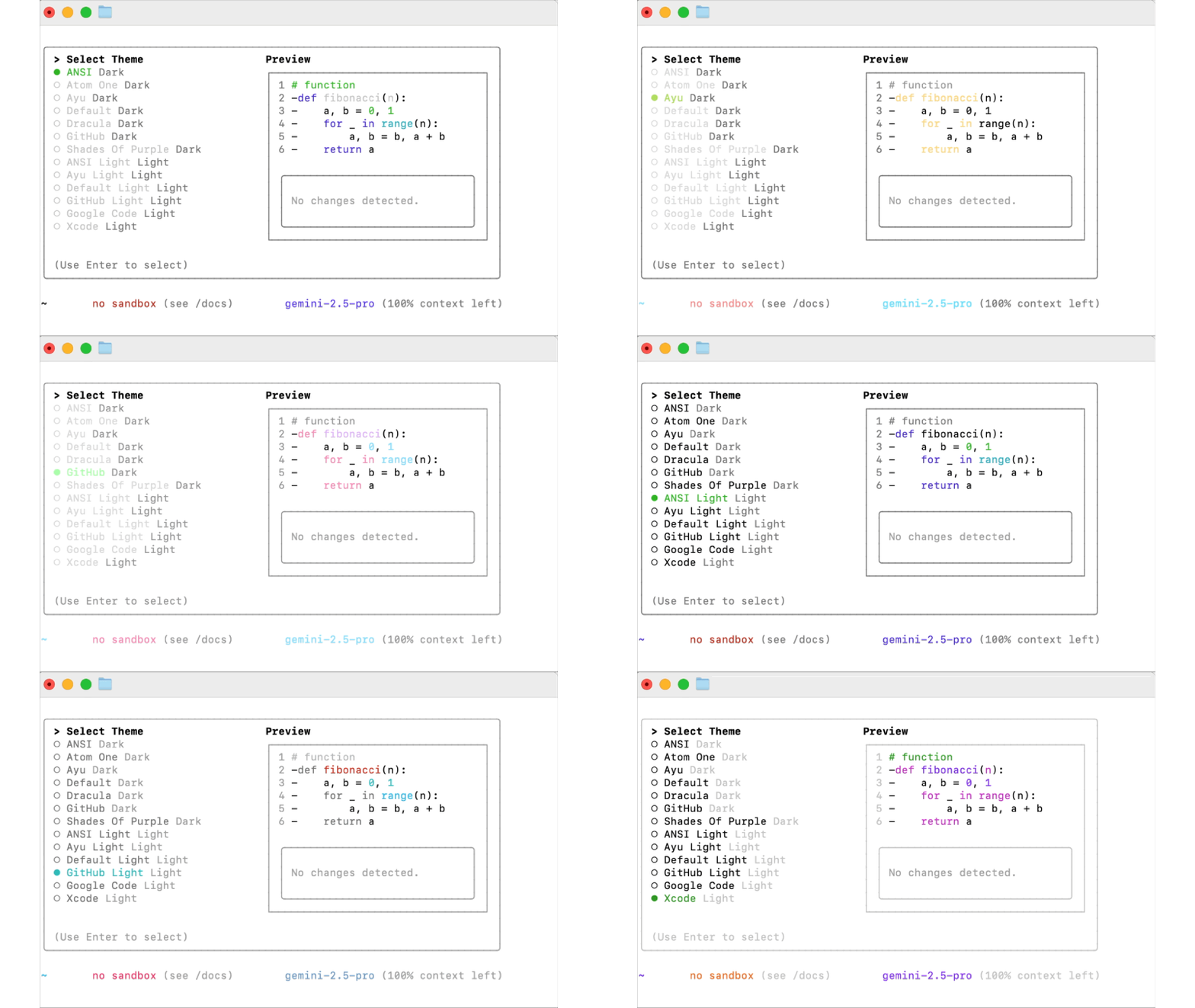
Change the color theme later
You can switch the theme at any time from the Gemini CLI prompt:
Gemini CLI prompt/themeBelow is a screenshot of the command in action.

-
Login
There are three ways to sign in:- Login with Google
- Gemini API Key (AI Studio)
- Vertex AI
The quickest option is Login with Google.
Selecting it will automatically open your browser, allowing you to sign in with your Google account in just a few clicks.
-
Data sharing with Google
If you do not want to allow product development/improvement data to be sent to Google, configure it as follows:-
In the Gemini CLI prompt, choose
/privacy(type/to display and select available slash commands).

-
Select No.

-
Using Gemini CLI
The experience is much like the web or mobile app. You chat with Gemini in the terminal, and Gemini can execute shell commands on your behalf.
Below is a screenshot(Japanese) where I asked it to create a new folder.
Before Gemini runs any command, you’ll be prompted to choose: Allow once, Always allow this command, or Deny.

Beyond engineering tasks, it’s also handy for naming and organizing folders and files.
How to Exit Gemini CLI
You may need to press Ctrl + D twice to exit.
- In interactive mode, press
Ctrl + D.
The message “Press Ctrl+D again to exit.” appears. - While that message is shown, press
Ctrl + Dagain to quit.
Updating Gemini CLI
npm update -g @google/gemini-cli
Example
- Check the current version
- Update Gemini CLI
- Verify the updated version
% gemini --version
0.1.7

% npm update -g @google/gemini-cli

added 1 package, and changed 261 packages in 5s

153 packages are looking for funding
run `npm fund` for details

% gemini --version

0.1.9
Can I update with `npm install -g @google/gemini-cli`?
Yes — npm install -g @google/gemini-cli will also update to the latest version.
Reinstalling the same package globally replaces it with the latest version, so it effectively works as an update. Its behavior differs slightly from npm update -g.
| Command | Primary use | How it behaves |
|---|---|---|
npm install -g @google/gemini-cli |
First-time install / force re-install | - Fetches the latest and reinstalls - Re-resolves dependencies - Useful when you explicitly want to skip past versions |
npm update -g @google/gemini-cli |
Update an existing package | - Targets packages already installed - Upgrades only what’s “updatable” without breaking the tree - Skips when a version is pinned (e.g., @1.2.3) |
Which should I use?
-
Update a single tool / cache seems suspicious →
npm install -g [<package-spec> ...] -
Update multiple global tools at once →
npm update -g
npm install -g [<package-spec> ...]can also act as a reset if an update fails or dependencies get corrupted.
% gemini --version

0.1.9

% npm install -g @google/gemini-cli

**npm** warn deprecated node-domexception@1.0.0: Use your platform's native DOMException instead #Node.js に DOMException が標準実装されたためポリフィルが非推奨の警告です。動作には影響しません。

added 15 packages, removed 10 packages, and changed 422 packages in 8s

128 packages are looking for funding

run `npm fund` for details

% gemini --version

0.1.12
Uninstalling
If you no longer need Gemini CLI, you can uninstall it with:
npm uninstall -g @google/gemini-cli
Discussion