【SwiftUI】Level up your ScrollView(関連モディファイア等の一覧)



scrollDisabled
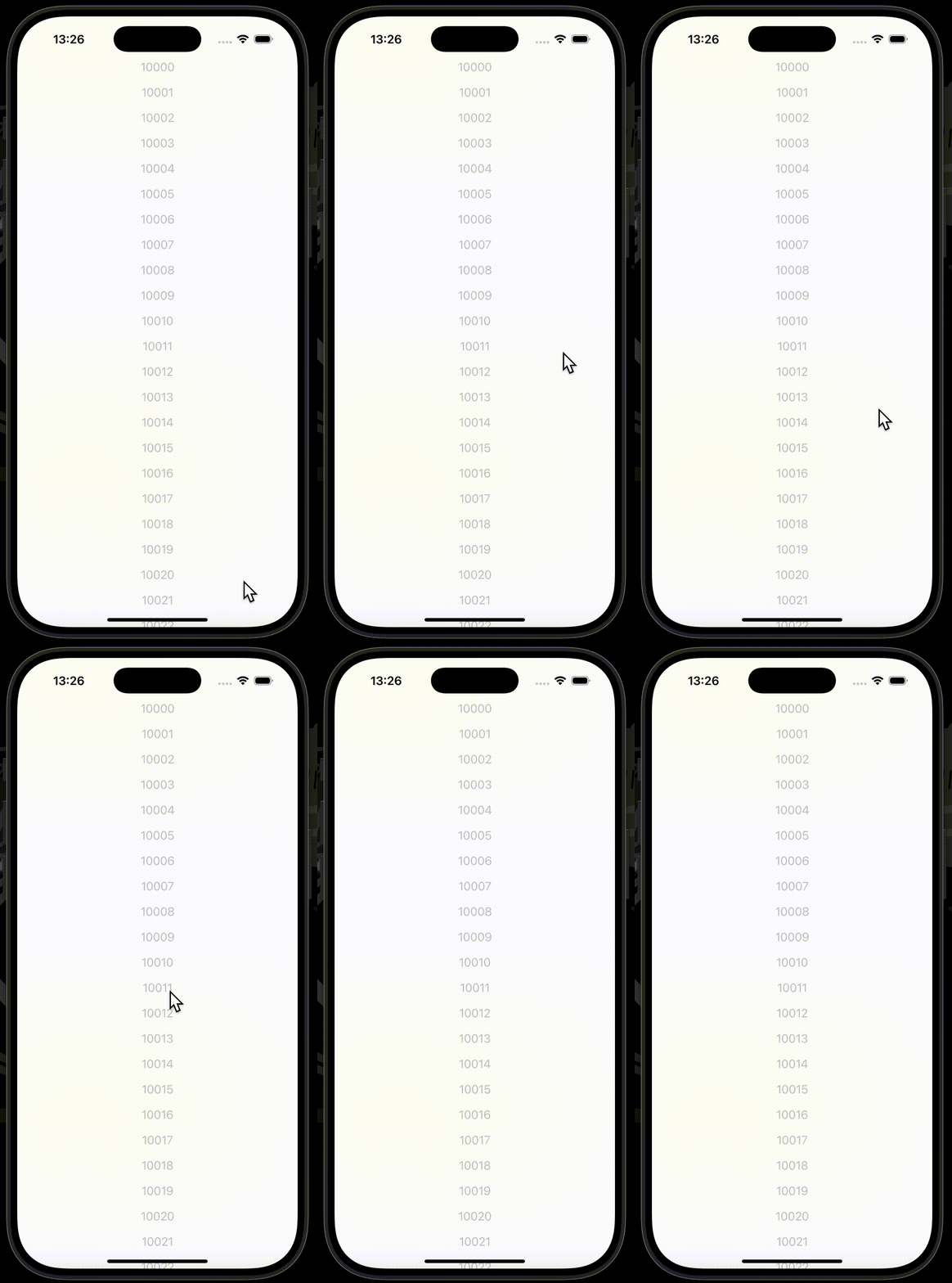
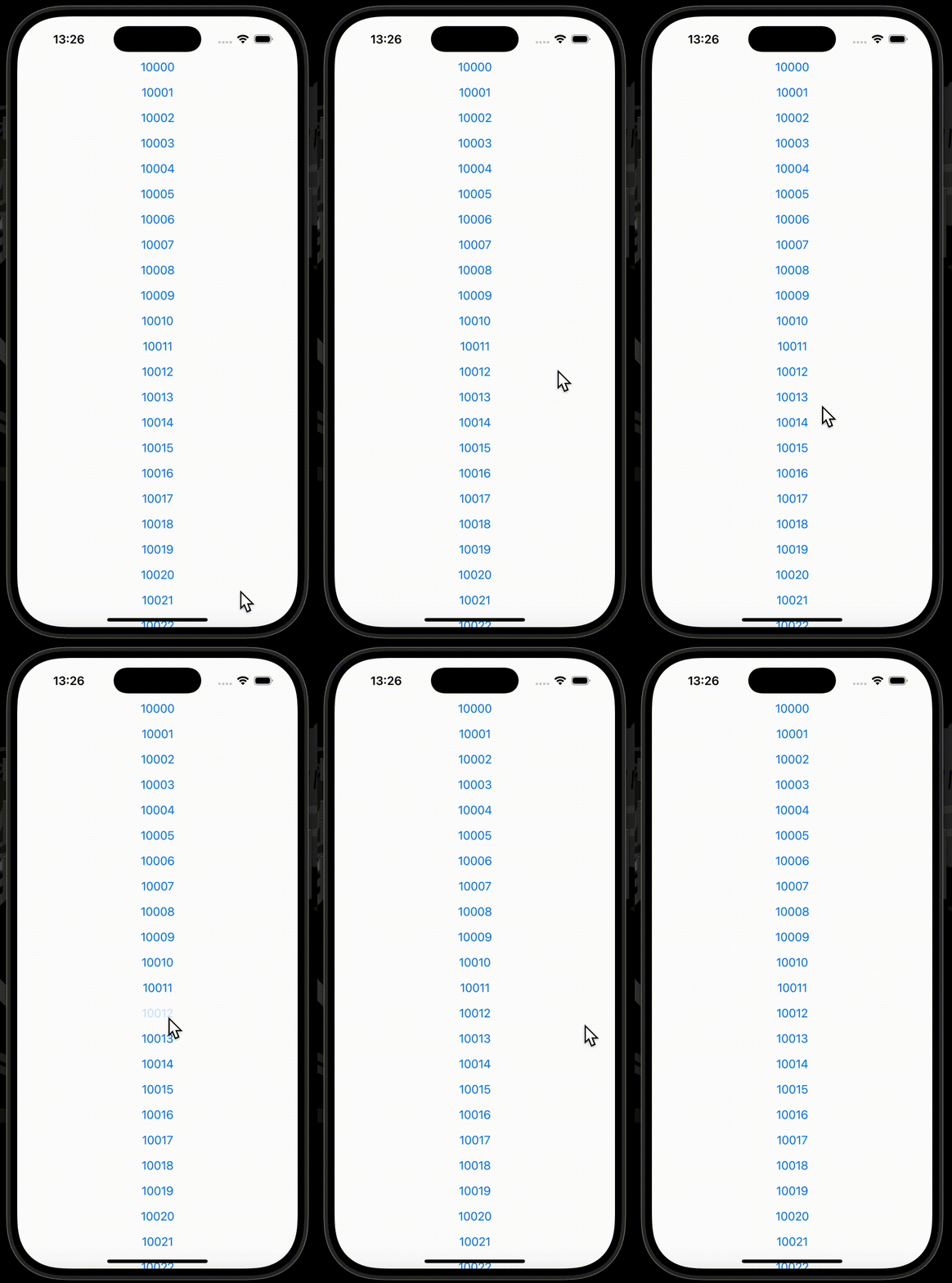
scrollDisabledモディファイアを使用することで、スクロールの無効化を設定することができます。
disabledモディファイアでもスクロールの無効化を設定できますが、同時にスクロールビュー内にあるボタンなども無効化してしまいます。
| disabled | scrollDisabled |
|---|---|
 |
 |
使用したコードはこちら
struct ContentView: View {
    var body: some View {
        ScrollView {
            LazyVStack(spacing: 16) {
                ForEach(10000..<10100) { _ in
                    Rectangle()
                        .frame(height: 100)
                }
            }
        }
        .scrollDisabled(true) // ✅
    }
}
defaultScrollAnchor
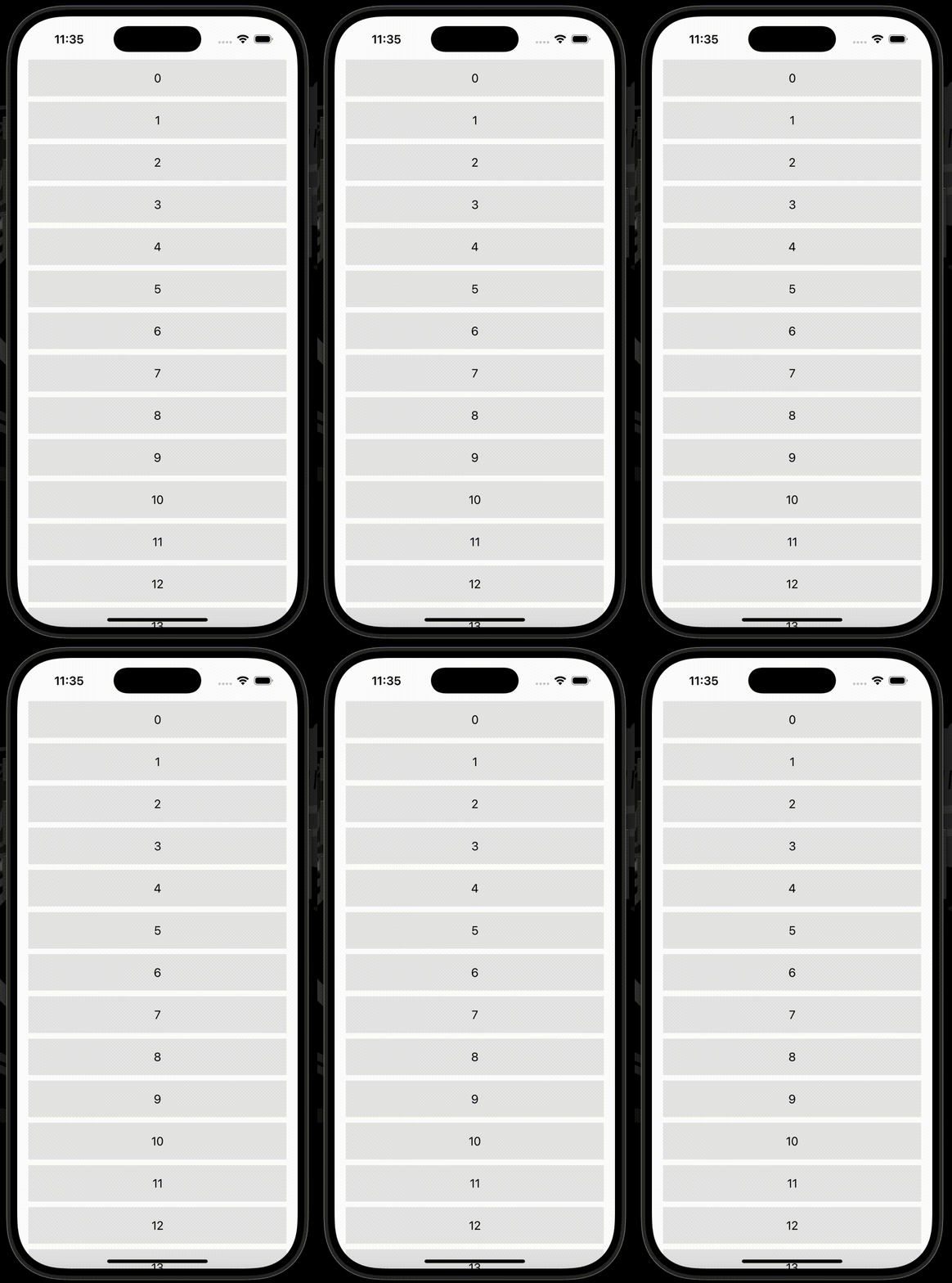
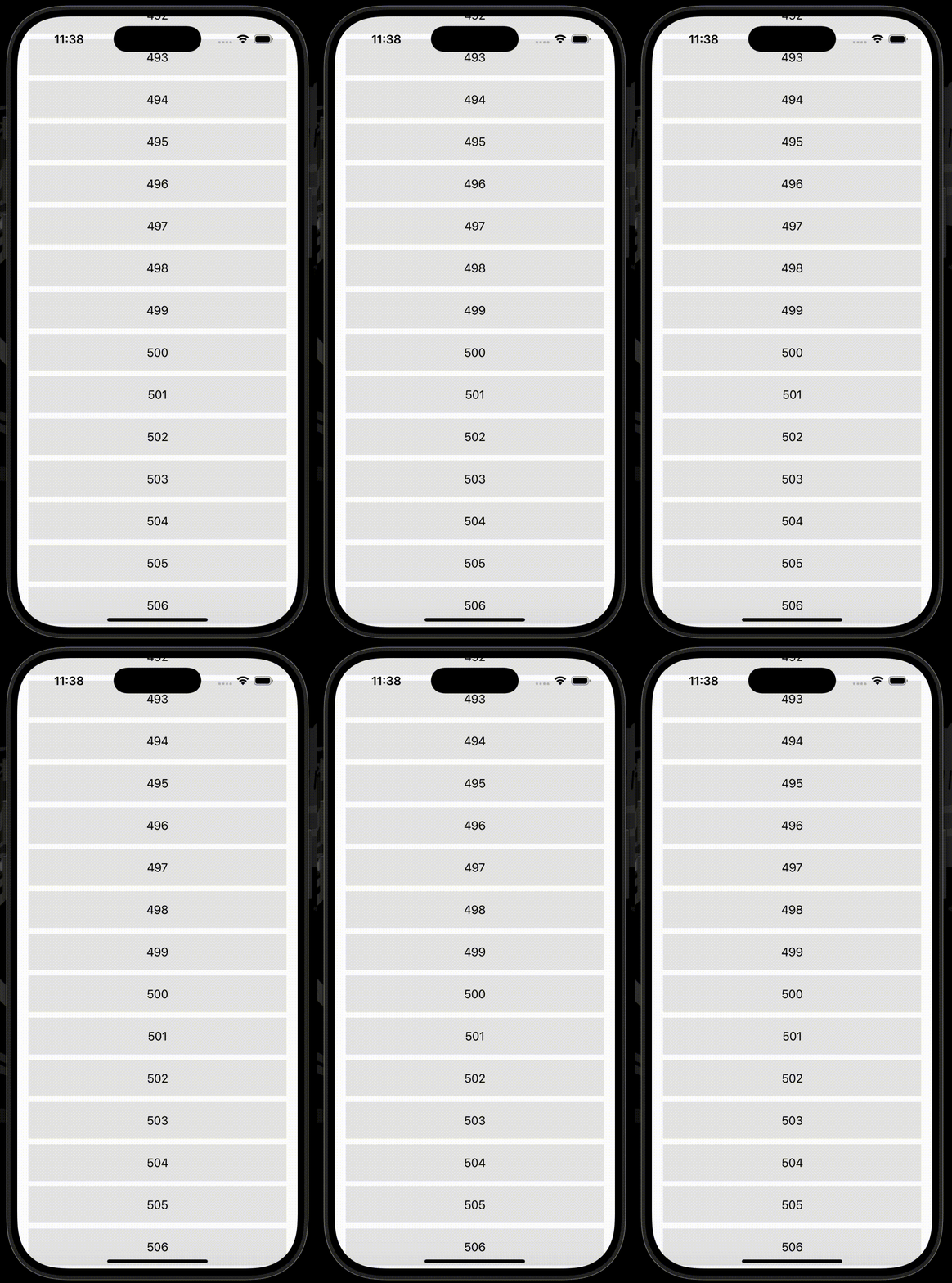
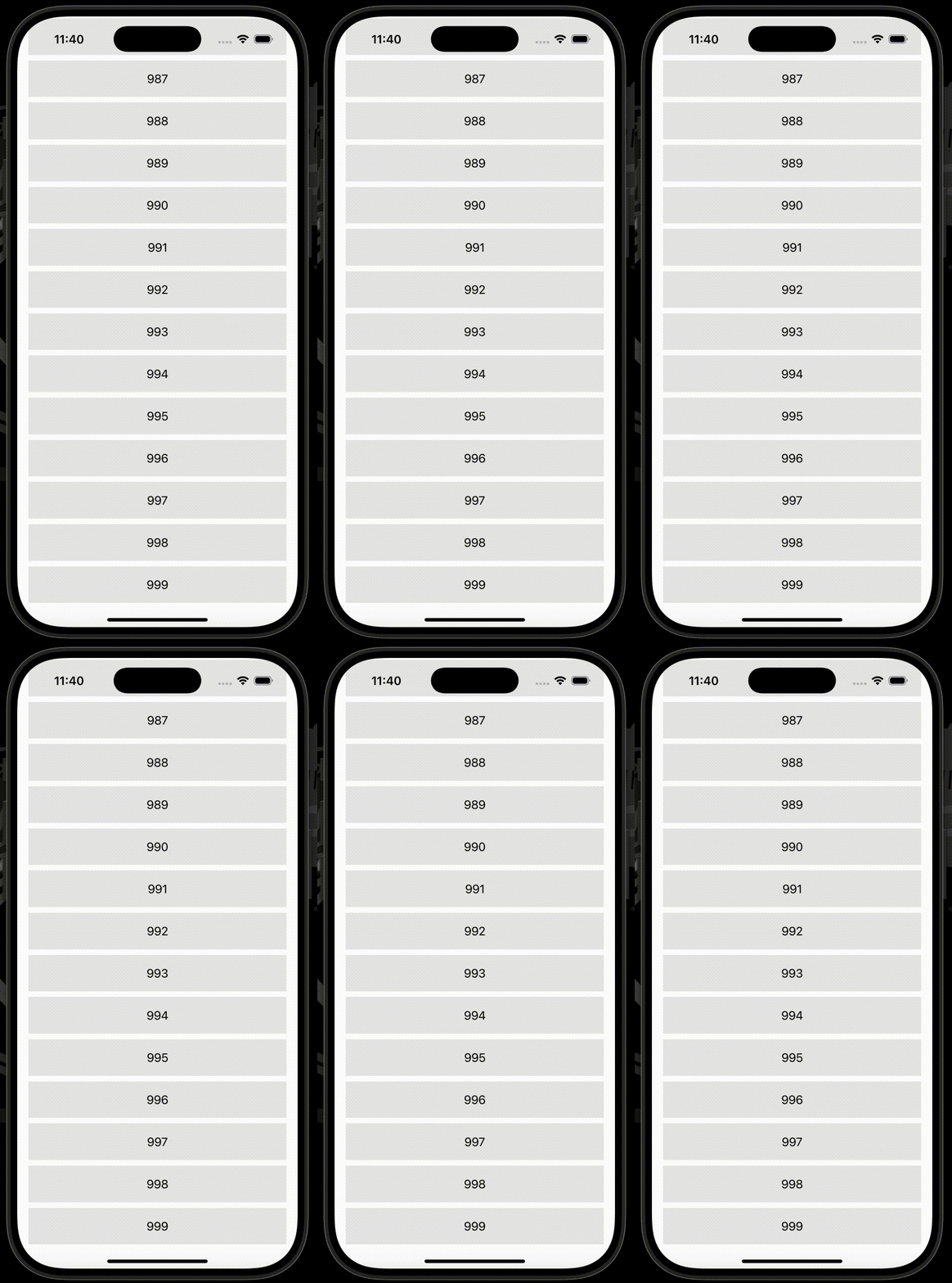
defaultScrollAnchorモディファイアを使用することで、スクロールビュー表示時に、コンテントをどこから表示するかを設定することができます。
下の例は、引数anchorに.top、.center、.bottomをそれぞれ設定した例です。
| .top | .center | .bottom |
|---|---|---|
 |
 |
 |
使用したコードはこちら
struct ContentView: View {
    var body: some View {
        ScrollView {
            LazyVStack(spacing: nil) {
                ForEach(0..<1000) { i in
                    Text(i.description)
                        .padding(.vertical)
                        .frame(maxWidth: .infinity)
                        .background(.gray.opacity(0.2))
                }
            }
        }
        .defaultScrollAnchor(.top) // ✅
        .contentMargins(.horizontal, 16, for: .scrollContent)
    }
}
scrollClipDisabled
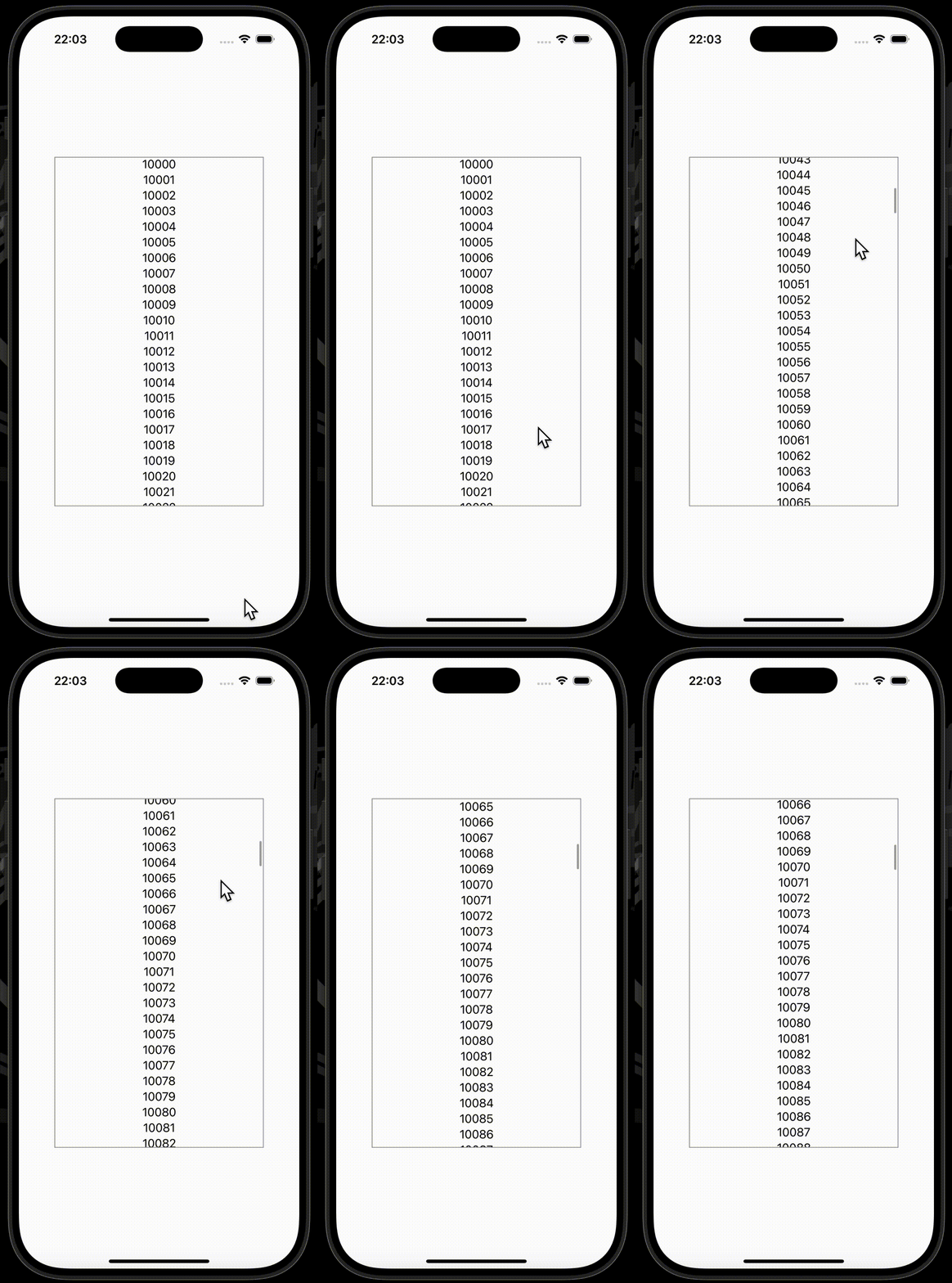
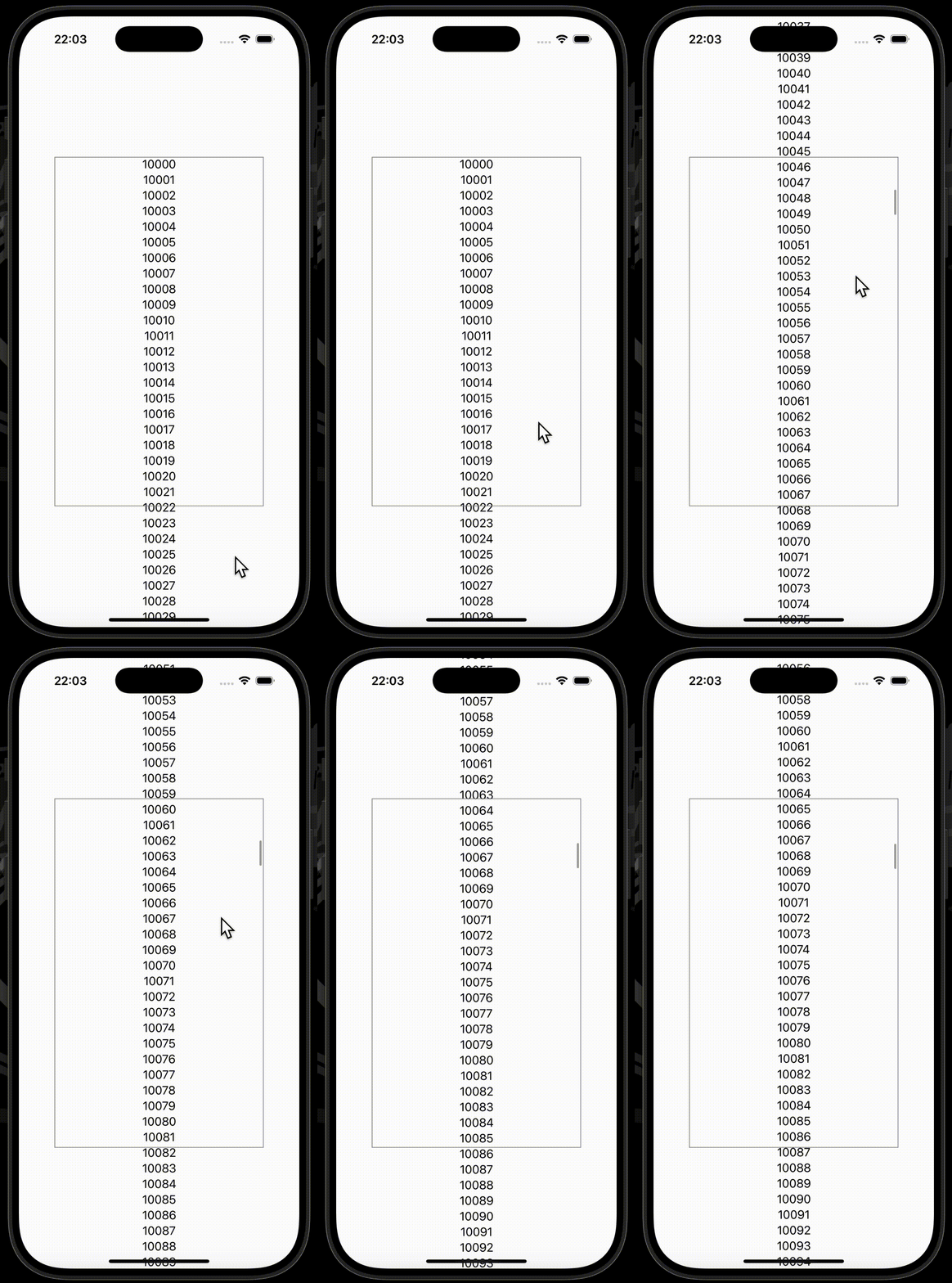
scrollClipDisabledモディファイアを使用することで、スクロールビューのクリップの無効化を設定することができます。
引数disabledにBoolを渡し、無効化の設定を行います。デフォルト引数として、trueが設定されています。
| scrollClipDisabledなし | scrollClipDisabledあり |
|---|---|
 |
 |
使用したコードはこちら
struct ContentView: View {
    var body: some View {
        ScrollView {
            VStack(spacing: nil) {
                ForEach(10000..<10500) { i in
                    Text(i.description)
                }
            }
            .frame(maxWidth: .infinity)
        }
        .scrollClipDisabled() // ✅
        .frame(width: 300, height: 500)
        .border(.gray)
    }
}
scrollIndicators
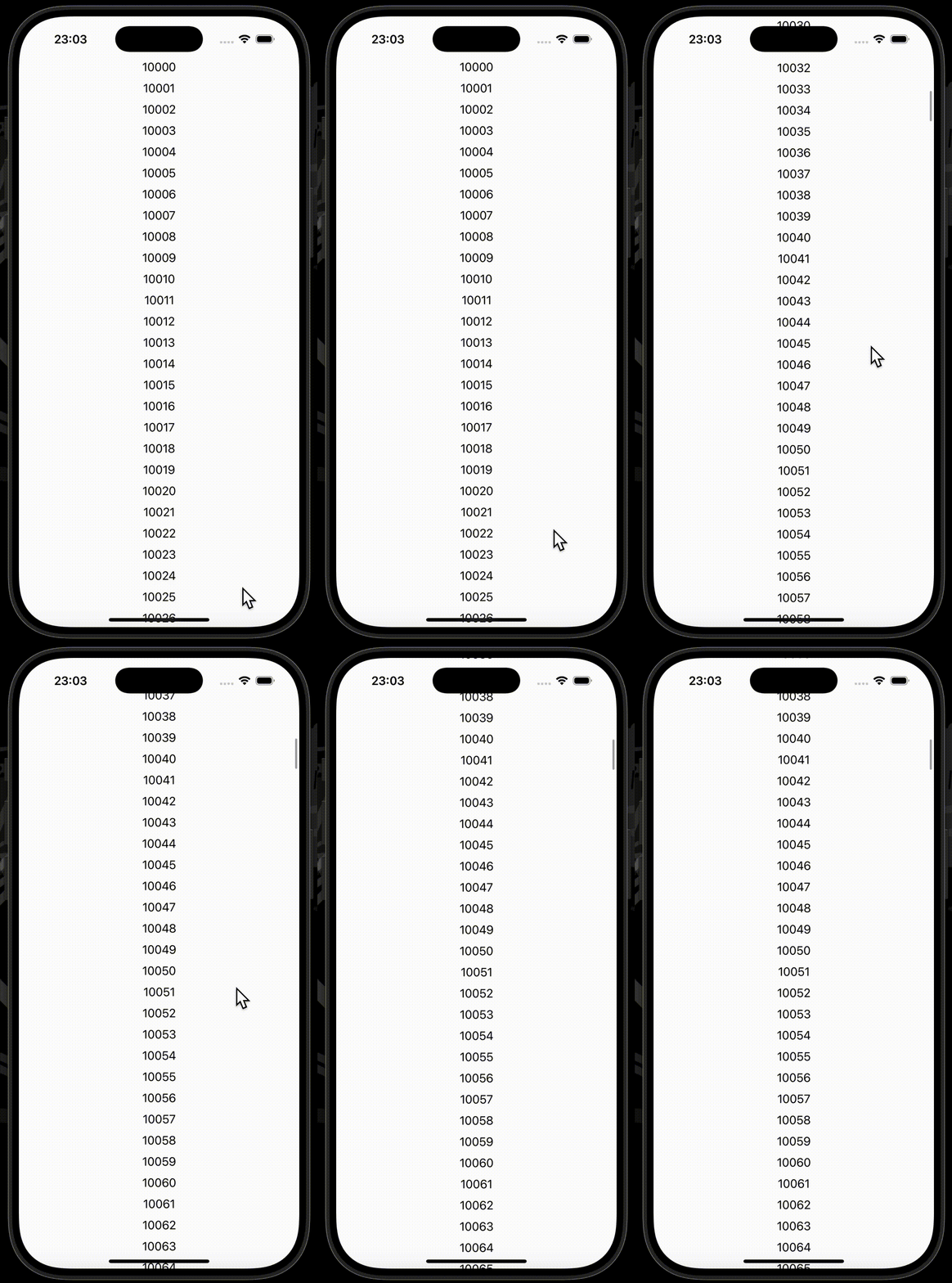
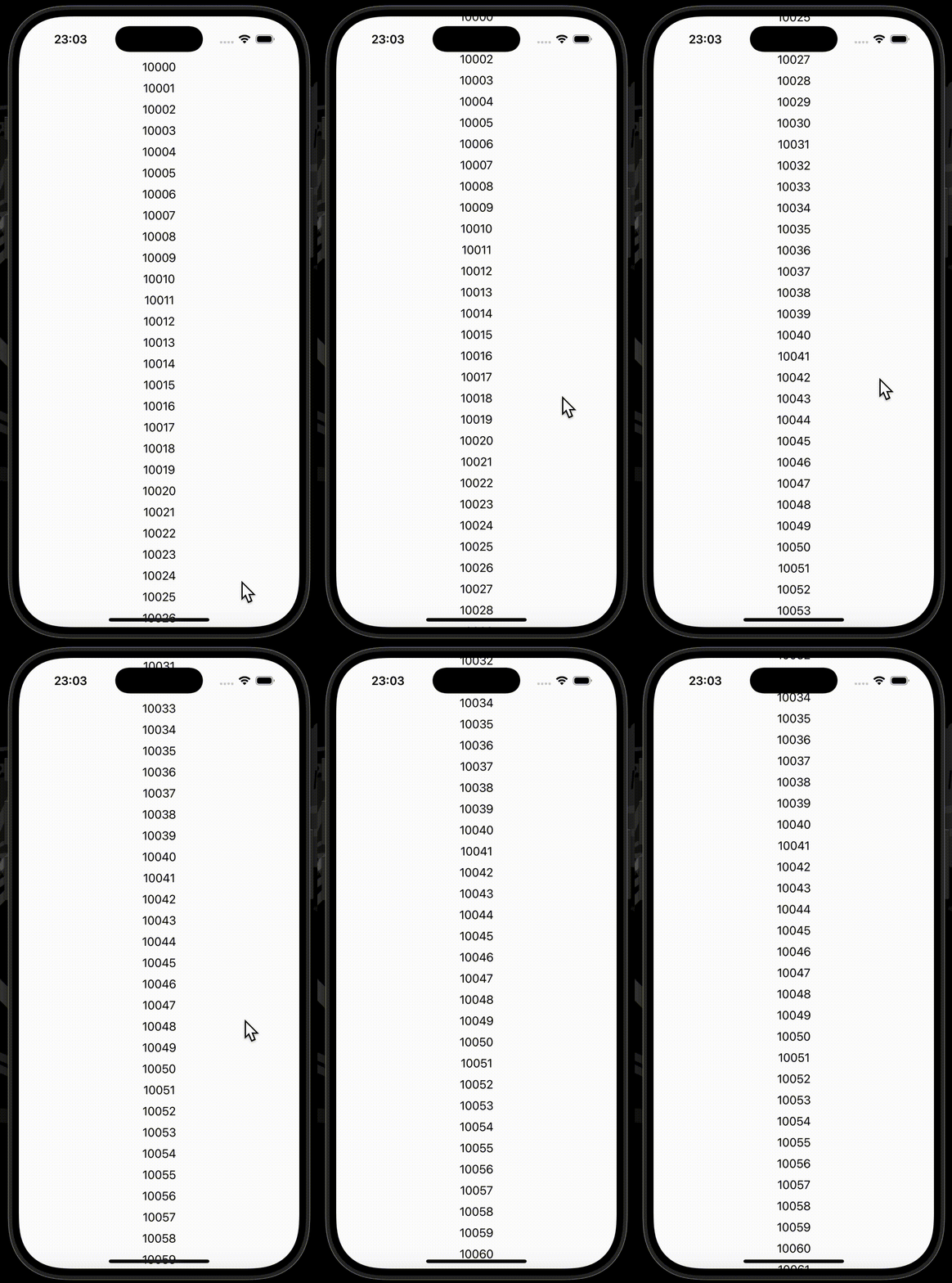
scrollIndicatorsモディファイアを使用することで、スクロールインジケーターの表示に関する設定をすることができます。
引数visibilityに対して、.hiddenを渡すことで、スクロールインジケーターを非表示にすることができます。
| scrollIndicators(.hidden)なし | scrollIndicators(.hidden)あり |
|---|---|
 |
 |
使用したコードはこちら
struct ContentView: View {
    var body: some View {
        ScrollView {
            LazyVStack(spacing: 10) {
                ForEach(10000..<10500) { i in
                    Text(i.description)
                }
            }
        }
        .scrollIndicators(.hidden) // ✅
    }
}
scrollIndicatorsFlash
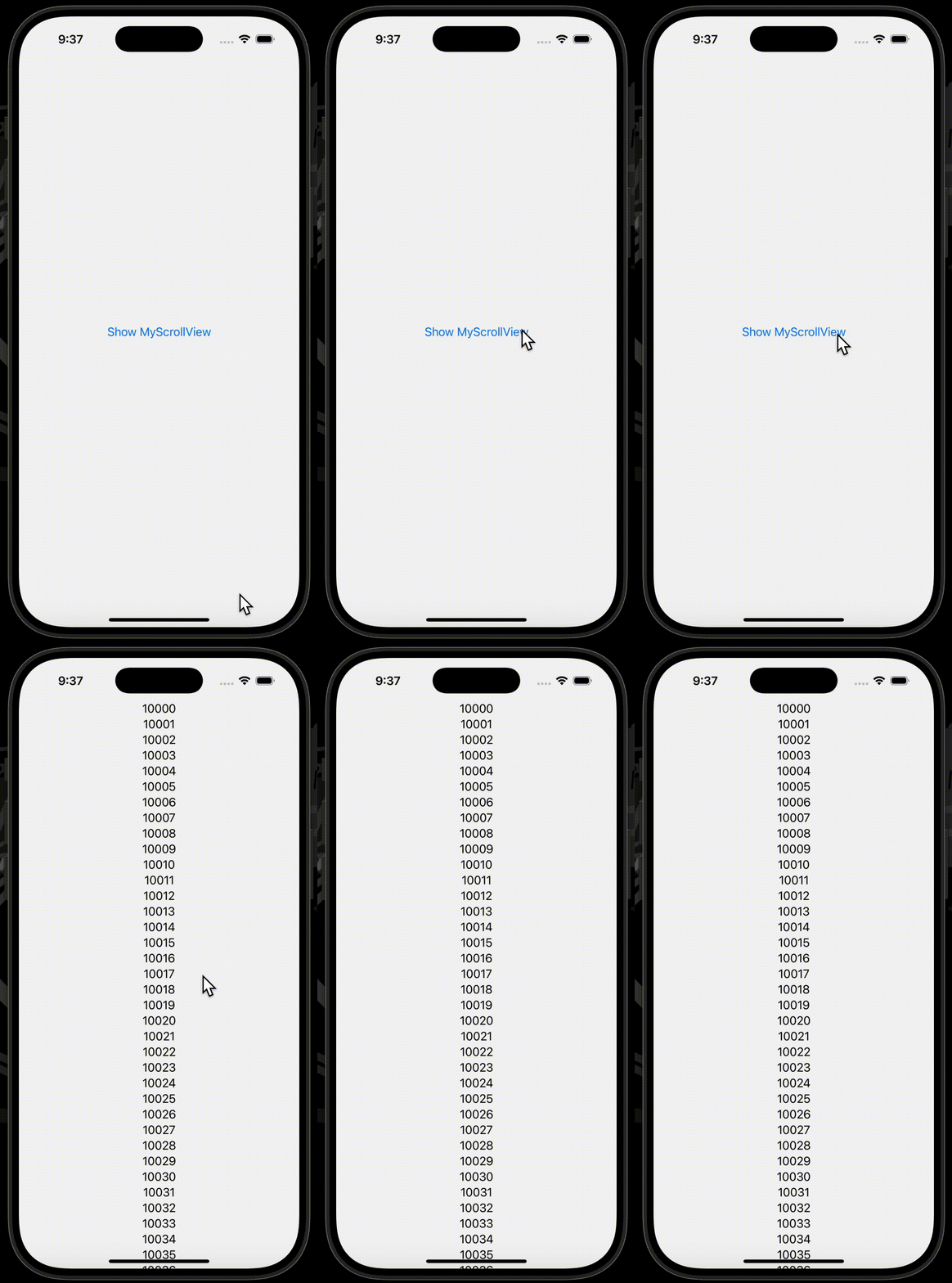
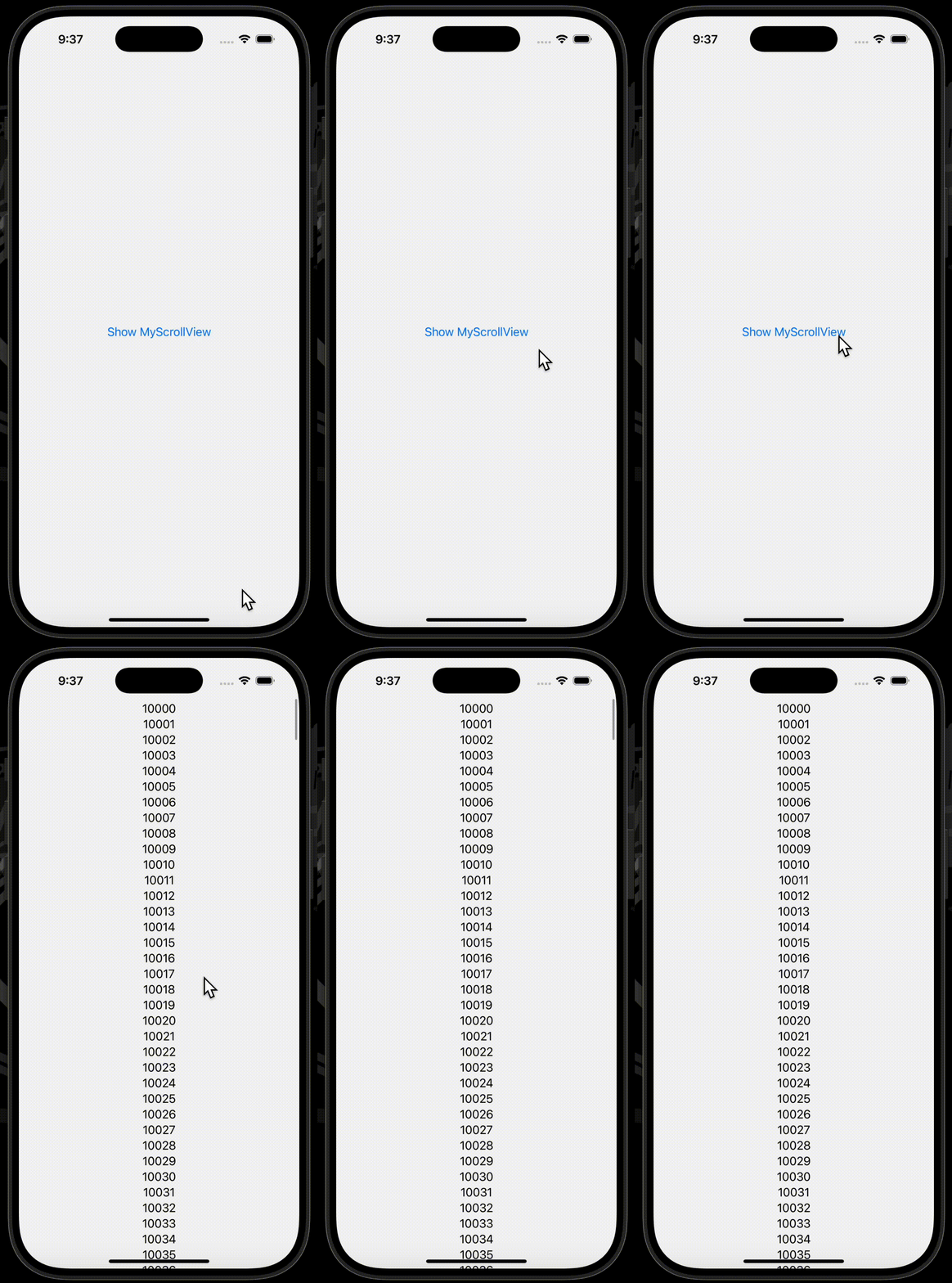
scrollIndicatorsFlashモディファイアを使用することで、スクロールビューが表示された時、もしくは特定の値が変更された時に、スクロールインジケーターを点滅させることができます。
まずは、スクロールビューが表示された時にスクロールインジケーターが点滅する例です。
.scrollIndicatorsFlash(onAppear: true)を付与した場合、付与しなかった場合を提示します。右上に注目してください。
| .scrollIndicatorsFlash(onAppear: true)なし | .scrollIndicatorsFlash(onAppear: true)あり |
|---|---|
 |
 |
使用したコードはこちら
struct ContentView: View {

    @State private var isShowingMyScrollView = false

    var body: some View {
        if isShowingMyScrollView == true {
            ScrollView {
                LazyVStack(spacing: nil) {
                    ForEach(10000..<10500) { i in
                        Text(i.description)
                    }
                }
            }
            .scrollIndicatorsFlash(onAppear: true) // ✅
        } else {
            Button("Show MyScrollView") {
                isShowingMyScrollView = true
            }
        }
    }
}
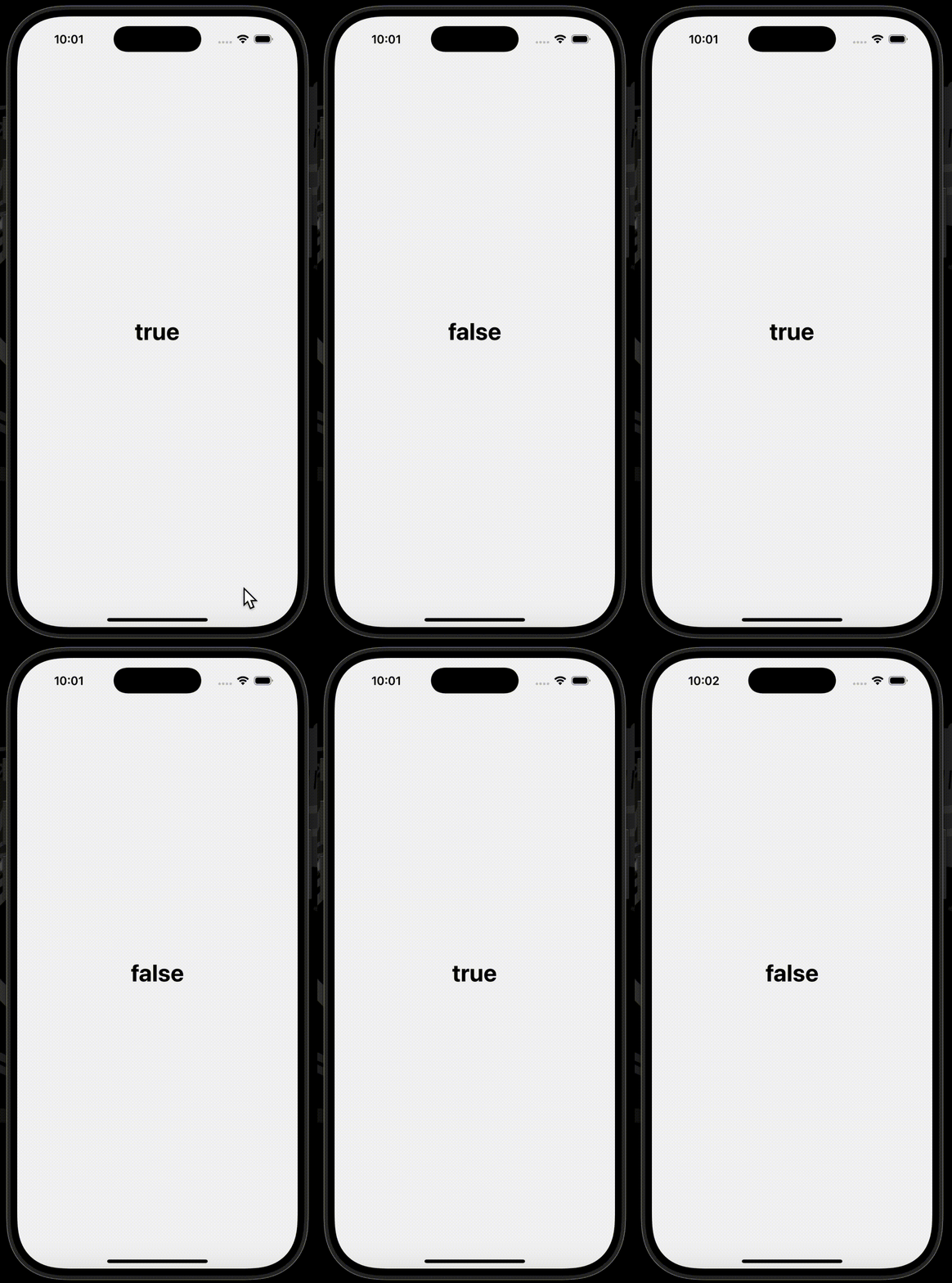
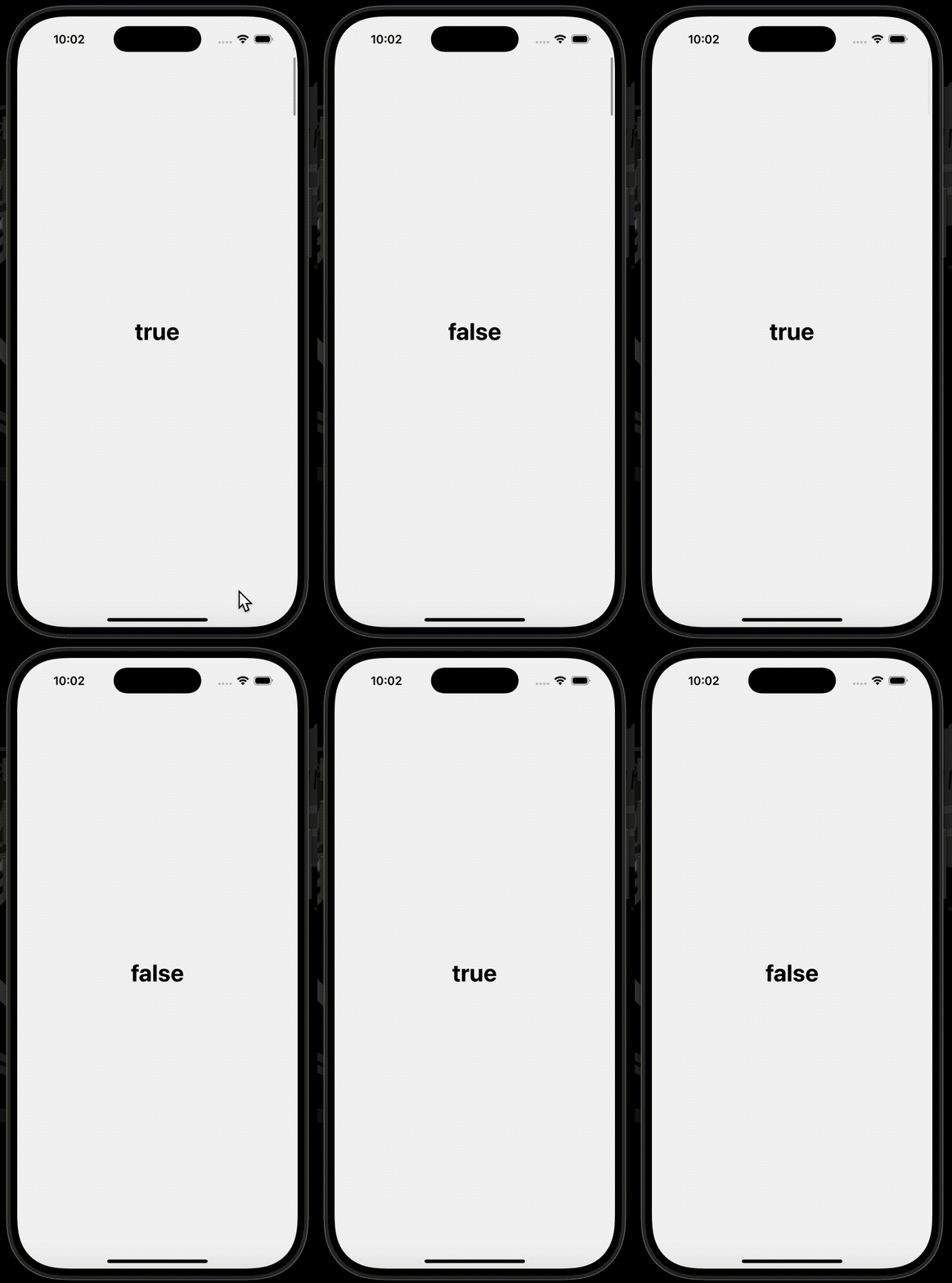
次に、特定の値が変更された時にスクロールインジケーターが点滅する例です。
3秒おきに変数boolの値を変転させています。先ほどと同様、右上に注目してください。
| .scrollIndicatorsFlash(trigger: true)なし | .scrollIndicatorsFlash(trigger: true)あり |
|---|---|
 |
 |
使用したコードはこちら
struct ContentView: View {

    @State private var bool = false

    var body: some View {
        ScrollView {
            LazyVStack(spacing: nil) {
                ForEach(0..<10, id: \.self) { _ in
                    Text(bool.description)
                        .font(.largeTitle.bold())
                        .containerRelativeFrame([.horizontal, .vertical])
                }
            }
        }
        .scrollIndicatorsFlash(trigger: bool) // ✅
        .task {
            while true {
                bool.toggle()
                try? await Task.sleep(for: .seconds(3.0))
            }
        }
    }
}
scrollDismissKeyboard
scrollDismissKeyboardモディファイアを使用することで、スクロール時のキーボードの挙動を設定することができます。
引数modeにScrollDismissesKeyboardModeを渡し、スクロール時のキーボードの挙動を設定します。
| ScrollDismissesKeyboardMode | Description |
|---|---|
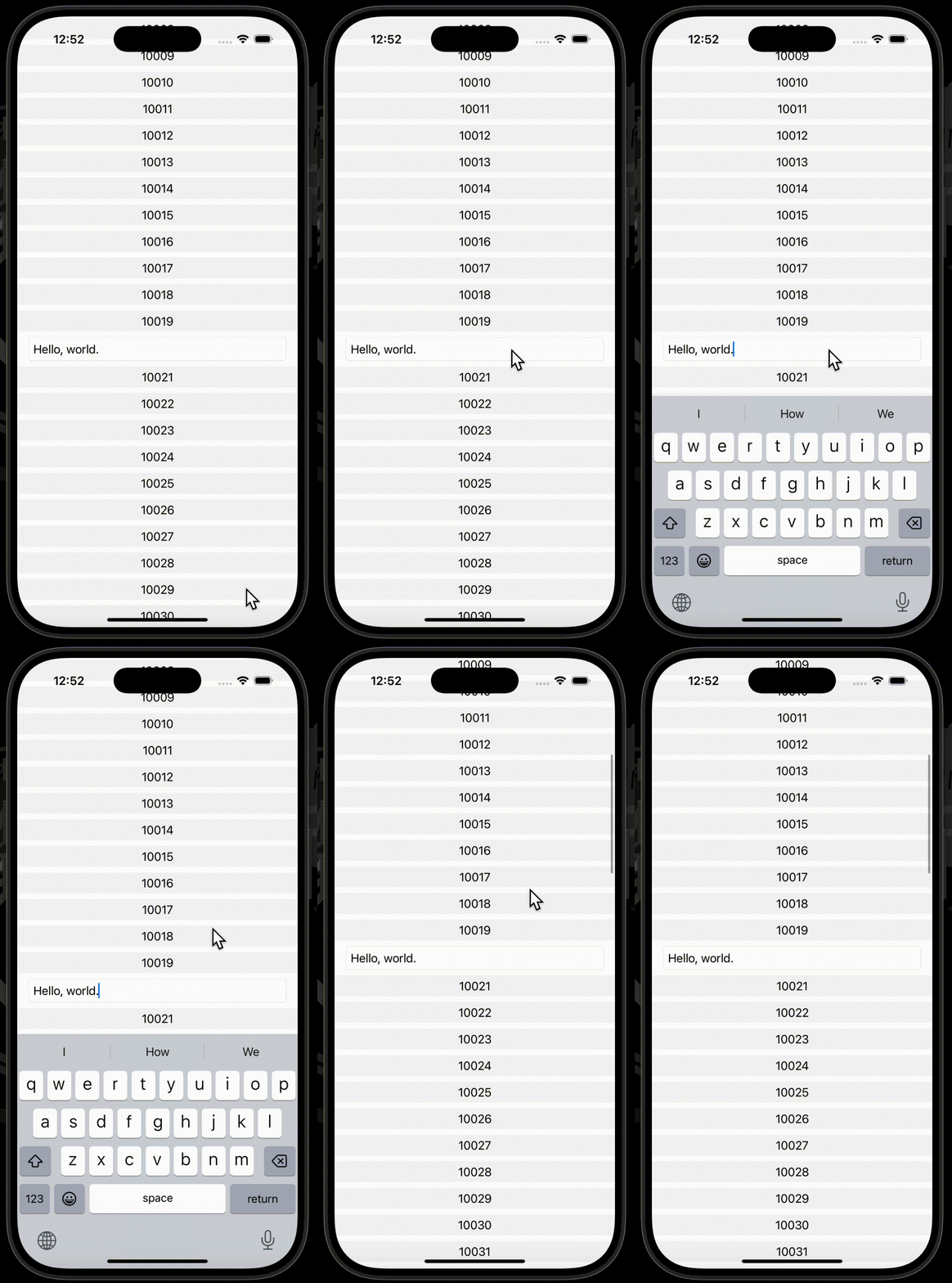
| .immediately | スクロールされるとすぐにキーボードを閉じる。 |
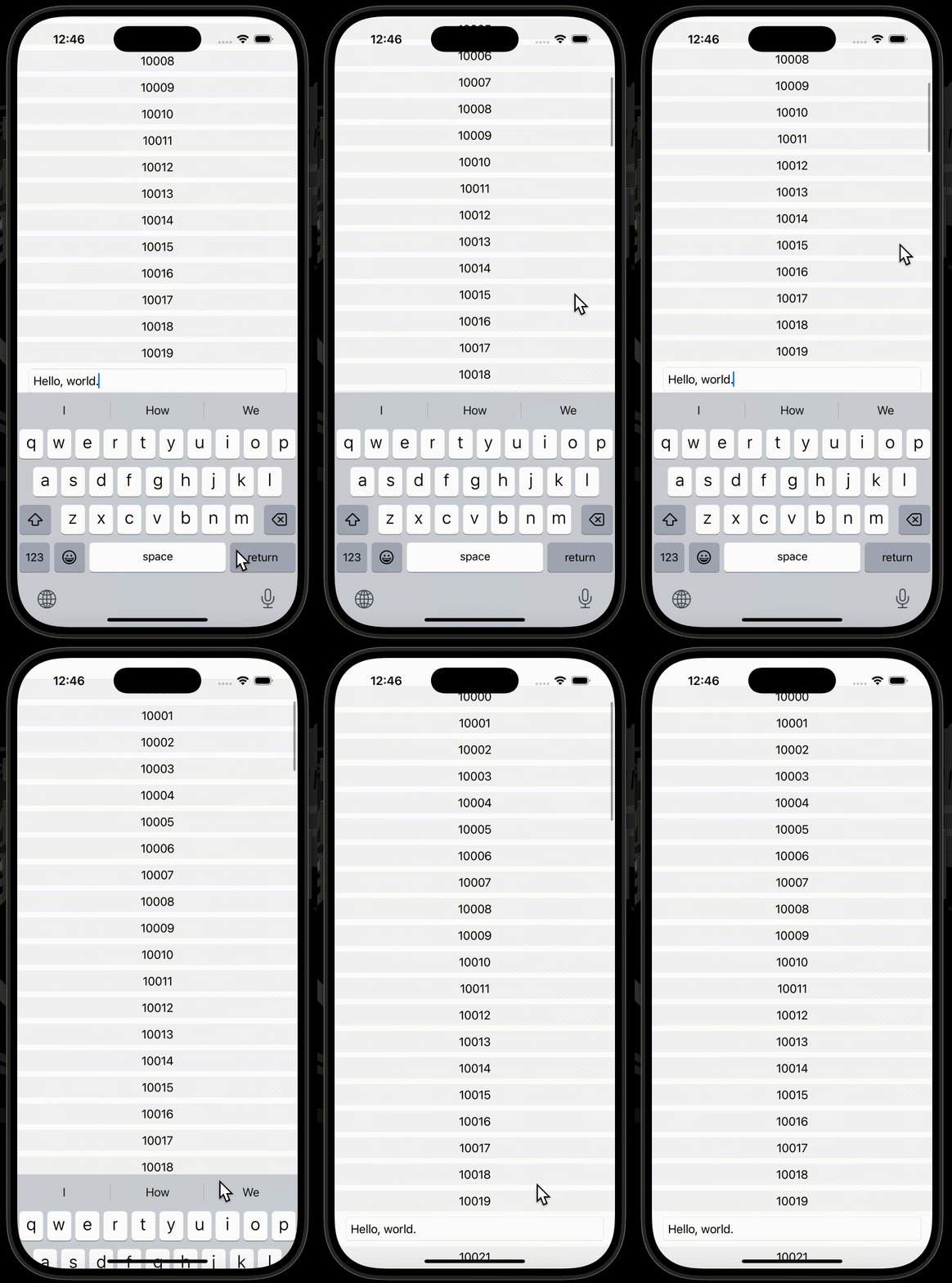
| .interactively | スクロールによりキーボードは閉じられないが、スワイプダウンによりキーボードを閉じることができる。 |
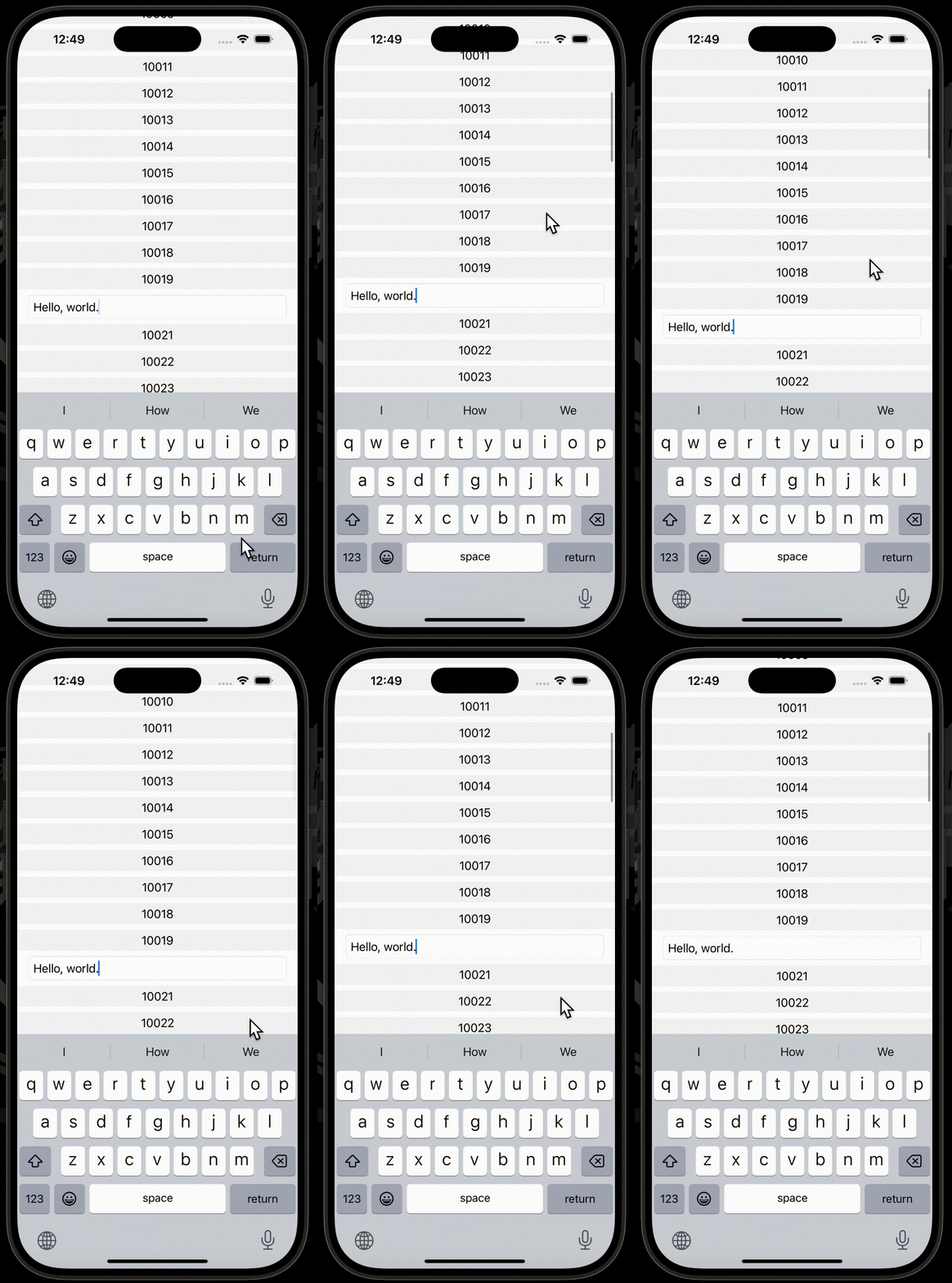
| .never | スクロールによりキーボードは閉じられない。 |
| .automatic | SwiftUIにスクロール時のキーボードの挙動を任せる。 |
下の例では、引数modeに.immediately、.interactively、.neverをそれぞれ設定しています。
| .immediately | .interactively | .never |
|---|---|---|
 |
 |
 |
使用したコードはこちら
struct ContentView: View {

    @State private var text = "Hello, world."

    var body: some View {
        ScrollView {
            VStack(spacing: nil) {
                ForEach(10000..<10100) { i in
                    if i == 10020 {
                        TextField(i.description, text: $text)
                            .textFieldStyle(.roundedBorder)
                    } else {
                        Text(i.description)
                            .frame(maxWidth: .infinity)
                            .frame(height: 30)
                            .background(.gray.opacity(0.1))
                    }
                }
            }
        }
        .safeAreaPadding(.horizontal)
        .scrollDismissesKeyboard(.immediately) // ✅
    }
}
safeAreaInset
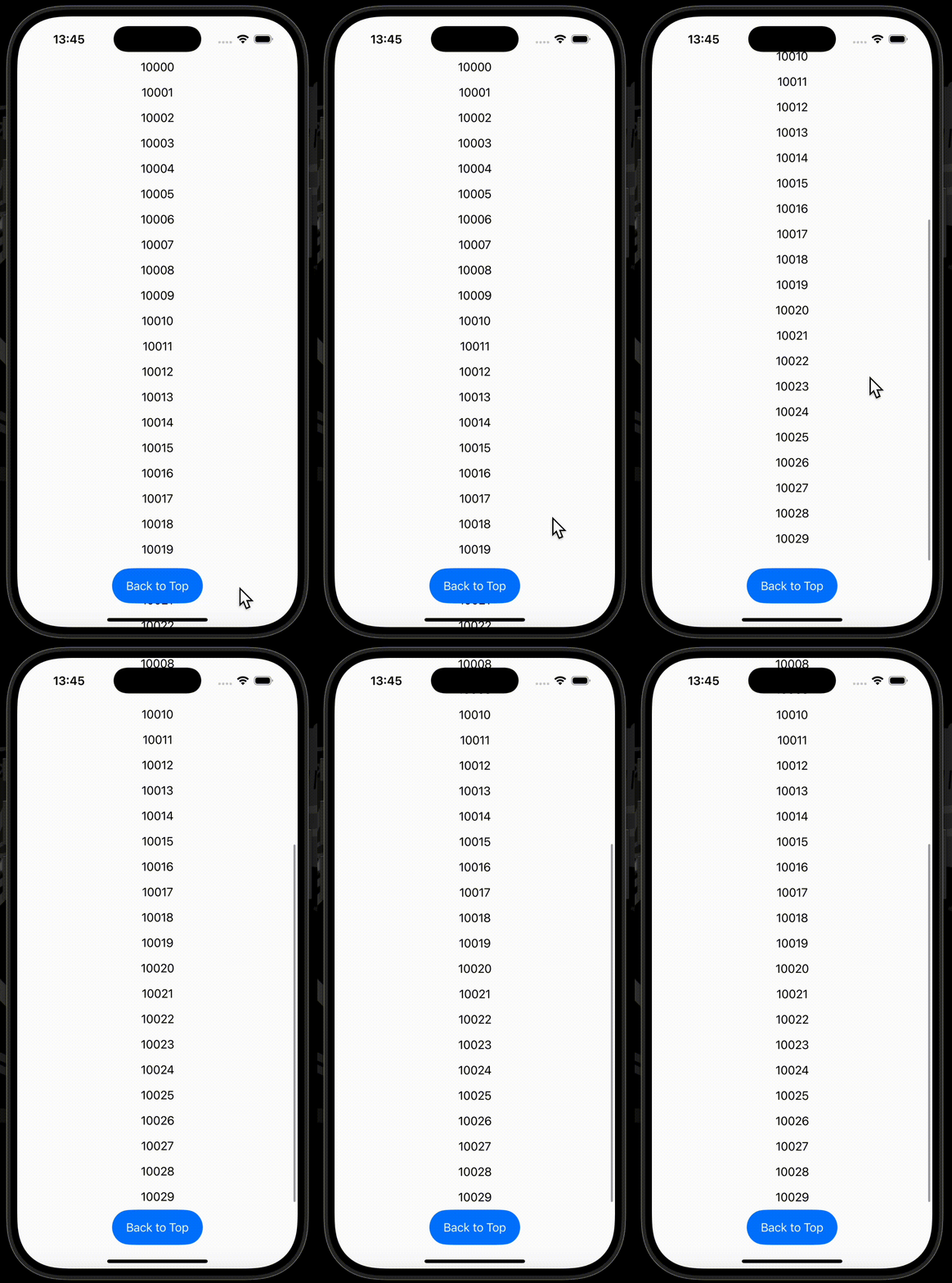
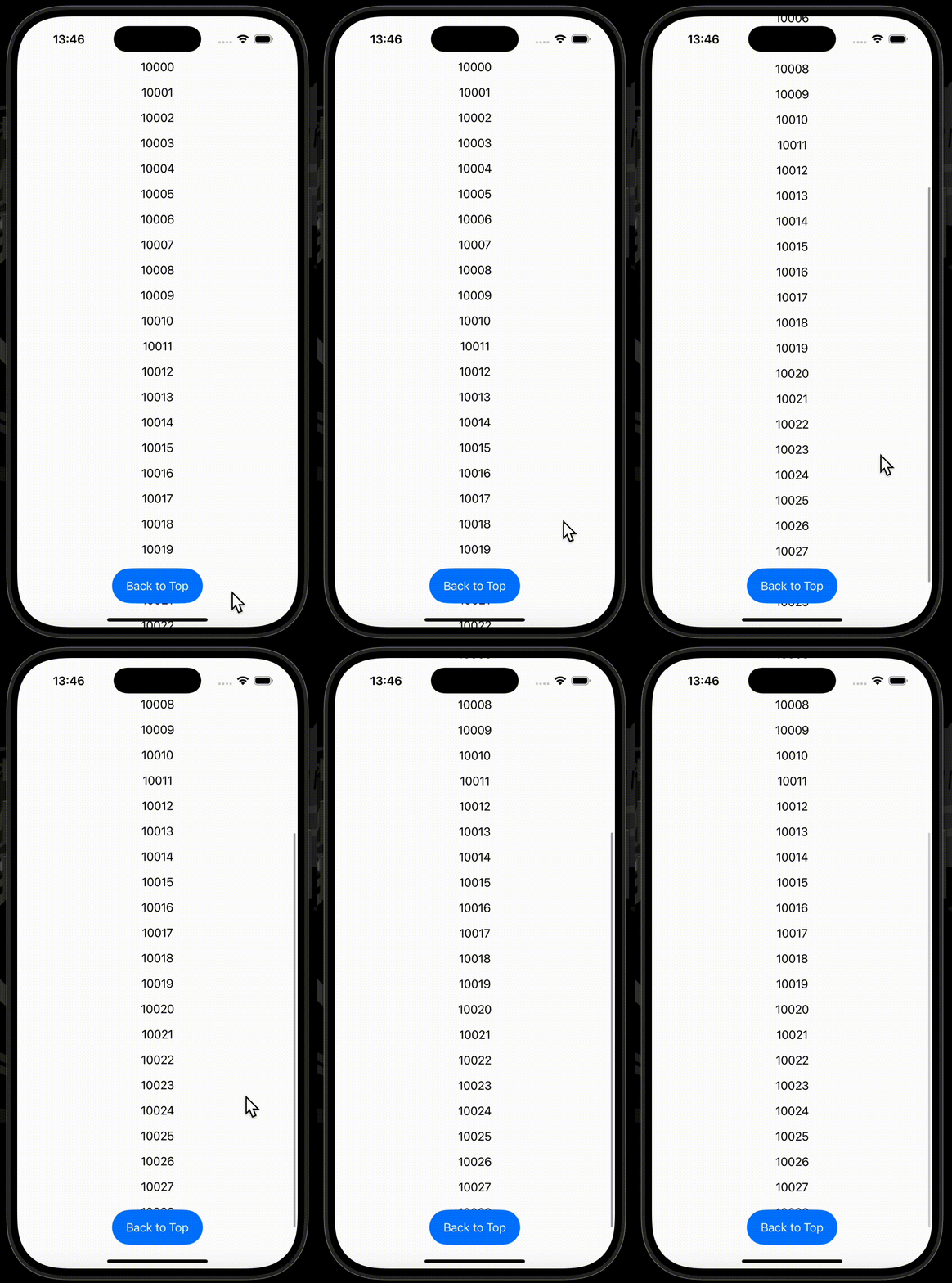
safeAreaInsetモディファイアを使用することで、特定のエッジに対し、ビューを配置することができます。
overlayモディファイアと似ていますが、overlayモディファイアは単なる上塗りであり、safeAreaInsetモディファイアは、セーフエリアの領域としてビューを差し込みます。
この差異が顕著に現れるのがスクロールビューの末尾です。overlayモディファイアを使用した場合では、ボタンが最後のビューに重なってしまいますが、safeAreaInsetを使用した場合では、ボタンが最後のビュー(10028と10029)に重なってしまうことはありません。
| safeAreaInset | overlay |
|---|---|
 |
 |
使用したコードはこちら
struct ContentView: View {
    var body: some View {
        ScrollView {
            LazyVStack(spacing: 16) {
                ForEach(10000..<10030) { i in
                    Text(i.description)
                }
            }
        }
        .safeAreaInset(edge: .bottom) {
            Button("Back to Top") {}
                .buttonStyle(.borderedProminent)
                .controlSize(.extraLarge)
        }
//        .overlay(alignment: .bottom) {
//            Button("Back to Top") {}
//                .buttonStyle(.borderedProminent)
//                .controlSize(.extraLarge)
//        }
    }
}
safeAreaPadding
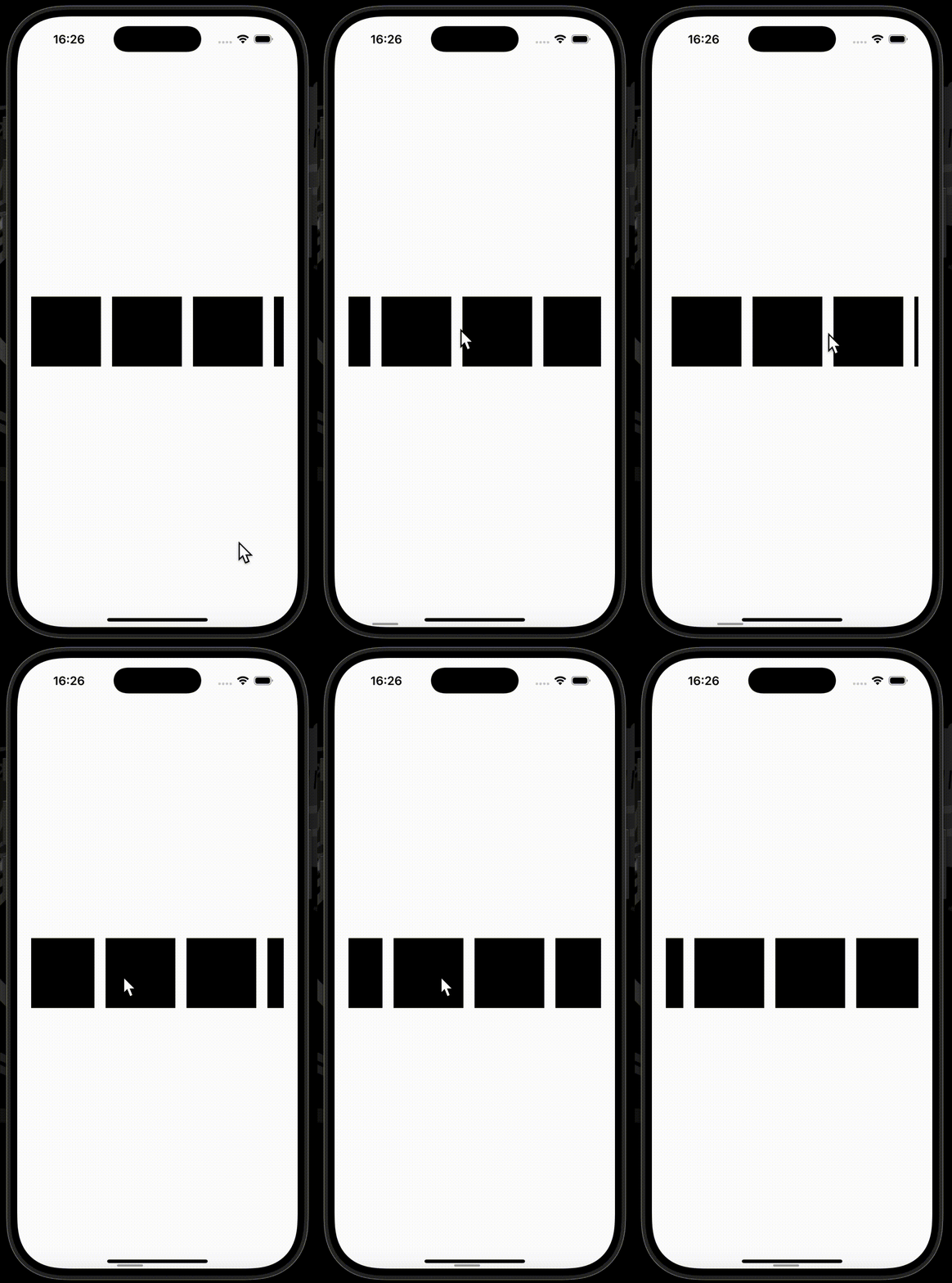
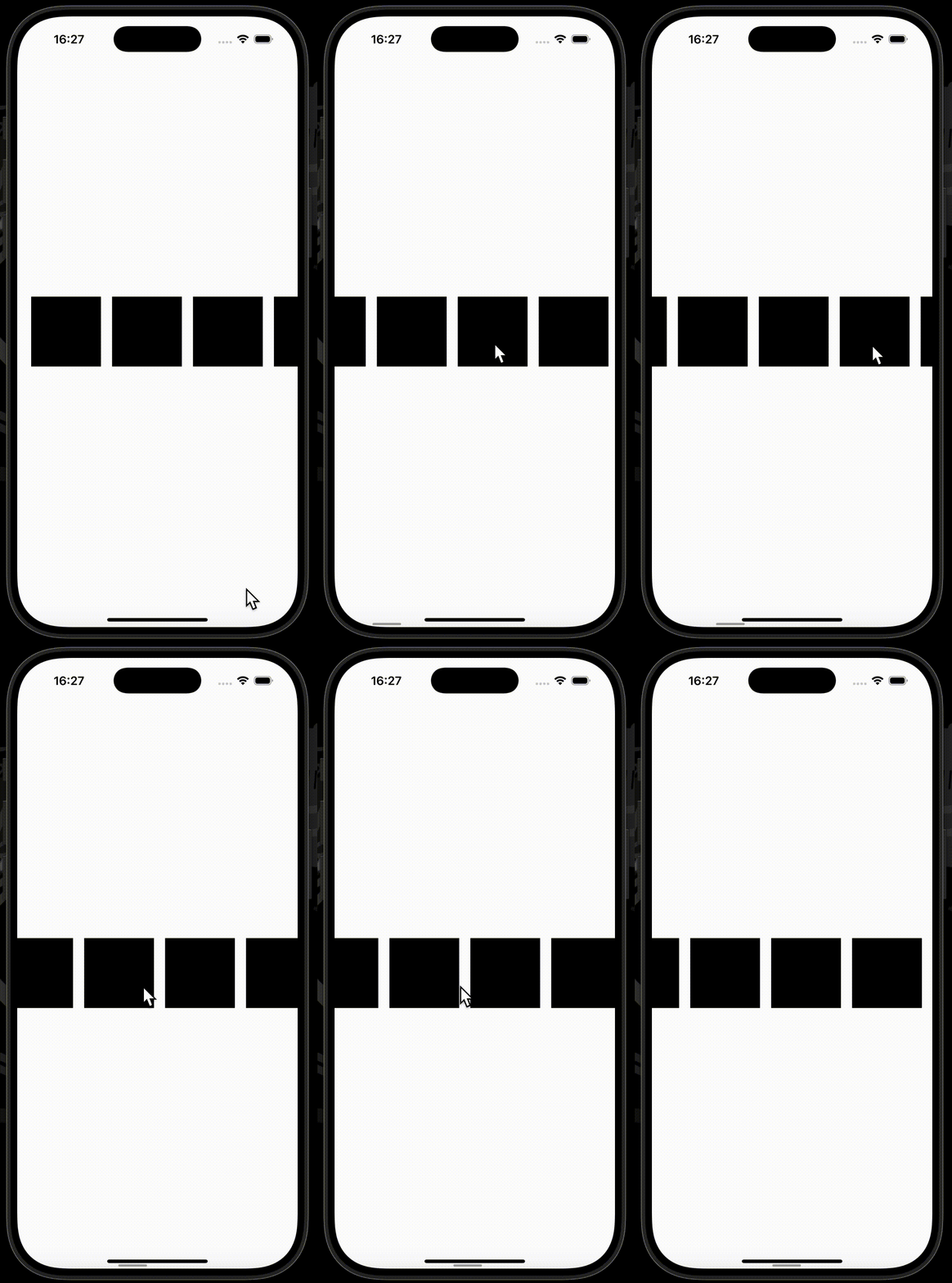
safeAreaPaddingモディファイアを使用することで、特定のエッジに対し、パディングを設定することができます。
safeAreaPaddingモディファイアは、セーフエリアの領域としてパディングを設定します。
paddingモディファイアと似ていますが、paddingモディファイアは、スクロールビューのクリップを伴うのに対し、safeAreaPaddingモディファイアは、セーフエリアの領域としてパディングを設けるため、スクロールビューのクリップが伴うことはありません。
| safeAreaPadding | padding |
|---|---|
 |
 |
使用したコードはこちら
struct ContentView: View {
    var body: some View {
        ScrollView(.horizontal) {
            LazyHStack(spacing: 16) {
                ForEach(0..<30) { _ in
                    Rectangle()
                        .frame(width: 100, height: 100)
                }
            }
        }
        .safeAreaPadding(.horizontal, 20) // ✅
//        .padding(.horizontal, 20)
    }
}
contentMargins
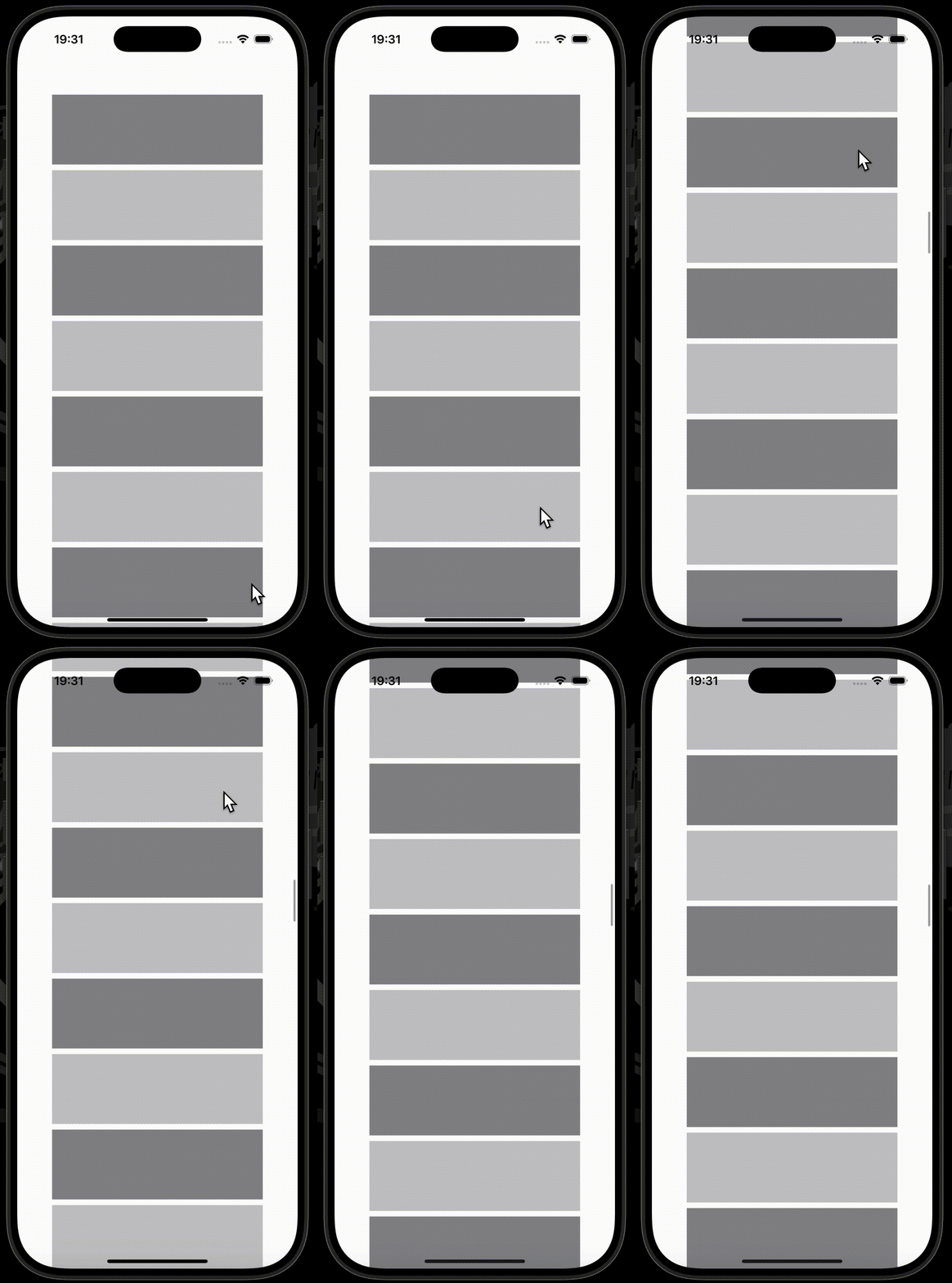
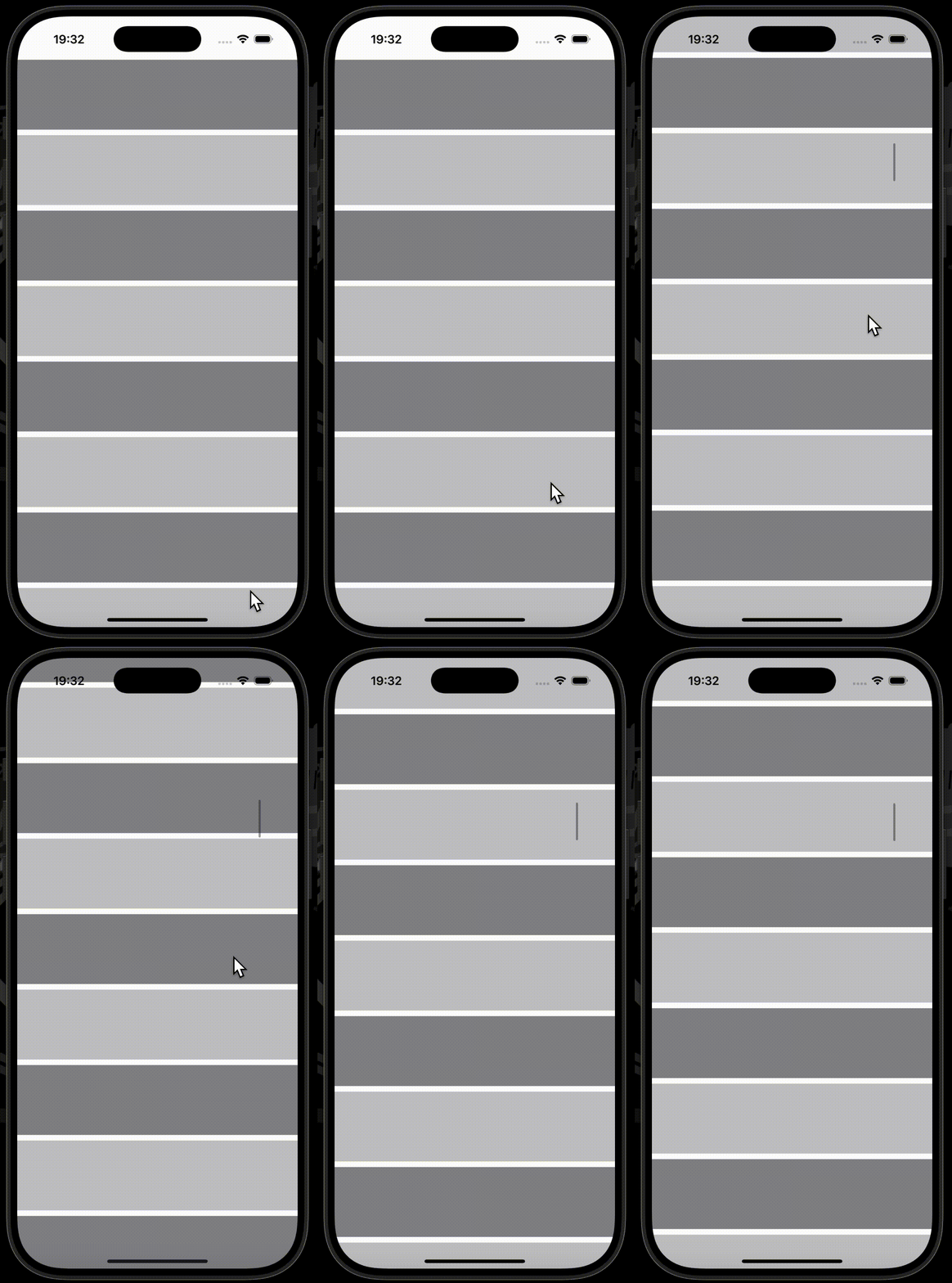
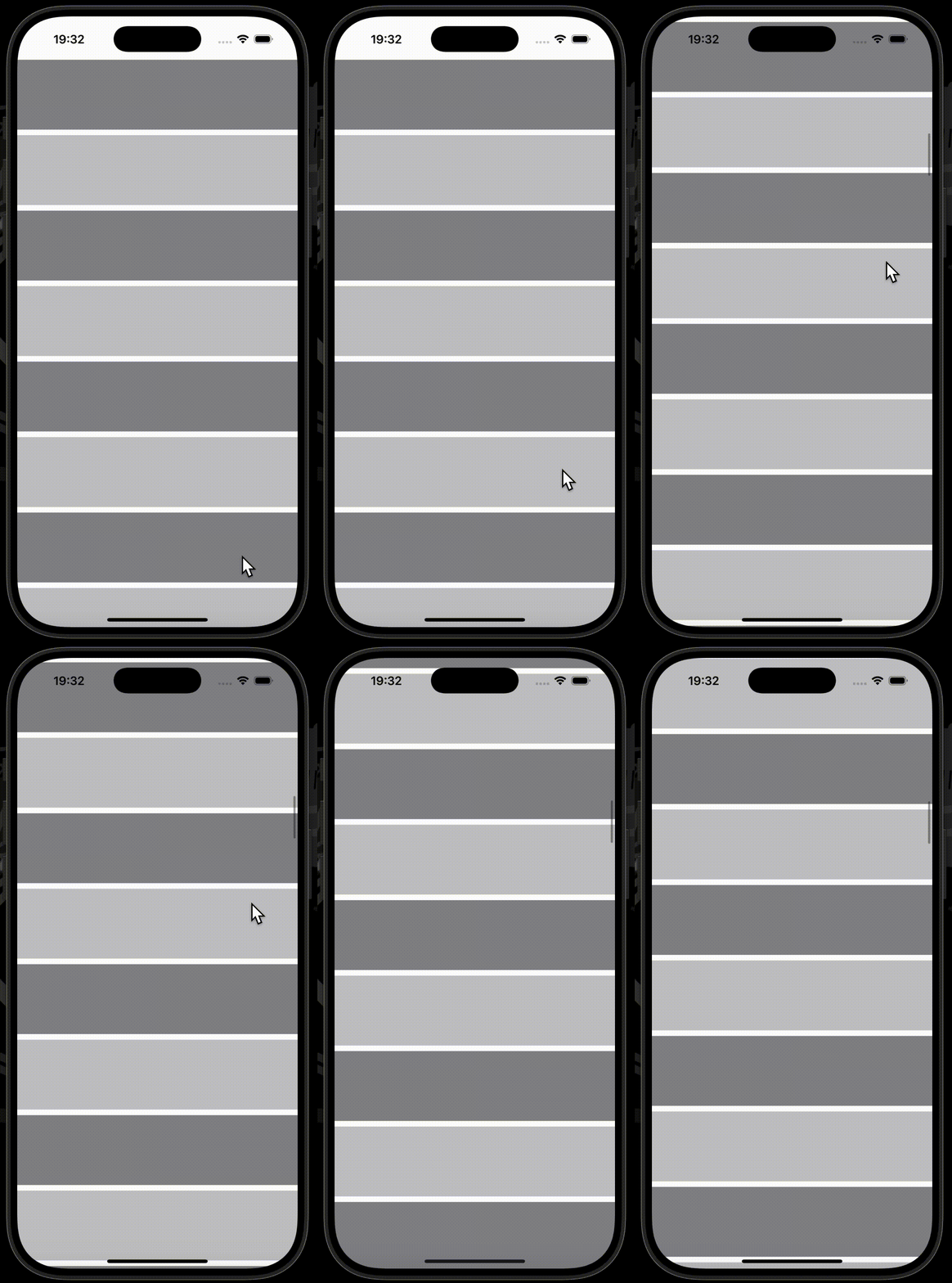
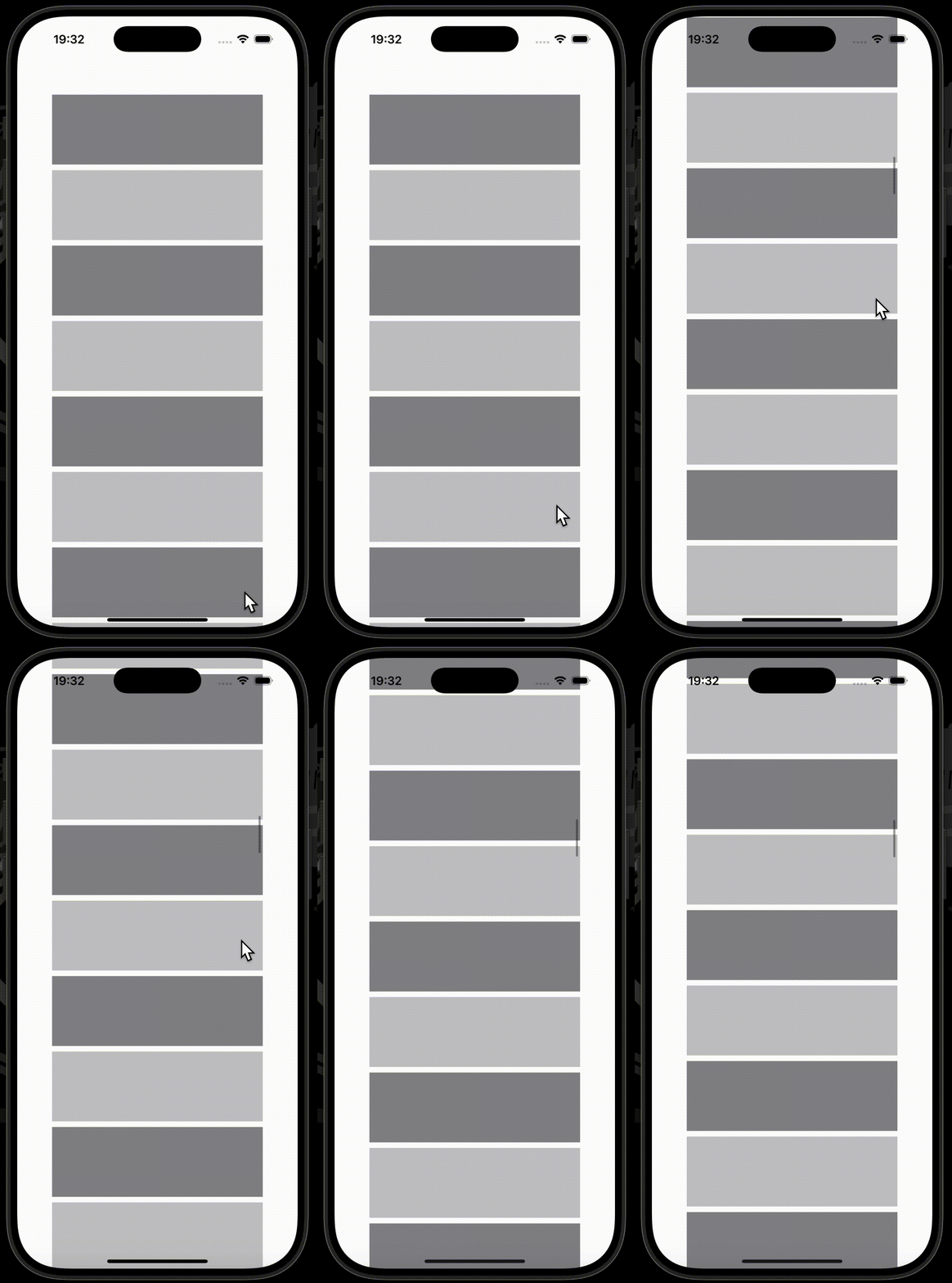
contentMarginsモディファイアを使用することで、スクロールビューにマージンを設定することができます。
先述したsafeAreaPaddingモディファイアと似ていますが、主な違いとしてcontentMarginsモディファイアは、スクロールコンテントのみ、もしくはスクロールインジケーターのみにマージンを設定できる点が挙げられます。
引数placementにContentMarginPlacementを渡し、対象を設定します。
下の例では、引数placementに.scrollContent、.scrollIndicator、.automaticをそれぞれ設定しています。
| .scrollContent | .scrollIndicator |
|---|---|
 |
 |
| モディファイア適用なし | .automatic |
|---|---|
 |
 |
使用したコードはこちら
struct ContentView: View {
    var body: some View {
        ScrollView {
            LazyVStack(spacing: nil) {
                ForEach(0..<100) { i in
                    Rectangle()
                        .fill(i.isMultiple(of: 2) ? .secondary : .tertiary)
                        .frame(height: 100)
                }
            }
        }
        .contentMargins(50, for: .scrollContent) // ✅
    }
}
scrollBounceBehavior
scrollBounceBehaviorモディファイアを使用することで、スクロールビューのバウンス動作を設定することができます。
本記事では、.scrollBounceBehavior(.basedOnSize)を使用したケースのみを取り上げます。
コンテントがスクロールビューのサイズを超えている場合、バウンス動作が発生します。
逆に、コンテントのサイズがスクロールビューのサイズを超えていない場合、バウンス動作は発生しません。
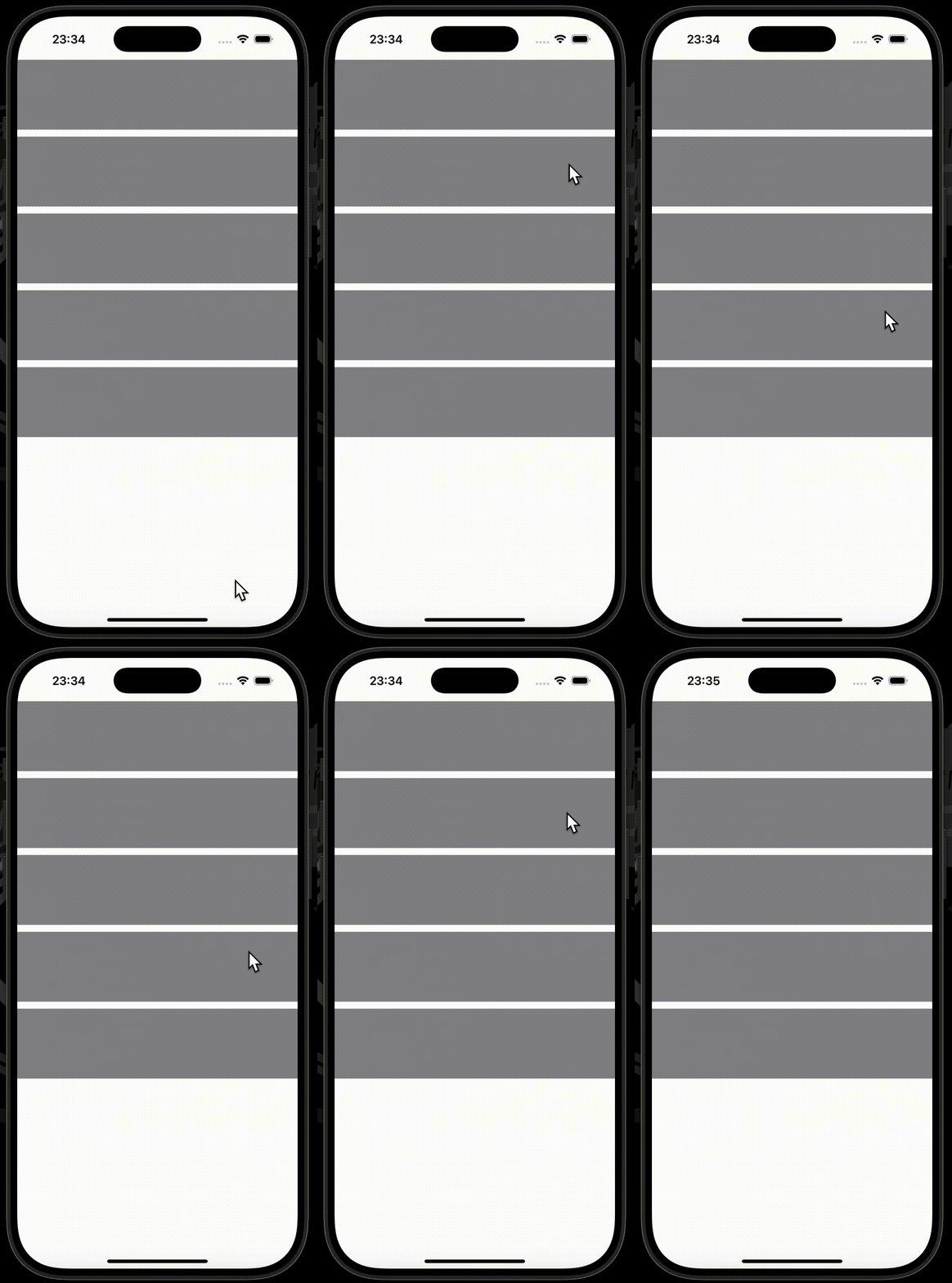
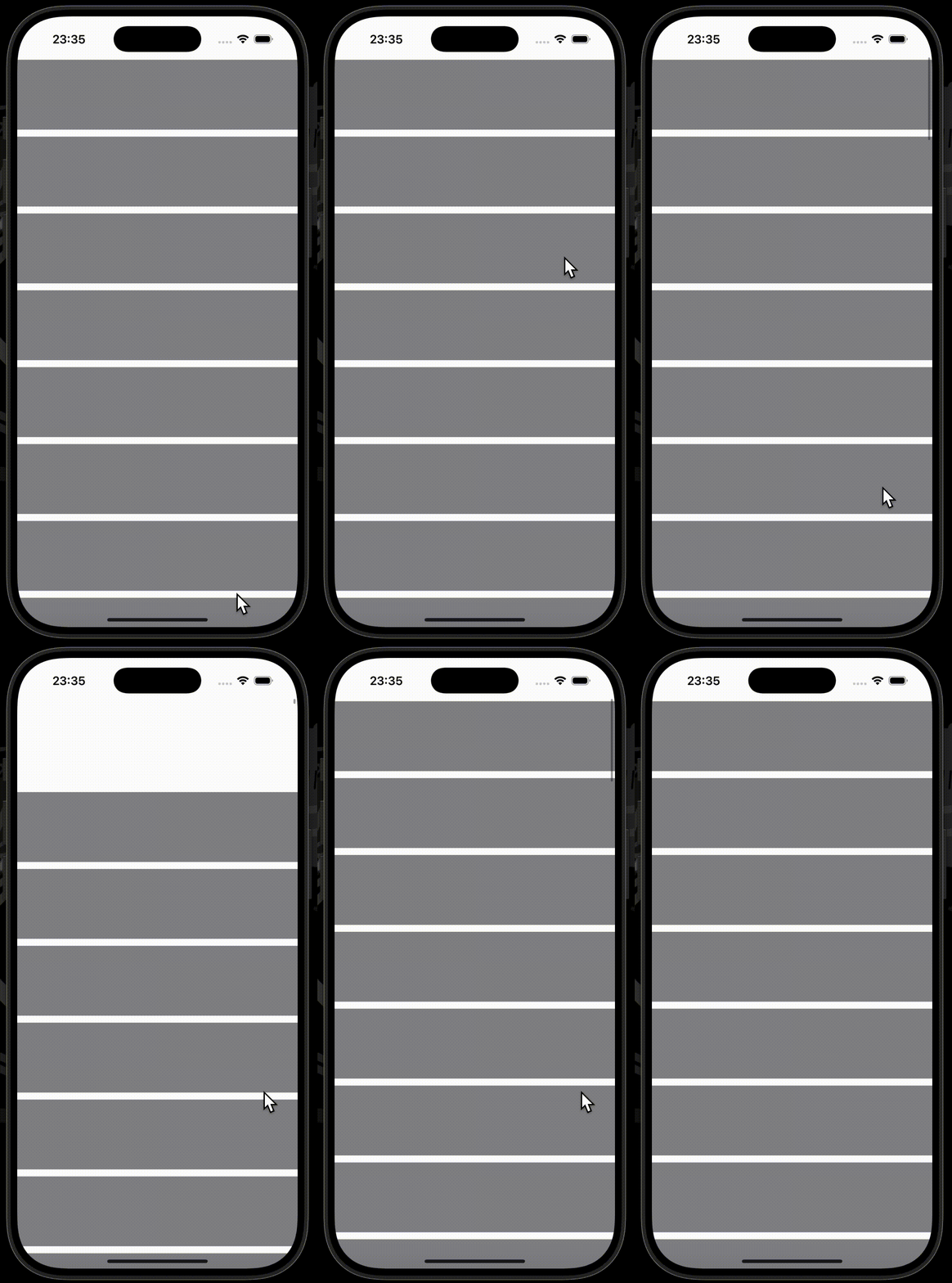
下の例では、四角形が5個の時はバウンス動作が発生していないのに対し、四角形が50個の時はバウンス動作が発生しています。
| Rectangle ×5 | Rectangle ×50 |
|---|---|
 |
 |
使用したコードはこちら
struct ContentView: View {
    var body: some View {
        ScrollView {
            LazyVStack(spacing: 10) {
                ForEach(0..<50) { _ in // 5 or 50
                    Rectangle()
                        .fill(.secondary)
                        .frame(height: 100)
                }
            }
        }
        .scrollBounceBehavior(.basedOnSize) // ✅
    }
}
refreshable
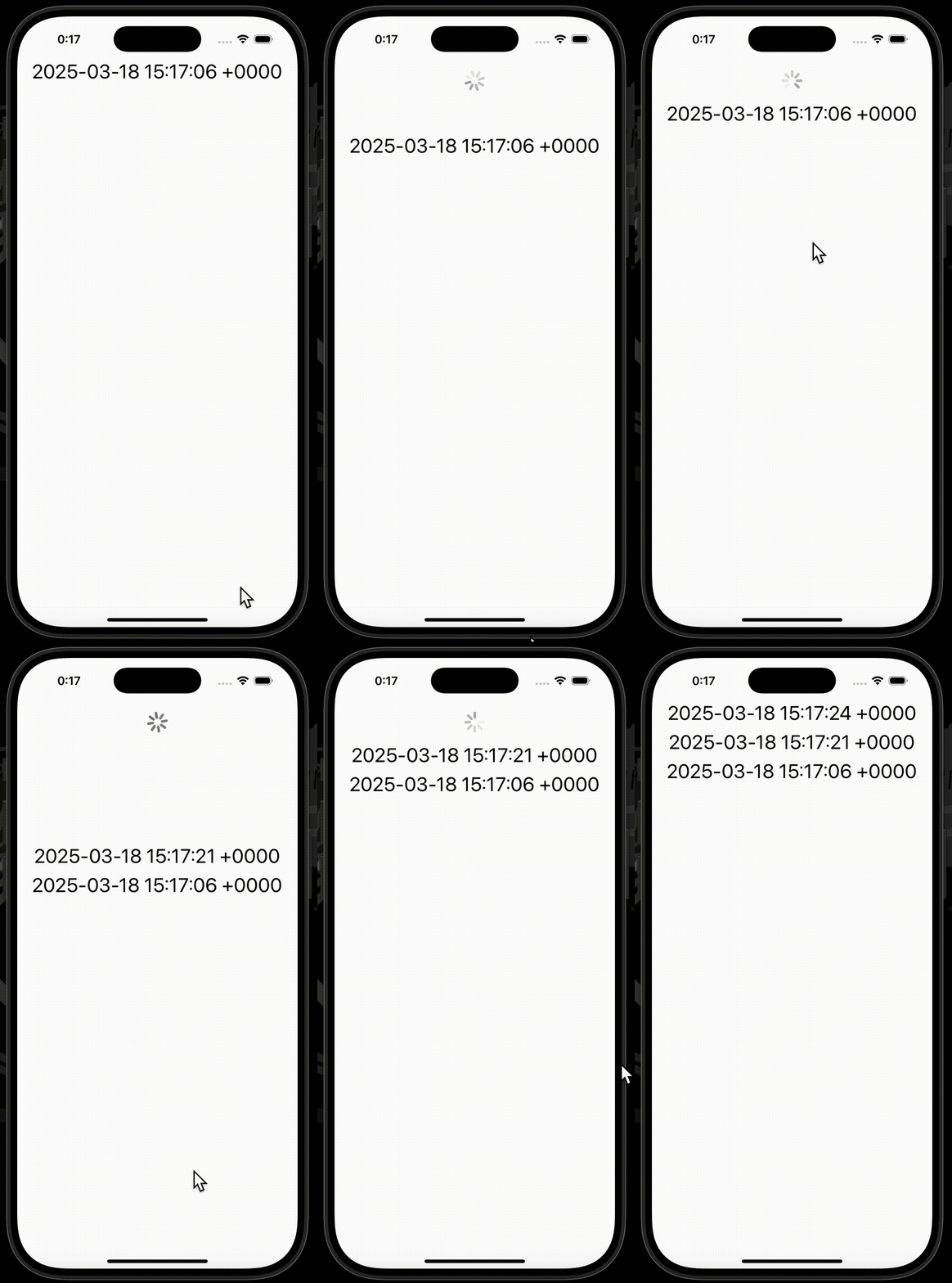
refreshableモディファイアを使用することで、スワイプダウンによるリフレッシュアクションを設定することができます。
引数actionは、非同期クロージャであるため、内部でTaskを生成せずにそのまま非同期処理(Swift Concurrency)を書くことができます。
リフレッシュアクションが実行されると、プログレスビューが表示され、更新が終わるまでプログレスビューは表示され続けます。
使用したコードはこちら
struct ContentView: View {

    @State private var timestamps: [Date] = [.now]

    var body: some View {
        ScrollView {
            LazyVStack(spacing: 8) {
                ForEach(timestamps.reversed(), id: \.self) { timestamp in
                    Text(timestamp.description)
                        .font(.title)
                }
            }
        }
        .refreshable { // ✅
            try? await Task.sleep(for: .seconds(2.0))
            timestamps.append(.now)
        }
    }
}
scrollContentBackground
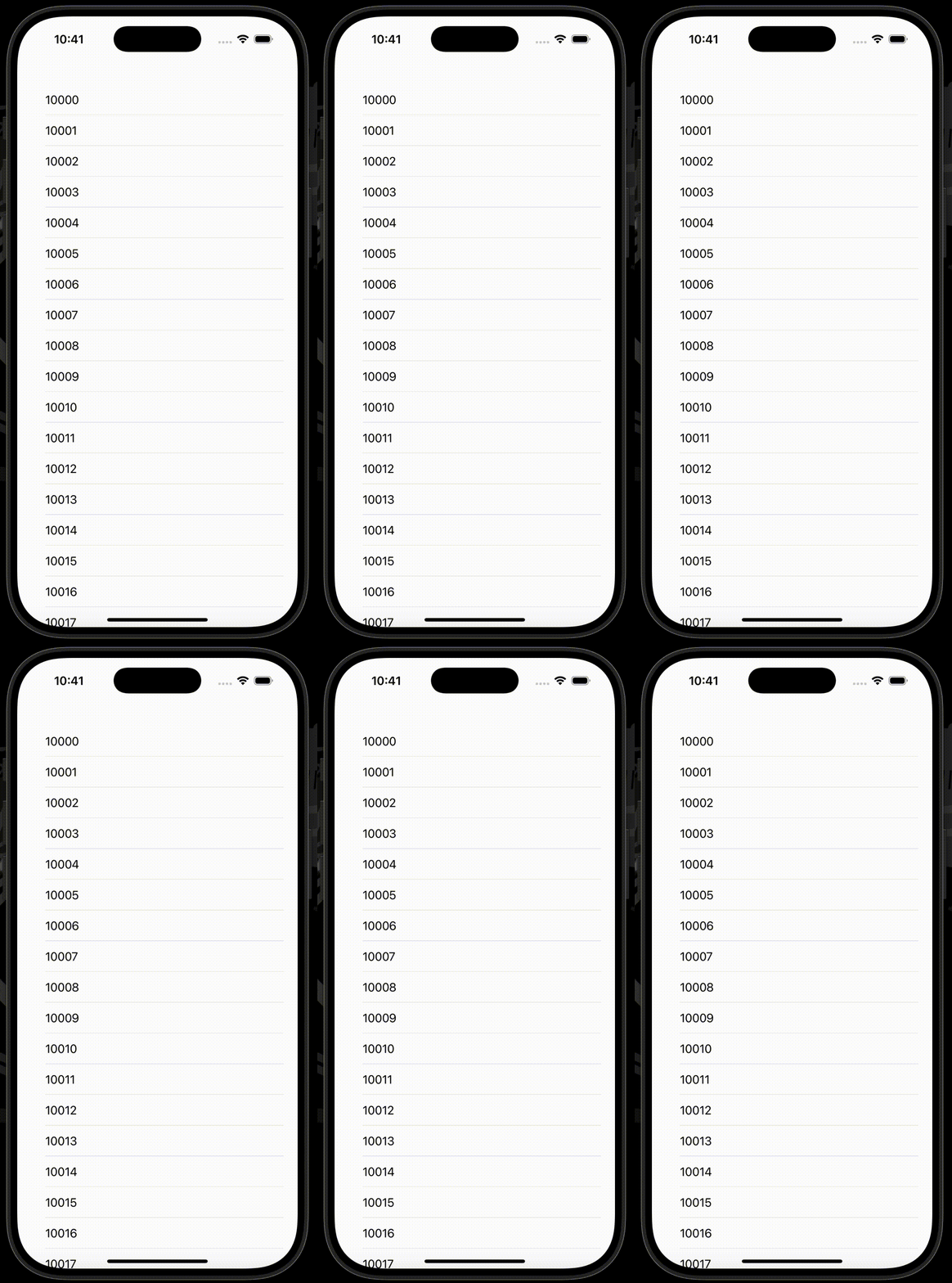
scrollContentBackgroundモディファイアを使用することで、List、もしくはFormの背景色を非表示にすることができます。
ListとFormには、デフォルトで背景色(UIColor.secondarySystemBackground)がついており、backgroundモディファイアで背景色を上書きしようとしても機能しません。
.scrollContentBackground(.hidden)を付与することで、背景色を設定できるようになります。
| .scrollContentBackground(.hidden)なし | .scrollContentBackground(.hidden)あり |
|---|---|
 |
 |
使用したコードはこちら
struct ContentView: View {
    var body: some View {
        List(10000..<10030) { i in
            Text(i.description)
        }
        .scrollContentBackground(.hidden) // ✅
        .background(.blue)
    }
}
scrollTargetLayout
scrollTargetLayoutモディファイアを使用することで、コンテナをスクロールターゲットレイアウトとして設定することができます。
このモディファイアは、後述する.scrollTargetBehaviorモディファイア、onScrollTargetVisibilityChangeモディファイア、scrollPositionモディファイアの補助的な役割を担います。
スクロールビュー内のメインコンテナ(LazyHStackやVStackなどのレイアウトコンテナ)に対して付与します。
scrollTargetBehavior
scrollTargetBehaviorモディファイアを使用することで、スクロール時の振る舞いを設定することができます。
引数behaviorにScrollTargetBehavior(Opaque Type)を渡して、スクロール時の振る舞いを設定します。
PagingScrollTargetBehavior.pagingでは、スクロールビューのコンテナ領域の高さ、もしくは幅がスクロールの単位となり、PagingScrollTargetBehavior.viewAlignedでは、スクロール停止時にスクロールビューのエッジとビューのエッジが揃えられます。
.viewAlignedを設定する場合は、scrollTargetLayoutモディファイアをメインコンテナに対し付与する必要があります。
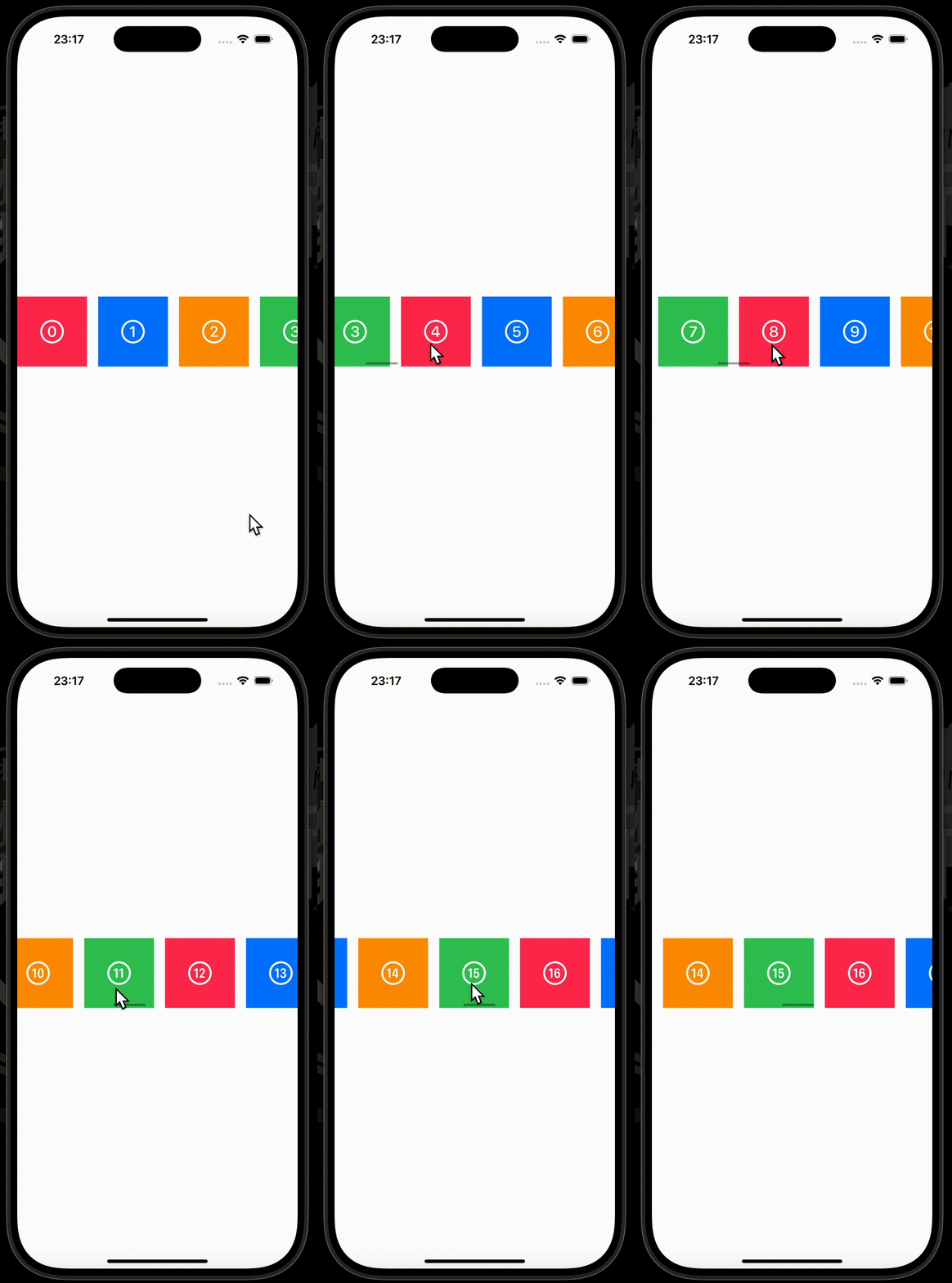
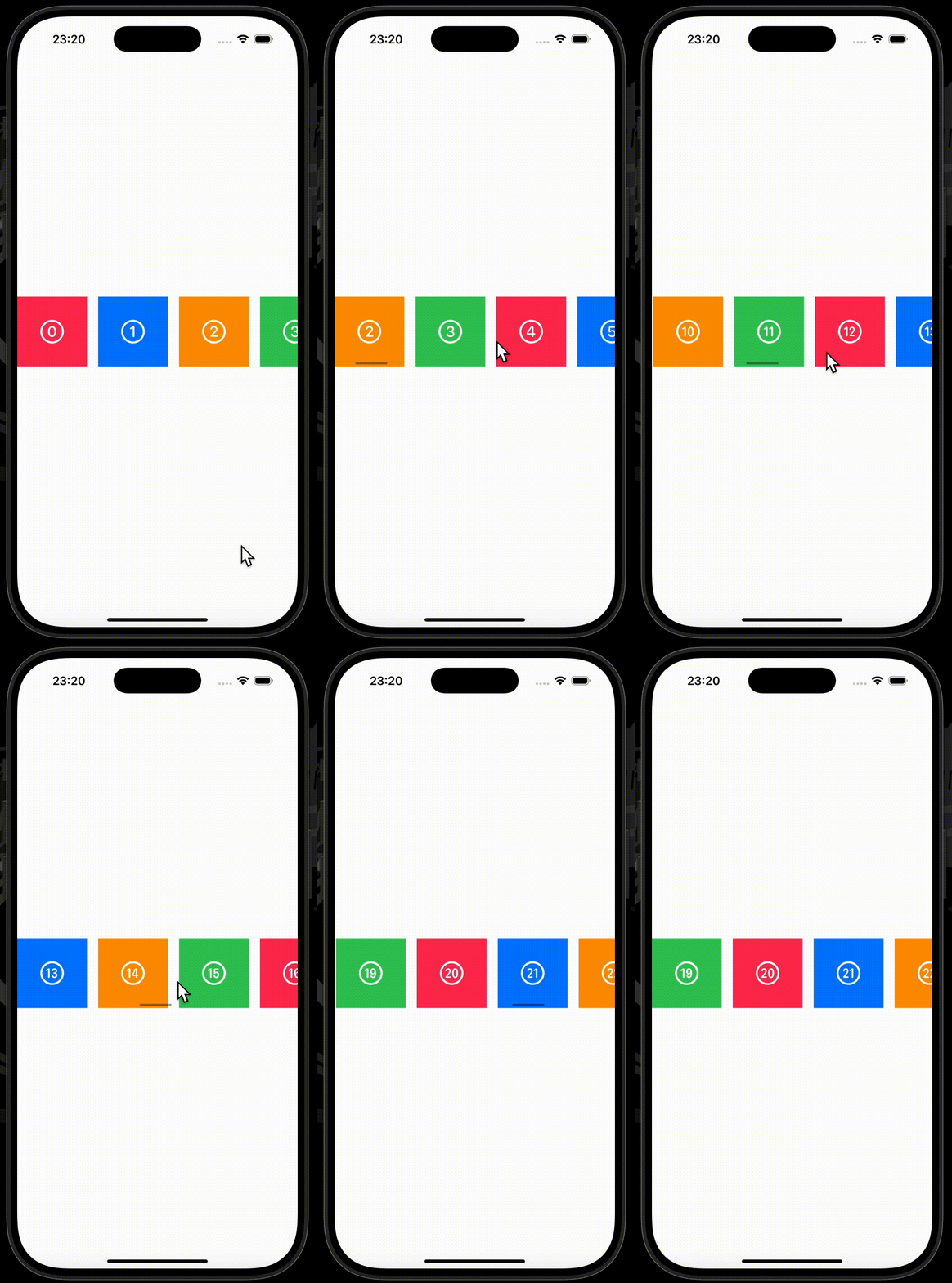
下の例は、水平方向のスクロールビューに.pagingを適用した例と.viewAlignedを適用した例です。
.pagingでは、一度のスクロール量がスクロールビューのコンテナ領域の幅となっており、.viewAlignedでは、スクロール停止時にスクロールビューの左端とビューの左端が揃えられています。
| horizontal × paging | horizontal × viewAligned |
|---|---|
 |
 |
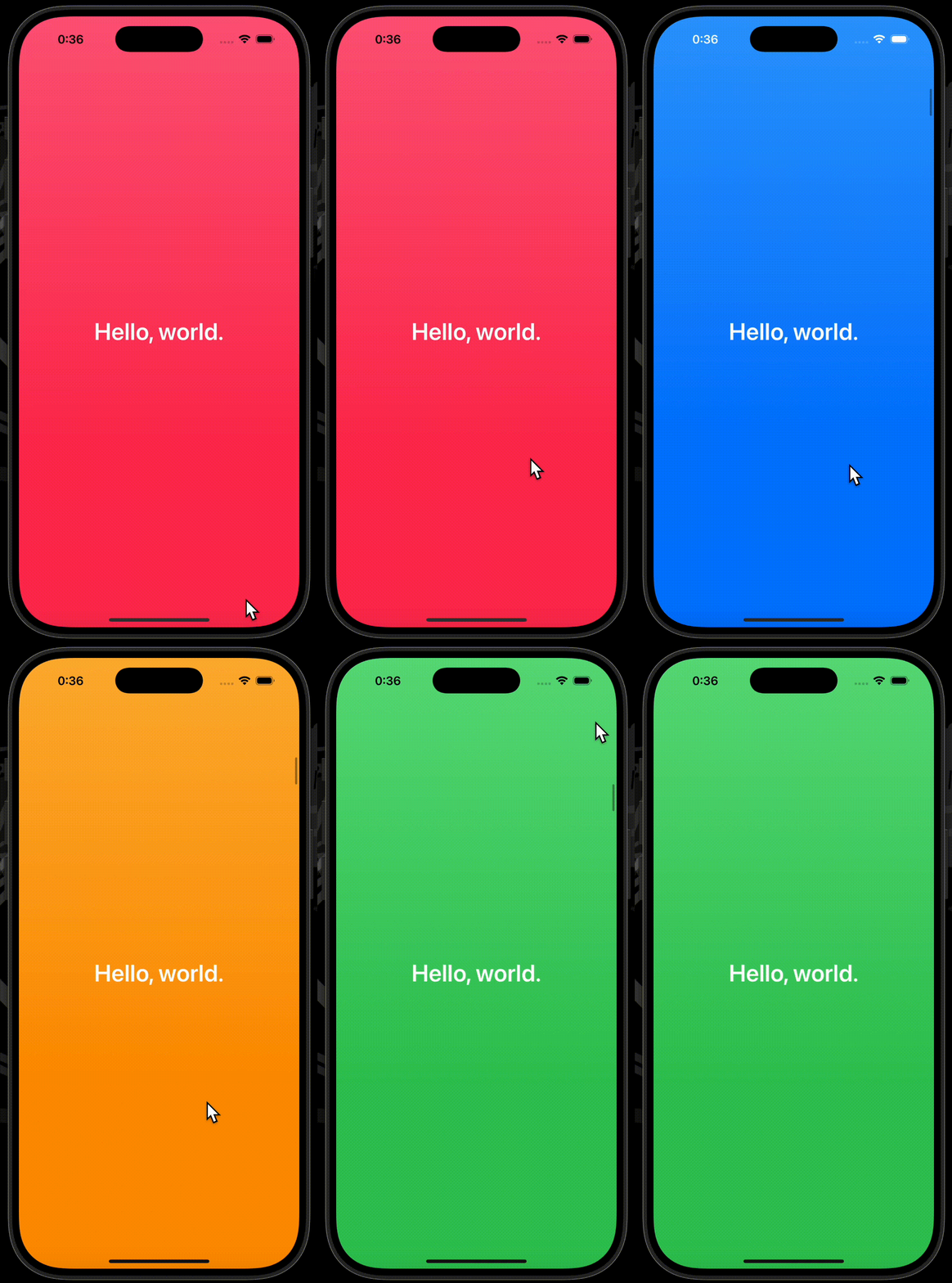
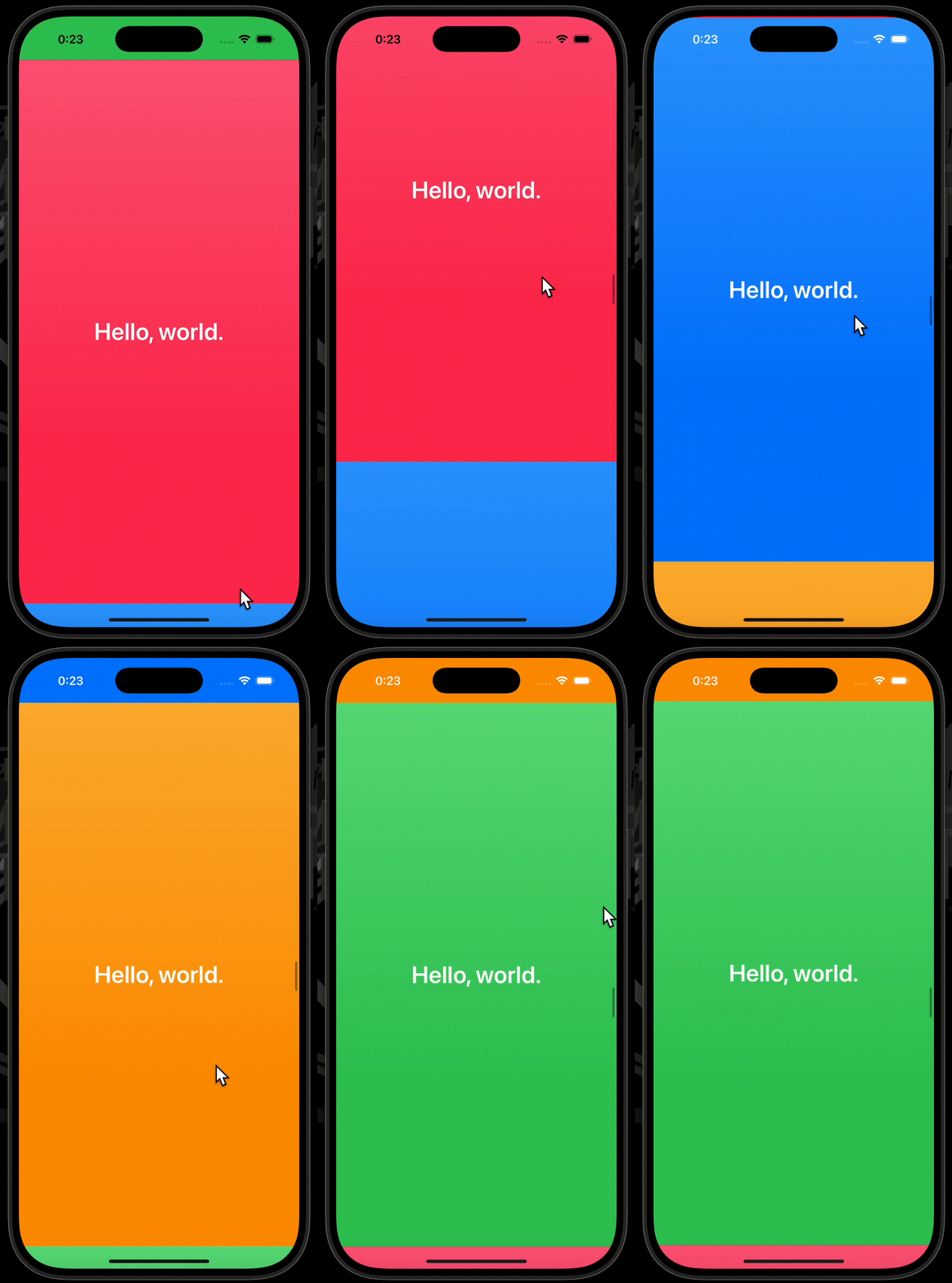
下の例は、垂直方向のスクロールビューに.pagingを適用した例と.viewAlignedを適用した例です。
.pagingでは、一度のスクロール量がスクロールビューのコンテナ領域の高さとなっており、そのままではスクロールの度にズレが発生してしまうため、GeometryReaderを使用して調整しています。
.viewAlignedでは、スクロール停止時にスクロールビューのトップとビューのトップが揃えられています。(引数limitBehaviorに.alwaysByOneを設定していますが、勢いよくスクロールするとなぜかビュー二つ分のスクロールがされます。)
| vertical × paging | vertical × viewAligned |
|---|---|
 |
 |
使用したコードはこちら(horizontal × paging)
struct ContentView: View {

    private let colors: [Color] = [.pink, .blue, .orange, .green]

    var body: some View {
        ScrollView(.horizontal) {
            HStack(spacing: 16) {
                ForEach(0..<30, content: numberTile)
            }
        }
        .scrollTargetBehavior(.paging) // ✅
    }

    func numberTile(_ i: Int) -> some View {
        Image(systemName: i.description + ".circle")
            .foregroundStyle(.white)
            .font(.largeTitle)
            .frame(maxWidth: .infinity, maxHeight: .infinity)
            .background(colors[i % colors.count])
            .frame(width: 100, height: 100)
    }
}
使用したコードはこちら(horizontal × viewAligned)
struct ContentView: View {

    private let colors: [Color] = [.pink, .blue, .orange, .green]

    var body: some View {
        ScrollView(.horizontal) {
            HStack(spacing: 16) {
                ForEach(0..<30, content: numberTile)
            }
            .scrollTargetLayout()
        }
        .scrollTargetBehavior(.viewAligned) // ✅
    }

    func numberTile(_ i: Int) -> some View {
        Image(systemName: i.description + ".circle")
            .foregroundStyle(.white)
            .font(.largeTitle)
            .frame(maxWidth: .infinity, maxHeight: .infinity)
            .background(colors[i % colors.count])
            .frame(width: 100, height: 100)
    }
}
使用したコードはこちら(vertical × paging)
struct ContentView: View {

    private let colors: [Color] = [.pink, .blue, .orange, .green]

    var body: some View {
        GeometryReader { geometryProxy in
            let safeAreaInsets = geometryProxy.safeAreaInsets
            let topSafeAreaInset = safeAreaInsets.top
            let bottomSafeAreaInset = safeAreaInsets.bottom

            ScrollView {
                LazyVStack(spacing: .zero) {
                    ForEach(0..<20) { i in
                        content
                            .containerRelativeFrame(.vertical) { length, _ in
                                length - topSafeAreaInset - bottomSafeAreaInset
                            }
                            .frame(maxWidth: .infinity)
                            .padding(.top, topSafeAreaInset)
                            .padding(.bottom, bottomSafeAreaInset)
                            .background(colors[i % colors.count].gradient)
                    }
                }
            }
            .scrollTargetBehavior(.paging) // ✅
            .ignoresSafeArea()
            .contentMargins(.top, topSafeAreaInset, for: .scrollIndicators)
            .contentMargins(.bottom, bottomSafeAreaInset, for: .scrollIndicators)
        }
    }

    var content: some View {
        Text("Hello, world.")
            .font(.largeTitle)
            .fontWeight(.semibold)
            .foregroundStyle(.white)
    }
}
使用したコードはこちら(vertical × viewAligned)
struct ContentView: View {

    private let colors: [Color] = [.pink, .blue, .orange, .green]

    var body: some View {
        ScrollView {
            LazyVStack(spacing: .zero) {
                ForEach(0..<20) { i in
                    VStack(spacing: .zero) {
                        content
                    }
                    .containerRelativeFrame([.vertical, .horizontal])
                    .background(colors[i % colors.count].gradient)
                    .clipped()
                }
            }
            .scrollTargetLayout()
        }
        .scrollTargetBehavior(.viewAligned(limitBehavior: .alwaysByOne)) // ✅
    }

    var content: some View {
        Text("Hello, world.")
            .font(.largeTitle)
            .fontWeight(.semibold)
            .foregroundStyle(.white)
    }
}
onScrollGeometryChange
onScrollGeometryChangeモディファイアを使用することで、スクロールビューのレイアウト情報が更新された際の処理を設定することができます。
transformクロージャが提供するScrollGeometoryインスタンスを通じて、スクロールビューのレイアウト情報を取得可能です。
取得できる情報には、スクロールビューの実際のサイズ(コンテナ領域)、コンテントの長さ、インセット、オフセット、ビジュアルレクト(可視領域)などがあります。
下の例では、一定量スクロールされている場合に、Back to Top ボタンを表示させています。
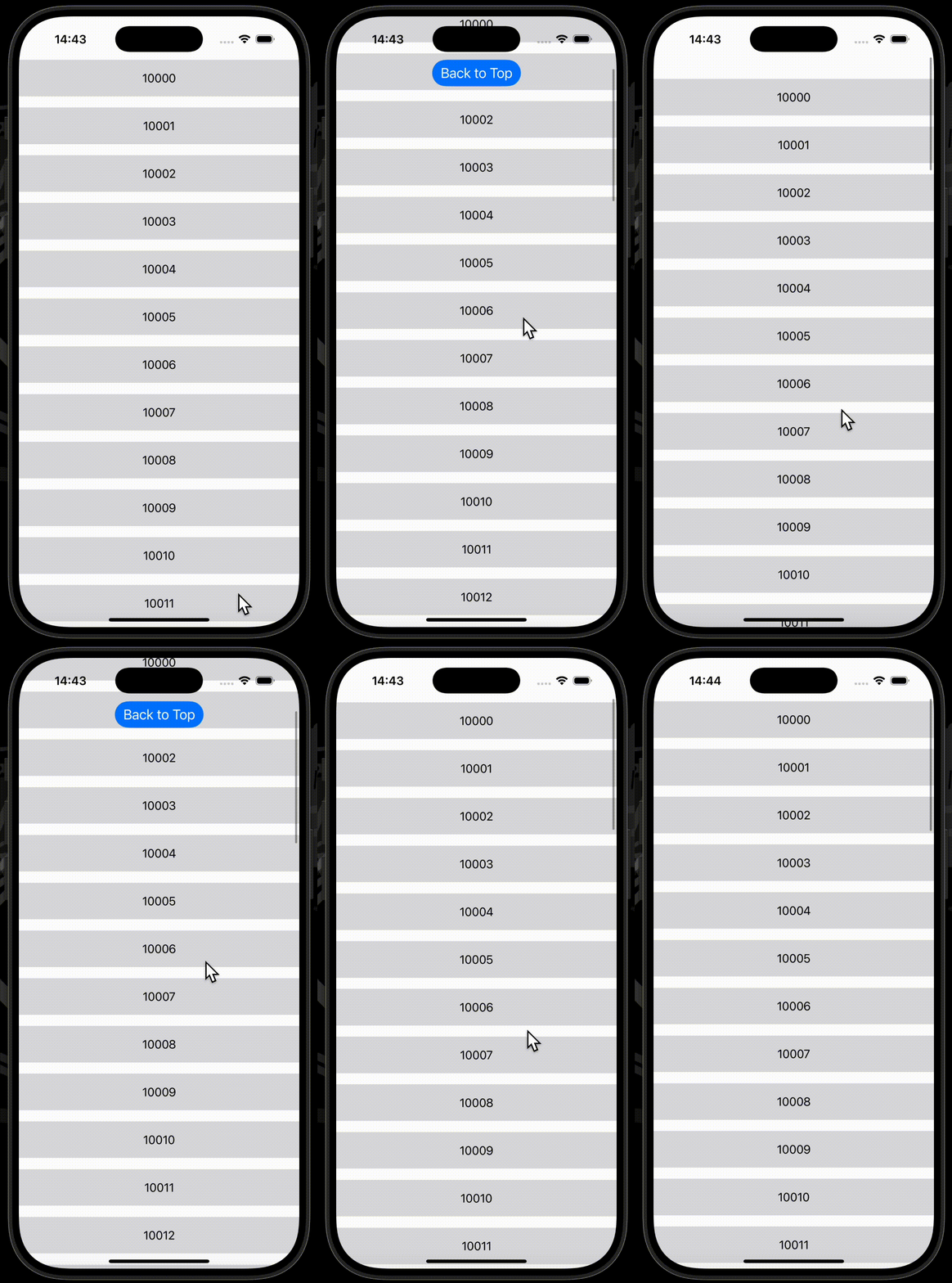
使用したコードはこちら
struct ContentView: View {
    @State private var isShowingBackToTopButton = false

    var body: some View {
        ScrollView {
            LazyVStack(spacing: 16) {
                ForEach(10000..<10050) { i in
                    Text(i.description)
                        .frame(maxWidth: .infinity)
                        .padding(.vertical, 16)
                        .background(.gray.opacity(0.3))
                }
            }
        }
        .onScrollGeometryChange(for: Bool.self) { scrollGeometry in // ✅
            scrollGeometry.contentOffset.y > 0
        } action: { _, newValue in
            isShowingBackToTopButton = newValue
        }
        .overlay(alignment: .top) {
            if isShowingBackToTopButton == true {
                backToTopButton
            }
        }
    }

    var backToTopButton: some View {
        Button("Back to Top") {}
            .font(.title3)
            .buttonStyle(.borderedProminent)
            .buttonBorderShape(.capsule)
    }
}
onGeometryChange
onGeometryChangeモディファイアを使用することで、コンテンツとなるビューのレイアウト情報が更新された際の処理を設定することができます。
先述のonScrollGeometryChangeモディファイアに似ていますが、onScrollGeometryChangeモディファイアは「スクロールビューのレイアウト情報」が更新された際の処理を設定するに対し、onGeometryChangeモディファイアは「コンテンツとなるビューのレイアウト情報」が更新された際の処理を設定します。
transformクロージャが提供するGeometoryProxyインスタンスを通じて、コンテンツとなるビューのレイアウト情報を取得可能です。
下の例は、ビューがスクロールビューのコンテナ領域に入った時に処理を実行する例、ビューがスクロールビューのセンターに来た時に処理を実行する例です。
| ビューがスクロールビューのコンテナ領域に入った時に処理を実行する例 | ビューがスクロールビューのセンターに来た時に処理を実行する例 |
|---|---|
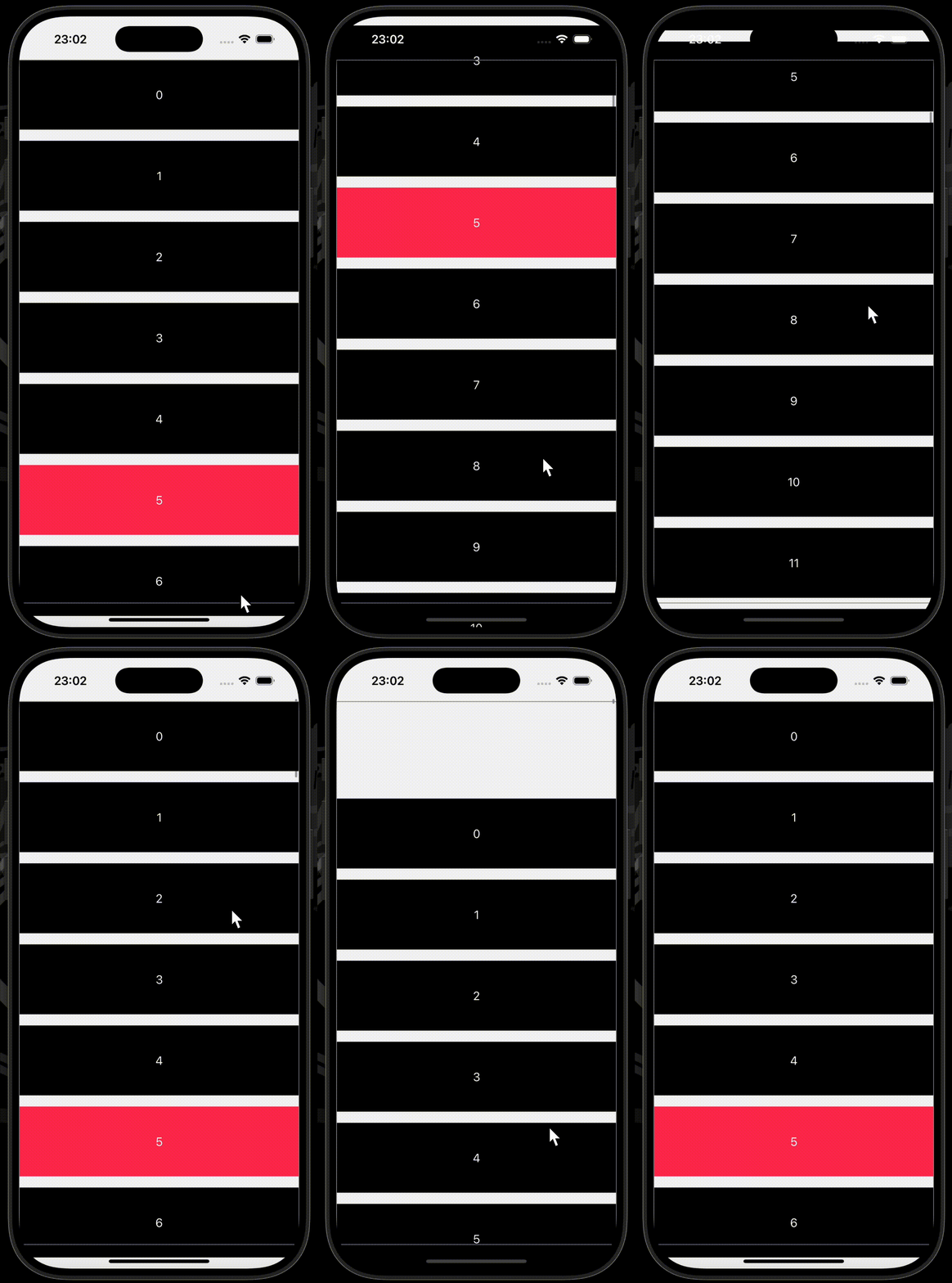 |
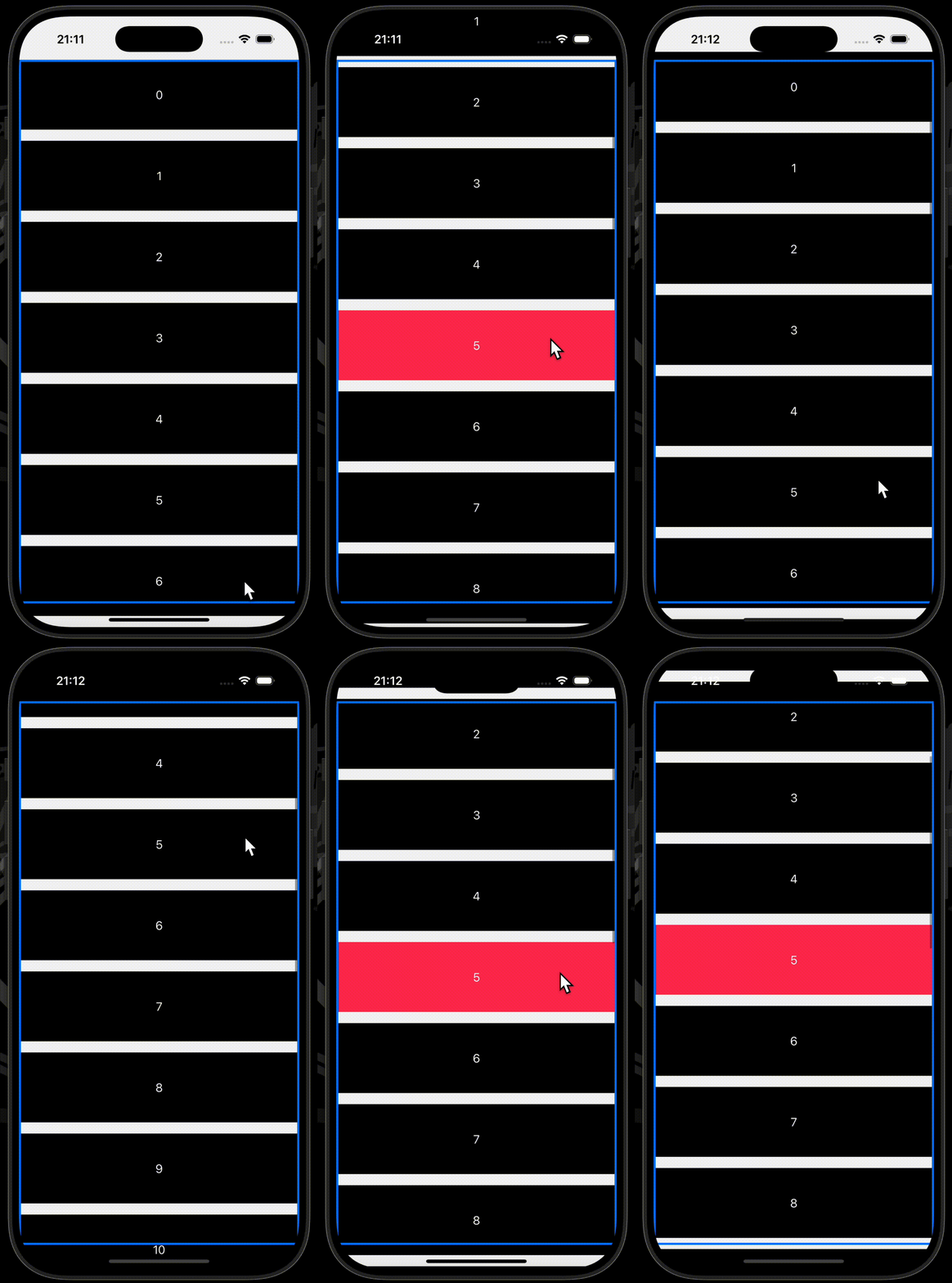 |
使用したコードはこちら
struct ContentView: View {
    var body: some View {
        ScrollView {
            VStack(spacing: 16) {
                ForEach(0..<50) { i in
                    if i == 5 {
                        SpecialRow(text: i.description)
                    } else {
                        NormalRow(text: i.description)
                    }
                }
            }
        }
        .border(.gray)
    }
}

struct NormalRow: View {

    var text: String

    var body: some View {
        Text(text)
            .foregroundStyle(.background)
            .frame(maxWidth: .infinity)
            .frame(height: 100)
            .background { Color.primary }
    }
}

struct SpecialRow: View {

    @State private var isVisible = false
    var text: String

    var body: some View {
        Text(text)
            .foregroundStyle(.background)
            .frame(maxWidth: .infinity)
            .frame(height: 100)
            .background {
                Rectangle()
                    .fill(isVisible == true ? .pink : .primary)
            }
            .onGeometryChange(for: Bool.self) { geometoryProxy in // ✅

                let frame = geometoryProxy.frame(in: .scrollView)
                let bounds = geometoryProxy.bounds(of: .scrollView)!

                let area = CGRect(origin: .zero, size: bounds.size)
                let intersection = frame.intersection(area)
                let visibleHeight = intersection.size.height

                return (visibleHeight / frame.size.height) > 0.75
            } action: { isVisible in
                self.isVisible = isVisible
            }
    }
}
使用したコードはこちら
struct ContentView: View {
    var body: some View {
        ScrollView {
            VStack(spacing: 16) {
                ForEach(0..<20) { i in
                    if i == 5 {
                        SpecialRow(text: i.description)
                    } else {
                        NormalRow(text: i.description)
                    }
                }
            }
        }
        .border(.blue, width: 3)
    }
}

struct NormalRow: View {

    var text: String

    var body: some View {
        Text(text)
            .foregroundStyle(.background)
            .frame(maxWidth: .infinity)
            .frame(height: 100)
            .background { Color.primary }
    }
}

struct SpecialRow: View {

    @State private var isCentered = false
    var text: String

    var body: some View {
        Text(text)
            .foregroundStyle(.background)
            .frame(maxWidth: .infinity)
            .frame(height: 100)
            .background {
                Rectangle()
                    .fill(isCentered == true ? .pink : .primary)
            }
            .onGeometryChange(for: Bool.self) { geometoryProxy in // ✅

                let frame = geometoryProxy.frame(in: .scrollView)
                let bounds = geometoryProxy.bounds(of: .scrollView)!

                let verticalOffset = (bounds.size.height - frame.size.height) / 2
                let centerArea = CGRect(
                    origin: .init(x: 0, y: verticalOffset),
                    size: frame.size
                )

                let intersection = frame.intersection(centerArea)
                let visibleHeight = intersection.size.height

                return (visibleHeight / frame.size.height) > 0.75
            } action: { isCentered in
                self.isCentered = isCentered
            }
    }
}
onScrollTargetVisibilityChange
onScrollTargetVisibilityChangeモディファイアを使用することで、スクロールビューのコンテナ領域に表示されているコンテンツとなるビューの変更があった際の処理を設定できます。
ここで言う「スクロールビューのコンテナ領域に表示されているコンテンツとなるビューの変更」とは、とあるビューの背景色が赤から青に変わったといった変更ではなく、スクロールビューのコンテナ領域に表示されているビューが、ビューA、ビューB、ビューCからビューB、ビューC、ビューDに変わったといった変更を指します。
スクロールビューのコンテナ領域へのビューの表示に関しては、デフォルトでビューの50%が閾値として設定されています。引数thresholdにDobleを渡すことで、任意の閾値に設定が可能です。
下の例では、引数idTypeにビューがもつIDの型を設定し、表示されているビューのIDをidsプロパティに格納しています。右側のサイドバーで、スクロールによるスクロールビューのコンテナ領域のビューの変化が確認できます。
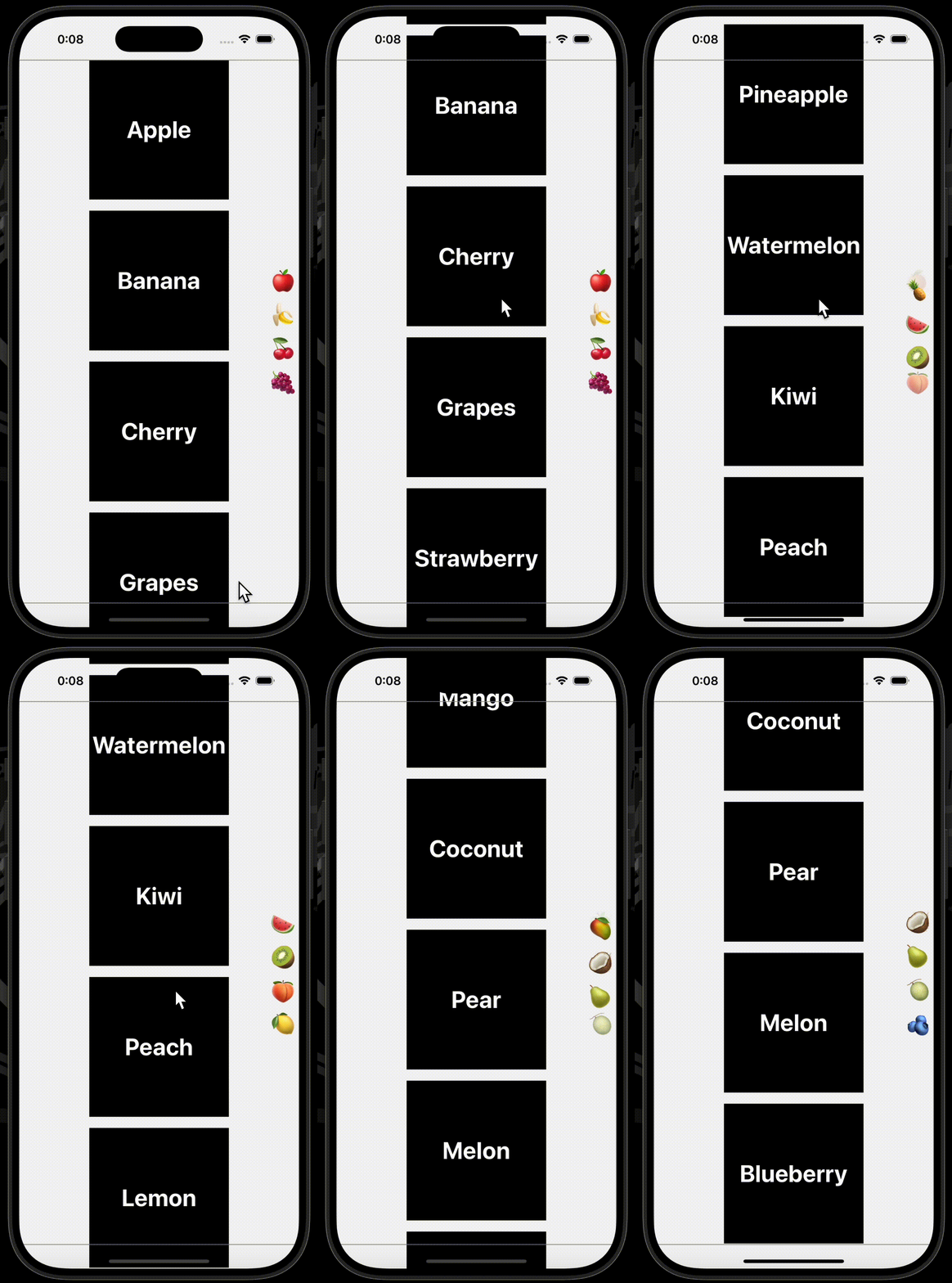
使用したコードはこちら
struct Fruit: Identifiable {
    let name: String
    let emoji: Character

    var id: Character { emoji }
}

struct ContentView: View {

    @State private var fruits: [Fruit] = [.init(name: "Apple", emoji: "🍎"), .init(name: "Banana", emoji: "🍌"), .init(name: "Cherry", emoji: "🍒"), .init(name: "Grapes", emoji: "🍇"), .init(name: "Strawberry", emoji: "🍓"), .init(name: "Orange", emoji: "🍊"), .init(name: "Pineapple", emoji: "🍍"), .init(name: "Watermelon", emoji: "🍉"), .init(name: "Kiwi", emoji: "🥝"), .init(name: "Peach", emoji: "🍑"), .init(name: "Lemon", emoji: "🍋"), .init(name: "Avocado", emoji: "🥑"), .init(name: "Green Apple", emoji: "🍏"), .init(name: "Mango", emoji: "🥭"), .init(name: "Coconut", emoji: "🥥"), .init(name: "Pear", emoji: "🍐"), .init(name: "Melon", emoji: "🍈"), .init(name: "Blueberry", emoji: "🫐")]

    @State private var ids: [Character] = .init()

    var body: some View {
        ScrollView {
            LazyVStack(spacing: 16) {
                ForEach(fruits) { fruit in
                    textTile(fruit.name)
                }
            }
            .scrollTargetLayout()
        }
        .onScrollTargetVisibilityChange(idType: Fruit.ID.self) { ids in // ✅
            withAnimation {
                self.ids = ids
            }
        }
//        .onScrollTargetVisibilityChange(idType: Fruit.ID.self, threshold: 0.3) { ids in
//            withAnimation {
//                self.ids = ids
//            }
//        }
        .scrollIndicators(.never)
        .overlay(alignment: .trailing, content: sideBar)
        .border(.gray)
    }

    func textTile(_ text: String) -> some View {
        Text(text)
            .foregroundStyle(.background)
            .font(.largeTitle.bold())
            .frame(width: 200, height: 200)
            .background(.primary)
    }

    func sideBar() -> some View {
        VStack(spacing: 8) {
            ForEach(ids, id: \.self) {
                Text($0.description)
                    .font(.largeTitle)
            }
        }
        .padding(.trailing, 4)
    }
}
onScrollVisibilityChange
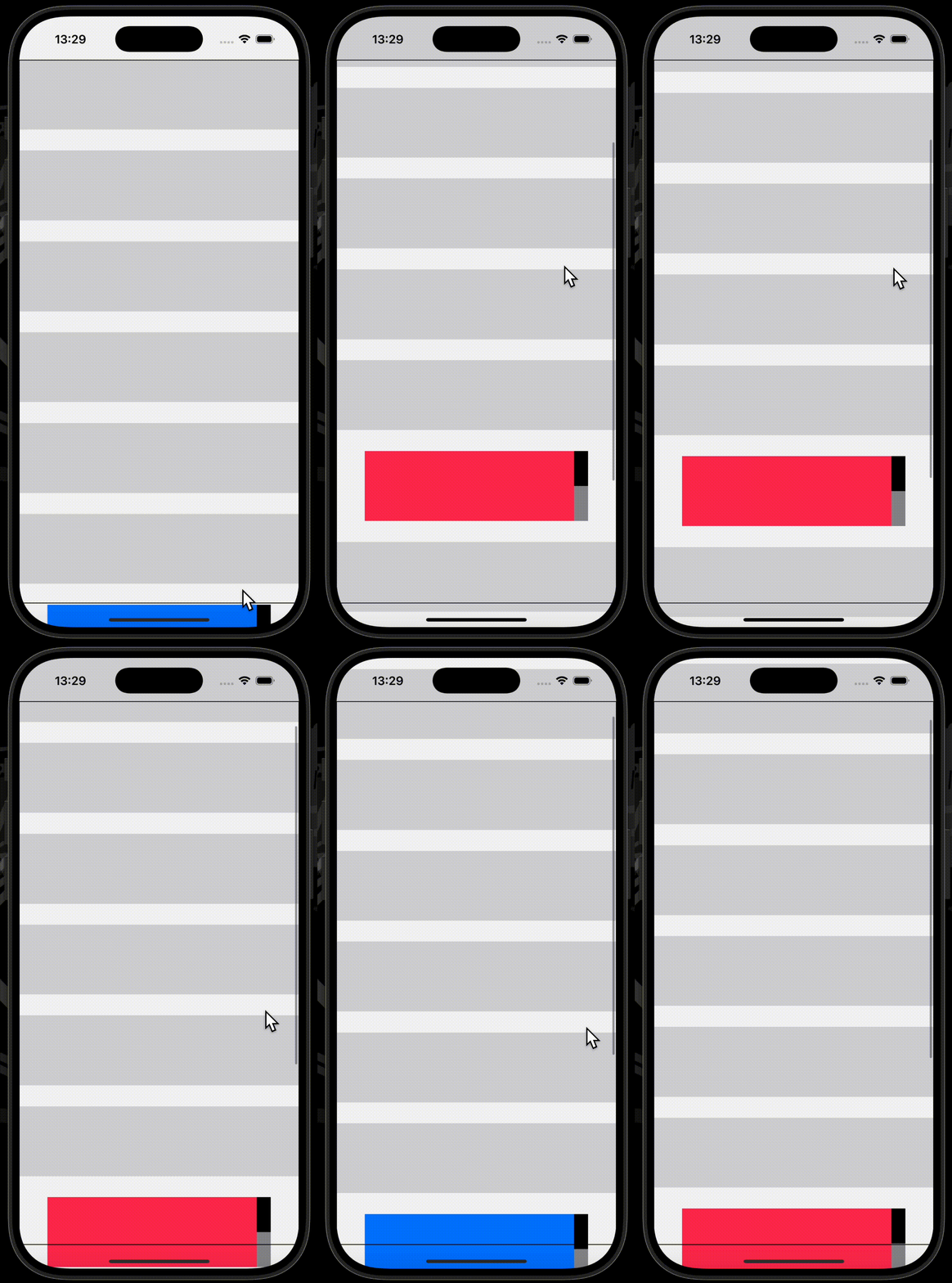
onScrollVisibilityChangeモディファイアを使用することで、コンテンツとなるビューがスクロールビューのコンテナ領域に入った時、もしくは出た時の処理を設定することができます。
スクロールビューのコンテナ領域へのビューの出入に関しては、デフォルトでビューの50%が閾値として設定されています。引数thresholdにDobleを渡すことで、任意の閾値に設定が可能です。
ビューが表示された時点で、スクロールビューのコンテナ領域に入っている場合は、その時点で処理が呼び出されます。
下の例では、ビューがスクロールビューのコンテナ領域に入った時、もしくは出た時にisVisbleの値を反転し、四角形の色を変更しています。
使用したコードはこちら
struct ContentView: View {

    @State private var isVisible = false

    var body: some View {
        ScrollView {
            LazyVStack(spacing: 30) {
                ForEach(0..<10) { i in
                    if i == 6 {
                        Rectangle()
                            .fill(isVisible ? .pink : .blue)
                            .frame(width: 320, height: 100)
                            .overlay(alignment: .trailing) {
                                VStack(spacing: .zero) {
                                    Rectangle()
                                        .fill(.black)
                                        .frame(width: 20)
                                    Rectangle()
                                        .fill(.gray)
                                        .frame(width: 20)
                                }
                            }
                            .onScrollVisibilityChange { isVisible in // ✅
                                self.isVisible = isVisible
                            }
//                            .onScrollVisibilityChange(threshold: 0.2) { isVisible in
//                                self.isVisible = isVisible
//                            }
                    } else {
                        Rectangle()
                            .fill(.gray.opacity(0.3))
                            .frame(height: 100)
                    }
                }
            }
        }
        .border(.black)
    }
}
scrollTransition
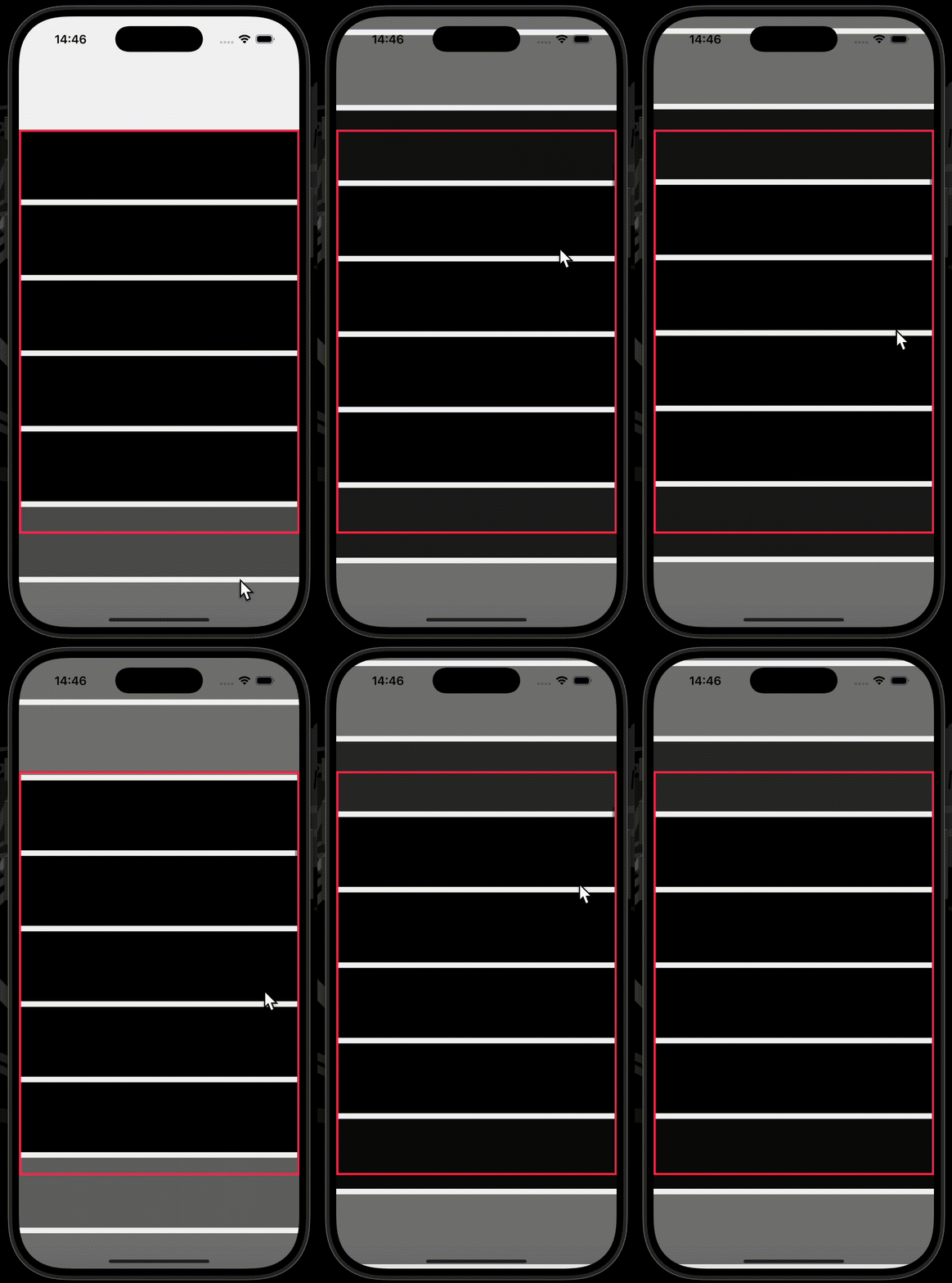
scrollTransitionモディファイアを使用することで、コンテンツとなるビューがスクロールビューのコンテナ領域に入った時、もしくは出た時のトランジションを設定することができます。
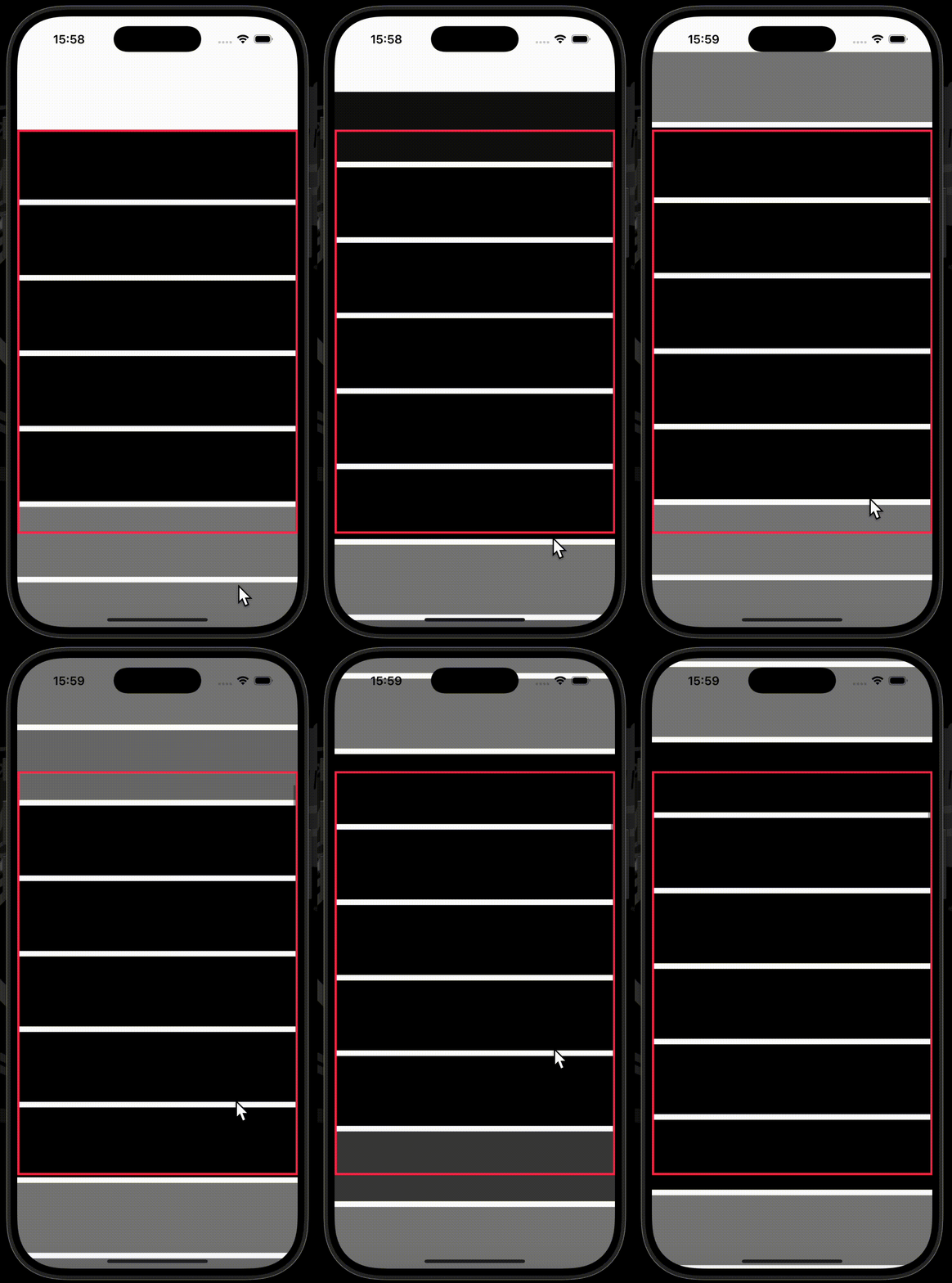
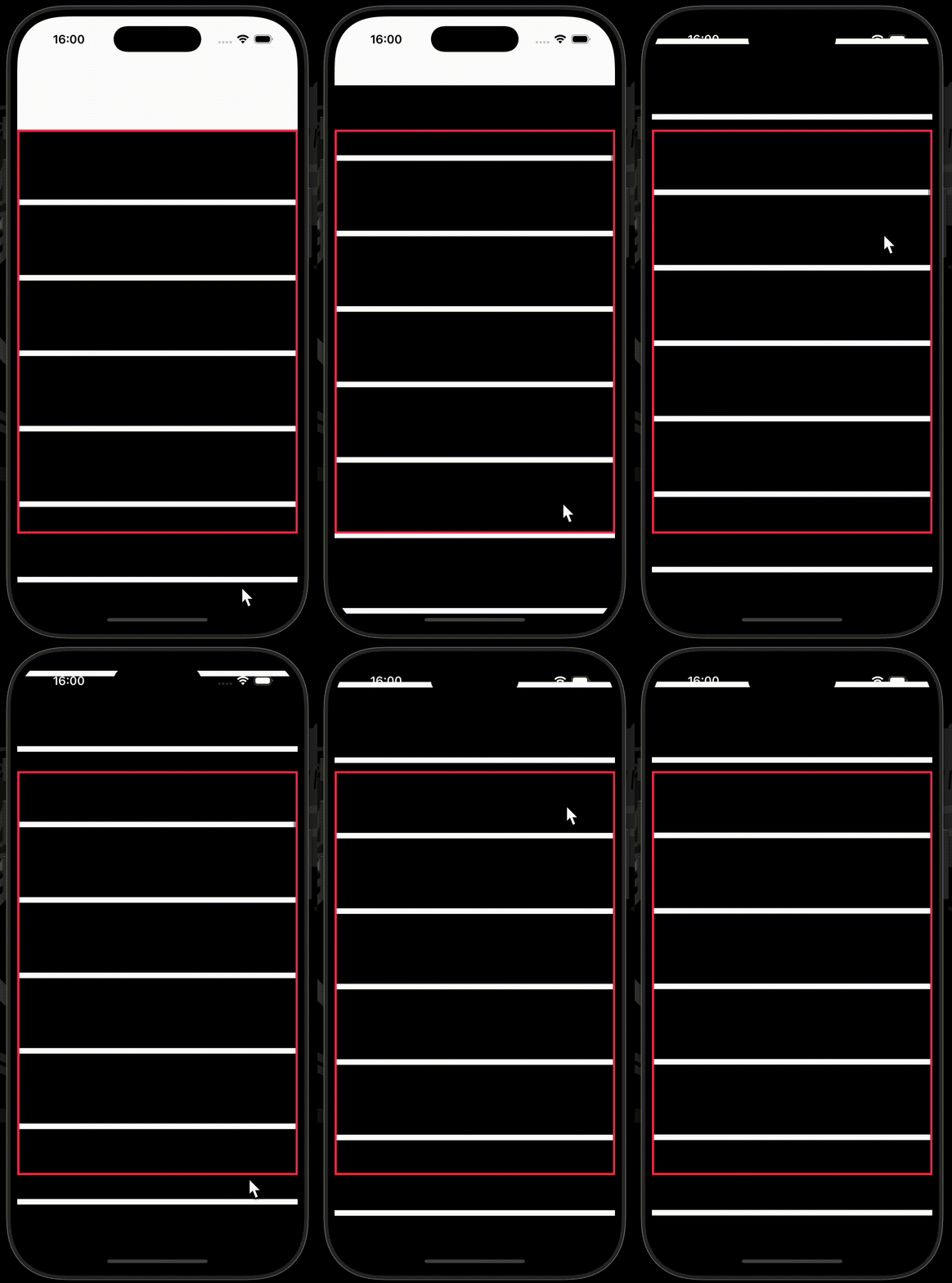
下の例では、ビューがスクロールビューのコンテナ領域に入っている時は透明度が1.0となり、出ている時は透明度が0.5となります。
トランジションがどのように適用されるかは、引数configurationにScrollTransitionConfiguration を渡すことで変更できます。デフォルト引数として、.interactiveが設定されており、ビューがスクロールビューのコンテナ領域に入り始めると、もしくは出始めると、スクロール量に応じて徐々に変化していきます。
.animatedに設定した場合は、ビューの半分がスクロールビューのコンテナ領域に入った時、もしくは出た時にアニメーション付きで一気に変化します。.identityに設定した場合は、呼び出し元のビューが変化することはありません。
| .interactive | .animated | .identity |
|---|---|---|
 |
 |
 |
使用したコードはこちら
struct ContentView: View {
    var body: some View {
        ScrollView {
            LazyVStack(spacing: nil) {
                ForEach(0..<50) { _ in
                    Rectangle()
                        .frame(height: 100)
                        .scrollTransition(.interactive) { content, phase in // ✅
                            content
                                .opacity(phase.isIdentity ? 1.0 : 0.5)
                        }
                }
            }
        }
        .border(.pink, width: 3)
        .safeAreaPadding(.vertical, 100)
    }
}
visualEffect
visualEffectモディファイアを使用することで、コンテンツとなるビューに対して、レイアウト情報に応じたエフェクトを適用できます。
visualEffectモディファイアのeffectクロージャは、呼び出し元のビューを表すEmptyVisualEffectインスタンスと、レイアウト情報が格納されているGeometryProxyインスタンスを提供します。
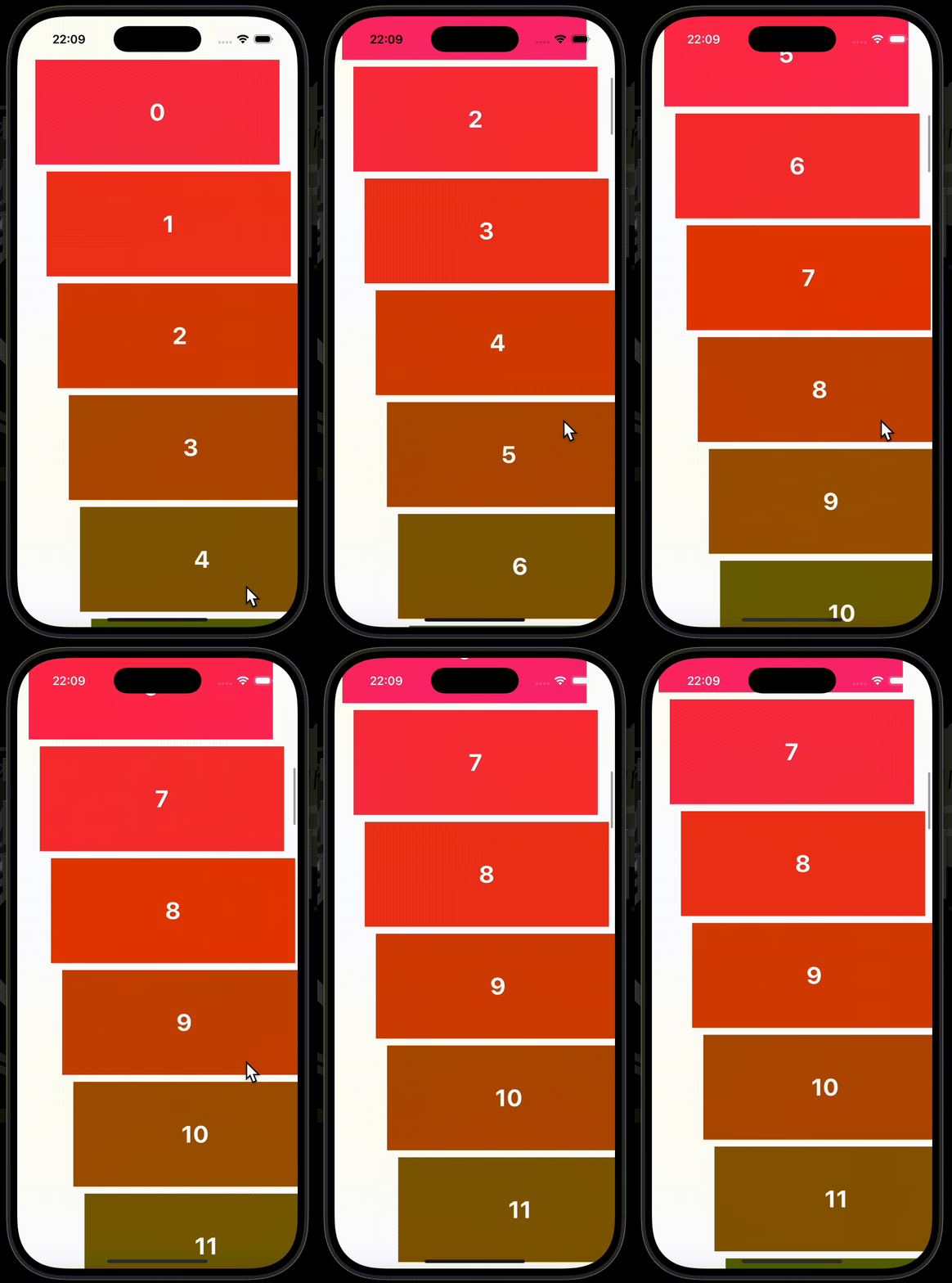
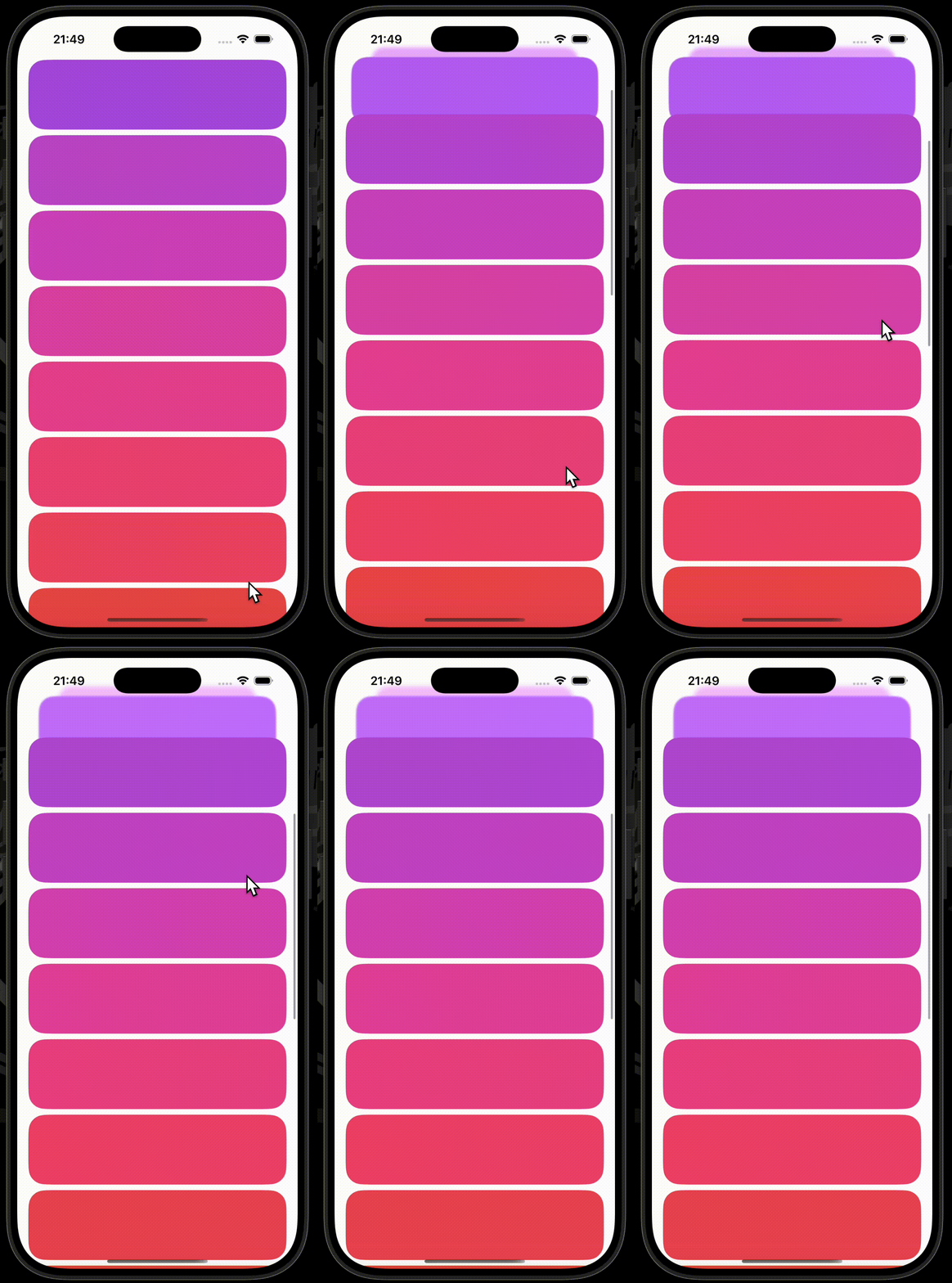
下の例は、ビューのY軸に応じて、色相とX軸のオフセットを変化させている例と、WWDCで登場した例です。
| 色相とX軸のオフセットを変化させている例 | WWDCで登場した例 |
|---|---|
 |
 |
使用したコードはこちら(色相とX軸のオフセットを変化させている例)
struct ContentView: View {
    var body: some View {
        ScrollView {
            LazyVStack(spacing: 10) {
                ForEach(0..<50) { i in
                    Text(i.description)
                        .foregroundStyle(.white)
                        .font(.largeTitle.bold())
                        .frame(width: 350, height: 150)
                        .background(.pink)
                        .visualEffect { emptyVisualEffectContent, geometryProxy in // ✅
                            emptyVisualEffectContent
                                .hueRotation(
                                    Angle(degrees: geometryProxy.frame(in: .global).origin.y / 10)
                                )
                                .offset(x: (geometryProxy.frame(in: .global).origin.y - 62) * 0.1)
                        }
                }
            }
        }
    }
}
使用したコードはこちら(WWDCで登場した例)
struct ContentView: View {
    var body: some View {
        ScrollView {
            VStack(spacing: nil) {
                ForEach(0..<20) { _ in
                    RoundedRectangle(cornerRadius: 24)
                        .fill(.purple)
                        .frame(height: 100)
                        .visualEffect { content, proxy in // ✅
                            let frame = proxy.frame(in: .scrollView(axis: .vertical))
                            let distance = min(0, frame.minY)

                            return content
                                .hueRotation(.degrees(frame.origin.y / 10))
                                .scaleEffect(1 + distance / 700)
                                .offset(y: -distance / 1.25)
                                .brightness(-distance / 400)
                                .blur(radius: -distance / 50)
                        }
                }
            }
        }
        .contentMargins(.horizontal, 16, for: .scrollContent)
    }
}
onScrollPhaseChange
onScrollPhaseChangeモディファイアを使用することで、ScrollPhaseが変化した際に実行する処理を設定できます。
ScrollPhaseは列挙型で、ケースは下記の通りです。
| Case | Description |
|---|---|
| .interacting | 画面に触れながらスクロールしている間。 |
| decelerating | 画面に触れずにスクロールしている間。(慣性) |
| .idle | 停止している間。 |
| .animating | アニメーションによりスクロールしている間。 |
| .tracking | 詳細不明。 |
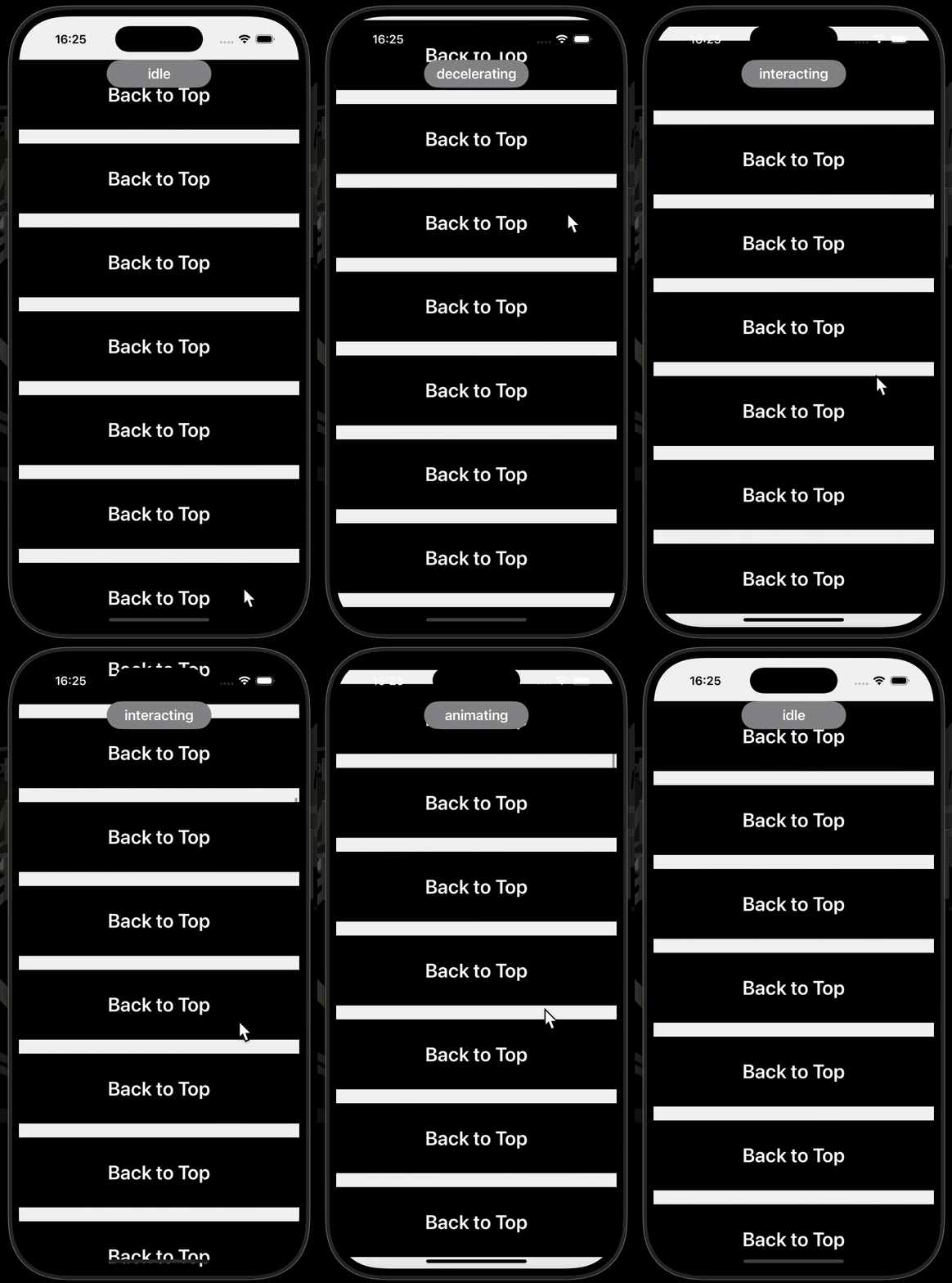
onScrollPhaseChangeモディファイアには、actionクロージャが引数にScrollPhaseChangeContextもとるオーバーロードが存在し、ScrollPhaseが変化した際のスクロールビューのジオメトリも使用できます。
下の例では、ScrollPhaseの変遷を把握するために、画面上部にScrollPhaseの状態を表示しています。
使用したコードはこちら
struct ContentView: View {

    @State private var scrollPosition: ScrollPosition = .init()
    @State private var scrollPhase: ScrollPhase? = nil

    var body: some View {
        ScrollView {
            LazyVStack(spacing: 20) {
                ForEach(0..<100) { _ in
                    rowContent
                        .onTapGesture {
                            withAnimation {
                                scrollPosition.scrollTo(edge: .top)
                            }
                        }
                }
            }
        }
        .scrollPosition($scrollPosition)
        .onScrollPhaseChange { _, newPhase in // ✅
            scrollPhase = newPhase
        }
        .overlay(alignment: .top) {
            if let text = scrollPhase?.debugDescription {
                scrollPhaseText(text)
            }
        }
    }

    var rowContent: some View {
        Text("Back to Top")
            .foregroundStyle(.background)
            .font(.title)
            .fontWeight(.semibold)
            .frame(maxWidth: .infinity)
            .frame(height: 100)
            .background(.primary)
    }

    func scrollPhaseText(_ text: String) -> some View {
        Text(text)
            .foregroundStyle(.white)
            .font(.title3)
            .fontWeight(.semibold)
            .frame(width: 150, height: 40)
            .background(.gray)
            .clipShape(.capsule)
    }
}
scrollPosition
scrollPositionモディファイアを使用することで、指定のIDをもつビューまでの自動スクロール、スクロールビューが表示された時のスクロール位置の指定、焦点が当てられているビューの追跡を可能とします。
@State private var scrolledID: Color?のようにバインディングを提供できるプロパティを用意します。このscrolledIDプロパティに対してIDとなる値を代入することで、代入された値をIDとしてもつビューまで自動スクロールさせることができます。
scrolledIDプロパティにIDとなる値を代入しておくと、そのIDをもつビューが表示されるようにスクロール位置を調整された状態でスクロールビューが表示されます。
手動スクロール時には、スクロールビューが焦点を当てているビューのIDがscrolledIDプロパティに代入されます。下の例では、scrolledIDプロパティの初期値はnilとなっていますが、.orangeを設定している場合、オレンジのカードが最初に表示されます。
scrollPositionモディファイアは、scrollTargetLayoutモディファイアとセットで使用します。scrollTargetLayoutモディファイアを省略しても、プログラムによる自動スクロールは可能ですが、焦点が当てられているビューの追跡はできません。
scrollPositionモディファイアの引数anchorに対し.top、もしくは.bottomを設定した場合、ビューの50%が指定された境界を超えるとViewがもつIDがscrolledIDプロパティに代入されます。この時の閾値は任意の比率に変更ができない模様です。
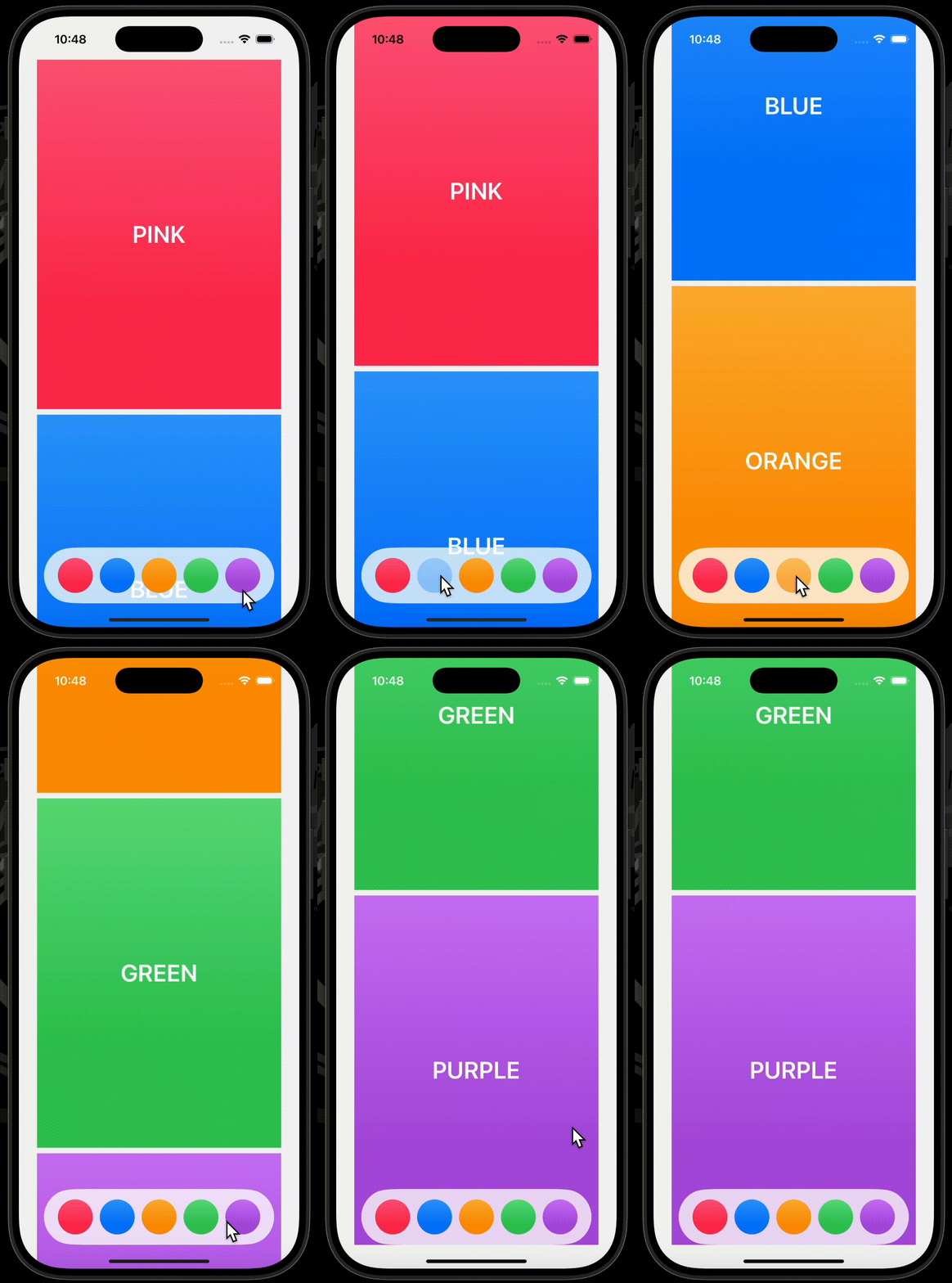
下の例では、パレットのカラーをタップすることで、タップされたカラーをscrolledIDプロパティに代入し、自動スクロールをさせています。
また、スクロール時におけるスクロールビューが焦点を当てているビューの変遷も、onChangeモディファイアを使用して出力しています。
使用したコードはこちら
struct ContentView: View {

    @State private var scrolledID: Color? = nil
    private let colors: [Color] = [.pink, .blue, .orange, .green, .purple]

    var body: some View {
        ScrollView {
            LazyVStack {
                ForEach(colors, id: \.self, content: textCard)
            }
            .scrollTargetLayout()
        }
        .scrollPosition(id: $scrolledID, anchor: .center) // ✅
        .animation(.default, value: scrolledID)
        .overlay(alignment: .bottom, content: buttonPalette)
        .onChange(of: scrolledID) {
            print(.init(describing: $0) + " → " + .init(describing: $1))
        }
    }

    func textCard(_ color: Color) -> some View {
        Text(color.description)
            .foregroundStyle(.white)
            .textCase(.uppercase)
            .font(.largeTitle)
            .fontWeight(.semibold)
            .frame(width: 350, height: 500)
            .background(color.gradient)
    }

    func buttonPalette() -> some View {
        HStack(spacing: 10) {
            ForEach(colors, id: \.self) { color in
                Button {
                    scrolledID = color
                } label: {
                    Circle()
                        .fill(color.gradient)
                        .frame(width: 50, height: 50)
                }
            }
        }
        .padding(.vertical, 15)
        .padding(.horizontal, 20)
        .background(.background.opacity(0.8))
        .clipShape(.capsule)
    }
}
ScrollPosition
scrollPositionモディファイアとScrollPositionを組み合わせて使用することで、指定のIDをもつビューまでの自動スクロール、スクロールビューが表示された時のスクロール位置の指定、焦点が当てられているビューの追跡に加え、指定のオフセットまでの自動スクロール、指定のエッジまでの自動スクロールを可能とします。
scrollToメソッドを使用することで、指定のIDをもつビューまでの自動スクロール、指定のオフセットまでの自動スクロール、指定のエッジまでの自動スクロールが可能です。
viewIDプロパティで焦点が当てられているビューのIDの確認が可能です。
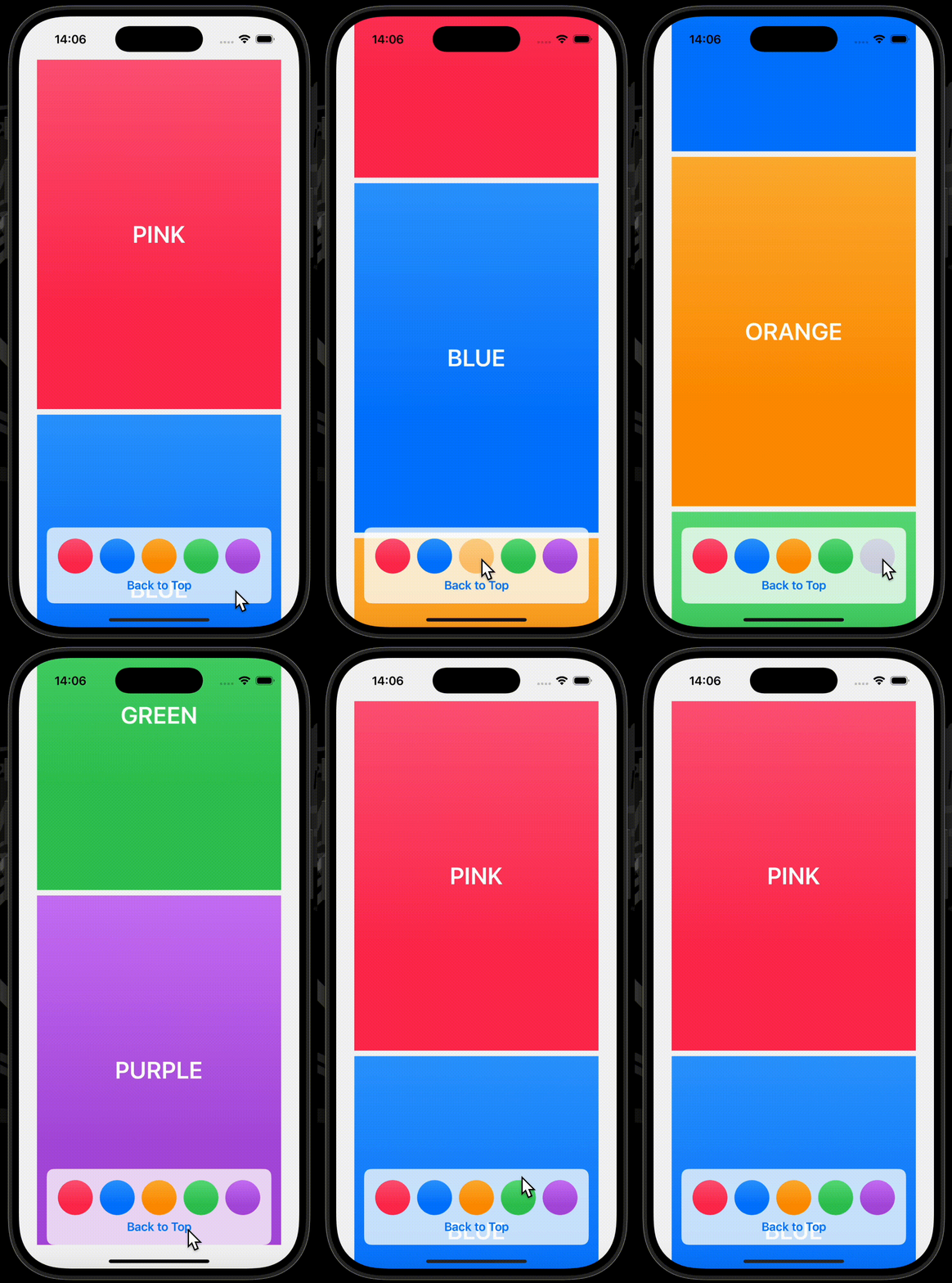
下の例では、パレットのカラーをタップすることで、タップされたカラーをscrollToメソッドの引数idに渡し自動スクロールをさせており、Back to Top ボタンをタップすることで、.topをscrollToメソッドの引数edgeに渡し自動スクロールをさせています。
また、スクロール時におけるスクロールビューが焦点を当てているビューの変遷も、onChangeモディファイアを使用して出力しています。
使用したコードはこちら
struct ContentView: View {

    @State private var scrollPosition: ScrollPosition = .init(idType: Color.self) // ✅
    private let colors: [Color] = [.pink, .blue, .orange, .green, .purple]

    var body: some View {
        ScrollView {
            LazyVStack {
                ForEach(colors, id: \.self, content: textCard)
            }
            .scrollTargetLayout()
        }
        .scrollPosition($scrollPosition, anchor: .center)
        .animation(.default, value: scrollPosition)
        .overlay(alignment: .bottom, content: buttonPalette)
        .onChange(of: scrollPosition) {
            print(scrollPosition.viewID as Any)
        }
    }

    func textCard(_ color: Color) -> some View {
        Text(color.description)
            .foregroundStyle(.white)
            .textCase(.uppercase)
            .font(.largeTitle)
            .fontWeight(.semibold)
            .frame(width: 350, height: 500)
            .background(color.gradient)
    }

    func buttonPalette() -> some View {
        VStack(spacing: nil) {
            HStack(spacing: 10) {
                ForEach(colors, id: \.self) { color in
                    Button {
                        scrollPosition.scrollTo(id: color)
                    } label: {
                        Circle()
                            .fill(color.gradient)
                            .frame(width: 50, height: 50)
                    }
                }
            }

            Button("Back to Top") {
                scrollPosition.scrollTo(edge: .top)
            }
            .fontWeight(.semibold)
        }
        .padding()
        .background(.background.opacity(0.8))
        .clipShape(.rect(cornerRadius: 10))
    }
}
ScrollViewReader
ScrollViewReaderを使用することで、指定のIDをもつビューまでの自動スクロールを可能とします。
言ってしまえば、ScrollViewReaderは、ScrollViewProxyインスタンスを提供するビュービルダーです。
ScrollViewProxyインスタンスのscrollTo(_:anchor:)メソッドを使用することで、指定したIDのビューまで自動スクロールさせることができます。
※ ScrollViewの先頭や末尾、特定のオフセットなどに自動スクロールするといったことは、ScrollViewReaderではできません。
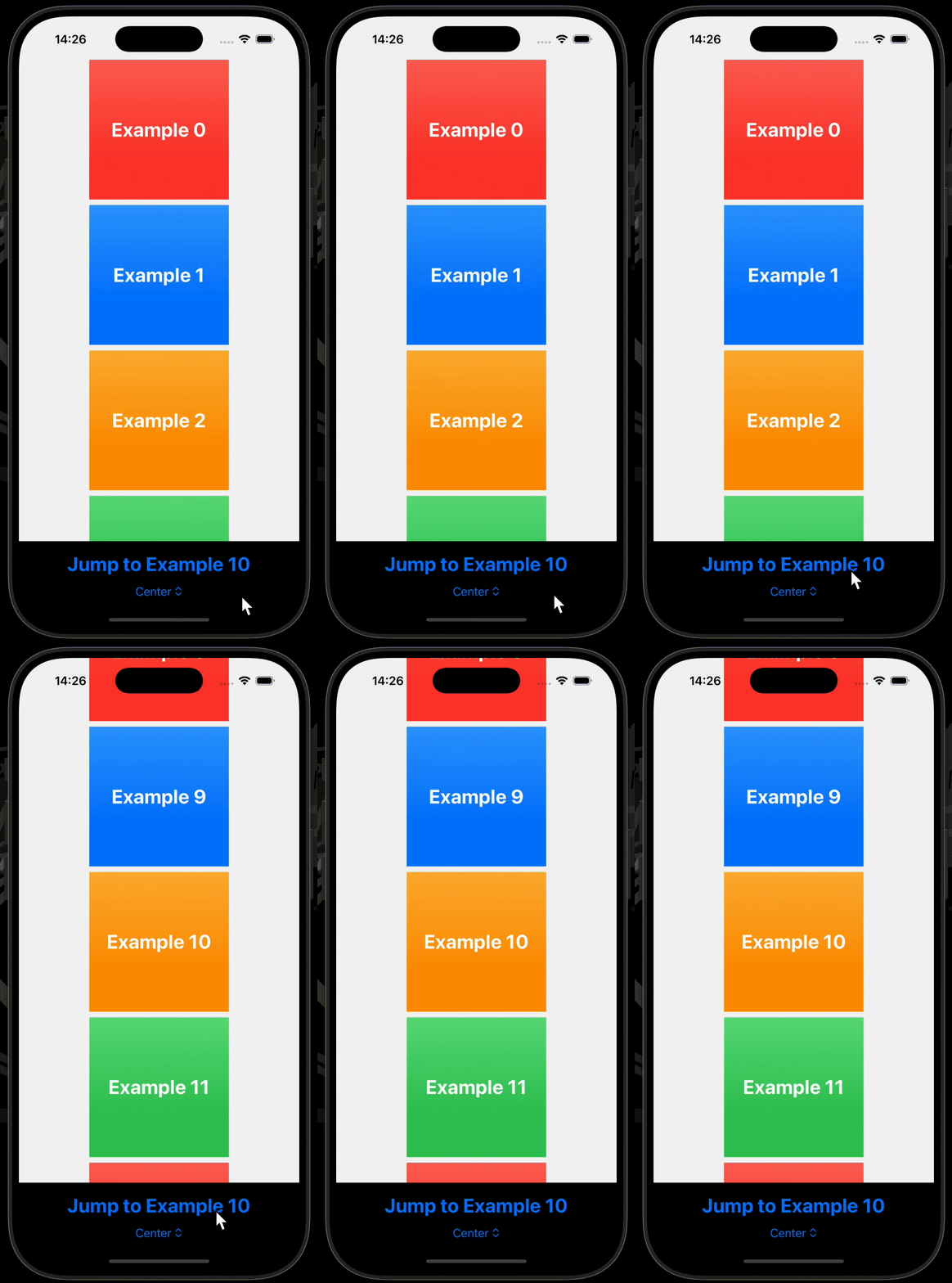
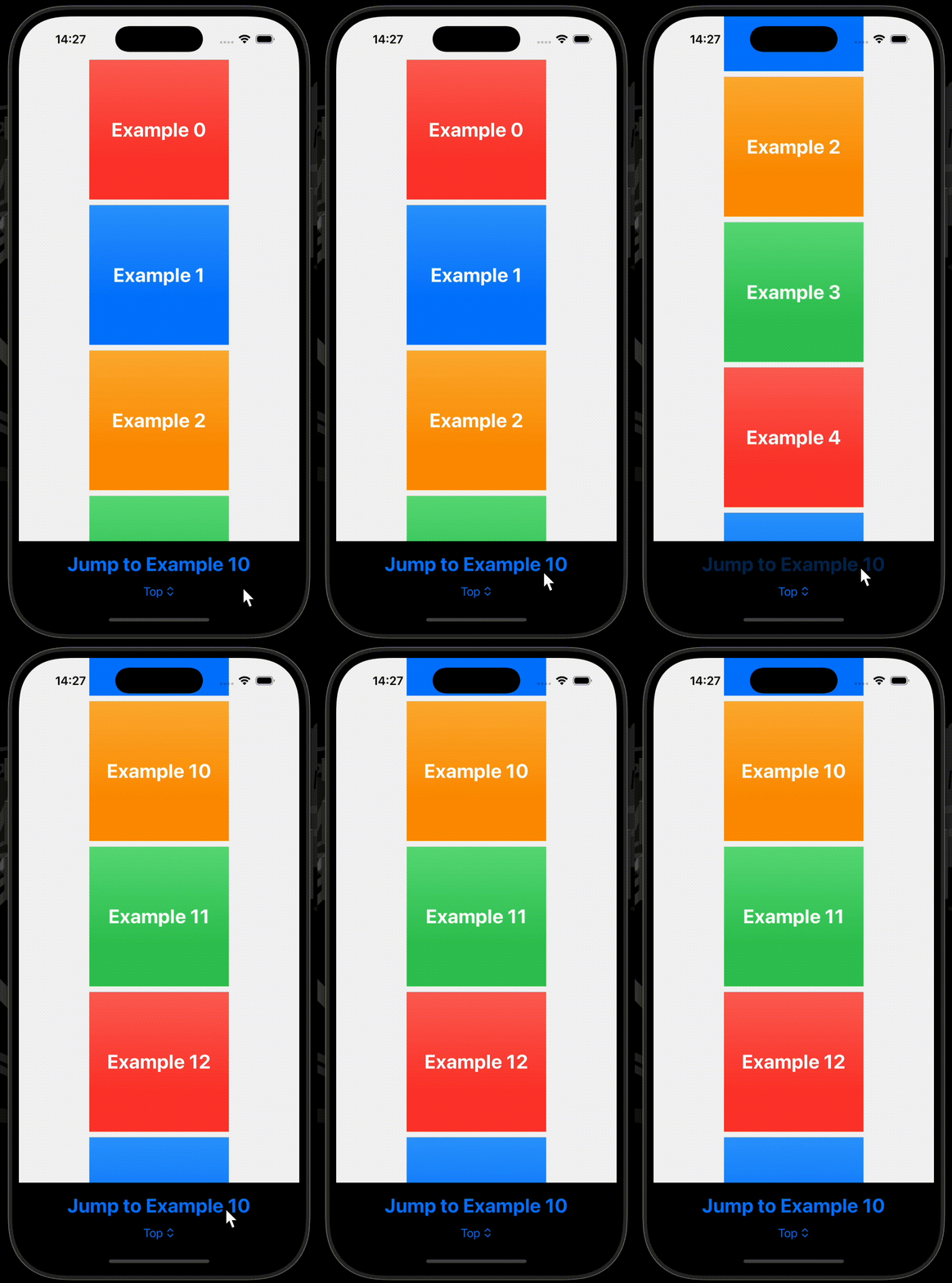
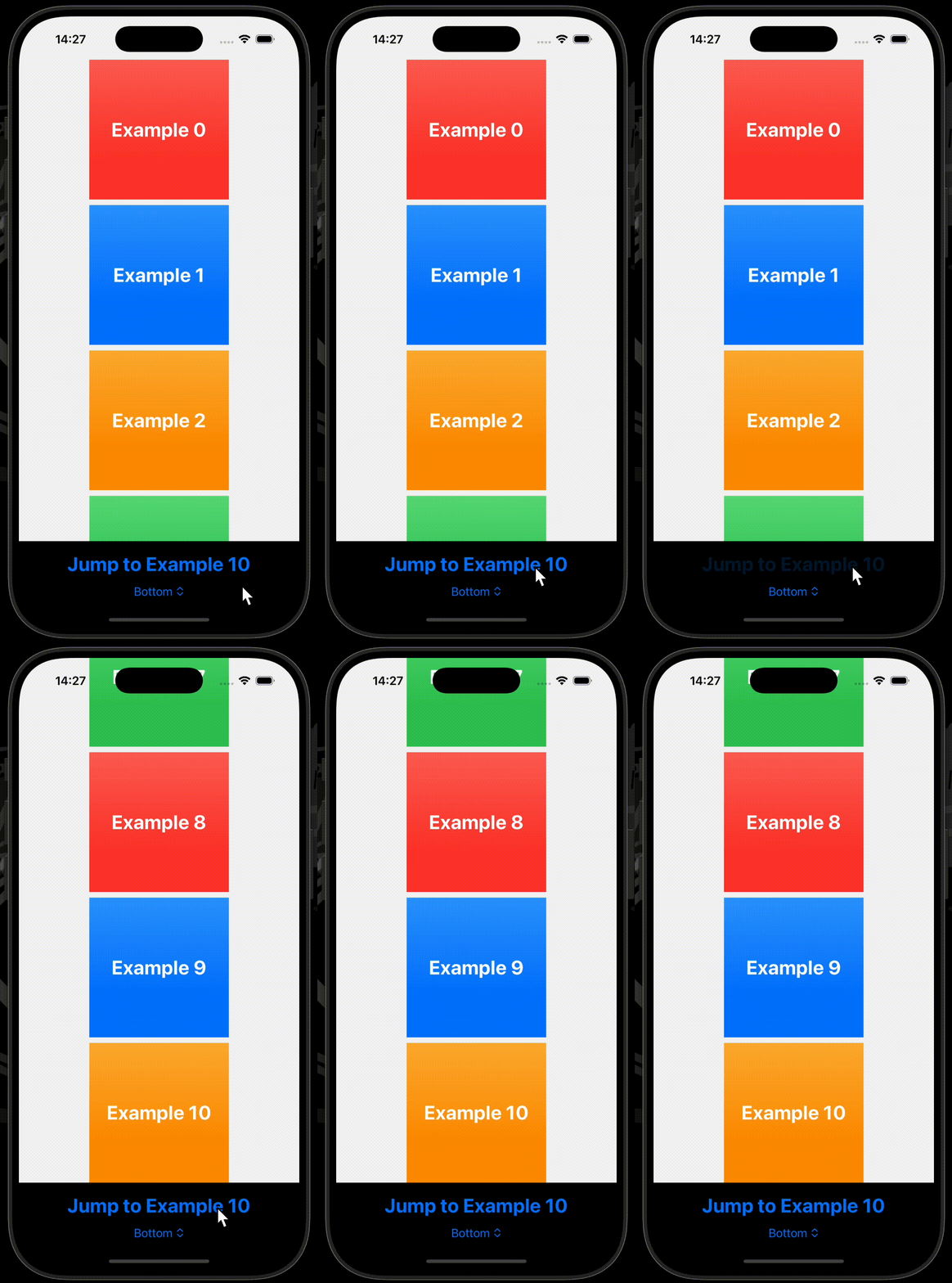
下の例では、ScrollViewProxyインスタンスのscrollTo(_:anchor:)メソッドを使用して、IDが10に設定されているタイルまで自動スクロールをさせています。
引数anchorには、それぞれ.center、.top、.bottomが設定されています。
| .center | .top | .bottom |
|---|---|---|
 |
 |
 |
使用したコードはこちら
struct ContentView: View {

    private let colors: [Color] = [.red, .blue, .orange, .green]
    @State private var anchor: UnitPoint = .center

    var body: some View {
        ScrollViewReader { scrollViewProxy in // ✅
            ScrollView {
                LazyVStack {
                    ForEach(0..<30, id: \.self, content: textTile)
                }
            }
            .safeAreaInset(edge: .bottom, spacing: 0) {
                VStack(spacing: 5) {
                    jumpButton(scrollViewProxy)
                    anchorPicker
                }
                .background(.black)
            }
        }
        .font(.title.bold())
    }

    func textTile(_ i: Int) -> some View {
        Text("Example \(i)")
            .foregroundStyle(.white)
            .frame(width: 200, height: 200)
            .background(colors[i % colors.count].gradient)
    }

    func jumpButton(_ scrollViewProxy: ScrollViewProxy) -> some View {
        Button("Jump to Example 10") {
            withAnimation {
                scrollViewProxy.scrollTo(10, anchor: anchor)
            }
        }
        .padding(.top)
        .frame(maxWidth: .infinity)
    }

    var anchorPicker: some View {
        let selectionContent: [(String, UnitPoint)] = [
            ("Top", .top), ("Center", .center), ("Bottom", .bottom)
        ]

        return Picker("Anchor", selection: $anchor) {
            ForEach(selectionContent, id: \.1) { content in
                Text(content.0)
            }
        }
    }
}
scrollInputBehavior
scrollInputBehaviorを使用することで、特定の入力による自動スクロールの有効化、または無効化を設定することができます。
実際のところ、本記事の執筆時点で設定可能な入力は、watchOSで用いられる.handGestureShortcutだけの模様です。
struct ContentView: View {
    var body: some View {
        ScrollView {
            // content
        }
        .scrollInputBehavior(.disabled, for: .handGestureShortcut) // ✅
    }
}
toolbarBackgroundVisibility
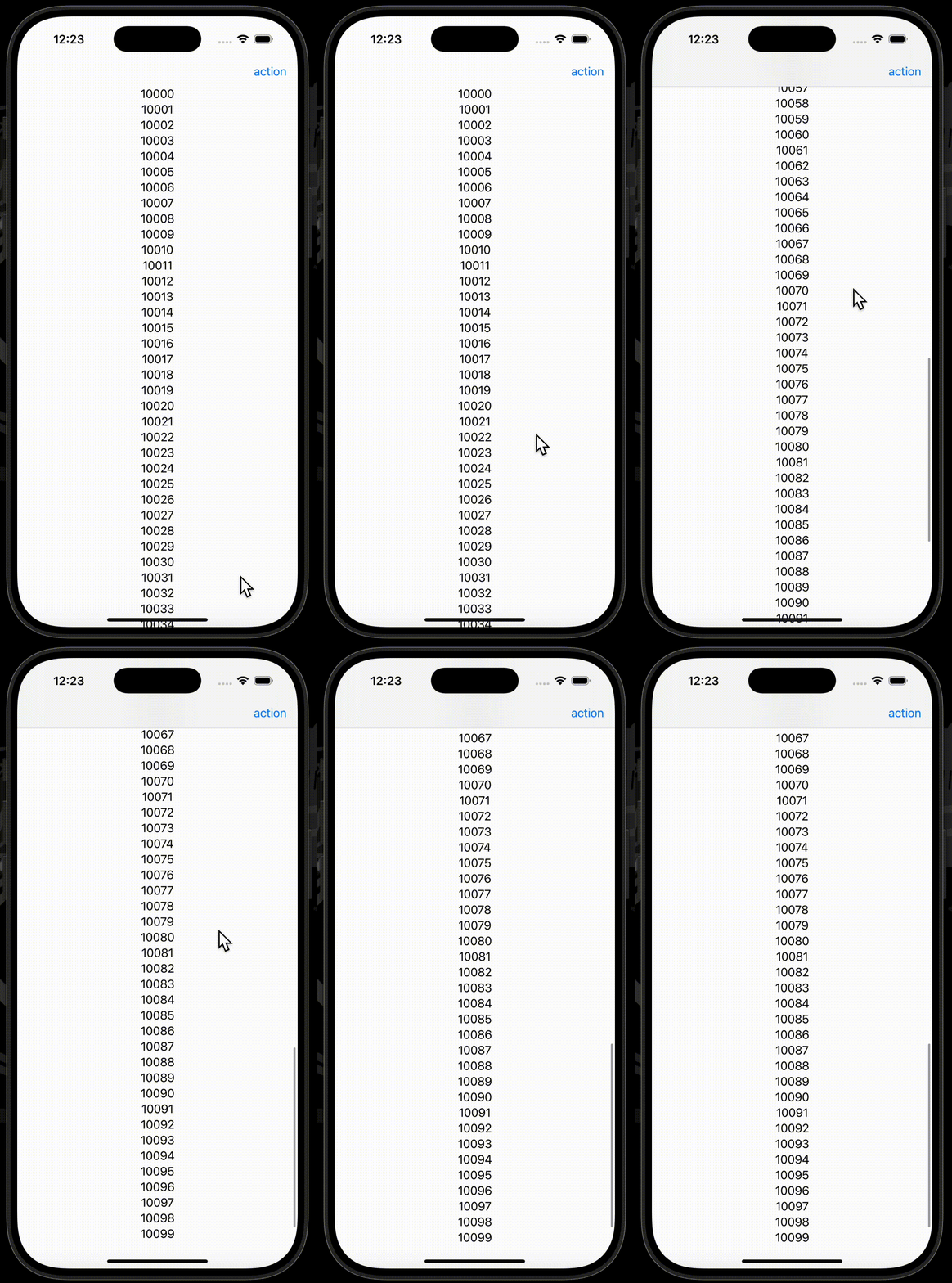
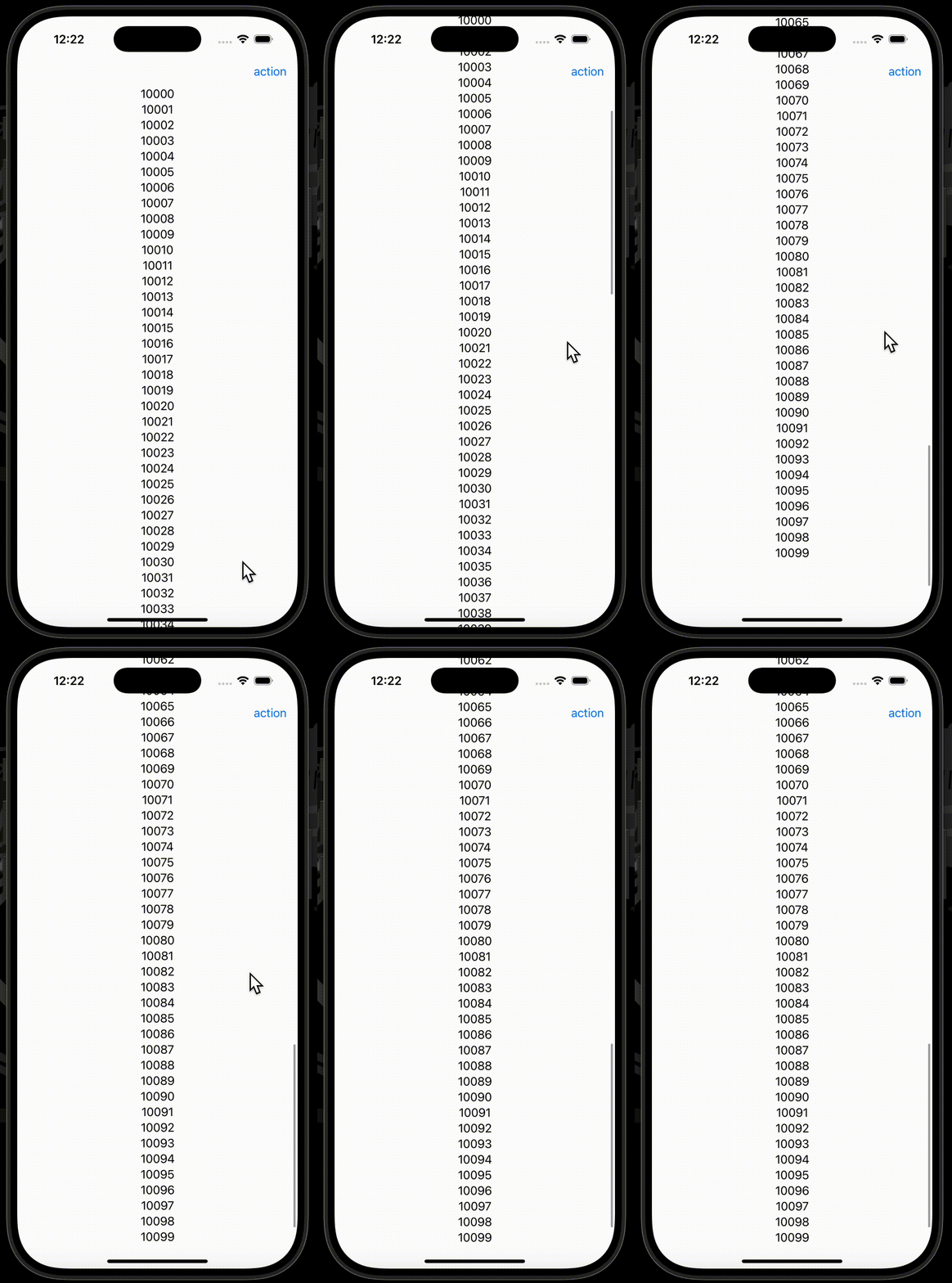
toolbarBackgroundVisibilityモディファイアを使用することで、特定のツールバーの背景を非表示に設定することができます。
※ ナビゲーションタイトルが設定されている場合、ビューと重なってしまうので注意が必要です。
| .toolbarBackgroundVisibility(.hidden, for: .navigationBar)なし | .toolbarBackgroundVisibility(.hidden, for: .navigationBar)あり |
|---|---|
 |
 |
使用したコードはこちら
struct ContentView: View {
    var body: some View {
        NavigationStack {
            ScrollView {
                LazyVStack(spacing: nil) {
                    ForEach(10000..<10100) { i in
                        Text(i.description)
                    }
                }
            }
            .toolbar {
                ToolbarItem(placement: .topBarTrailing) {
                    Button("action", action: {})
                }
            }
            .toolbarBackgroundVisibility(.hidden, for: .navigationBar) // ✅
        }
    }
}
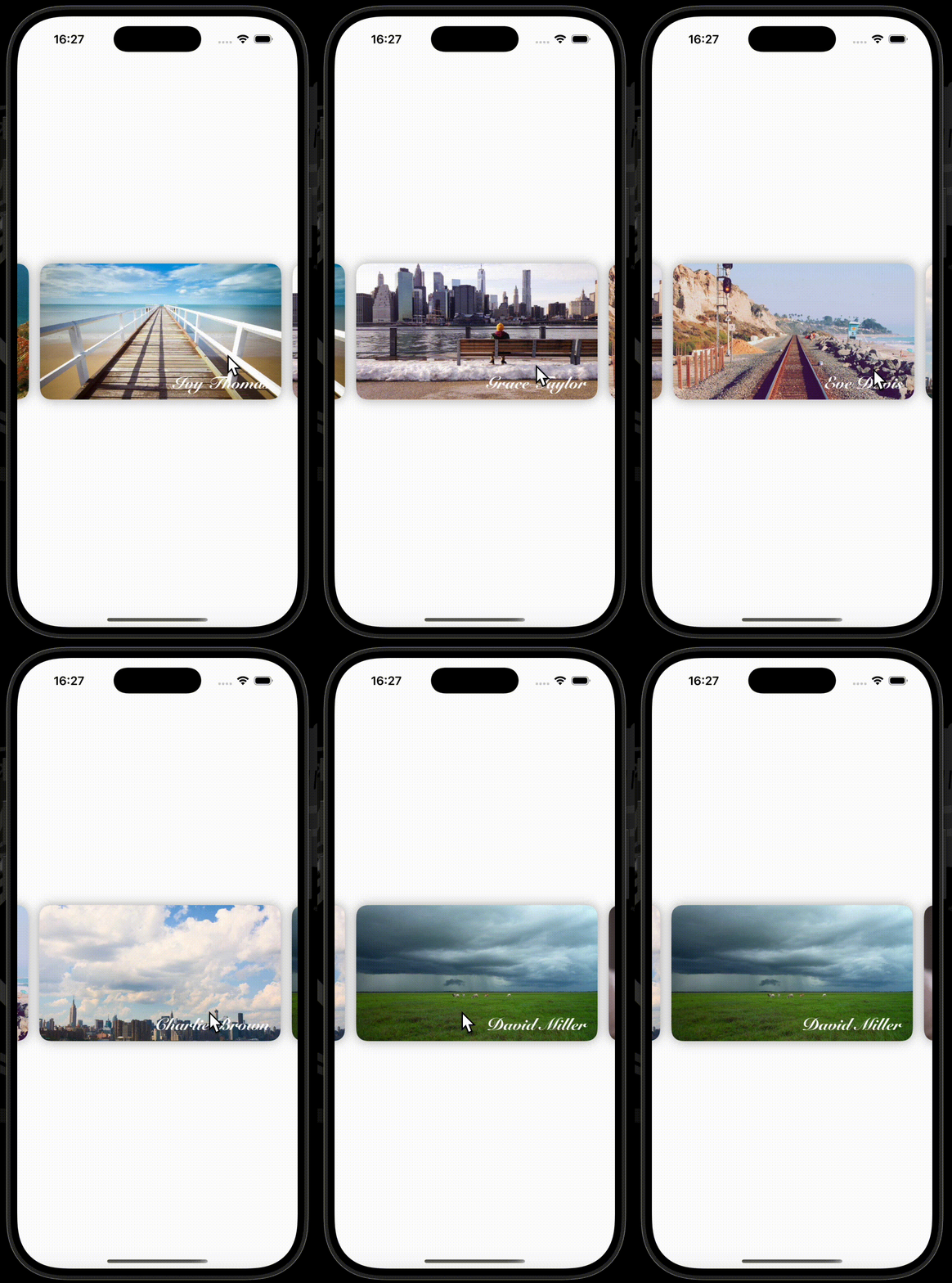
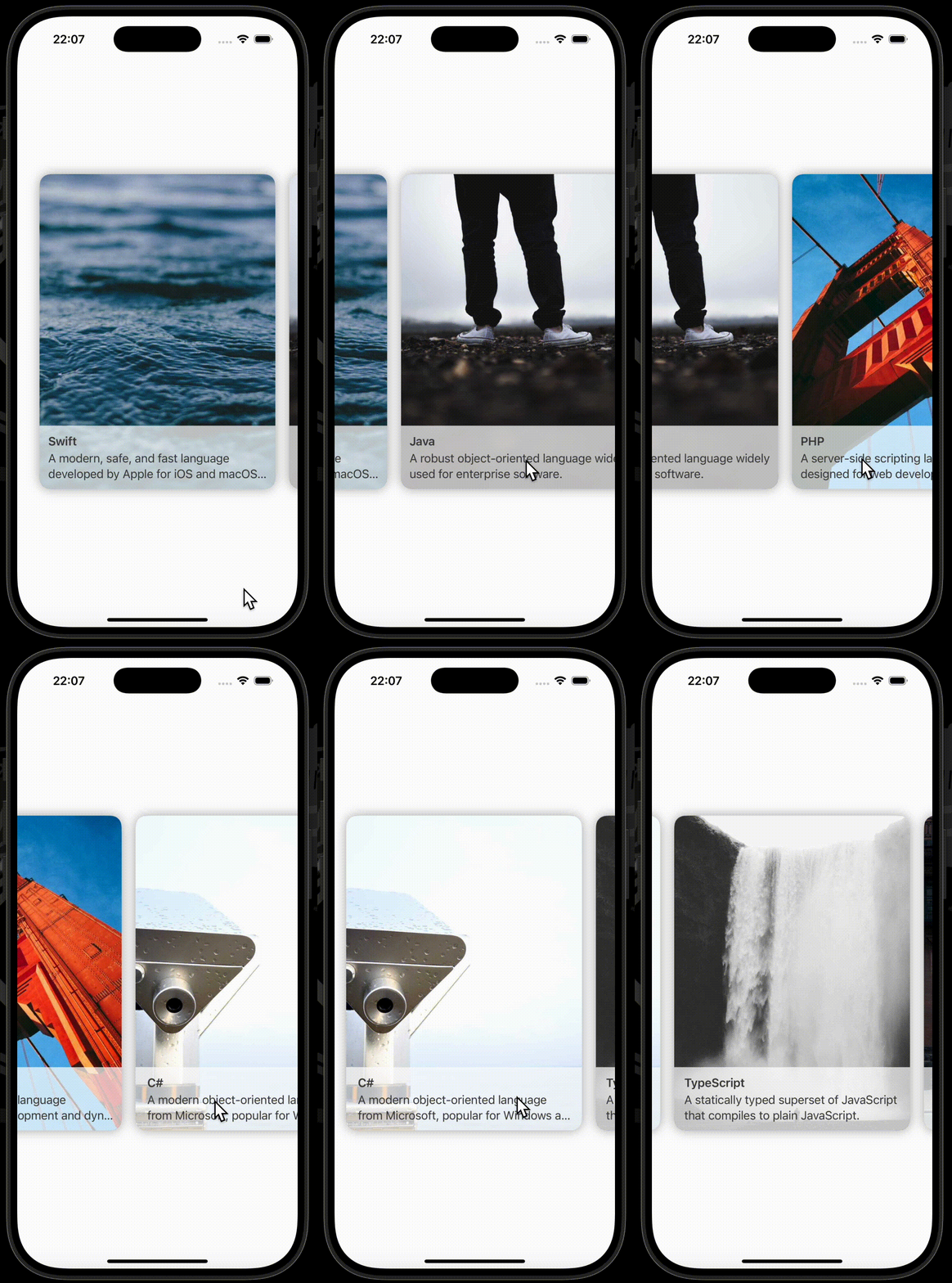
Samples(scrollTargetBehavior)
| Sample1 | Sample2 |
|---|---|
 |
 |
使用したコードはこちら(Sample1)
struct ContentView: View {

    private let photographers = ["Frank Wilson", "Hank Anderson", "Ivy Thomas", "Grace Taylor", "Eve Davis", "Charlie Brown", "David Miller", "Alice Smith", "Jack Moore", "Bob Johnson"]

    private let imageURL = URL(string: "https://picsum.photos/1920/1080")

    var body: some View {
        ScrollView(.horizontal) {
            HStack(spacing: 16) {
                ForEach(photographers, id: \.self) { photographer in
                    imageSlide(photographer)
                        .frame(maxWidth: .infinity, maxHeight: .infinity)
                        .aspectRatio(16/9, contentMode: .fit)
                        .containerRelativeFrame(.horizontal)
                }
            }
            .scrollTargetLayout()
        }
        .scrollTargetBehavior(.viewAligned)
        .scrollClipDisabled()
        .contentMargins(.horizontal, 28, for: .scrollContent)
        .scrollIndicators(.hidden)
    }

    func imageSlide(_ photographer: String) -> some View {
        AsyncImage(url: imageURL) { imagePhase in
            switch imagePhase {
            case .empty:
                ProgressView()
            case .success(let image):
                image
                    .resizable()
                    .scaledToFit()
                    .clipShape(.rect(cornerRadius: 16))
                    .shadow(radius: 8)
                    .overlay(alignment: .bottomTrailing) {
                        Text(photographer)
                            .foregroundStyle(.white)
                            .font(.custom("Snell Roundhand", size: 24))
                            .fontWeight(.black)
                            .padding(.trailing, 16)
                            .padding(.bottom, 8)
                    }
            case .failure(let error):
                Text(error.localizedDescription)
            @unknown default:
                fatalError()
            }
        }
    }
}
使用したコードはこちら(Sample2)
struct ContentView: View {

    struct ProgrammingLanguage {
        let name: String
        let description: String
    }

    private let programmingLanguageList: [ProgrammingLanguage] = [
        .init(name: "Swift", description: "A modern, safe, and fast language developed by Apple for iOS and macOS apps."),
        .init(name: "Java", description: "A robust object-oriented language widely used for enterprise software."),
        .init(name: "PHP", description: "A server-side scripting language designed for web development and dynamic sites."),
        .init(name: "C#", description: "A modern object-oriented language from Microsoft, popular for Windows applications."),
        .init(name: "TypeScript", description: "A statically typed superset of JavaScript that compiles to plain JavaScript."),
        .init(name: "Ruby", description: "An elegant, dynamic language known for its simplicity and high productivity."),
        .init(name: "JavaScript", description: "A versatile scripting language primarily used to create interactive web pages."),
        .init(name: "Kotlin", description: "A modern, concise language for JVM and Android development with strong type safety."),
        .init(name: "Python", description: "A powerful high-level language popular for web development, data science, and automation.")
    ]

    private let imageURL = URL(string: "https://picsum.photos/900/1200")

    var body: some View {
        ScrollView(.horizontal) {
            HStack(spacing: 20) {
                ForEach(programmingLanguageList, id: \.name) { programmingLanguage in
                    imageSlide(programmingLanguage)
                        .frame(maxWidth: .infinity, maxHeight: .infinity)
                        .aspectRatio(3/4, contentMode: .fit)
                        .containerRelativeFrame(.horizontal)
                }
            }
            .scrollTargetLayout()
        }
        .scrollTargetBehavior(.viewAligned)
        .scrollClipDisabled()
        .contentMargins(.horizontal, 32, for: .scrollContent)
        .scrollIndicators(.hidden)
    }

    func imageSlide(_ programmingLanguage: ProgrammingLanguage) -> some View {
        AsyncImage(url: imageURL) { imagePhase in
            switch imagePhase {
            case .empty:
                ProgressView()
            case .success(let image):
                image
                    .resizable()
                    .scaledToFit()
                    .overlay(alignment: .bottom) {
                        VStack(alignment: .leading, spacing: 4) {
                            Text(programmingLanguage.name)
                                .font(.headline)

                            Text(programmingLanguage.description)
                                .lineLimit(2)
                        }
                        .foregroundStyle(Color.init(red: 0.25, green: 0.25, blue: 0.25))
                        .frame(maxWidth: .infinity)
                        .padding(12)
                        .background(.white.opacity(0.75))
                    }
                    .clipShape(.rect(cornerRadius: 16))
                    .shadow(radius: 8)
            case .failure(let error):
                Text(error.localizedDescription)
            @unknown default:
                fatalError()
            }
        }
    }
}
EnvironmentValues
scrollDisabledモディファイアは、環境変数isScrollEnabledの値を変更します。
@available(iOS 16.0, macOS 13.0, tvOS 16.0, watchOS 9.0, *)
public var isScrollEnabled: Bool
scrollIndicatorsモディファイアは、環境変数horizontalScrollIndicatorVisibilityの値、環境変数verticalScrollIndicatorVisibilityの値を変更します。
@available(iOS 16.0, macOS 13.0, tvOS 16.0, watchOS 9.0, *)
public var horizontalScrollIndicatorVisibility: ScrollIndicatorVisibility

@available(iOS 16.0, macOS 13.0, tvOS 16.0, watchOS 9.0, *)
public var verticalScrollIndicatorVisibility: ScrollIndicatorVisibility
scrollDismissKeyboardモディファイアは、環境変数scrollDismissesKeyboardModeの値を変更します。
@available(iOS 16.0, macOS 13.0, tvOS 16.0, watchOS 9.0, *)
@available(visionOS, unavailable)
public var scrollDismissesKeyboardMode: ScrollDismissesKeyboardMode
scrollBounceBehaviorモディファイアは、環境変数horizontalScrollBounceBehaviorの値、環境変数verticalScrollBounceBehaviorの値を変更します。
@available(iOS 16.4, macOS 13.3, tvOS 16.4, watchOS 9.4, *)
public var horizontalScrollBounceBehavior: ScrollBounceBehavior

@available(iOS 16.4, macOS 13.3, tvOS 16.4, watchOS 9.4, *)
public var verticalScrollBounceBehavior: ScrollBounceBehavior
Discussion
記事にはscrollPositionのセクションが2つあり、同じ内容が記載されています。
tana00様、コメントありがとうございます。
一方はscrollPositionモディファイアのセクションで、もう一方はScrollPosition構造体のセクションです。
私、おかしな事書いてますね!お伝えしたかったは次の事柄です。