



この記事は#GauDev Advent Calendar 2025の5日目です。
今年は AI 開発が加速する1年でした。Claude Code をはじめとする AI コーディングエージェント や MCP(Model Context Protocol) が公開されてから約半年しか経っていないなんて、信じられませんね...
Gaudiy でも全社的に AI 活用を積極的に進めてきました。この記事では、プロダクト運用現場における AIを活用したラストワンマイルとして試していることをご紹介します。
AI開発時代におけるプロダクト運用上の課題
AI開発が爆発的に流行っている中、プロダクトの保守・運用の現場では、依然として以下のような課題が残っていました。
- 不具合発生時に原因調査をエンジニアに毎回お願いする際、起票内容の言語化が難しく、起票してからエンジニアとの認識合わせに時間がかかってしまう
- コミュニティ運用時に発生した障害のポストモーテムの記入が手動で、運用負荷が高い(Slackでやりとりしている内容をそのまま要約できることが理想)
- PRD, Design Doc と実装が乖離している箇所があり、実際に機能がどう動いているのかエンジニアに調査してもらわないとわからない
- リリース時に手動でやっていることも AI で省略したい
- など...
ChatGPT、Gemini、Claude などのLLMアプリケーションにプロダクトのことを聞いても、ハルシネーションを起こすか「分かりません」と返ってくるだけです。なぜなら、プロダクトのコンテキスト(実装・仕様・変更履歴)を持っていないからです。
では、なんとかしてプロダクトのソースコードを Clone して、AIコーディングエージェントが使えるエディタ(VSCode with GitHub Copilot、Cursor など)を用いてエージェントと会話すれば解決するのでしょうか? 実際に試している非エンジニアの方も多いと思います。
こうしたツールの出力は基本的にエディタ内に閉じています。コードを書くことが主業務ではない CS や QA、PdM にとって、エディタ上で AI が動いてくれても、それが日々の業務フローに直結しているかというと、正直なところ微妙な印象です。MCP を活用することで外向きの出力もできますが、設定コストや API キーなどの露出などなるべく防ぎたいため、デファクトスタンダードではないと思われます。
プロダクト運用におけるラストワンマイルとは
この記事では、AIコーディングエージェントが持つ「プロダクトコンテキストを活用できる」という強みを、エンジニア以外の職能にも届けること = 「ラストワンマイル」として定義します。
AIコーディングエージェントの強みは、テキストファイル(CLAUDE.md、AGENTS.md など)を起点にプロダクトに関するコンテキストを持った働きができることです。
しかし、前述した通り、すべての職能の人が AI コーディングエージェントを使える環境を整備するのは現実的ではありません。[1]
そのため、AI コーディングエージェントが持つ機能を別のインターフェースを通じてアクセスできるようにする必要があります。
Claude Code GitHub Action を操る Slack App の導入
前置きが長くなってしまいましたが、実際にどのようにラストワンマイルを実現するか、様々な手法を検討したところ、
- Gaudiy の業務上の会話における開始地点のほとんどがSlack
- コンテキストの二重管理を防ぎたい
-
Claude Code の様々な機能を活用したい
- Skills, SubAgent, Slash Command など
といった以上の理由を踏まえて、 Claude Code GitHub Action と Slack App の組み合わせに着地しました。
利用フロー
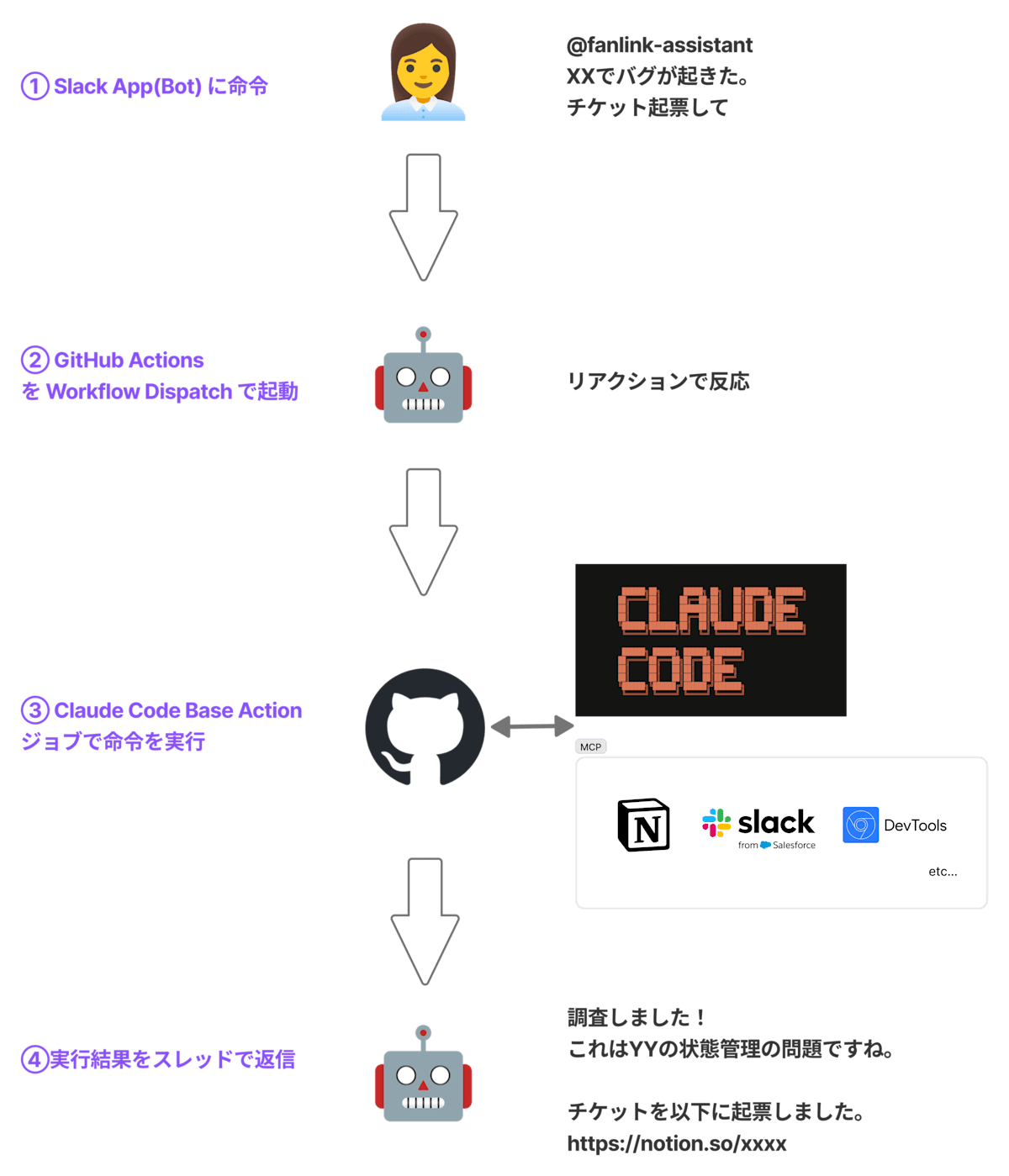
たとえば社内でプロダクトの不具合のような挙動を社内のコミュニティマネージャーが発見した場合、以下のようなワークフローが実現されます。
- コミュニティーマネージャーは Slack で Bot に起きている事象と社内で管理している Notion の不具合 DB に起票してほしい旨をメンションで伝える
- Bot はメンションをトリガーに Claude Code GitHub Actions のジョブを実行するワークフローを起動する
- ワークフロー中に実装の調査・原因の特定を行い、結果を Notion の不具合 DB に登録する
- Claude Code GitHub Actions は調査結果を最終的なアウトプットとして Slack のスレッドに返信する
【フロー図】
導入方法
どのように実現したか、サンプルコードを踏まえて紹介します。
GitHub Actions の設定
以下のようなワークフローをプロダクトのレポジトリに作成します。
workflow_dispatch イベントの inputs に、Slack App からの情報を受け取り、Claude Code に渡すようにしています。
これによって、どのチャンネルで、どのスレッドで、どのようなプロンプトで Claude Code を実行するかを指定できるようになります。
全体として、以下のようなワークフローを定義しています。
name: Claude Code Slack Action

on:
  workflow_dispatch:
    inputs:
      mcp_tools:
        description: "MCP tools to use"
        type: string
        required: false
      slack_channel:
        description: "Slack channel to send the response to"
        type: string
        required: true
      slack_thread_ts:
        description: "Slack thread timestamp to send the response to"
        type: string
        required: true
      prompt:
        type: string
        description: "Prompt for Claude Code Chat"
        required: true

jobs:
  claude-code-slack-action:
    runs-on: ubuntu-latest
    steps:
      - name: Checkout code
        uses: actions/checkout@v5
        with:
          token: ${{ secrets.GITHUB_TOKEN }}
      - uses: actions/setup-node@v6
        with:
          node-version: 22
      - name: Run Claude Code Base Action
        uses: anthropics/claude-code-action/base-action@v1.0.21
        with:
          anthropic_api_key: ${{ secrets.ANTHROPIC_API_KEY }}
          claude_args: |
            --allowedTools "View,Read,Write,Edit,GlobTool,GrepTool,BatchTool,Task,${{ inputs.mcp_tools }}"
            --mcp-config '{"mcpServers":{"notionApi":{"command":"npx","args":["-y","@notionhq/notion-mcp-server"],"env":{"NOTION_TOKEN":"${{secrets.NOTION_API_KEY}}"}},"slack":{"command":"npx","args":["-y","@zencoderai/slack-mcp-server"],"env":{"SLACK_BOT_TOKEN":"${{secrets.SLACK_BOT_TOKEN}}","SLACK_TEAM_ID":"${{ secrets.SLACK_TEAM_ID }}"}},"github":{"command":"npx","args":["-y","@modelcontextprotocol/server-github"],"env":{"GITHUB_PERSONAL_ACCESS_TOKEN":"${{secrets.GITHUB_TOKEN}}"}},"chrome-devtools":{"command":"npx","args":["-y","chrome-devtools-mcp@latest","--headless=true","--isolated=true","--executablePath=/usr/bin/google-chrome"]}}}'
          prompt: |
            ## Request Context
            You are an expert AI agent of this repository. You are in Slack channel and thread below.
            channel_id: ${{ inputs.slack_channel }}
            timestamp(ts): ${{ inputs.slack_thread_ts }}

            ## Workflow
            1. Understand the context by fetching the conversation history using mcp__slack__slack_get_thread_replies from the channel and timestamp above.
            2. Understand the user's request.
            3. Answer, implement, or call subagent according to the user's request.
            4. Post the response to the Slack thread using mcp__slack__slack_reply_to_thread.

            Now, you are in a conversation with a user. You need to answer the user's request. You can call subagent according to the user's request.

            ## User's Prompt
            User: ${{ inputs.prompt }}
Claude Code の実行におけるポイントは、claude-code-action ではなく、claude-code-base-action を利用することです。
claude-code-action は Pull Request や Issue など GitHub 上での操作を起点に実行されるワークフローで、workflow_dispatch に対応していません。
claude-code-base-action は workflow_dispatch に対応し、直接プロンプトを実行するシンプルな機能を提供しており、MCP など CLI で実行する args も渡せたりなど低レイヤーな機能を提供してくれています。
claude-code-base-action は本来ミラーレポジトリとして管理されていますが、不定期に同期が行われているため、できるだけ最新のものを使えるように、ミラー元の claude-code-action を直接利用することにしました。
uses: anthropics/claude-code-action/base-action@v1.0.21
claude_args には、Claude Code CLI と同じオプションを渡すことができます。
今回は --allowedTools と --mcp-config を指定し、破壊的変更を行わないように制御します。Notion, Slack, Chrome Dev Tools を MCP で利用できるようにしています。
claude_args: |
  --allowedTools "View,Read,Write,Edit,GlobTool,GrepTool,BatchTool,Task,${{ inputs.mcp_tools }}"
  --mcp-config '{"mcpServers":{"notionApi":{"command":"npx","args":["-y","@notionhq/notion-mcp-server"],"env":{"NOTION_TOKEN":"${{secrets.NOTION_API_KEY}}"}},"slack":{"command":"npx","args":["-y","@zencoderai/slack-mcp-server"],"env":{"SLACK_BOT_TOKEN":"${{secrets.SLACK_BOT_TOKEN}}","SLACK_TEAM_ID":"${{ secrets.SLACK_TEAM_ID }}"}},"github":{"command":"npx","args":["-y","@modelcontextprotocol/server-github"],"env":{"GITHUB_PERSONAL_ACCESS_TOKEN":"${{secrets.GITHUB_TOKEN}}"}},"chrome-devtools":{"command":"npx","args":["-y","chrome-devtools-mcp@latest","--headless=true","--isolated=true","--executablePath=/usr/bin/google-chrome"]}}}'
プロンプト部分は、最後に必ず Slack MCP を用いて特定のチャンネル・スレッドに返信するように促しています。
Subagents も活用しています。不具合調査・起票を行うエージェントや、リリース後の動作確認を chrome dev tools MCP でチェックするエージェントなど、プロダクトの運用で手間がかかっている & プロンプトでの指示が手間になるものをエージェントとして追加し、Slack のテキストから推察してどの Subagents を呼び出すかを判断させる旨をプロンプトに組み込んでいます。
prompt: |
  ## Request Context
  You are an expert AI agent of this repository. You are in Slack channel and thread below.
  channel_id: ${{ inputs.slack_channel }}
  timestamp(ts): ${{ inputs.slack_thread_ts }}

  ## Workflow
  1. Understand the context by fetching the conversation history using mcp__slack__slack_get_thread_replies from the channel and timestamp above.
  2. Understand the user's request.
  3. Answer, implement, or call subagent according to the user's request.
  4. Post the response to the Slack thread using mcp__slack__slack_reply_to_thread.

  Now, you are in a conversation with a user. You need to answer the user's request. You can call subagent according to the user's request.

  ## User's Prompt
  User: ${{ inputs.prompt }}
Slack App の実装
次に Slack App 側の実装です。Events API を利用して、メンションをトリガーに GitHub Actions のワークフローを起動します。
今回は Cloudflare Workers x Hono の組み合わせで Events API を実装してみました。
import { Hono } from "hono";
import { Octokit } from "@octokit/rest";
import { WebClient } from "@slack/web-api";
import { allowedTools } from "./tools";
import { verifySlackSignature } from "./middleware";

const app = new Hono<Env>()

app.use('*', verifySlackSignature); // signature の検証は省略

const routes = app.post('/events', async (c) => {
  const body = await c.req.json()
  const event = body.event;

  if (body.type === 'event_callback' && body.event.type === 'app_mention') {
    const client = new WebClient(c.env.SLACK_BOT_TOKEN);
    const threadTs = event.thread_ts || event.ts;
    const octokit = new Octokit({
      auth: c.env.GITHUB_TOKEN,
    });
    await octokit.actions.createWorkflowDispatch({
      owner: 'owner',
      repo: 'repository',
      workflow_id: 'claude-code-slack-action.yml',
      ref: 'main',
      inputs: {
        prompt: event.text,
        slack_channel: event.channel,
        slack_thread_ts: threadTs,
        mcp_tools: allowedTools.join(','),
      }
    });
    return c.json({ ok: true });
  }
  return c.json({ ok: true });
});

export default {
  fetch: app.fetch,
}
カスタムで追加した MCP で許可したい tool を Slack App 側で管理しています。[2]
export const allowedTools = [
  "mcp__github__get_file_contents",
  "mcp__notionApi__API-post-database-query",
  "mcp__notionApi__API-post-search",
  "mcp__notionApi__API-get-block-children",
  "mcp__notionApi__API-patch-block-children",
  "mcp__notionApi__API-retrieve-a-block",
  "mcp__slack__slack_reply_to_thread",
]
Slack App の設定・インストール、Cloudflare Workers へのデプロイと、Workflow の Push が完了したら、Slack で Bot にメンションを送信すると Claude Code が起動し、返信してくれるようになります。
【会話イメージ】

利用者の声
実際に社内でこの Bot を展開したところ、次のような声が上がりました。
Bot からの不具合報告がめちゃくちゃ分かりやすくて対応方針を素早く決められた。
(不具合対応を行った Dev メンバー)
社内デザインシステムの利用状況を調査して、不要なコンポーネントを削除する作業をこの Bot に任せたところ、Dev メンバーの工数が 0 で対応できた。
(デザインシステムをメンテナンスしている UDev メンバー)
まだまだ全ての職能の業務に対応できているわけではありませんが、ラストワンマイル施策としてある程度の効果は見込めており、今後拡大していく予定です。
まとめ
ラストワンマイルの重要性とそれに対応するための Claude Code GitHub Actions x Slack App での課題解決について紹介しました。
今後 LLM アプリケーション側のアップデート次第で、自前でこのような環境を構築しなくても、プロダクトのコンテキストを持てる未来はもしかしたらすぐに訪れるかもしれません。
しかし、この取り組みを通じて、エンジニアリング以外の現場のラストワンマイルを作っていくための仕事自体は無くならないのではないかと思いました。
AIによって仕事のあり方が変わっていく今を楽しみながら、新しい課題とその解決策を見つけていきたいですね。
参考リンク
#GauDev Advent Calendar 2025、明日の担当はYuseiWhiteさんです。
-
厳密には Claude Code Web や GitHub MCP を活用してアクセスできますが、そのためには GitHub アカウントの作成や MCP の設定など障壁が多くあるため、すべての人が実現できるには現実的ではない、という考えを前提に置いています。 ↩︎
-
現状 Claude Code では、MCP の tools にワイルドカードが効かないため手動で列挙する必要があります。 ↩︎

Web3スタートアップ「Gaudiy(ガウディ)」所属エンジニアの個人発信をまとめたPublicationです。公式Tech Blog:techblog.gaudiy.com/
Discussion