






はじめに
Kiro IDE の一般提供開始に合わせて Kiro CLI が発表されました。Kiro CLI は、ターミナルからAIコーディングができるコマンドラインツールです。Kiro IDE が特定のプロジェクト(GitHubリポジトリ)を開いて開発するのに対し、Kiro CLI はプロジェクトに縛られずどこでも使えます。OSのトラブルシューティングや、SSH接続先での作業、ちょっとしたAIとの対話など、気軽に使えるのが特徴です。
この記事は、はじめて Kiro CLI を個人ユーザーとして使う方のために、インストールから基本操作までを紹介した入門編となっています。
インストールとセットアップ
Kiro CLI は現在macOSとLinuxに公式対応しており、以下のコマンドでインストールできます。
[~]% curl -fsSL https://cli.kiro.dev/install | bash
Kiro CLI installer:

Downloading package...
✓ Downloaded and extracted
✓ Package installed successfully

🎉 Installation complete! Happy coding!

Next steps:
Use the command "kiro-cli" to get started!
Homebrewでインストールすることもできます。
[~]% brew install kiro-cli
==> Downloading https://desktop-release.q.us-east-1.amazonaws.com/1.20.0/Kiro%20CLI.dmg
########################################################################################################################################################## 100.0%
==> Installing Cask kiro-cli
==> Moving App 'Kiro CLI.app' to '/Applications/Kiro CLI.app'
🍺  kiro-cli was successfully installed!
Windowsにインストールしたい場合は、以下のブログを参考にしてください。
初回起動とログイン
それではkiro-cliで Kiro CLI を起動してみましょう。初回起動の場合はログインが求められます。個人ユーザーは Use with Builder ID を選択してください。Builder ID は無料のAWSアカウントで、メールアドレスまたはGoogleアカウントで登録できます。IDC (AWS IAM Identity Center) は企業向けなので、個人利用では使いません。
[~]% kiro-cli

Welcome to Kiro CLI, let's get you signed in!

Press enter to continue to the browser or esc to cancel

? Select login method ›
❯ Use with Builder ID
  Use with IDC Account
その後、表示されたURLにアクセスします。
Confirm the following code in the browser
Code: ABCD-EFGH

Open this URL: https://view.awsapps.com/start/#/device?user_code=ABCD-EFGH
▰▱▱▱▱▱▱ Logging in...
個人のメールアドレスを入力、またはGoogleアカウントで続行します。
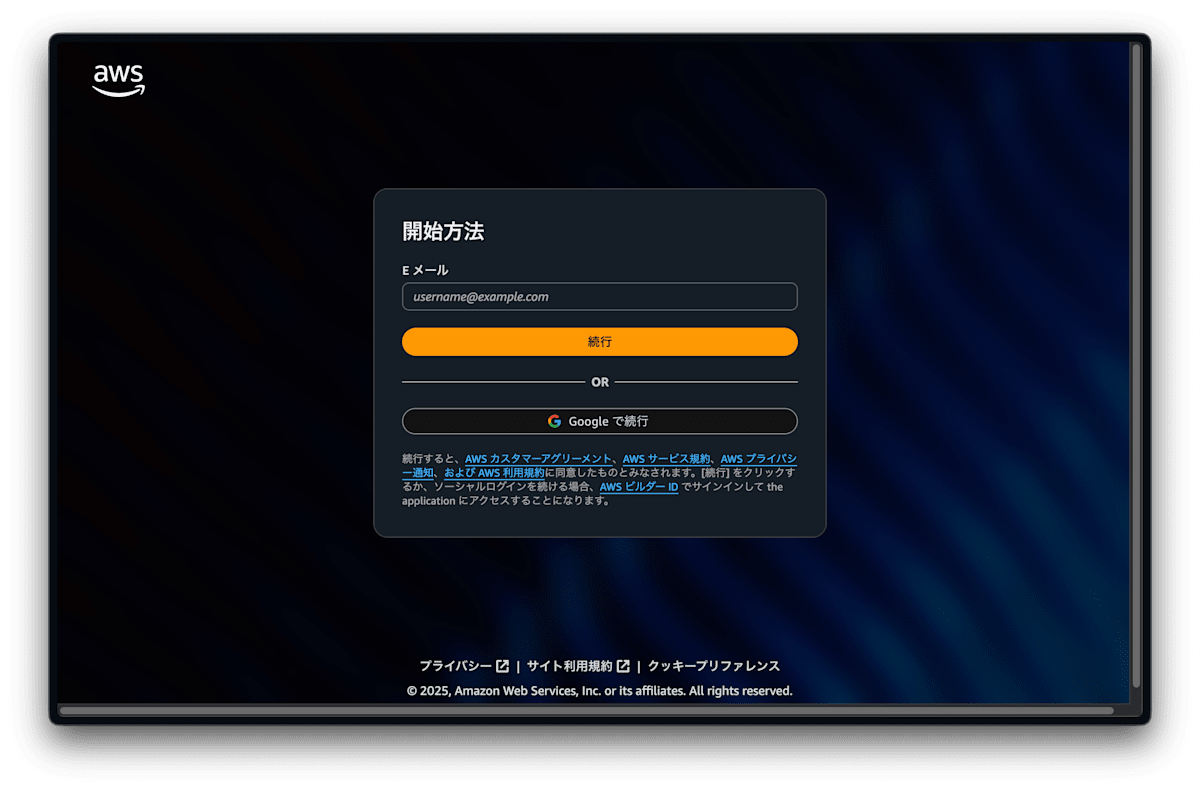
ログインすると以下のように表示されます。
Device authorized
Logged in successfully
✓ fetch loaded in 0.29 s
✓ brave-search loaded in 0.37 s


 ⢀⣴⣶⣶⣦⡀⠀⠀⠀⢀⣴⣶⣦⣄⡀⠀⠀⢀⣴⣶⣶⣦⡀⠀⠀⢀⣴⣶⣶⣶⣶⣶⣶⣶⣶⣶⣦⣄⡀⠀⠀⠀⠀⠀⠀⢀⣠⣴⣶⣶⣶⣶⣶⣦⣄⡀⠀⠀⠀⠀⠀⠀⠀⠀⠀
⢰⣿⠋⠁⠈⠙⣿⡆⠀⢀⣾⡿⠁⠀⠈⢻⡆⢰⣿⠋⠁⠈⠙⣿⡆⢰⣿⠋⠁⠀⠀⠀⠀⠀⠀⠀⠀⠈⠙⠻⣦⠀⠀⠀⠀⣴⡿⠟⠋⠁⠀⠀⠀⠈⠙⠻⢿⣦⠀⠀⠀⠀⠀⠀⠀
⢸⣿⠀⠀⠀⠀⣿⣇⣴⡿⠋⠀⠀⠀⢀⣼⠇⢸⣿⠀⠀⠀⠀⣿⡇⢸⣿⠀⠀⠀⢠⣤⣤⣤⣤⣄⠀⠀⠀⠀⣿⡆⠀⠀⣼⡟⠀⠀⠀⠀⣀⣀⣀⠀⠀⠀⠀⢻⣧⠀⠀⠀⠀⠀
⢸⣿⠀⠀⠀⠀⣿⡿⠋⠀⠀⠀⢀⣾⡿⠁⠀⢸⣿⠀⠀⠀⠀⣿⡇⢸⣿⠀⠀⠀⢸⣿⠉⠉⠉⣿⡇⠀⠀⠀⣿⡇⠀⣼⡟⠀⠀⠀⣰⡿⠟⠛⠻⢿⣆⠀⠀⠀⢻⣧⠀⠀⠀⠀
⢸⣿⠀⠀⠀⠀⠙⠁⠀⠀⢀⣼⡟⠁⠀⠀⠀⢸⣿⠀⠀⠀⠀⣿⡇⢸⣿⠀⠀⠀⢸⣿⣶⣶⡶⠋⠀⠀⠀⠀⣿⠇⢰⣿⠀⠀⠀⢰⣿⠀⠀⠀⠀⠀⣿⡆⠀⠀⠀⣿⡆
⢸⣿⠀⠀⠀⠀⠀⠀⠀⠀⠹⣷⡀⠀⠀⠀⠀⢸⣿⠀⠀⠀⠀⣿⡇⢸⣿⠀⠀⠀⠀⠀⠀⠀⠀⠀⠀⠀⣠⣼⠟⠀⢸⣿⠀⠀⠀⢸⣿⠀⠀⠀⠀⠀⣿⡇⠀⠀⠀⣿⡇
⢸⣿⠀⠀⠀⠀⠀⣠⡀⠀⠀⠹⣷⡄⠀⠀⠀⢸⣿⠀⠀⠀⠀⣿⡇⢸⣿⠀⠀⠀⠀⣤⣄⠀⠀⠀⠀⠹⣿⡅⠀⠀⠸⣿⠀⠀⠀⠸⣿⠀⠀⠀⠀⠀⣿⠇⠀⠀⠀⣿⠇
⢸⣿⠀⠀⠀⠀⣾⡟⣷⡀⠀⠀⠘⣿⣆⠀⠀⢸⣿⠀⠀⠀⠀⣿⡇⢸⣿⠀⠀⠀⠀⣿⡟⣷⡀⠀⠀⠀⠘⣿⣆⠀⠀⢻⣧⠀⠀⠀⠹⣷⣦⣤⣤⣾⠏⠀⠀⠀⣼⡟
⢸⣿⠀⠀⠀⠀⣿⡇⠹⣷⡀⠀⠀⠈⢻⡇⠀⢸⣿⠀⠀⠀⠀⣿⡇⢸⣿⠀⠀⠀⠀⣿⡇⠹⣷⡀⠀⠀⠀⠈⢻⡇⠀⠀⢻⣧⠀⠀⠀⠀⠉⠉⠉⠀⠀⠀⠀⣼⡟
⠸⣿⣄⡀⢀⣠⣿⠇⠀⠙⣷⡀⠀⢀⣼⠇⠀⠸⣿⣄⡀⢀⣠⣿⠇⠸⣿⣄⡀⢀⣠⣿⠇⠀⠙⣷⡀⠀⠀⢀⣼⠇⠀⠀⠀⠻⣷⣦⣄⡀⠀⠀⠀⢀⣠⣴⣾⠟
⠀⠈⠻⠿⠿⠟⠁⠀⠀⠀⠈⠻⠿⠿⠟⠁⠀⠀⠈⠻⠿⠿⠟⠁⠀⠀⠈⠻⠿⠿⠟⠁⠀⠀⠀⠈⠻⠿⠿⠟⠁⠀⠀⠀⠀⠀⠈⠙⠻⠿⠿⠿⠿⠟⠋⠁


✨ What's New in Kiro CLI

1.20.0 (2025-11-17)
✔ Added: The Kiro CLI is here! Kiro CLI leverages the Kiro Auto agent to deliver the best results at the best price, in your terminal, and takes you from natural language, to code, to deployment. Kiro CLI supports different agent modes, MCPs, Kiro steering files, and custom agents, allowing you to mold the CLI to meet your needs.

1.19.7 (2025-11-17)
✔ Added: Kiro CLI announcement. Learn more at kiro.dev/cli-upgrade


💡 Run /changelog anytime to see the latest updates and features!


Model: Auto (/model to change) | Plan: KIRO FREE (/usage for more detail)


>
MCPサーバーの自動読み込み
Kiro IDE で~/.kiro/settings/mcp.jsonにMCPサーバーの設定をしている場合、それらが自動的に読み込まれます。例えば私の環境ではfetchとbrave-searchが読み込まれました。Kiro IDE を使ったことがない場合はMCPサーバーがなにも設定されていないため、この表示は出ません。必要に応じて後から追加できます。
読み込まれた設定を確認するには、/mcpまたは/toolsを使用します。
> /mcp

brave-search
▔▔▔▔▔▔▔▔▔▔▔▔▔▔▔▔▔▔▔▔▔▔▔▔▔▔▔▔▔▔▔▔▔▔▔▔▔▔▔▔▔▔▔▔▔▔▔▔▔▔▔▔▔▔▔▔▔▔▔▔▔▔▔▔▔▔▔▔▔▔▔▔▔▔▔▔▔▔▔▔▔▔▔▔▔▔▔▔▔▔▔▔▔▔▔▔▔▔▔▔▔▔▔▔▔▔▔▔▔▔▔▔▔▔▔▔▔▔▔▔▔▔▔▔▔▔▔▔▔▔▔▔▔▔▔▔▔▔▔▔▔▔▔▔▔▔▔▔▔▔▔▔▔▔▔▔▔▔▔▔▔
[2025:10:41]: ✓ brave-search loaded in 0.56 s

fetch
▔▔▔▔▔▔▔▔▔▔▔▔▔▔▔▔▔▔▔▔▔▔▔▔▔▔▔▔▔▔▔▔▔▔▔▔▔▔▔▔▔▔▔▔▔▔▔▔▔▔▔▔▔▔▔▔▔▔▔▔▔▔▔▔▔▔▔▔▔▔▔▔▔▔▔▔▔▔▔▔▔▔▔▔▔▔▔▔▔▔▔▔▔▔▔▔▔▔▔▔▔▔▔▔▔▔▔▔▔▔▔▔▔▔▔▔▔▔▔▔▔▔▔▔▔▔▔▔▔▔▔▔▔▔▔▔▔▔▔▔▔▔▔▔▔▔▔▔▔▔▔▔▔▔▔▔▔▔▔▔▔
[2025:10:41]: ✓ fetch loaded in 0.64 s
> /tools


Tool                    Permission
▔▔▔▔▔▔▔▔▔▔▔▔▔▔▔▔▔▔▔▔▔▔▔▔▔▔▔▔▔▔▔▔▔▔▔▔▔▔▔▔▔▔▔▔▔▔▔▔▔▔▔▔▔▔▔▔▔▔▔▔▔▔▔▔▔▔▔▔▔▔▔▔▔▔▔▔▔▔▔▔▔▔▔▔▔▔▔▔▔▔▔▔▔▔▔▔▔▔▔▔▔▔▔▔▔▔▔▔▔▔▔▔▔▔▔▔▔▔▔▔▔▔▔▔▔▔▔▔▔▔▔▔▔▔▔▔▔▔▔▔▔▔▔▔▔▔▔▔▔▔▔▔▔▔▔▔▔▔▔▔▔Built-in
- shell                 not trusted
- read                  trust working directory
- write                 not trusted
- introspect            trusted
- report                not trusted
- aws                   trust read-only commands

brave-search (MCP)
- brave_local_search    not trusted
- brave_web_search      not trusted

fetch (MCP)
- fetch                 not trusted
Steeringの自動読み込み
同様に、~/.kiro/steeringに保存されているSteeringも Kiro CLI に自動的に読み込まれます。
読み込まれた設定を確認するには、/context show コマンドを使います。
> /context show

Agent (kiro_default)
  - AmazonQ.md (no matches)
  - AGENTS.md (no matches)
  - README.md (no matches)
  - /Users/tats/.kiro/steering/**/*.md /Users/tats/.kiro/steering/commit-message-standards.md
/Users/tats/.kiro/steering/keywords-requirement-levels-guideline.md
/Users/tats/.kiro/steering/language-usage-guideline.md
/Users/tats/.kiro/steering/writing-style-guideline.md
  - /Users/tats/.kiro/steering/**/*.md /Users/tats/.kiro/steering/commit-message-standards.md
/Users/tats/.kiro/steering/keywords-requirement-levels-guideline.md
/Users/tats/.kiro/steering/language-usage-guideline.md
/Users/tats/.kiro/steering/writing-style-guideline.md

Session (temporary)
  <none>

4 matched files in use
- /Users/tats/.kiro/steering/language-usage-guideline.md (0.7% of context window)
- /Users/tats/.kiro/steering/commit-message-standards.md (1.4% of context window)
- /Users/tats/.kiro/steering/writing-style-guideline.md (0.2% of context window)
- /Users/tats/.kiro/steering/keywords-requirement-levels-guideline.md (0.5% of context window)

Context files total: 2.8% of context window
実践例
OSのトラブルシューティング
Kiro IDE より Kiro CLI のほうが使いやすい用途の一つにOSのトラブルシューティングがあります。例えば、Cronを設定したものの実行されない問題が起きているとしましょう。
> /etc/cron.d/dummy が動作していない。原因はなに?


> /etc/cron.d/dummy の動作確認をしますね。まずファイルの内容を確認します。
Reading file: /etc/cron.d/dummy, all lines (using tool: read)
Allow this action? Use 't' to trust (always allow) this tool for the session. [y/n/t]:

> y


 ✓ Successfully read 23 bytes from /etc/cron.d/dummy
 - Completed in 0.0s

-rw-r--r-- 1 root root 24 Nov 18 22:34 /etc/cron.d/dummy
 - Completed in 0.10s

I will run the following command: sudo grep -i "dummy\|test" /var/log/syslog 2>/dev/null | tail -20 || sudo grep -i "dummy\|test" /var/log/cron 2>/dev/null | tail -20 || echo "ログが見つかりません" (using tool: shell)
Purpose: cronログを確認


Allow this action? Use 't' to trust (always allow) this tool for the session. [y/n/t]:

> y

2025-11-16T03:10:01.596174+09:00 fox CRON[2745669]: (root) CMD (test -e /run/systemd/system || SERVICE_MODE=1 /sbin/e2scrub_all -A -r)
2025-11-16T03:30:01.277190+09:00 fox CRON[2747067]: (root) CMD (test -e /run/systemd/system || SERVICE_MODE=1 /usr/lib/aarch64-linux-gnu/e2fsprogs/e2scrub_all_cron)
2025-11-16T06:25:01.539221+09:00 fox CRON[2758680]: (root) CMD (test -x /usr/sbin/anacron || { cd / && run-parts --report /etc/cron.daily; })
2025-11-16T06:47:01.401899+09:00 fox CRON[2760236]: (root) CMD (test -x /usr/sbin/anacron || { cd / && run-parts --report /etc/cron.weekly; })
2025-11-17T03:10:01.591449+09:00 fox CRON[2844924]: (root) CMD (test -e /run/systemd/system || SERVICE_MODE=1 /sbin/e2scrub_all -A -r)
2025-11-17T06:25:01.075455+09:00 fox CRON[2857453]: (root) CMD (test -x /usr/sbin/anacron || { cd / && run-parts --report /etc/cron.daily; })
2025-11-18T03:10:01.364503+09:00 fox CRON[2946776]: (root) CMD (test -e /run/systemd/system || SERVICE_MODE=1 /sbin/e2scrub_all -A -r)
2025-11-18T06:25:01.880102+09:00 fox CRON[2960484]: (root) CMD (test -x /usr/sbin/anacron || { cd / && run-parts --report /etc/cron.daily; })
2025-11-18T22:34:01.827020+09:00 fox cron[649]: Error: bad username; while reading /etc/cron.d/dummy
2025-11-18T22:34:01.827302+09:00 fox cron[649]: (*system*dummy) ERROR (Syntax error, this crontab file will be ignored)
2025-11-18T22:35:01.827451+09:00 fox cron[649]: (*system*dummy) RELOAD (/etc/cron.d/dummy)
2025-11-18T22:35:01.828248+09:00 fox cron[649]: Error: bad username; while reading /etc/cron.d/dummy
2025-11-18T22:35:01.828325+09:00 fox cron[649]: (*system*dummy) ERROR (Syntax error, this crontab file will be ignored)
 - Completed in 0.28s

> 原因が分かりました。**ユーザー名が指定されていない**のが問題です。

ログに Error: bad username; while reading /etc/cron.d/dummy と出ています。

/etc/cron.d/ 配下のファイルでは、通常のcrontabと異なり、**6番目のフィールドとしてユーザー名を指定する必要があります**。

現在の内容:
*/5 * * * * test 1 = 1


正しい形式:
*/5 * * * * root test 1 = 1


修正方法:
bash
sudo sed -i 's/\*/5 \* \* \* \* test/\*\/5 * * * * root test/' /etc/cron.d/dummy


または、ユーザー名 root を6番目のフィールドとして追加してください。
 ▸ Credits: 0.11 • Time: 37s
このように簡単に問題点を見つけてくれました。修正も Kiro CLI に任せられます。
> 修正して

I will run the following command: sudo sed -i 's/\* test/\* root test/' /etc/cron.d/dummy (using tool: shell)
Purpose: ユーザー名を追加して修正


Allow this action? Use 't' to trust (always allow) this tool for the session. [y/n/t]:

> y

 - Completed in 0.24s

Reading file: /etc/cron.d/dummy, all lines (using tool: read)
Allow this action? Use 't' to trust (always allow) this tool for the session. [y/n/t]:

> y


 ✓ Successfully read 28 bytes from /etc/cron.d/dummy
 - Completed in 0.0s

> 修正完了しました。cronが自動的にリロードして、5分ごとに実行されるようになります。
 ▸ Credits: 0.06 • Time: 24s
今回使用したクレジット数は 0.11 + 0.06 = 0.17 です。月間50クレジットの無料枠があるので、このくらいのトラブルシューティングなら月に300回近く行えます(そんなにトラブってほしくありませんが)。
MCPホストとしての活用
プロジェクトに関係ない日常で使うMCPホストの用途でも、Kiro IDE より Kiro CLI のほうが使いやすいかもしれません。
> 明日の東京の天気は?

Running tool brave_web_search with the param (from mcp server: brave-search)
 ⋮  {
 ⋮    "query": "東京 天気 2025年11月19日"
 ⋮  }

Allow this action? Use 't' to trust (always allow) this tool for the session. [y/n/t]:

> y

 - Completed in 0.795s

Running tool brave_web_search with the param (from mcp server: brave-search)
 ⋮  {
 ⋮    "query": "東京 天気予報 明日 11月19日"
 ⋮  }

Allow this action? Use 't' to trust (always allow) this tool for the session. [y/n/t]:

> y

 - Completed in 0.545s

> 明日 11月19日(水)の東京の天気は:

- **天気**: 晴れ
- **気温**: 最高 13〜14℃ / 最低 6〜7℃
- **降水確率**: 低い

日本海側の雪や雨は収まりますが、全国的に寒い一日になります。 東京も師走並みの寒さになるので、冬物の防寒アイテムを活用してください。 空気が乾燥するため、火の取り扱いにも注意
が必要です。
 ▸ Credits: 0.14 • Time: 19s
brave-searchMCPサーバーによってWeb検索して、明日の天気を教えてくれました。
Custom Agent の作成
MCPサーバーを使う際、Kiro IDE と共通の~/.kiro/settings/mcp.jsonには追加せず、Kiro CLI だけで使いたい場合があります。例えば、開発プロジェクトには不要だけどCLIでの調べ物に便利なツールや、特定の用途専用のMCPサーバーなどです。
一つのやり方はプロジェクト単位で定義することです。プロジェクト(GitHubリポジトリ)のルートディレクトリに.kiro/settings/mcp.jsonを作成すれば、そのディレクトリでKiroを動かしたときだけ読まれます。しかし、Kiro CLI だと特定のディレクトリに移動せず、どこでも使いたいときもあるでしょう。
このような場合は、Custom Agent を作成することで Kiro CLI 専用の設定を持つことができます。作成時は /agent create ではなく /agent generate を使うとプロンプトを自動生成してくれます。
> /agent generate

✔ Enter agent name:  · aws-doc
✔ Enter agent description:  · AWS Documentation MCP を使ってAWSのマニュアルを検索して取得するエージェント
✔ Agent scope · Global (all workspaces)
Select MCP servers (use Space to toggle, Enter to confirm):

✓ Agent 'aws-doc' has been created and saved successfully!
{
  "name": "aws-doc",
  "description": "AWS Documentation MCP を使ってAWSのマニュアルを検索して取得するエージェント",
  "prompt": "You are an AWS documentation specialist agent. Your primary role is to search and retrieve AWS documentation using the AWS Documentation MCP server. Help users find accurate, up-to-date information from official AWS documentation, including service guides, API references, best practices, and troubleshooting information. Always prioritize official AWS documentation sources and provide clear, actionable guidance based on the retrieved documentation.",
  "mcpServers": {},
  "tools": [
    "*"
  ],
  "toolAliases": {},
  "allowedTools": [],
  "resources": [
    "file://AGENTS.md",
    "file://README.md"
  ],
  "hooks": {},
  "toolsSettings": {},
  "useLegacyMcpJson": false,
  "model": null
}
このファイルは ~/.kiro/agents/aws-doc.json に保存されているので、例として AWS Documentation MCP サーバーの定義を追加します。これによって、この MCP サーバーはaws-docエージェントを使うときしか読み込まれないようになります。
"useLegacyMcpJson": false だと~/.kiro/settings/mcp.jsonとプロジェクトのルートディレクトリにある.kiro/settings/mcp.jsonが読み込まれません。つまり、AWS Documentation MCPサーバーしか使わないエージェントになります。"useLegacyMcpJson": true にすれば両方のmcp.jsonも合わせて読み込むようになります。
{
  "name": "aws-doc",
  "description": "AWS Documentation MCP を使っAWSのマニュアルを検索して取得するエージェント",
  "prompt": "You are an AWS documentation specialist agent. Your primary role is to search and retrieve AWS documentation using the AWS Documentation MCP server. Help users find accurate, up-to-date information from official AWS documentation, including service guides, API references, best practices, and troubleshooting information. Always prioritize official AWS documentation sources and provide clear, actionable guidance based on the retrieved documentation.",
  "mcpServers": {
    "awslabs.aws-documentation-mcp-server": {
      "command": "uvx",
      "args": ["awslabs.aws-documentation-mcp-server@latest"],
      "env": {
        "FASTMCP_LOG_LEVEL": "ERROR",
        "AWS_DOCUMENTATION_PARTITION": "aws"
      },
      "disabled": false,
      "autoApprove": []
    }
  },
  "tools": [
    "*"
  ],
  "toolAliases": {},
  "allowedTools": [],
  "resources": [
    "file://AGENTS.md",
    "file://README.md"
  ],
  "hooks": {},
  "toolsSettings": {},
  "useLegacyMcpJson": false,
  "model": null
}
これで新しいエージェントが作成できました。エージェントを指定して Kiro CLI を起動します。
[~]% kiro-cli --agent aws-doc
または起動後に /agent swap コマンドを使用します。
/agent swap aws-doc
Amazon S3 のマニュアルについて聞いてみましょう。
[aws-doc] > S3バケットの命名ルールを教えて

> S3バケットの命名ルールについて、AWS公式ドキュメントを検索します。
Running tool search_documentation with the param (from mcp server: awslabs.aws-documentation-mcp-server)
 ⋮  {
 ⋮    "search_phrase": "S3 bucket naming rules",
 ⋮    "limit": 5
 ⋮  }

Allow this action? Use 't' to trust (always allow) this tool for the session. [y/n/t]:

[aws-doc] > y

 - Completed in 1.661s

> 最も関連性の高い一般的なS3バケットの命名ルールのドキュメントを取得します。
Running tool read_documentation with the param (from mcp server: awslabs.aws-documentation-mcp-server)
 ⋮  {
 ⋮    "url": "https://docs.aws.amazon.com/AmazonS3/latest/userguide/bucketnamingrules.html",
 ⋮    "max_length": 5000
 ⋮  }

Allow this action? Use 't' to trust (always allow) this tool for the session. [y/n/t]:

[aws-doc] > y

 - Completed in 0.224s

> S3バケットの命名ルールを取得しました。以下が主要なルールです:

## S3バケット命名ルール

### 基本ルール
- **文字数**: 3〜63文字
- **使用可能文字**: 小文字、数字、ピリオド(.)、ハイフン(-)のみ
- **開始・終了**: 文字または数字で開始・終了する必要がある
- **連続ピリオド**: 2つ連続したピリオドは使用不可
- **IPアドレス形式**: 192.168.5.4のような形式は不可

[...]
その他の機能
AIによる自動補完
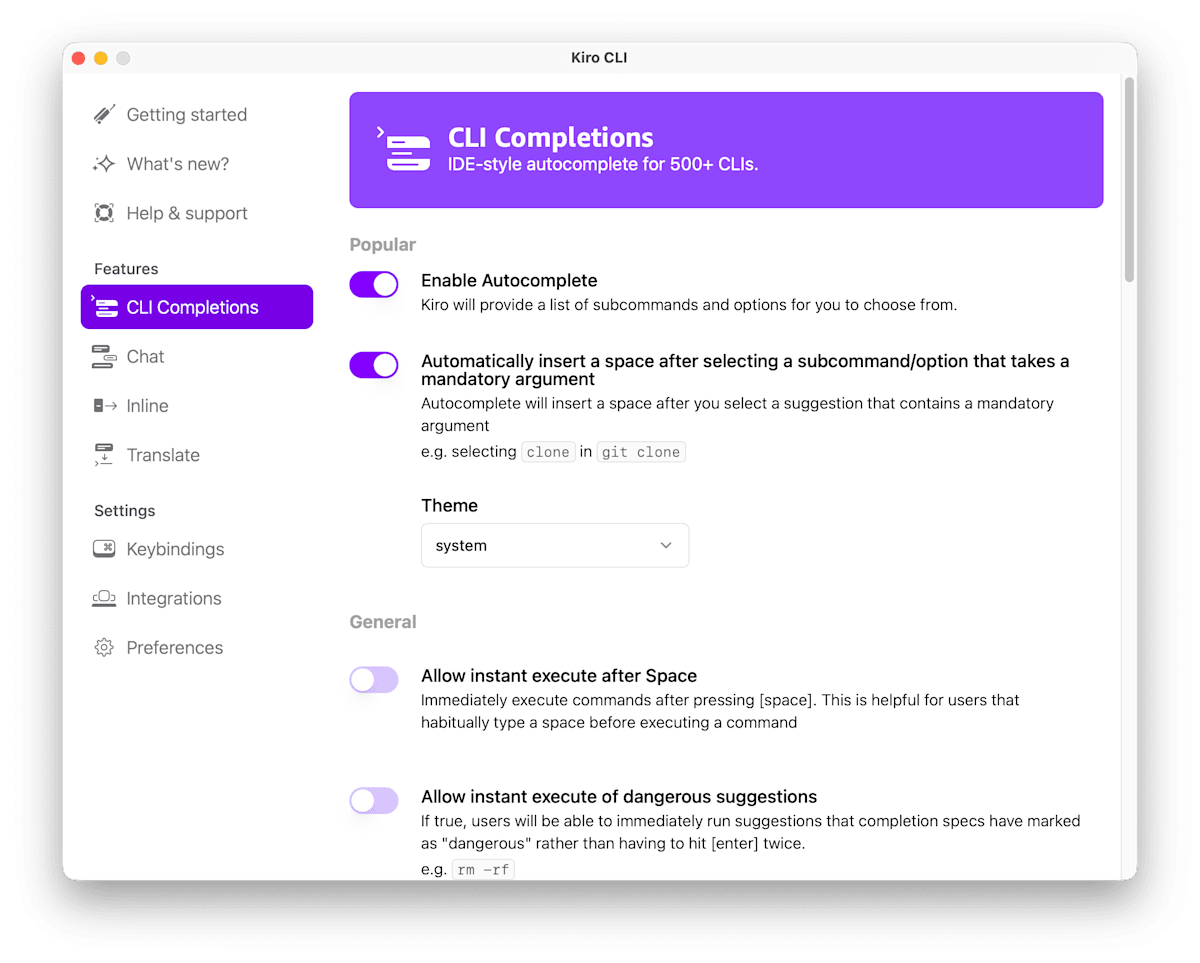
Kiro CLI にはAIによる自動補完機能もあります。コマンドやファイルパスを入力する際に、AIが文脈を理解して適切な候補を提案してくれます。自動補完を有効にするには /Applications/Kiro CLI.app を実行するか、Completions & autocomplete - CLI - Docs - Kiro を参照してください。
まとめ
この記事では、Kiro CLI のインストール方法 / ログイン手順 / MCPサーバーとSteeringの自動読み込み、そして実際のトラブルシューティング例を紹介しました。
Kiro CLI はプロジェクトに縛られず使えるため、日常的なトラブルシューティングや調べ物に便利です。MCP サーバーで機能を拡張したり、Custom Agent を作成したりして用途に応じた設定を持つこともできます。月間50クレジットの無料枠があるので、気軽に試してみてください。
さらに詳しい機能や設定方法については、Kiro CLI 公式ドキュメントを参照してください。
この記事の動作環境
- Kiro CLI: 1.20.0
- macOS: Tahoe 26.2 Public Beta 1
- Ubuntu: 24.04.3 LTS

この Publication に投稿している記事は、アマゾン ウェブ サービス ジャパン合同会社または Amazon Web Services, Inc. 所属社員による個人の見解であり、所属する組織の公式見解ではありません。参加したい従業員の方は、Sugiyama Suguru までお知らせください。
Discussion