iTranslated by AI
Customizing VSCode to My Preferences


Introduction
I often use Visual Studio Code for development.
This is a memorandum of the VSCode setting changes and extensions I have implemented to improve development efficiency.
Table of Contents
- Changing the font to JetBrainsMono
- Moving the sidebar to the right
- Assigning a shortcut for changing the language mode
- Tips
Changing the font to JetBrainsMono
I will change the font to JetBrainsMono, which is used in JetBrains IDEs.
It is an excellent font because it makes it easier to distinguish characters such as "1", "l", "I", "0", and "O", and improves readability through its simple design.
Downloading the font
Download JetBrainsMono from the JetBrains website.
Unzip JetBrainsMono.zip, and install your preferred fonts from fonts -> ttf.
Generally, installing the following three should be sufficient:
JetBrainsMono-Regular.tffJetBrainsMonoNL-Italic.ttfJetBrainsMonoNL-Bold.ttf
Specifying the font in VSCode
Open VSCode settings and search for font family in the search box.
There is an Editor: Font Family item, as shown in the red box in the image below, so add JetBrains Mono there.
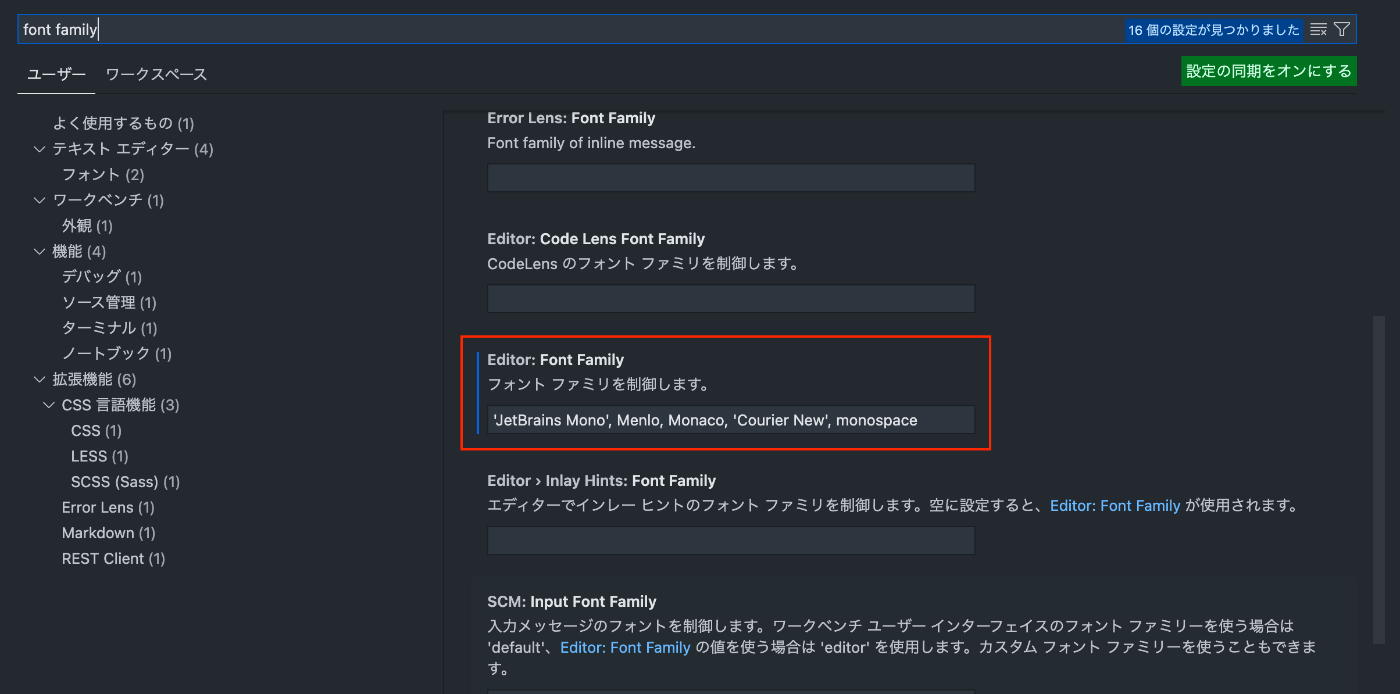
Since the font listed first has priority, place it at the far left.
After that, restart VSCode, and it will be displayed using the JetBrainsMono font.
Moving the sidebar to the right
Usually, the sidebar is placed on the left, but I will change it to the right.
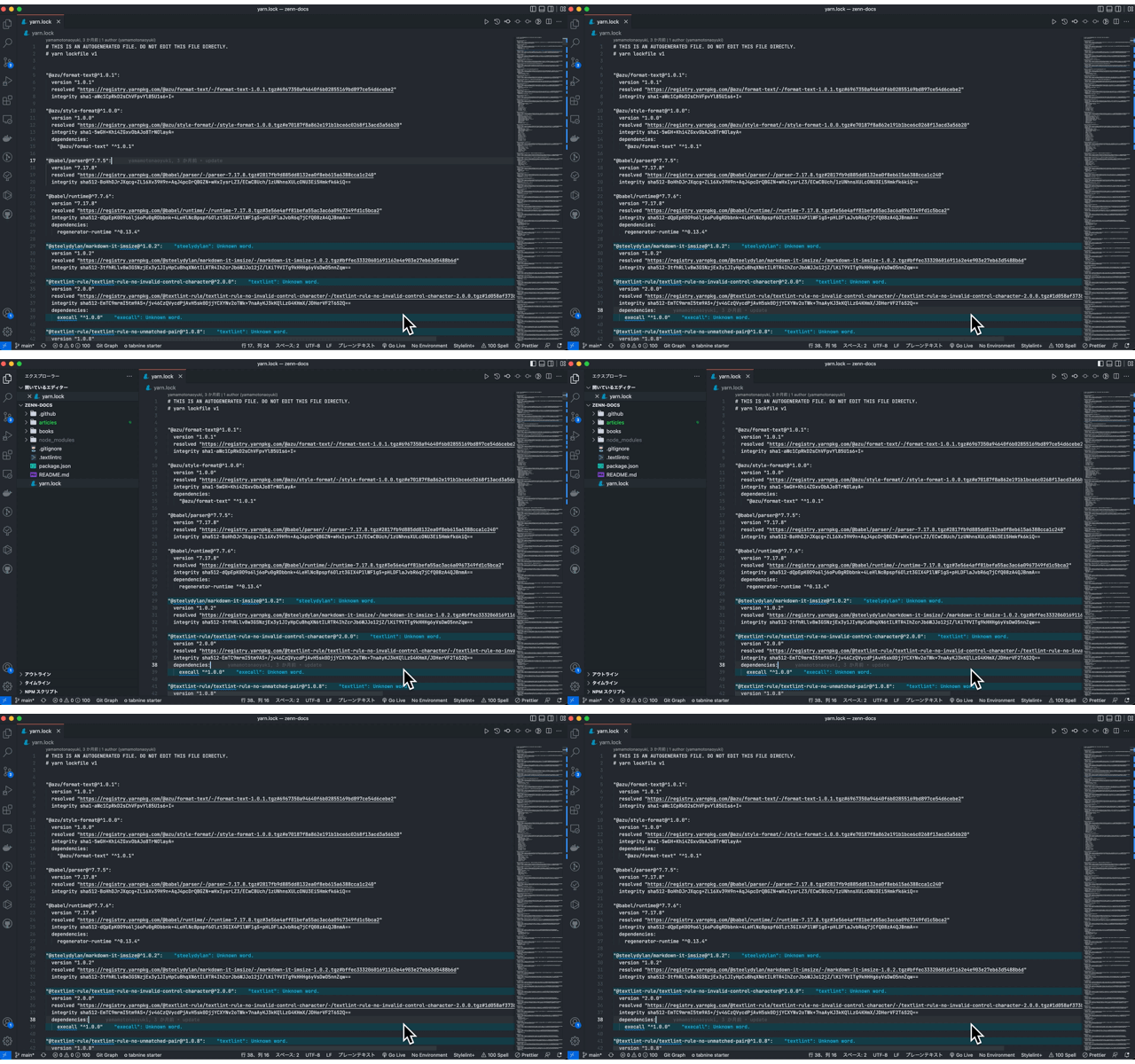
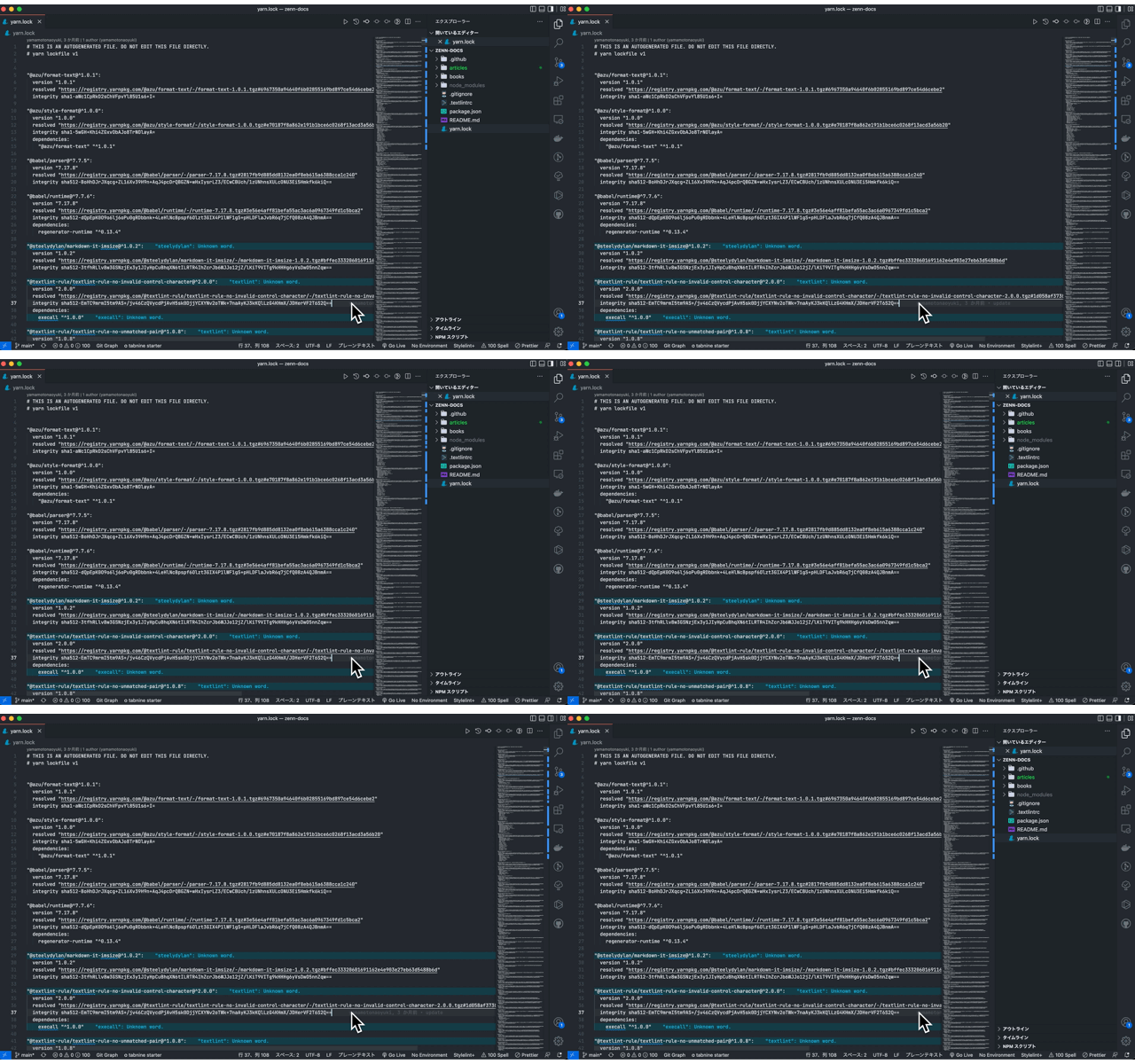
This is to prevent the position of the file I am reading from shifting to the right when I show/hide the sidebar (command+B).
-
サイドバーを左に表示した場合(通常状態)
The open file shifts to the right by the width of the sidebar, making it difficult to read.
-
サイドバーを右に表示した場合
The open file is easy to read without shifting.
Changing the layout of the sidebar, etc.
Click the "Customize Layout" icon at the top right of the screen.
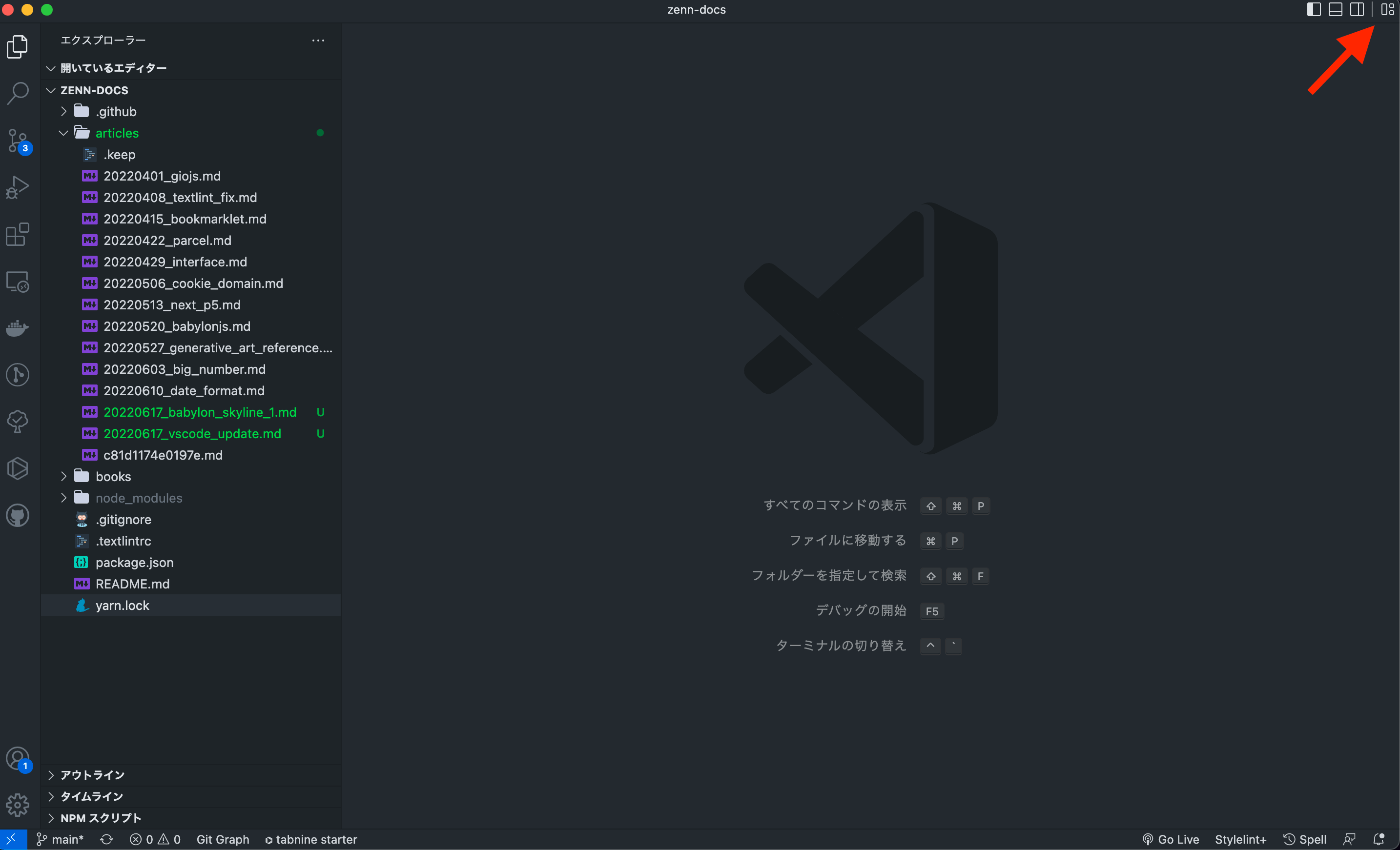
Change the "Primary Side Bar Position" to the right.
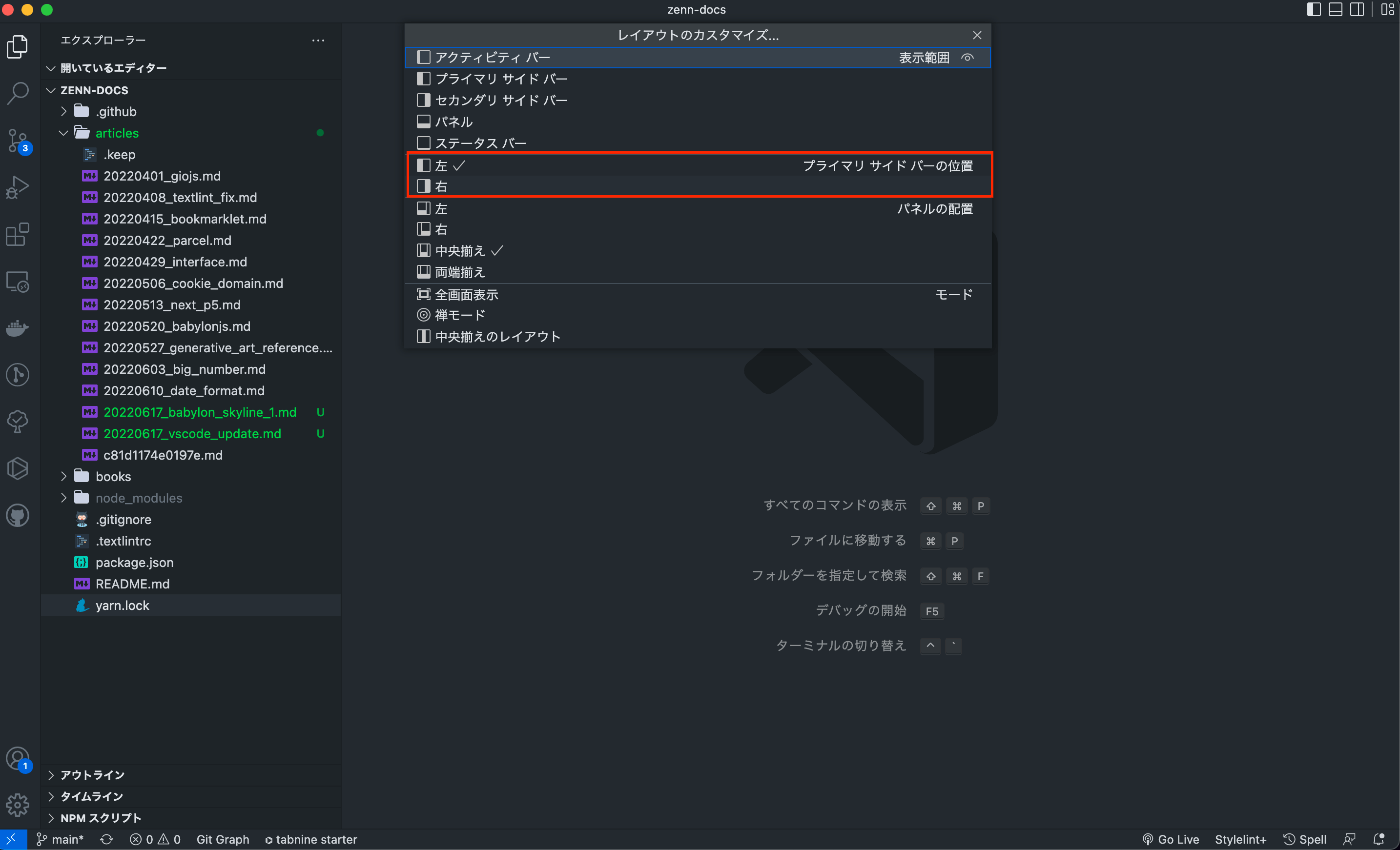
If you want to change other layout settings, you can do so from "Customize Layout".
Assigning a shortcut for changing the language mode
There are rare occasions when I want to format JSON data returned from an API to make it easier to see.
However, if you want to format an unsaved file, the formatting will not run correctly unless you set the language mode.
For example, if you want to format the following data into JSON format:
{key1:'value',key2:'value',key3:'value',key4:'value',key5:'value',key6:'value',key7:'value'}
When you try to format it with option + shift + F, a warning like this will be displayed because no language mode has been specified.
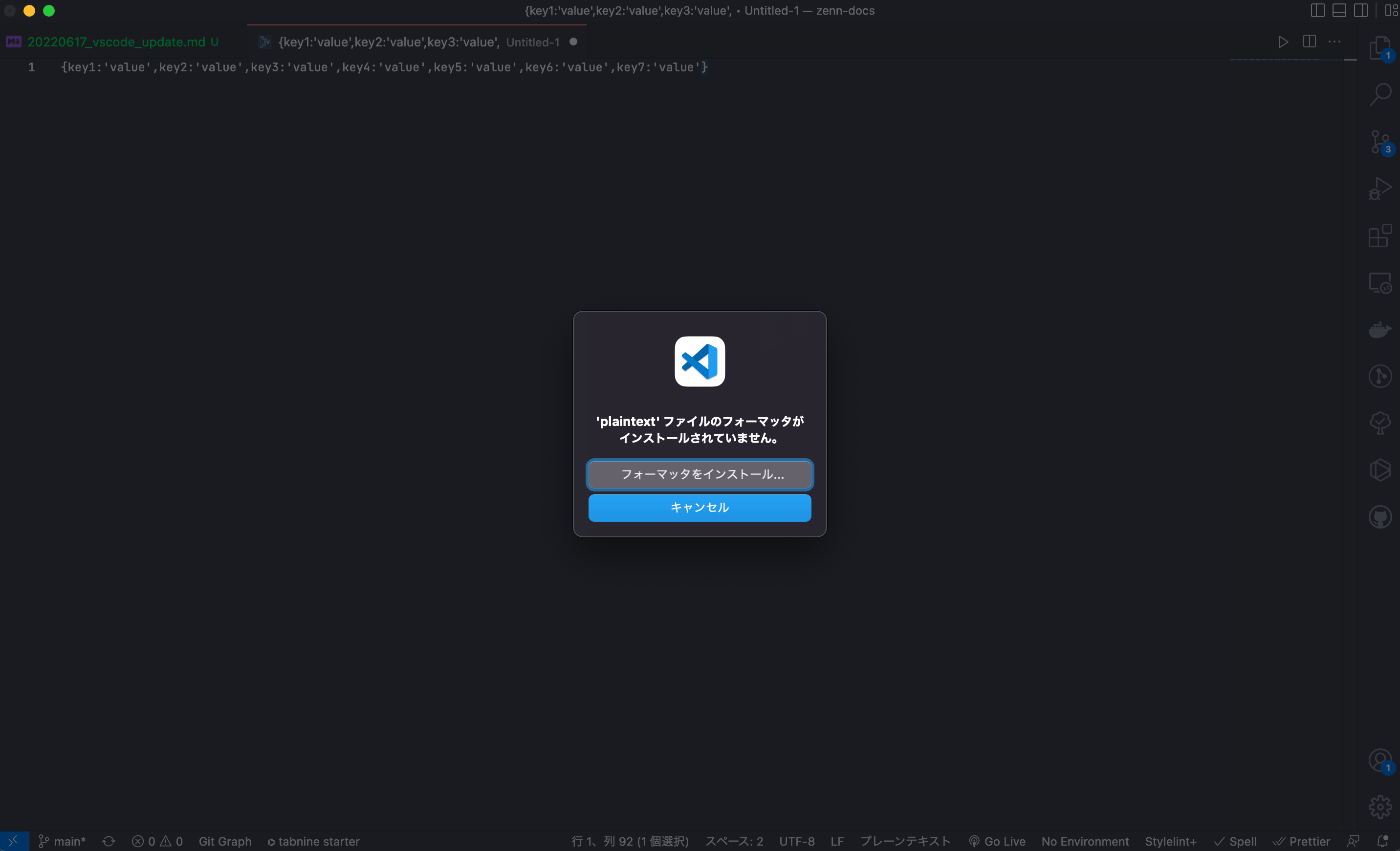
Since it is tedious to set the language mode from the settings every time, I will make it a shortcut key.
How to assign a shortcut for language mode
Show the command palette with command + shift + P and enter "Language Mode".
The "Change Language Mode" item will appear, so click the gear icon on the right.
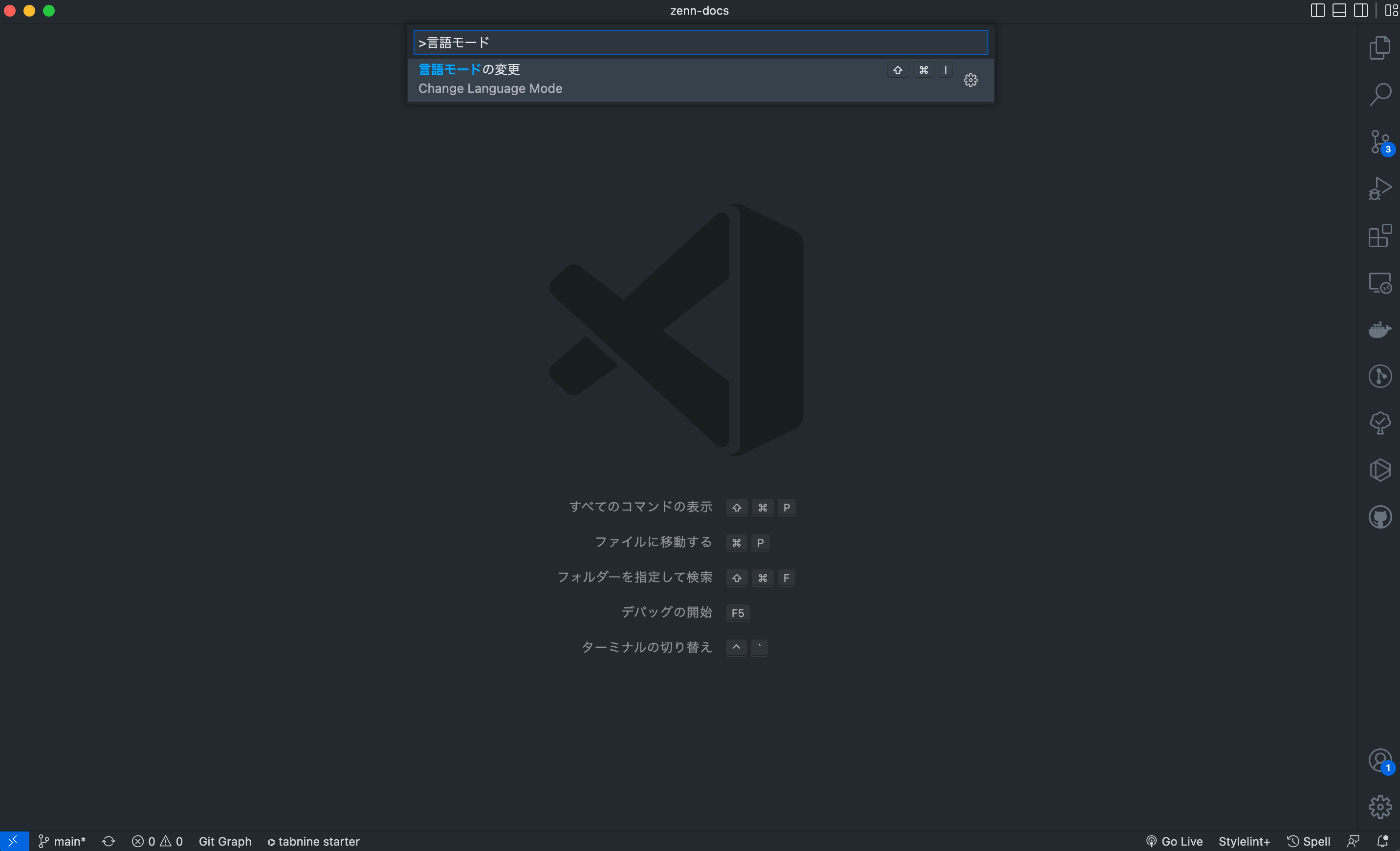
The Keyboard Shortcuts screen will be displayed, so click the pencil icon on the left of "Change Language Mode".
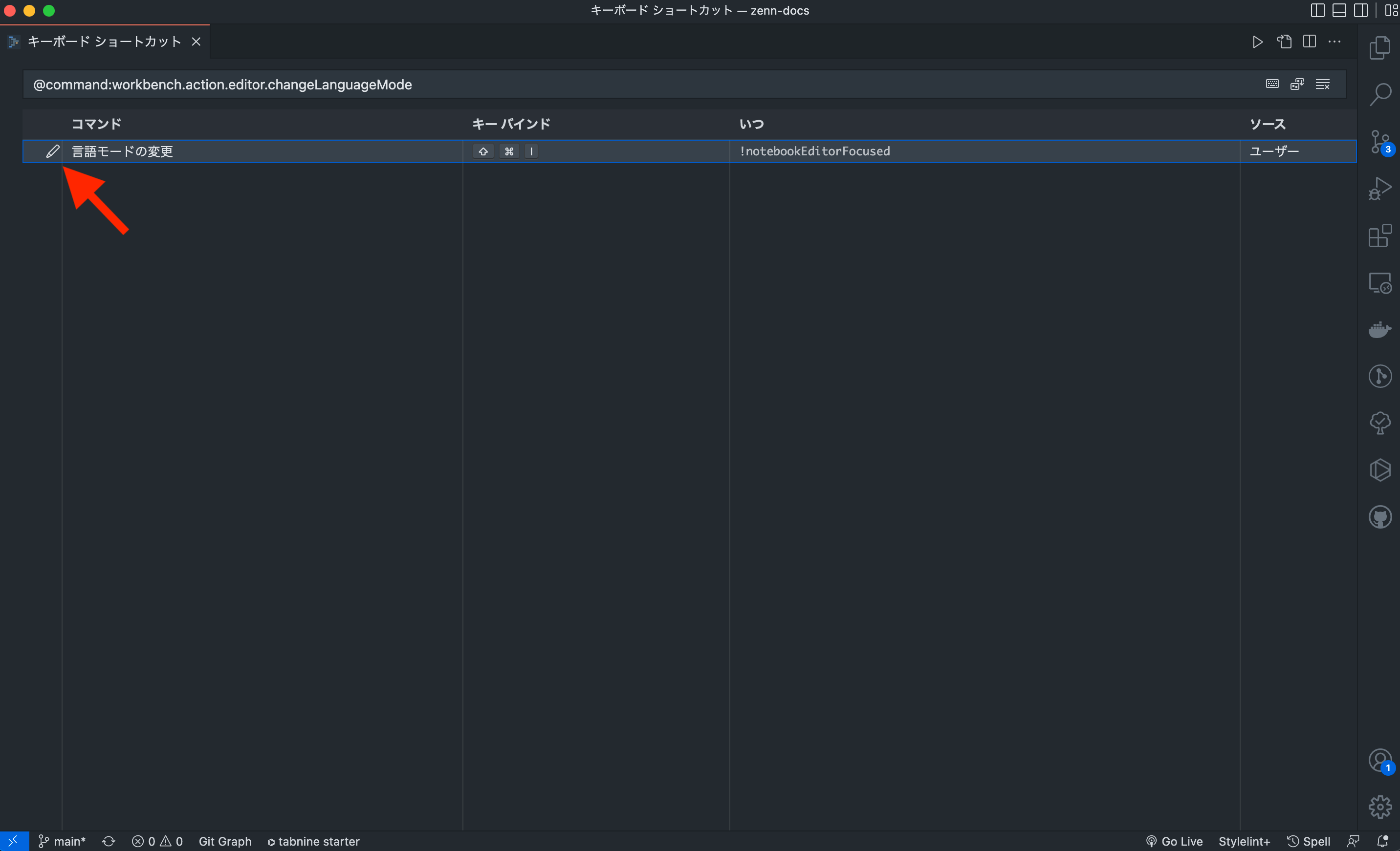
The keybinding input screen will appear, so enter a shortcut that does not conflict with other shortcuts. (I use command+shift+I)
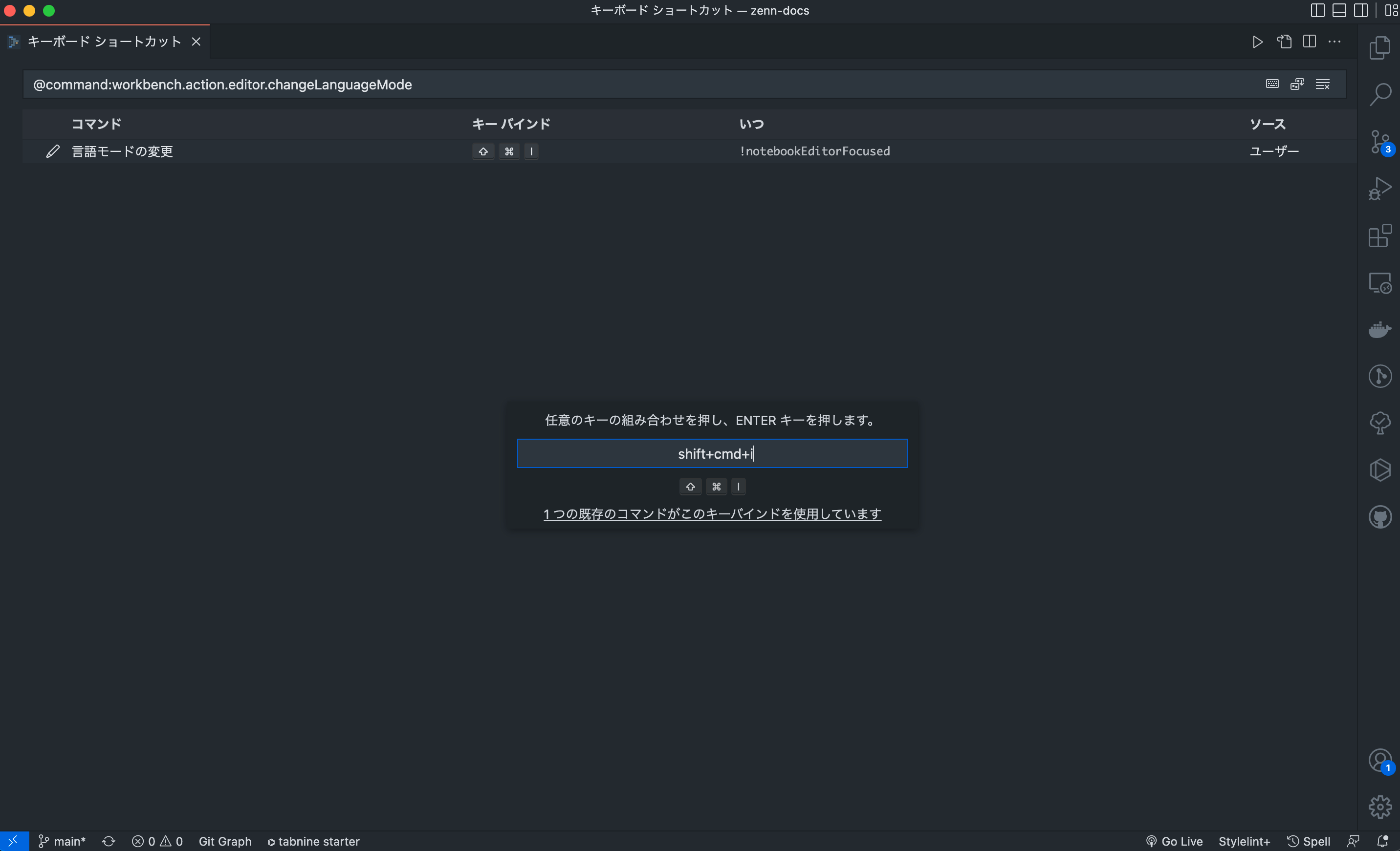
The setup is complete. Now you can perform formatting with just key inputs without saving the file.
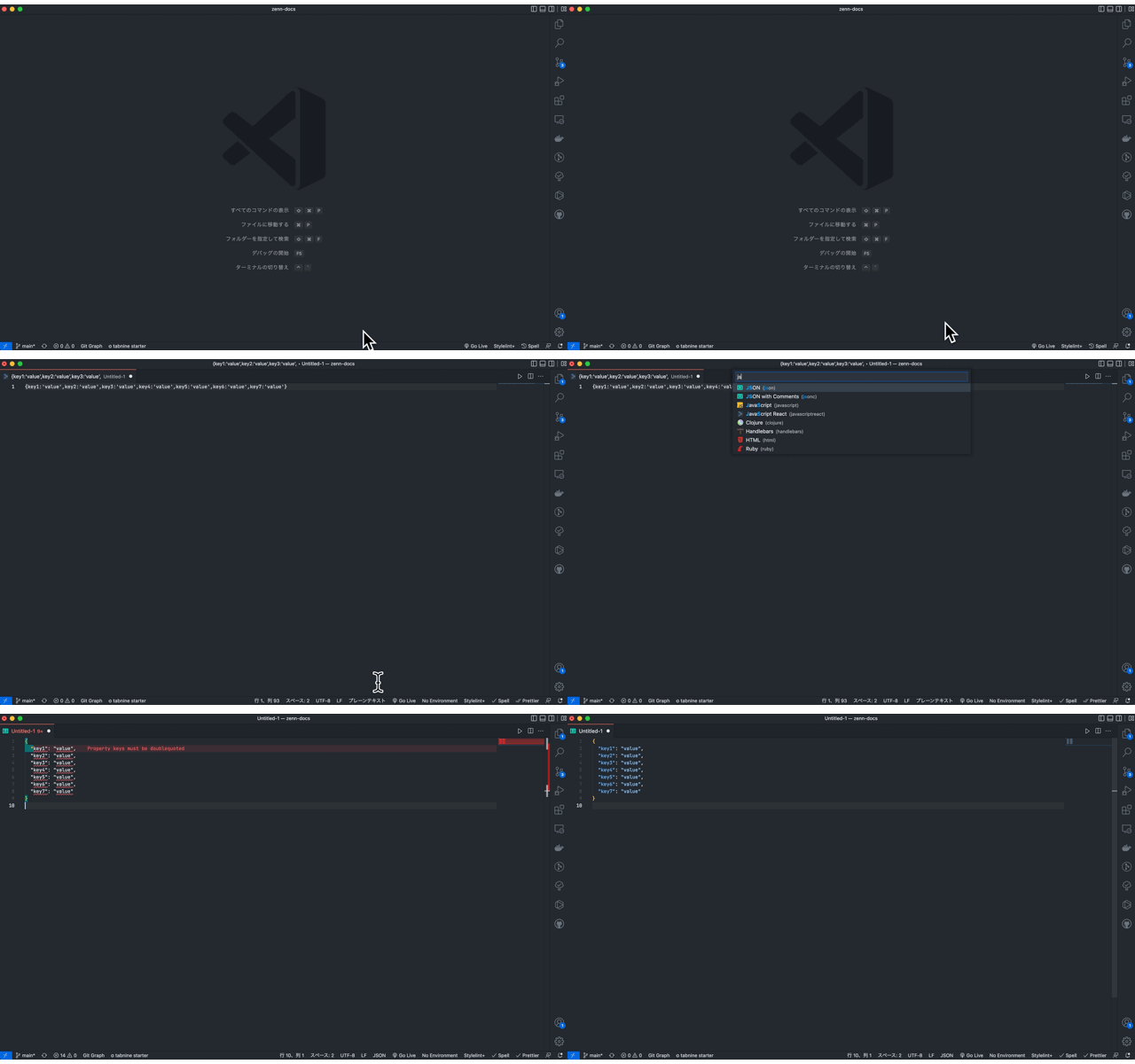
The actions performed above:
-
command+N(Add new file) -
command+V(Paste text to be formatted) -
command+shift+I(Open language mode settings) - Enter the desired language format and press Enter
-
option+shift+F(Run formatting)
Tips
Show/Hide Sidebar
command + B
Show/Hide Terminal
command + J
Show Explorer
command + shift + E
Global Search
command + shift + F
Replace
command + option + F
Format
option + shift + F
Multi-cursor Selection (Arbitrary)
option + click.
Multi-cursor Selection (All)
option + shift + click.
Open File
command + P + search term.
Open Command Palette
command + shift + P
Conclusion
Please let me know if you have any suggestions like "you should do it this way" or "there's also this option" 🙇♂️
I will continue to update this article regularly.
Discussion