iTranslated by AI
How to change the default terminal in VSCode




How to Change the Default Terminal in VSCode
In my Windows environment, the default terminal for VSCode was set to PowerShell. Since switching to git-bash every time I started it was becoming tedious, I decided to change the settings.

Changing the Profile Setting
Open the terminal view in VSCode, click the "∨" icon in the top right, and select "Select Default Profile."

Select your preferred shell from the list of available terminals.
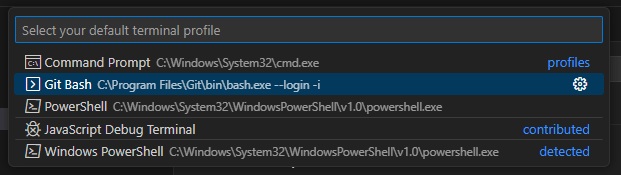
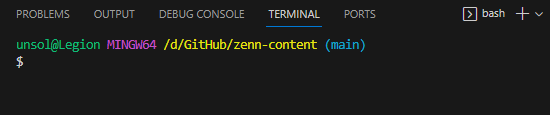
When you kill the existing terminal and restart it, the shell specified in the profile will open by default.
Can Also Be Set from the Command Palette
By the way, you can reach the same setting from the command palette by pressing ctrl + shift + P.
Type terminal: select default profile and

Select the shell.
Unlike when VSCode first came out, you can now change it without touching settings.json, and these types of configuration changes have become much easier.
Discussion