iTranslated by AI
Importing and Exporting Font and Color Settings for the VBA Editor




Introduction
The code editor used for VBA (hereinafter referred to as VBE) is, by default, displayed in what is known as light mode, with black text on a white background.
Unfortunately, dark mode, which has been adopted by many development environments in recent years, is not natively implemented in VBE.
Therefore, to achieve an eye-friendly display similar to dark mode, users must manually change the background and text colors one by one from the settings screen.
However, VBE has surprisingly many setting items, making manual configuration quite tedious.
Furthermore, there is also the issue that these settings cannot be easily migrated when replacing a PC or working in a different environment.
In this article, I will introduce a method to manage VBE color schemes and font settings as text files, and use PowerShell scripts to easily save (export) or apply (import) these settings to another environment.
Please note that this article covers VBA 7.1.
How this article proceeds
In this article, I will explain how to bulk-change VBE font and color scheme settings by editing the Windows registry (HKEY_CURRENT_USER\Software\Microsoft\VBA\7.1\Common) using PowerShell scripts.
For those who want to use the configuration scripts right away
Specific PowerShell scripts are provided in the "Creating PowerShell Scripts" section.
Regarding registry editing
The registry contains important configuration information for Windows.
Because unintended changes can affect the behavior of the system or applications, it is desirable to understand which keys correspond to which VBE settings before editing.
Therefore, I will proceed with the explanation in the following steps, being somewhat thorough:
- Confirming the procedure for manually changing VBE settings
- Confirming how registry values change after settings are modified
- Identifying the registry keys to be edited
- Creating PowerShell scripts to apply and save settings
Since this process involves modifying the registry, please proceed at your own risk.
Environment
- Windows 11 64 bit
- Excel (Microsoft Office Home and Business 2019, Ver. 2503, Build 18623.20178)
- VBA (Ver. 7.1, Build 7.1.1146, Forms3 16.0.18623.20076)
How to configure font and color scheme (Manual)
Before changing the settings with PowerShell, let's first check how to set them manually.
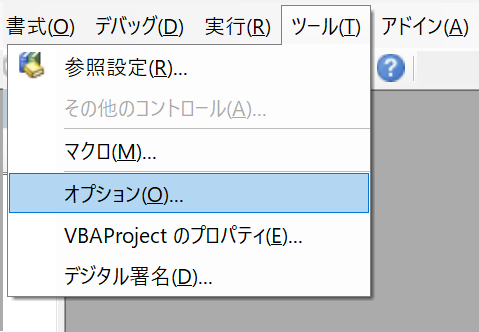
Open VBE and click Tools > Options.
Next, click the Editor Format tab in the Options window that appears.
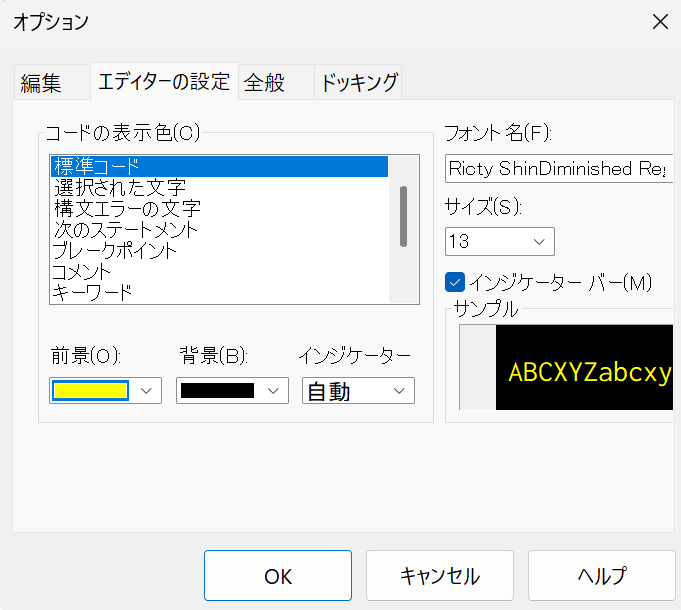
On this screen, you can set the foreground and background colors for multiple code elements (character types) in the "Code Colors" list. You can also specify the "Font" and "Size" on the same screen.
Important
If you have never changed these VBE settings before, the corresponding registry keys may not exist. To ensure you can check and edit the registry in the following steps, let's change at least one color (e.g., the color of comments) or the font type/size here.
Registry where VBE settings are saved
Let's check where the font and color settings you manually changed are stored in Windows.
These settings are stored in the registry.
First, open the Registry Editor. Run the following command in PowerShell, or type regedit in "Run" (Windows key + R) and press Enter.
start regedit
Once the Registry Editor starts, navigate to the following path in the tree view on the left:
HKEY_CURRENT_USER\Software\Microsoft\VBA\7.1\Common
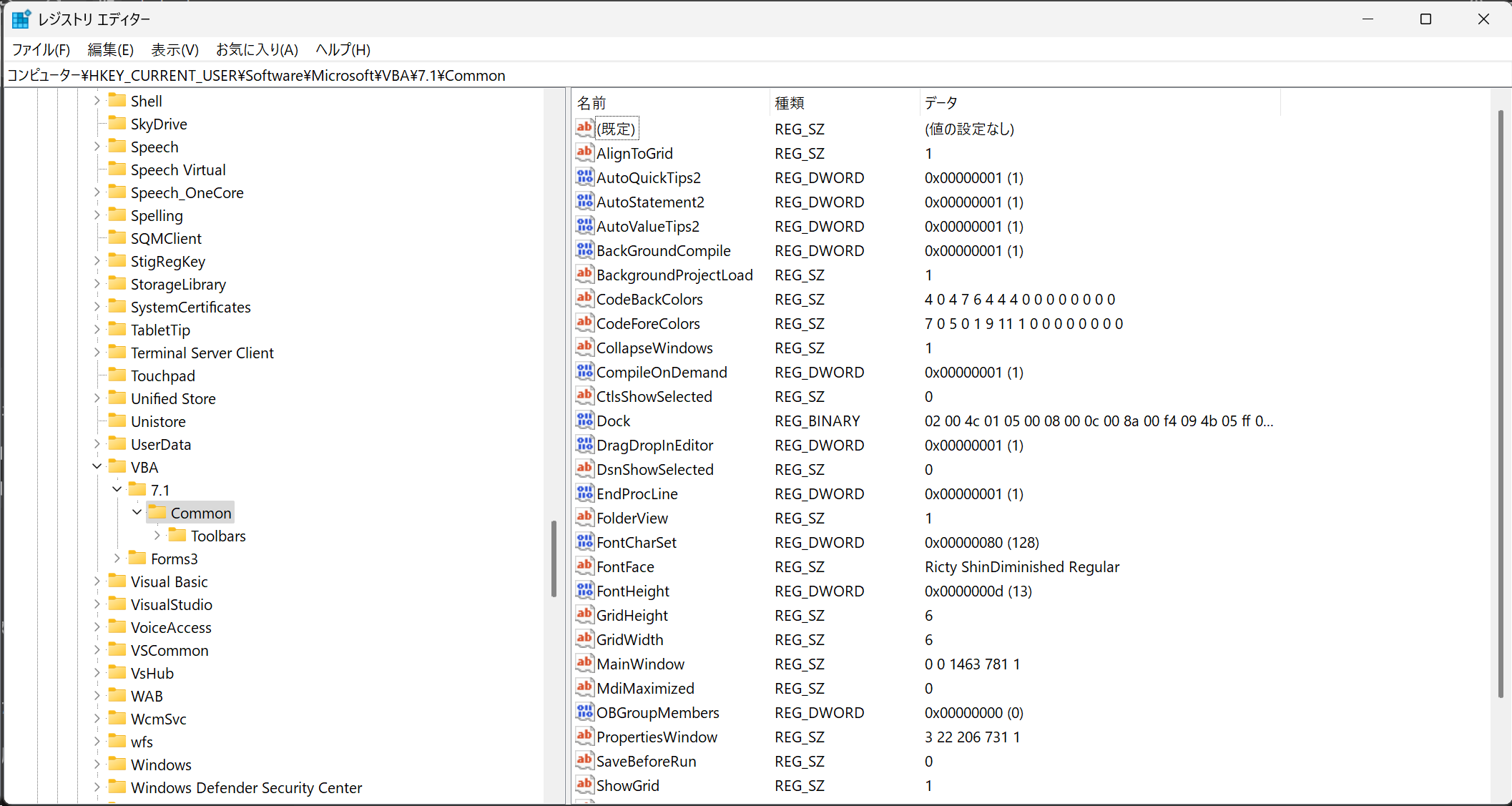
When you select this Common key, various configuration values (Name, Type, and Data) related to VBE should be displayed in the right pane (some values may not exist if you did not change the settings in the previous step).
Keys for Font/Color Scheme Settings
Among the entries in HKEY_CURRENT_USER\Software\Microsoft\VBA\7.1\Common, the primary keys related to VBE's font and color scheme are as follows:
CodeForeColors = 7 0 5 0 1 9 11 1 0 0 0 0 0 0 0 0
CodeBackColors = 4 0 4 7 6 4 4 4 0 0 0 0 0 0 0 0
FontFace       = Ricty ShinDiminished Regular
FontHeight     = 13
FontCharSet    = 128
How the Color Scheme Works
CodeForeColors and CodeBackColors specify colors using space-separated numeric strings (values 1 to 16, or 0 for "Auto").
Instead of specifying RGB values directly, colors are selected by number from a palette of 16 predefined colors.
The index of the numeric array (the zero-based position) indicates which item in the "Code Colors" list under the "Editor Format" tab in VBE's Options corresponds to.
The following table shows the mapping between each index and the UI display name, as well as the color pattern numbers and their corresponding colors based on the "Example" values above.
Note: The mapping between the indices and display names below is estimated by comparing registry values with the VBE UI.
| Registry Index |
Display Name (UI) | Example:CodeForeColors Value |
Example:CodeBackColors Value |
Foreground Color in Example | Background Color in Example |
|---|---|---|---|---|---|
| 0 | Normal Text | 7 | 4 | Yellow | Black |
| 1 | Selection Text | 0 | 0 | Auto | Auto |
| 2 | Syntax Error Text | 5 | 4 | Red | Black |
| 3 | Next Statement Text | 0 | 7 | Auto | Yellow |
| 4 | Breakpoint Text | 1 | 6 | White | Red |
| 5 | Comment Text | 9 | 4 | Green | Black |
| 6 | Keyword Text | 11 | 4 | Cyan | Black |
| 7 | Identifier Text | 1 | 4 | White | Black |
| 8 | Bookmark Text | 0 | 0 | Auto | Auto |
| 9 | Call Return Text | 0 | 0 | Auto | Auto |
| (10-15) | (Reserved/Unused?) | 0 | 0 | Auto | Auto |
The specific RGB values assigned to each color pattern number (1-16) appear to be defined within VBE7.DLL.
If you want to change these base colors, you can use a third-party tool called VBEThemeColorEditor.
How the Font Works
-
FontFace
Specifies the font name to be used.
If an invalid value (a font name that does not exist) is specified, an unintended font will be assigned. -
FontHeight
Specifies the font size in points. -
FontCharSet
Specifies the font's character set.
In a Japanese environment, it is common to specify128(representing SHIFTJIS) to correctly display Japanese characters.
Creating PowerShell Scripts
We will create scripts to change VBE settings using PowerShell.
Here, we introduce two scripts: one for applying settings and another for saving current settings to a file.
Applying Specified Font & Color Settings to VBE (Import)
First, here is a script to bulk-apply defined font and color scheme settings to VBE.
Preparation
Create the following two files (VbeThemeSettings.txt and VbeThemeApply.ps1) in the same folder on your PC.
-
Configuration file:
VbeThemeApply.txt -
Application script:
VbeThemeApply.ps1
Open the VbeThemeApply.txt file and enter the VBE settings you want to apply in the following format.
The following is an example of a dark-mode style configuration.
CodeForeColors = 7 0 5 0 1 9 11 1 0 0 0 0 0 0 0 0
CodeBackColors = 4 0 4 7 6 4 4 4 0 0 0 0 0 0 0 0
FontFace       = Ricty ShinDiminished Regular
FontHeight     = 13
FontCharSet    = 128
Next, create the VbeThemeApply.ps1 file with the following content.
# VbeThemeApply.ps1
# Apply theme + backup before change

$regBase = "HKCU\Software\Microsoft\VBA\7.1\Common"
$regPathPS = "HKCU:\Software\Microsoft\VBA\7.1\Common"
$themeFile = ".\VbeThemeApply.txt"
$backupFile = ".\VbeThemeBackup.reg"

# ▼ 1. Registry backup
reg export "$regBase" "$backupFile" /y
Write-Host "Registry backup created: $backupFile" -ForegroundColor Green

# ▼ 2. Loading theme file
if (-Not (Test-Path $themeFile)) {
    Write-Host "Theme file not found: $themeFile" -ForegroundColor Red
    exit
}

$theme = Get-Content $themeFile | Where-Object { $_ -match "=" } |
    ForEach-Object {
        $parts = $_ -split "=", 2
        @{ Name = $parts[0].Trim(); Value = $parts[1].Trim() }
    }

# ▼ 3. Writing process
foreach ($item in $theme) {
    switch ($item.Name) {
        "CodeForeColors" {
            Set-ItemProperty -Path $regPathPS -Name "CodeForeColors" -Value $item.Value -Type String
        }
        "CodeBackColors" {
            Set-ItemProperty -Path $regPathPS -Name "CodeBackColors" -Value $item.Value -Type String
        }
        "FontFace" {
            Set-ItemProperty -Path $regPathPS -Name "FontFace" -Value $item.Value -Type String
        }
        "FontHeight" {
            Set-ItemProperty -Path $regPathPS -Name "FontHeight" -Value ([int]$item.Value) -Type DWord
        }
        "FontCharSet" {
            Set-ItemProperty -Path $regPathPS -Name "FontCharSet" -Value ([int]$item.Value) -Type DWord
        }
    }
}

Write-Host "Theme applied! Please restart VBE to reflect changes" -ForegroundColor Cyan
Execution
Open PowerShell, use the cd command to navigate to the folder where the above files are saved, and launch the script.
./VbeThemeApply.ps1
Behavior during execution
First, it creates a backup of the current registry settings (HKEY_CURRENT_USER\Software\Microsoft\VBA\7.1\Common) in the same folder as the script under the name VbeThemeBackup.reg.
After that, it overwrites the registry values according to the contents of VbeThemeApply.txt.
Restoring settings
If you want to revert the settings, double-click the created backup file (VbeThemeBackup.reg).
Saving current VBE settings to a file (Export)
You may want to reuse the settings you applied in the previous step or the color and font settings you manually adjusted in VBE on other PCs, or keep them as a backup.
This script reads the current VBE settings (keys related to fonts and colors) from the registry and saves them as a text file (.txt) in a format that can be read by the application script (VbeThemeApply.ps1).
Preparation
Create a file named VbeThemeBackup.ps1 in the same folder as the application script with the following content.
$regPath = "HKCU:\Software\Microsoft\VBA\7.1\Common"
$scriptDir = Get-Location
$savePath = Join-Path $scriptDir "VbeThemeBackup.txt"

try {
    $reg = Get-ItemProperty -Path $regPath

    @"
CodeForeColors = $($reg.CodeForeColors)
CodeBackColors = $($reg.CodeBackColors)
FontFace       = $($reg.FontFace)
FontHeight     = $($reg.FontHeight)
FontCharSet    = $($reg.FontCharSet)
"@ | Out-File -FilePath $savePath -Encoding UTF8

    Write-Host "Theme settings saved" -ForegroundColor Green
    Write-Host "Save location: " $savePath
}
catch {
    Write-Host "Failed to read the registry" -ForegroundColor Red
}
Execution
Open PowerShell, use the cd command to navigate to the folder where you saved the above file, and launch the script.
./VbeThemeBackup.ps1
Behavior during execution
VbeThemeBackup.txt will be created in the folder where the script was executed. This file contains the current VBE values for CodeForeColors, CodeBackColors, FontFace, FontHeight, and FontCharSet in the format Name = Value.
This file can be used as the configuration file (for example, by renaming it to VbeThemeApply.txt) to be read by the VbeThemeApply.ps1 script.
Reference Sites
The following site explains how to change color patterns using VBEThemeColorEditor.
I referred to this site for the color scheme itself.
Conclusion
Recently, I had the opportunity to use VBA on multiple PCs, and I felt that manually reconfiguring the VBE appearance in each environment was a hassle. This was the motivation for trying this method.
Even though it might be a bit of an over-implementation, I created this because I wanted to manage settings on a code basis.
I really wish dark mode was implemented officially
Discussion