iTranslated by AI
Troubleshooting npm install for Private Repositories via SSH in GitHub Actions





Note: Although I wrote npm install in the title, I'm actually using yarn.
This is a ReactNative, React.js, and node.js project.
Conclusion
- Create an SSH Key without a passphrase
- Register the private key in the Setting/Secret of the repository running the CI
- Register the public key in the Setting/SSH of a GitHub account with the necessary permissions
- Add the SSH connection process to the yml file in .github/workflows
Sticking Points
- Error when using an SSH key with a passphrase
- Confusion due to a shallow overall understanding of where keys should be placed
- Confusion over not knowing the SSH connection script
How it started
- I want to use TS type definitions across mobile, web, and server
- Simply create a Private Repository and
yarn addvia SSH - Works fine locally
- Fails in GitHub Actions CI
Steps
1. Create an SSH Key without a passphrase
Since you cannot enter a passphrase when performing SSH connection processing on GitHub Actions, we will create a separate SSH Key without a passphrase this time.
Move to .ssh
$ cd ~/.ssh
As a side note: You can check the SSH Keys you have created so far with this command.
Author: "Ah, there's a key I'm not using. I need to organize them..."
$ ls -a ~/.ssh
SSH Key Creation
$ ssh-keygen -t rsa -b 4096 -C "{email_address}"
Please register the email address as either a shared company account address or the email address registered with GitHub.
I often see articles saying "Make it in PEM format!", but apparently that's a lie because it works correctly in the default RSA format.
Note: Some Github Action authors said we need the PEM format for SSH keys to work. This is false. I’ve tested with the standard RSA format (which I recommended above) and it works.
From here, you'll be asked a few questions.
I'll write the questions and some supplementary info to make this a friendly guide!
Enter file in which to save the key
You're being asked to decide on the filename to save it as.
If you just press enter, it will be the default id_rsa.
But if it were me, I'd give it a unique name so I don't forget what the SSH Key is for.
Let's name it something like github-actions this time!
Enter passphrase
There it is! You're being asked to decide on a passphrase.
Let's just press enter without typing anything this time.
Security will be lower, but I don't want to enter a passphrase on automated GitHub Actions, so let's go with none this time!
Enter same passphrase again
It's asking "Type that passphrase again!".
Since we didn't enter anything, just press enter.
The key's randomart image is:
+---[RSA 4096]----+
|             o.  |
|             .o .|
|         .    ...|
|        o o    o.|
|        S= o ....|
|         +* =  ..|
|        +++=.O.. |
|       .oB++BE+. |
|       o=+B**+o++|
+----[SHA256]-----+
SSH Key creation was successful! Yay!
It's perfect if two files are created as expected using the ls command as shown below!
By the way, github-actions is the private key and github-actions.pub is the public key!
It's easy to remember if you think of .pub as standing for "public"!
$ ls -a ~/.ssh
github-actions
github-actions.pub
2. Register the private key in the Setting/Secret of the repository running the CI
Please adapt the following path to your own case!
You should see a screen called "Actions secrets"!
→ https://github.com/{account_name}/{repository_name}/settings/secrets/actions
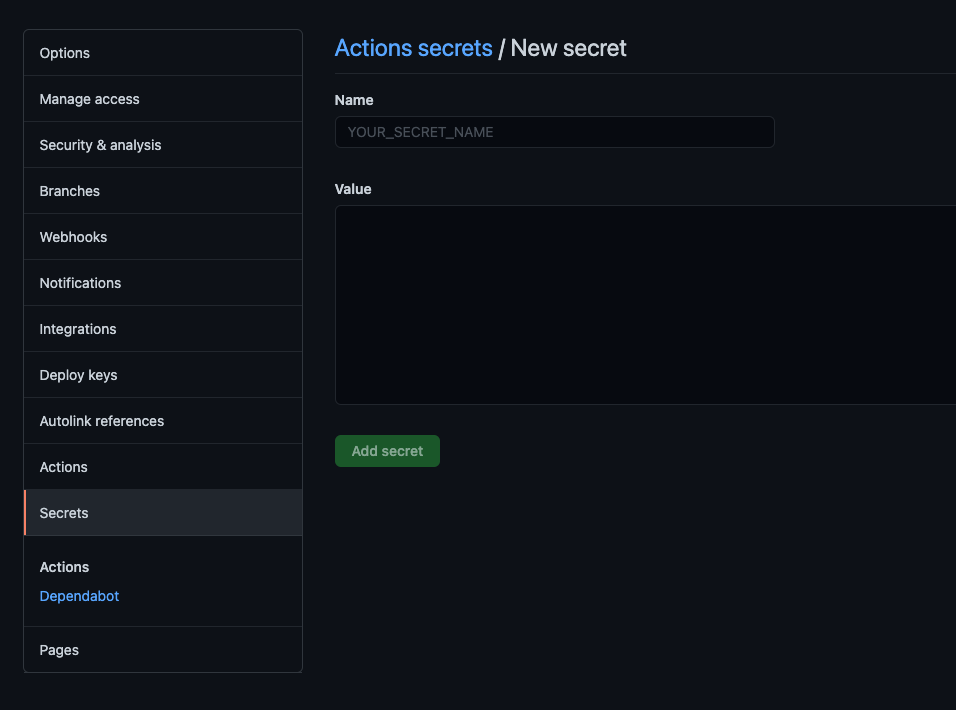
Register New Repository Secret
Press the "New repository secret" button.
Here, you will register the "private key" to the repository.
name → Environment variable name (EX: PRIVATE_KEY)
value → Private key
This name will be the name of the environment variable you can call in GitHub Actions like secrets.PRIVATE_KEY!
Tips! How to copy the private key
This will copy it to your clipboard!
Try pasting it somewhere with command + v to check!
$ cd ~/.ssh
$ pbcopy < github-actions
3. Register the public key in the Setting/SSH of a GitHub account with the necessary permissions
Click the link below.
It should take you to the screen for managing SSH Keys associated with your GitHub account.
Click "New SSH key" here and set the "public key" in the same way as before!
title → key name (EX: GitHub Actions)
key → Public key
It's recommended to give the title a name that's easy to remember for what purpose it's being used!
Tips! How to copy the public key
Copy the one with the .pub extension to your clipboard, just like you did with the private key earlier!
$ cd ~/.ssh
$ pbcopy < github-actions.pub
4. Add SSH connection processing to the .github/workflows yaml
I've seen many ways to do this, but for now, I'll use a method that works. Honestly, it would be cleaner to create a script file and write it there.
    - name: yarn install
      # Setting up for SSH connection
      env:
        PRIVATE_KEY: ${{ secrets.PRIVATE_KEY }}
      run: |
        mkdir -p ~/.ssh
        echo "$PRIVATE_KEY" | tr -d '\r' > ~/.ssh/id_rsa
        chmod 700 ~/.ssh/id_rsa
        eval $(ssh-agent -s)
        ssh-add ~/.ssh/id_rsa
        ssh-keyscan -H github.com >> ~/.ssh/known_hosts
        yarn install
Full yml code
name: GitHub Actions CI
on:
  pull_request:
    types: [opened, synchronize]
jobs:
  test:
    runs-on: ubuntu-latest
    strategy:
      matrix:
        node-version: [12.x]
    steps:
    - name: Checkout
      uses: actions/checkout@v2
    - name: Setup Node.js
      uses: actions/setup-node@v1
      with:
        node-version: ${{ matrix.node-version }}

    - name: yarn install
      # Setting up for SSH connection
      env:
        PRIVATE_KEY: ${{ secrets.PRIVATE_KEY }}
      run: |
        mkdir -p ~/.ssh
        echo "$PRIVATE_KEY" | tr -d '\r' > ~/.ssh/id_rsa
        chmod 700 ~/.ssh/id_rsa
        eval $(ssh-agent -s)
        ssh-add ~/.ssh/id_rsa
        ssh-keyscan -H github.com >> ~/.ssh/known_hosts
        yarn install

    - name: Run ESLint
      run: yarn lint

    - name: Run Test
      run: yarn test:rules
This should work!
Reference Articles
Deploying to a server via SSH and Rsync in a Github Action
Executing ansible-playbook using Github Actions
Error Code Introduction
Error when using a private key with a passphrase
It ends with being asked to "Please enter your passphrase".
Enter passphrase for (stdin):
Adding GitHub.com keys to /home/runner/.ssh/known_hosts
Starting ssh-agent
SSH_AUTH_SOCK=/tmp/xxx.sock
SSH_AGENT_PID=xxxx
Adding private key(s) to agent
Error: Command failed: ssh-add -
Enter passphrase for (stdin):
Error when you forget to set the public key in your account
This was a simple mistake where I created a new SSH key without a passphrase and registered the private key, but forgot to register the crucial public key.
yarn install v1.22.10
[1/4] Resolving packages...
[2/4] Fetching packages...
error Command failed.
info Visit https://yarnpkg.com/en/docs/cli/install for documentation about this command.
Exit code: 128
Command: git
Arguments: ls-remote --tags --heads git@github.com:MyAcount/MyPackage.git
Directory: /home/runner/work/MyAcount/MyPackage
Output:
Warning: Permanently added the RSA host key for IP address 'addressNumber' to the list of known hosts.
git@github.com: Permission denied (publickey).
fatal: Could not read from remote repository.

Please make sure you have the correct access rights
and the repository exists.
Error: Process completed with exit code 128.
Discussion