iTranslated by AI
Getting Started with PICO-8 Game Development



Introduction
Do you know the game Celeste? It is a masterpiece of simple side-scrolling action games with retro-style pixel art. While Celeste is currently available on various platforms including Nintendo Switch, its original version was created on PICO-8. The original version is still playable on the web today.
PICO-8 is one of the fantasy consoles. A fantasy console is a concept by Joseph White, the developer of PICO-8, referring to a terminal that does not exist in the real world (one with no physical hardware). In a nutshell, PICO-8 is a "software emulator for a retro game console that might have once existed." Games made with PICO-8 are not "retro-style," they are "retro."
PICO-8 does more than just run games. It is an integrated development environment with all the necessary development tools built-in. However, it is not a tool that only highly skilled developers can master. Although it is a paid product ($14.99 = approx. 2080 yen), it is one of the easiest game creation tools recommended for anyone (even children). For those who are hesitant, thinking "I want to make a game but Unity seems difficult...", why not start by making a game with PICO-8?
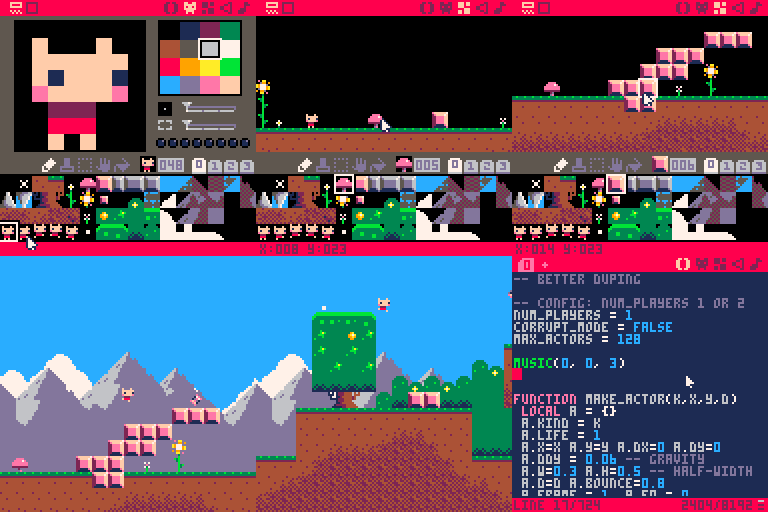
PICO-8, where you can do everything (quoted from the official website)
Features of PICO-8
Multi-platform
PICO-8 runs on Windows, macOS, Linux, and Raspberry Pi. Games created with PICO-8 can also be converted into standalone binaries or web apps, allowing people who haven't purchased PICO-8 to play them.
On the forum operated by the PICO-8 developer, you can play games posted by users in your browser. There are completed masterpieces as well as works tagged "Work in Progress," and everyone feels free to post even their ongoing projects. Once you've made something playable, even if it's small, please try posting it. You'll need to write a simple explanation in English, but using something like ChatGPT will be fine. It's fun to get comments from someone.
By the way, I tried making a pinball-flavored breakout game (I relied on ChatGPT for the game description). The ball moves with gravity like in pinball. I laughed when someone commented "breakout hardcore version." I thought so too, but adjusting the difficulty was challenging. If I slowed the ball down, the pinball feel was blurred, and if I reduced the number of blocks, it felt less rewarding. I learned many things by actually making it.
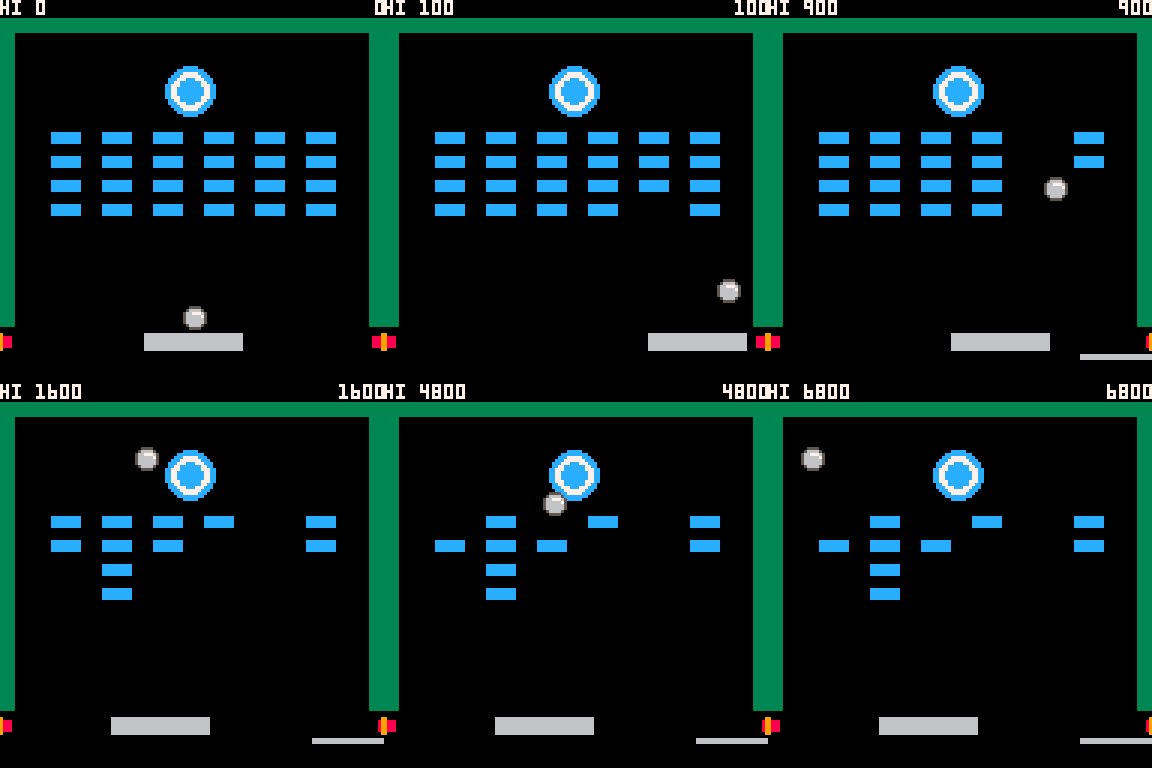
Breakout hardcore version. You can also create GIF animations of your gameplay using built-in features.
Hardware Limitations
The most prominent feature of PICO-8 is its retro-game-like limitations. The main hardware specifications are as follows:
| Category | Specifications |
|---|---|
| Resolution | 128x128 pixels |
| Frame rate | 30 (can be changed to 60) |
| Displayable Colors | 16 colors |
| Sound | 4 channels, 8 waveforms |
| Controllers | 6 buttons (Up, Down, Left, Right, x, o), 2 controllers |
| Up to 8 controllers can be connected via SDL | |
| Programming Language | P8 Lua (PICO-8 exclusive Lua subset) |
| CPU | 8MHz, executing 4 million Lua VM instructions per second |
| Memory | 64 KB |
| Cartridge Size | 32 KB (8192 tokens) |
The first thing that might catch your eye is the resolution. 128x128 pixels is about half of the NES (256x240). Since even the handheld Game Boy and Game Gear have a resolution of 160x144, it can be considered quite narrow compared to today's latest hardware. However, it is strange that when you actually make a game, it can sometimes feel quite spacious.
The CPU clock frequency is fixed at 8MHz, ensuring it runs at the same speed on any machine. As a result, you cannot create high-end games that rely on modern machine power. While 8MHz sounds reasonably high for "retro"—being four times that of the NES (1.79MHz) and twice that of the SNES (3.58MHz)—PICO-8's CPU executes Lua VM instructions, so a simple comparison is not possible. It reportedly consumes 2 cycles per Lua VM instruction and can execute 4 million instructions per second, though it is unclear which real-world console that capability corresponds to. That said, it seems to have enough performance to create 3D games (or tools) like 3D shooting (Hyperspace) or CAD (picoCAD).
The "cartridge" at the end of the list refers to a file that bundles the game's source code and various data (modeled after a game console's cartridge or cassette). The maximum size of a cartridge is limited to 32KB (although up to 16 cartridges can be linked together).
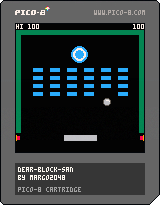
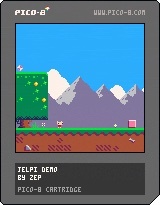
A cartridge image file. Actually, the program is also embedded within this image.
These strict hardware limitations are intentional. While they reduce what you can do, they make the selection of ideas more critical. There is no room for flashy effects to hype up the game, modes to expand the scope of play, advanced physics, or high-performance game engines. What to adopt and what to discard—each careful choice will enhance your creativity.
Low development hurdle
Hearing that hardware specifications are strictly limited might make it seem like low-level and difficult programming, such as C, is required. However, it is actually the opposite. The programming language used in PICO-8 is Lua (a subset), and you can proceed smoothly without worrying about pointers or types. You don't need to learn complex operations like in Unity, nor do you need to memorize a massive API (the number of functions is around 80).
Built-in development tools
Game development requires not just source code but also images and music. PICO-8 has all the tools necessary for game development built-in. You can complete your development using only PICO-8, without needing to prepare any other tools yourself. (All images are screenshots from demo games.)
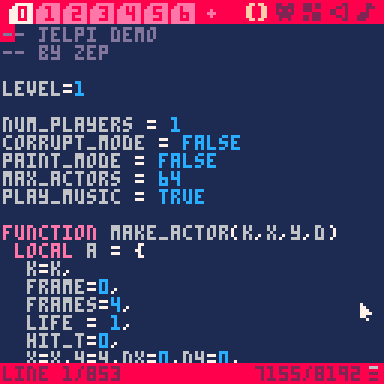
Source code editor. Since the source code is a text file, it can also be edited with other tools.
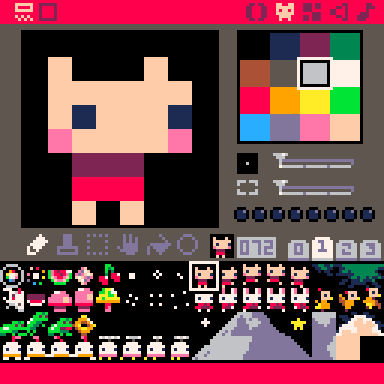
Sprite editor
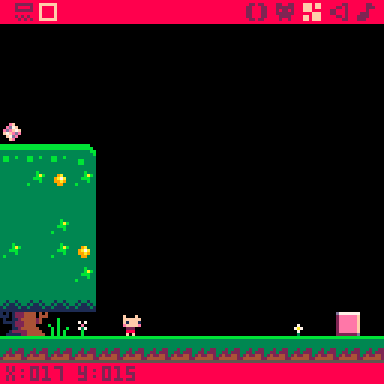
Map editor
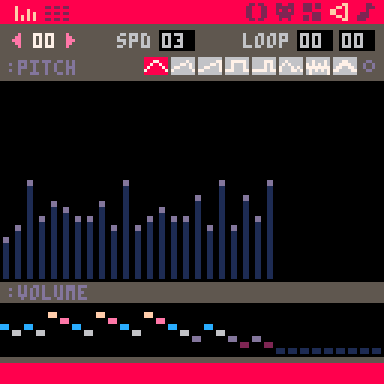
Sound (SFX) editor
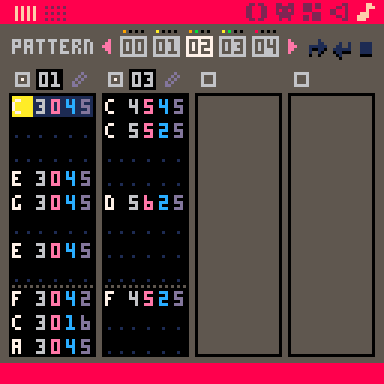
Music editor (one of them)
Japanese Language Support
Surprisingly, PICO-8 supports Japanese (Hiragana and Katakana). You can even create Japanese RPGs or adventure games. By the way, the name "PICO" reportedly comes from the Japanese onomatopoeia "piko-piko" (the sound of blips and bleeps).
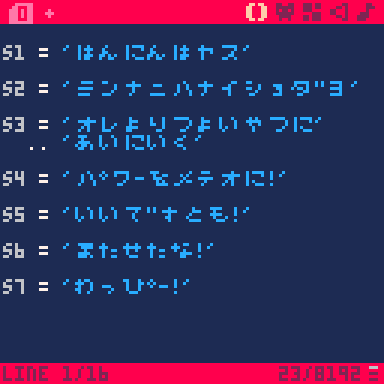
A Japanese font with a Mr. Saturn-like feel
The source code is as follows. Note that it appears slightly differently in the editor compared to how it looks on the screen:
s1 = 'はんにんはヤス'

s2 = 'ミンナニハナイショタ゛ヨ'

s3 = 'オレよりつよいやつに'
  .. 'あいにいく'

s4 = 'ハ゜ワ-をメテオに!'

s5 = 'いいて゛すとも!'

s6 = 'またせたな!'

s7 = 'わっひ゜-!'
Japanese input is performed within the source code editor. You can enter input mode for Hiragana with Ctrl-J and Katakana with Ctrl-K. Characters are entered using Romanization.
However, there are limitations here as well. Please note the following points:
- Voiced marks (dakuten) and semi-voiced marks (handakuten) are treated as separate individual characters. For example, "だ" (da) is treated as two characters "た゛" in P8 Lua. If you enter "だ" in an external editor, it will appear as garbled text when loaded.
- Full-width characters other than Hiragana and Katakana will be garbled, except for punctuation. Since characters like "!" and "?" will also be garbled, please use half-width characters.
- If you
savewhile the text is garbled, it will be overwritten in that garbled state. Be careful when editing with an external editor. - PICO-8 only supports UTF-8 character encoding. Source code edited in other encodings will result in Hiragana and Katakana becoming garbled.
Introductory Articles
While there are many excellent introductory articles on PICO-8 that you can find by searching, here I would like to introduce a fanzine called PICO-8 ZINE.
PICO-8 ZINE is a fanzine created by volunteers in the PICO-8 community, packed with information useful for PICO-8 game development. The creator of PICO-8 also participates, and up to four issues have been published. The first issue has also been translated into Japanese by a volunteer, so please take a look.
PICO-8 ZINE #1 includes instructions on how to use the development tools and a tutorial for making a simple game (Squash). By following it, you can start developing games right away.
Other Documentation
Here are the official documentation and the community Wiki. There are many others who have written information about PICO-8, so please try searching for them.
PICO-8 Basic Knowledge
P8 Lua
The Lua used in PICO-8 is P8 Lua, a subset exclusive to PICO-8 that differs from the original Lua. While the syntax is equivalent to Lua 5.2, its features are significantly restricted. The main differences are shown below (for more details, refer to Going from Lua 5.2 to PICO-8's Lua):
- Only some built-in variables and functions can be used.
- Metatables can be set (
setmetatable), but not retrieved (getmetatable). -
Built-in modules are not provided. Neither
string,table, normathcan be used. Instead, a minimal API is provided as an alternative. - APIs specifically for PICO-8 have been added.
- Only files in directories managed by PICO-8 can be loaded.
- Garbage collector (GC) manipulation is not possible.
- Integers are 16-bit. The maximum value is 32767, and the minimum is -32768. Exceeding the maximum value via addition results in an overflow, causing the sign to flip.
- Floating-point numbers are 32-bit. Since standard Lua uses 64-bit, the precision is halved.
While these strict limitations might seem inconvenient at first glance, they offer the advantage of having "less to memorize." Even if you know nothing about Lua, you can start development immediately just by looking up the syntax.
Tokens
PICO-8 measures source code size in units called "tokens." Even if the source code's character count is within the maximum (65535), the code will exceed capacity if the token count surpasses 8192.
The following elements are counted as tokens:
- Variables
- The length of the variable name does not affect the token count.
- Keywords (excluding
localandend) - Operators
- Brackets/Parentheses (a pair counts as 1 token)
- Literals (
nil,true,false, numbers, strings)- The length of the string does not affect the token count.
The following elements are not counted as tokens:
- Commas (
,) - Periods (
.) - Semicolons (
;) - Colons (
:) - Double colons (
::) - Closing brackets (
),],}) - Unary operators (
-,~) -
localkeyword -
endkeyword - Comments
The token count of the source code is displayed in the bottom right of the code editor screen.
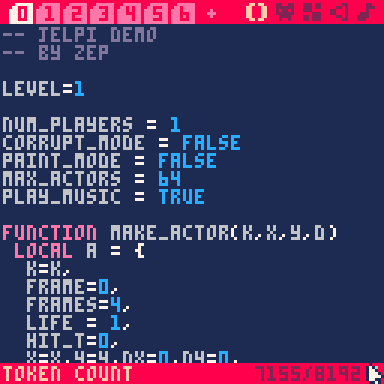
Alternatively, you can check it by running the info command in command mode.
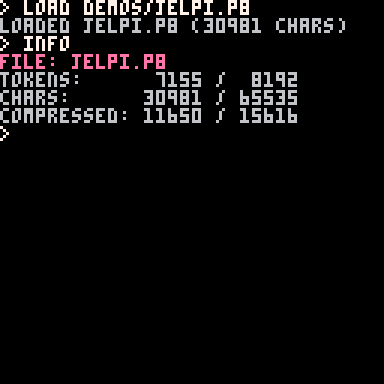
It is a good idea to occasionally check the token count of your source code during development to get a sense of how much capacity your ideas require. That said, I don't think you need to worry about it too strictly at first.
P8 File Format
Files with the extension .p8 are text files containing the Lua program and all other data. Sprite and music data edited in editor mode are represented as hexadecimal text. The following text data is the content of demos/hello.p8 (data parts are omitted):
pico-8 cartridge // http://www.pico-8.com
version 19
__lua__
-- hello world
-- by zep

music(0)

function _draw()
	cls()

...

__gfx__
00000000000000000000000000000000000000000000000000000000000000000000000000000000000000000000000000000000000000000000000000000000
...

__sfx__
0110000000472004620c3400c34318470004311842500415003700c30500375183750c3000c3751f4730c375053720536211540114330c37524555247120c3730a470163521d07522375164120a211220252e315
...

__music__
00 00044208
00 00044108
...
The .p8 file format consists of a header and seven sections. Sections start with the format __xxx__. Each section can be omitted if there is no data.
Header
A .p8 file begins with the following two lines:
pico-8 cartridge // http://www.pico-8.com
version 19
The first line is fixed data, and the second line indicates the corresponding PICO-8 version. However, the version does not seem to affect the game's operation or format significantly.
Lua Section
The section starting with __lua__ is the Lua source code. A key point in this section is the two lines of comments at the beginning:
-- hello world
-- by zep
These comments are displayed in the text below the cartridge image label.
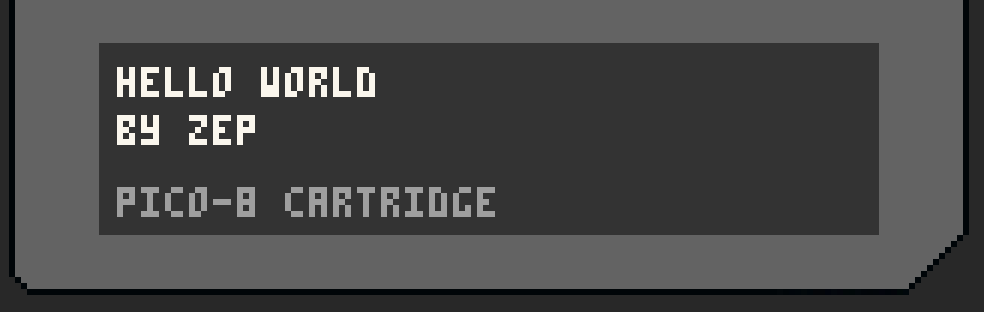
Also, when editing with an external text editor, be careful when executing the save command in command mode. Non-ASCII characters other than Hiragana and Katakana will be garbled on PICO-8, and executing save will overwrite the file in that garbled state.
Other Sections
Sections other than Lua are listed below. Since you will likely rarely edit them yourself, details are omitted.
-
__gfx__: Sprite sheet -
__gff__: Sprite flags -
__label__: Cartridge label image -
__map__: Map -
__sfx__: Sound (SFX) -
__music__: BGM
PICO-8 Directory Structure
Files related to PICO-8 are located in the following directories:
- Windows:
C:/Users/Yourname/AppData/Roaming/pico-8/ - macOS:
/Users/Username/Library/Application Support/pico-8/ - Linux:
~/.lexaloffle/pico-8/
Among these directories, here is the data you should remember for now:
-
config.txt: A configuration file that controls the behavior of PICO-8. -
carts: A directory containing cartridges that can be loaded from command mode. Demo cartridges are located underdemos. -
cdata: Save data created during cartridge execution.
The paths for cartridges and save data can be changed. For details, refer to "PICO-8 Configuration" below.
PICO-8 Configuration
Refer to the "PICO-8 Directory Structure" above for the path to the configuration file.
Since there are many configuration items for PICO-8, I will introduce only the items you might want to set first.
-
root_path: The path to the directory containing cartridges (carts). -
cdata_path: The path to the save data (cdata).
Since you will be editing cartridge files directly during development, it is a good idea to change root_path to a path that is easy for you to manage. If you manage your development data with Git, the simplest way is to include the entire carts directory in your repository.
Basic Usage: Command Mode
Command Mode and Editor Mode
When you start PICO-8, a pitch-black screen with some text appears after a short animation.

Startup animation
This is "Command Mode." You enter the command to be executed to the right of the prompt (>). For example, running ls displays the contents of the specified directory. The directory path is relative to the directory managed by PICO-8.
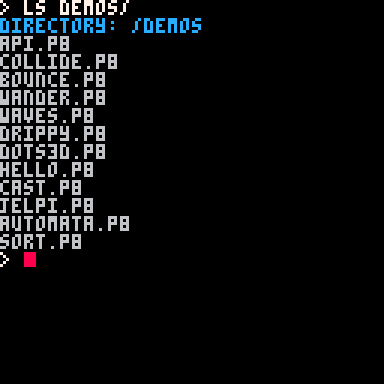
Displaying directory contents
All alphabetic characters entered in PICO-8 are displayed in uppercase. There is no distinction between uppercase and lowercase.
Running help displays a list of commands and other documentation. The commands are few and simple. If you specify a topic (such as lua) as an argument to help, detailed documentation for that topic will be displayed. While the documentation covers a wide range of topics, the downside is that it is somewhat difficult to read within PICO-8.
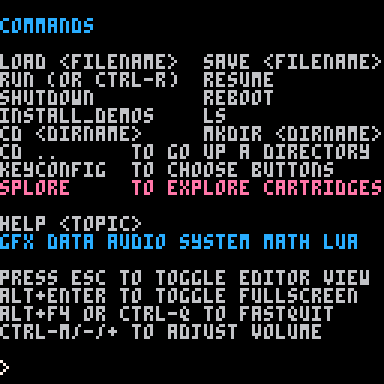
Help
Pressing the Escape key in command mode switches to "Editor Mode." Clicking the icons in the upper right allows you to view other editors. Pressing the Escape key again returns you to command mode.
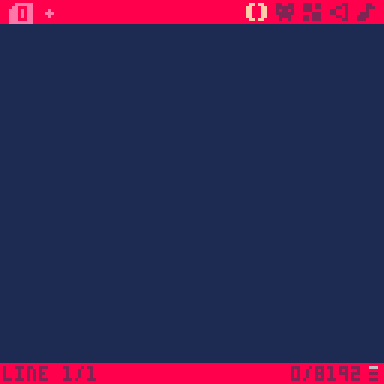
Editor mode
Exiting and Restarting PICO-8
To exit PICO-8, you can either close the application or run the shutdown command.
To restart, run the reboot command. When you reboot, all programs that have been entered will be cleared.
Starting from the Command Line
PICO-8 can also be started from the command line.
Windows: Move to the PICO-8 directory and run pico8.exe in the terminal. The default installation location for PICO-8 is C:\Program Files (x86)\PICO-8. Below is an example using PowerShell:
PS C:\Program Files (x86)\PICO-8> .\pico8.exe
macOS: Run /Applications/PICO-8.app/Contents/MacOS/pico8 in the terminal.
/Applications/PICO-8.app/Contents/MacOS/pico8
Here are some benefits of starting from the command line:
- You can output debug messages (
printh()) to the terminal. Since PICO-8 has a narrow screen, it is difficult to secure space to display debug messages on the game screen. - You can start by specifying a cartridge. PICO-8 will launch with the cartridge already loaded.
- You can launch multiple instances of PICO-8. For example, you can prepare multiple cartridges with different contents for the same game and launch several instances of PICO-8 simultaneously to compare the game content.
Loading a Cartridge
The only cartridges that can be operated in command mode are files (with the .p8 extension) located in PICO-8's carts directory. If you obtain a cartridge file from an external source, copy it into the carts directory.
To load a cartridge, run load followed by the cartridge name. For example, to load the demo JELPI (carts/demos/jelpi.p8), run load demos/jelpi (the .p8 extension can be omitted).
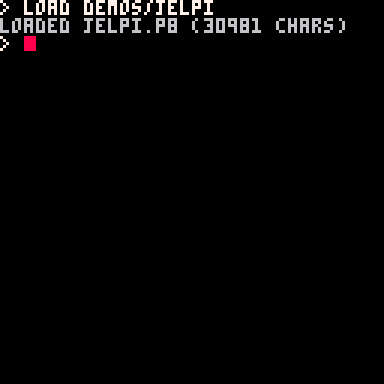
The program of the loaded cartridge is held in PICO-8's memory. Once you've loaded a cartridge, try pressing the Escape key to open editor mode.
Loading a BBS Cartridge
On the official forum's BBS, you can play games posted by users on the web. Additionally, PICO-8 supports downloading cartridges of games posted to the BBS.
To download a BBS cartridge, specify the BBS cartridge ID as an argument to load. For example, the ID for the breakout game I posted is #dearblocksan-1. You can download it with the following command:
load #dearblocksan-1

Downloading a BBS cartridge
The BBS cartridge ID can be found below the game screen. The text starting with # is the cartridge ID.

Saving a Program
To save the program you are editing, use the save command. The argument is the name of the cartridge to save to (the .p8 extension can be omitted). If you omit the argument, it overwrites the currently loaded cartridge.
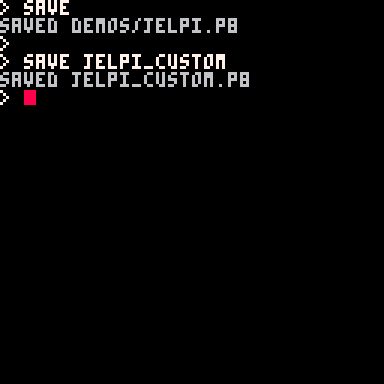
If you use the extension .p8.png, it will be saved as a special PNG image with the program embedded in it. When distributing a cartridge, using an image makes the game content easier to identify.
Running a Program
To run the program you are currently editing in PICO-8, run run (shortcut is Ctrl-R). Pressing the Escape key during execution interrupts the program and returns you to command mode.
Screenshots and Recording
PICO-8 supports screenshots and video recording. Shortcuts using the Ctrl key are provided for each:
- Ctrl-6: Takes a screenshot. The captured image is saved to your desktop.
- Ctrl-7: Takes a screenshot for the cartridge label image. The image is temporarily stored within PICO-8.
- Ctrl-8: Starts recording the game. By default, you can record up to 8 seconds. If you exceed 8 seconds, the recording is overwritten starting from 8 seconds ago. PICO-8 is always recording, and Ctrl-8 resets the recording start time (to the time you pressed Ctrl-8).
- Ctrl-9: Stops recording. The recorded video is saved to your desktop as a GIF image. The frame rate of the recorded video is 30 fps (specifically 33.3 fps). Audio is not included.
To set the recording time to more than 8 seconds, run CONFIG GIF_LEN seconds in command mode (up to 120 seconds). Here is an example setting it to 60 seconds:
CONFIG GIF_LEN 60
Basic Usage: Programming
Starting development of a new game
When starting development of a new game, save the cartridge using the save command in command mode after launching PICO-8 without loading any cartridge. If you have data currently being edited but do not want to restart the application every time, you can run the reboot command in command mode to restart PICO-8 and clear all current data.
If you want to base your work on an existing cartridge, there is no problem with duplicating that cartridge file outside of PICO-8.
Game Loop
The foundation of a PICO-8 program is an infinite loop called the "game loop." The core of the game consists of special callback functions, _update() and _draw(), which are called continuously. These are functions that the user should define. You build your game by utilizing the fact that _update() and _draw() are repeatedly executed.
When program execution begins, another callback function called _init() is called first. _init() is called only once. Subsequently, _update() and _draw() are called continuously throughout the program's execution.
Conceptual Diagram:
_update() is the function called to update the game state. The game state refers to the changing progress of the game. For example, in an action game, the positions of the player and enemies change. In an RPG, story progression or character status changes. Since PICO-8 does not provide features to automatically update these changes, you must update them yourself by considering controller input and the passage of time. You implement this logic within _update()Requested.
_draw() is the function called when rendering to the screen. You build the screen using functions to draw basic shapes like lines, rectangles, and circles, or by rendering images (sprites) you have created. Although it is called "drawing," changes are not reflected on the screen until _draw() finishes, so you can think of _draw() as the process of "scheduling" the drawing operations.
In _draw(), it is standard to clear the screen (fill it with black) using cls() at the beginning before performing other drawing operations.
Example:
function _draw()
  cls()
  -- Other drawing processes
end
By default, _update() and _draw() are called 30 times per second (30 fps). However, note that if you perform heavy processing in _update(), PICO-8 will reduce the number of _draw() calls to as low as 15 per second to prioritize maintaining the frequency of _update() calls.
Running at 60 fps
If you implement _update60() instead of _update(), _update60() and _draw() will be called 60 times per second (60 fps). Consider using _update60() when you want to create smoother animations or games that require precise control.
However, please note that 60 fps is not always guaranteed. First, choosing 60 fps halves the processing budget for each frame in PICO-8. This is partly to enforce hardware limitations, but also because older or low-power machines may lack the power to run at 60 fps (in which case the game will run at 30 fps or 15 fps).
print Debugging
Just like Lua, PICO-8 has a print() function. While Lua's print() outputs strings to the standard output, PICO-8's print() draws text at arbitrary positions on the screen. It is a versatile function used for more than just debugging.
For debugging purposes, you can also use printh(), another function that outputs strings. If you launched PICO-8 from the command line, printh() will output strings to the OS console. The h in printh() stands for "host."
About Libraries and Tools
Awesome PICO-8 is a great resource that aggregates information on libraries and tools. You can also find various libraries by searching on GitHub.
Please be aware that many PICO-8 tools and libraries have not been maintained for a long time. Since these are generally hobby projects released out of goodwill, please refrain from complaining if they lack features or documentation. Furthermore, because of hardware performance and cartridge size constraints, using a high-feature library may not always yield positive results.
Personally, I believe that building your own libraries is part of the joy of PICO-8 game development. What is technically optimal in programming doesn't always lead to the best game experience. Even if character movements are a bit quirky, that can be a great part of the game's personality.
Distributing the Game
Once your game has taken shape and is playable, let's share it so others can play too. There are several ways to distribute it.
Distributing the Source Code
You can directly distribute the source code (.p8 file). This is the simplest method, but it requires the player to have purchased PICO-8 to play the game.
Distributing the Cartridge
You can convert the source code into a cartridge and distribute it. Since a cartridge is also an image file, it has the advantage of making the game's content easy to recognize. However, this also requires the player to have purchased PICO-8 to play the game.
To create a cartridge, follow these steps:
- Write the cartridge label text. Add two lines of comments at the beginning of the Lua source code. Write the game name on the first line and the creator's name on the second line. Here is an example:
-- my game -- by me - Capture the cartridge label image. Run the game and press F7 (or Ctrl-7) on the scene you want to use for the label image. The captured image is stored within PICO-8.
- Create the cartridge image file. Run
savein command mode. At this time, specify "cartridge name +.p8.png" as the argument. The created cartridge image file will be saved in thecartsdirectory.
Posting to the Forum
By posting your game to the PICO-8 Forum (English) operated by the PICO-8 developer, anyone can play it in their browser. I have also posted my pinball-flavored breakout game. User registration is required to post (free).
Refer here for instructions on how to post (English). I plan to write a separate article about this.
The source code of the posted cartridge will be public. You can specify CC BY-NC-SA 4.0 as the license. Cartridges without a "CC" tag are treated as having no license even though the source code is viewable, so be careful about copying or reusing such source code.
Distributing a Web App
PICO-8 can create a web app (HTML + JavaScript) that can run in a browser. After loading the game, run the export command in command mode. The created files will be saved in the carts directory.
You can specify the output format with an argument, so choose according to your distribution method.
Standalone HTML file:
export mygame.html
JavaScript only:
export mygame.js
Directory:
export -f mygame
The contents of the generated directory will look like this:
mygame_html/
  index.html
  mygame.js
Distributing Binaries
You can convert the cartridge into a binary format (application) and distribute it. Binary format allows people to play the game without purchasing PICO-8. You can generate binaries for macOS, Windows, and Linux, making it suitable for offline distribution.
Also, the binary format does not allow use of command mode or editor mode. If you do not want to publish your source code, distributing in binary format is a good option.
Follow these steps to convert to binary format:
-
Capture the cartridge label image. Run the game and press F7 (or Ctrl-7) on the scene you want to use for the label image. The captured image is stored within PICO-8.
-
Run
exportin command mode. Specify "cartridge name +.bin" as the argument. Here is an example:export mygame.bin
Output when running the export commandThe directory containing the created binary files will be saved in the
cartsdirectory.
Conclusion
There was a time when I thought, "Low resolution aside, what can I even do with a color palette of only 16 colors?" This is the only color palette available in PICO-8.

Even when I tried making a simple game myself, I still felt dissatisfied with the color palette limitations. After all, the NES has over 50 displayable colors. I felt like I needed just a bit more variety.
However, the game I found when I first tried to make a pinball game was Terra Nova Pinball.
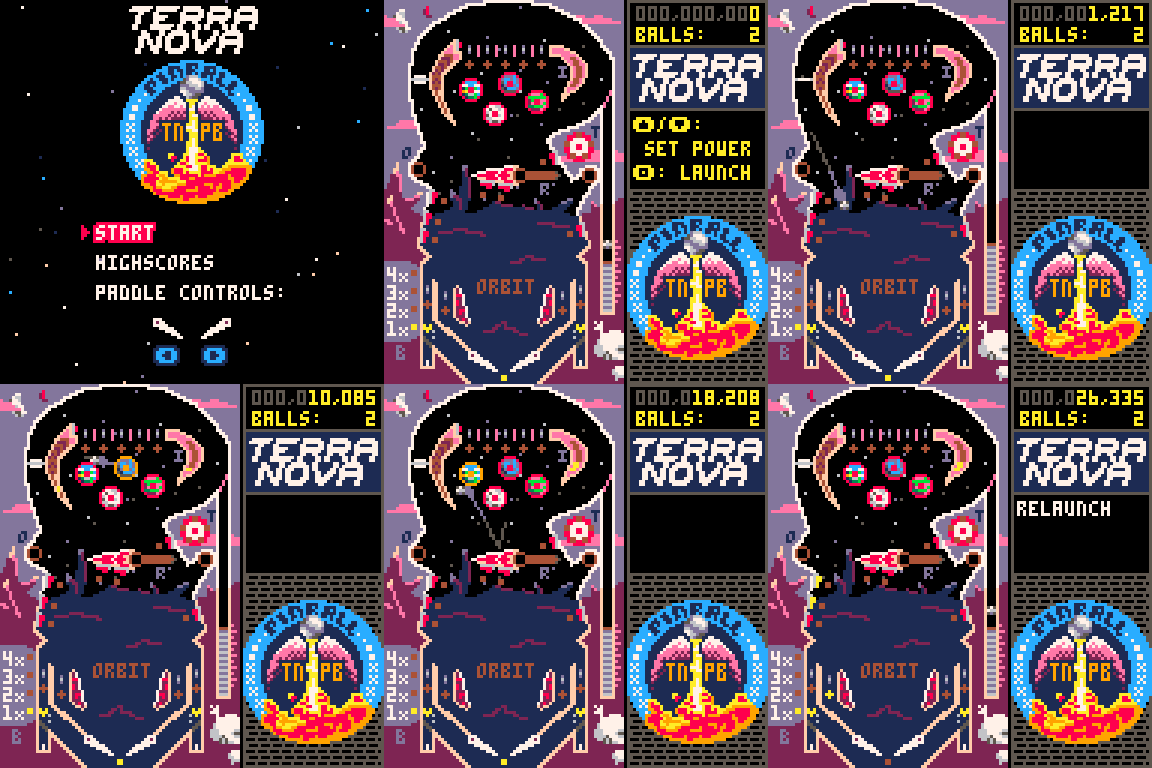
Terra Nova Pinball
Aside from the ball movement and gimmick design, I was amazed by the expression of the playfield, which went far beyond just being "retro" with only a 16-color palette. Furthermore, if you look at the forums, you can see such a wide variety of games.
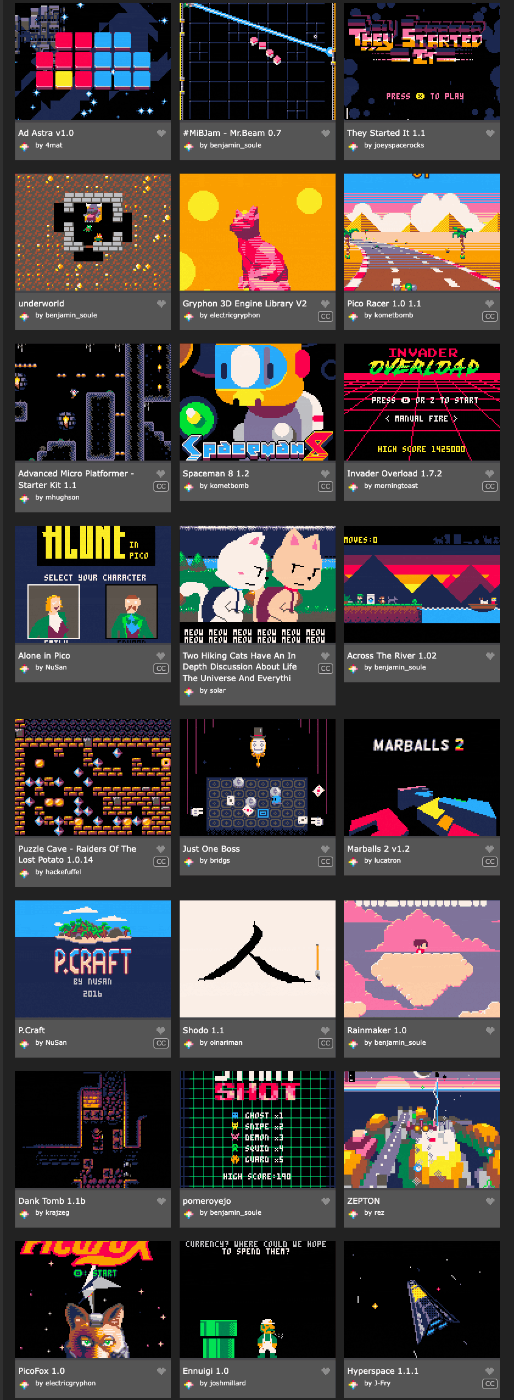
The expressiveness is so high that it's hard to believe they were drawn with only 16 colors. You might even spot some titles that look a bit questionable in terms of copyright...
But if you look closely, it is indeed only 16 colors. Don't you think, "I could probably do this myself"? The base size for sprites is 8x8; you can only draw simple things at that size. Conversely, simple is fine. I believe that being a bit overconfident and thinking "I can do this" is an important trigger for starting something new. Why not start by purchasing PICO-8?
Discussion