iTranslated by AI
Solving the GitHub Copilot Bottleneck: "Solo Parallel Development" with git worktree and Multiple VS Code Instances





Key Point
Are you waiting in line for GitHub Copilot tasks one by one?
By separating your working folders with git worktree and launching multiple instances of VS Code, you can run multiple tasks from the same repository in parallel. You can then merge completed tasks into main as they finish.
This is perfect for situations where you need to implement a large number of small tasks by yourself, allowing you to breeze through your task list like an avalanche!
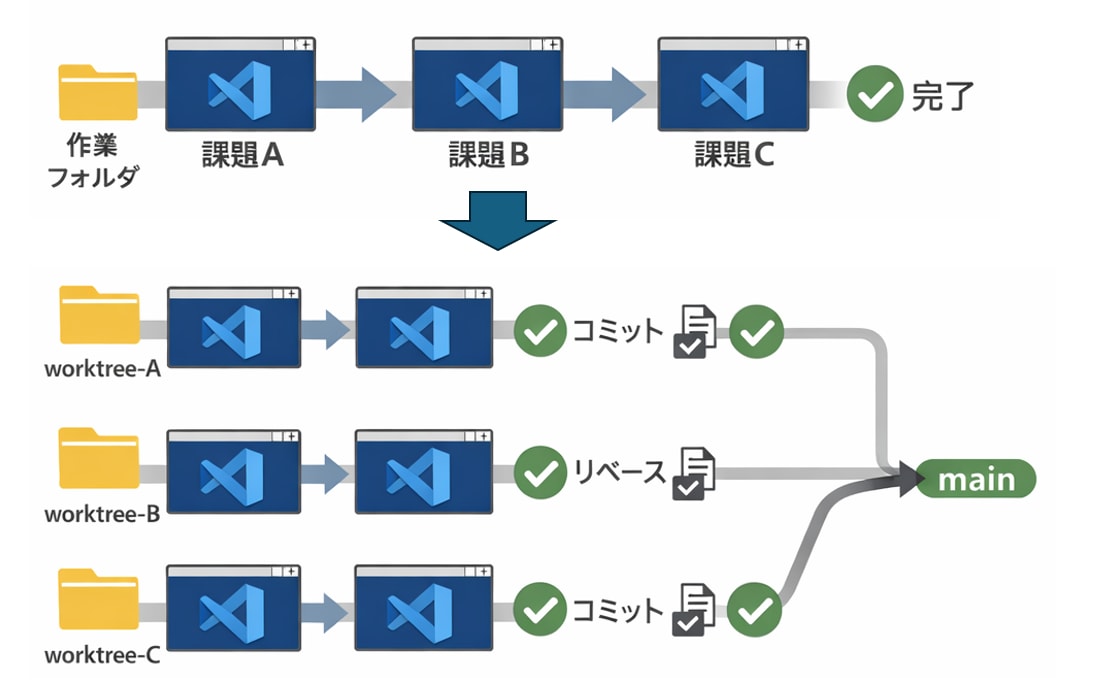
Overview
When using GitHub Copilot in editors like Visual Studio or VS Code, you are editing files directly on your local machine, which makes it difficult to handle multiple modification tasks simultaneously (changes are prone to conflicts, and the contents can easily get mixed up).
After experimenting with manual approaches, I found that combining multiple editor instances with git worktree solves this. I have successfully implemented a "solo git-flow" cycle where I run GitHub Copilot modification tasks across multiple editors for the same repository and merge them one by one as they are finished. In this post, I will introduce how to achieve this.
Summary of the Workflow
I found that the following approach works well:
- Starting a task:
- Checkout the main branch in your local repository (let's call this the "maintree" to distinguish it from worktrees).
- Create a feature branch for the task and checkout to a separate folder using
git worktree. - Open VS Code using that folder as your workspace and start working with GitHub Copilot.
- Repeat this as many times as there are tasks.
- Completing a task:
- Once the GitHub Copilot task is done and ready to be merged, commit it in the worktree and rebase onto the main branch.
- If conflict resolution is needed, perform it in the worktree at this stage.
- Fast-forward the main branch in the "maintree" to the new commit*1.
- Delete the worktree and its folder.
- Repeat this for each task.
- Once the GitHub Copilot task is done and ready to be merged, commit it in the worktree and rebase onto the main branch.
*1 You can use GitHub pull requests if you prefer, but if you don't need a specific merge history and are working alone locally, this is sufficient.
This enables a "solo git-flow" style workflow as shown below:
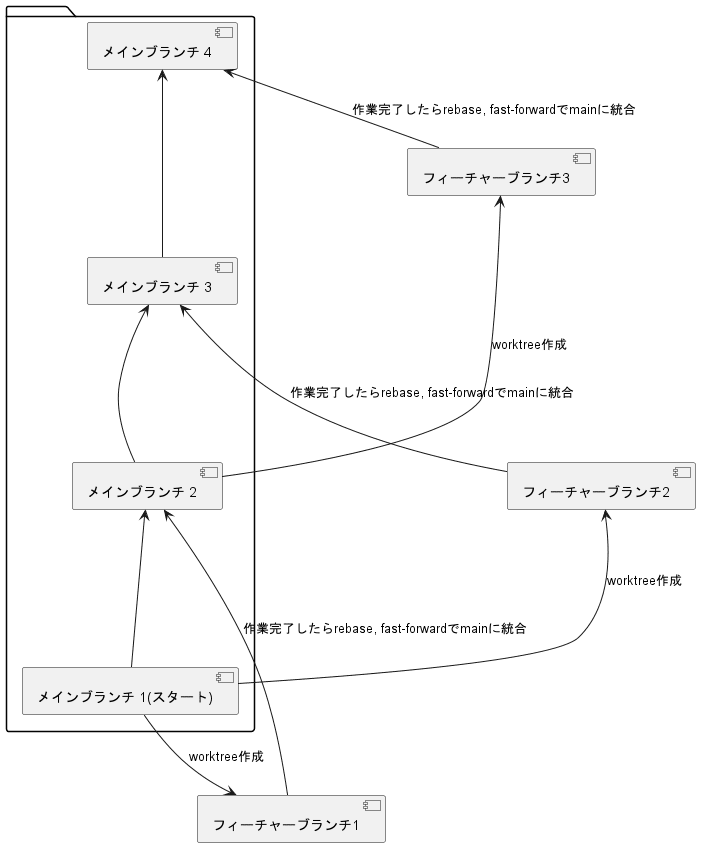
That said, accomplishing this using only git commands is somewhat tedious.
However, by combining GitKraken (which handles git worktree via GUI) and the Git features in VS Code (Source Control), you can do this quite easily using a GUI.
Explanation
Since the overall flow is explained above, I will now detail the steps using GitKraken and VS Code. Note that these tool behaviors are confirmed as of December 19, 2025, and may change in future updates.
Step-by-Step Guide with GitKraken and VS Code
1.1. Creating and Switching Worktrees in GitKraken
Here, I have opened a local repository located at D:\Temp\GitTest1\sample which was cloned from sample.git. Select the menu option to create a worktree from a specified commit as shown below:
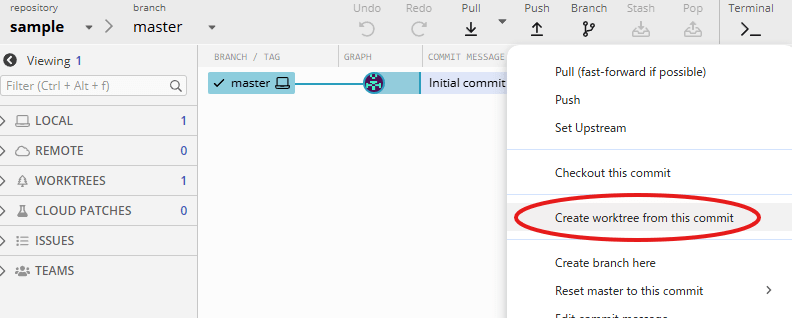
When you specify the branch name, it creates a folder named ~.worktrees within D:\Temp\GitTest1\sample and places the branch folder inside it.
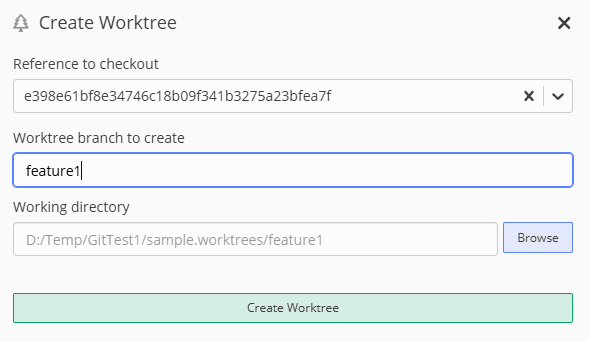
You can then select "Open Now" to have GitKraken open that worktree.

1.2. Opening in VS Code and Starting GitHub Copilot
In GitKraken, you can open the current folder in File Explorer by pressing Alt+O.
If you registered the context menu to open folders in VS Code during installation, simply right-click the folder in the opened File Explorer to launch VS Code.

Now, give instructions to GitHub Copilot and start your work.
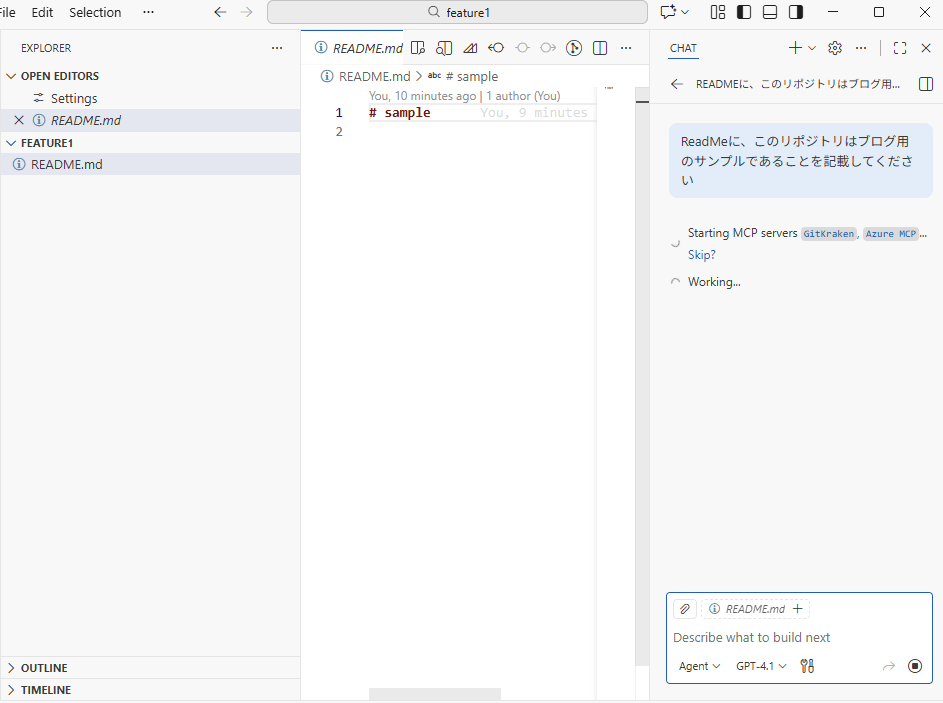
Since this VS Code window will remain open until the task is complete, it is best to move it to a separate screen. I often move it to my second display.
2.1. Committing and Rebasing in the Worktree
You can stage and commit changes directly within that VS Code window.
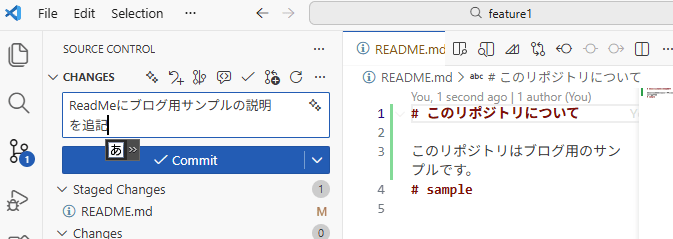
You can use either VS Code or GitKraken, but GitKraken takes some time to switch between worktrees. For this workflow, I think it is faster to commit and push directly from VS Code. However, for rebasing and conflict resolution, GitKraken’s UI is more robust and convenient. (Though I don't use it, GitLens might be sufficient as an alternative to GitKraken.)
2.2. Fast-forwarding the Main Branch
For the sake of explanation, I have also created a feature2 branch.
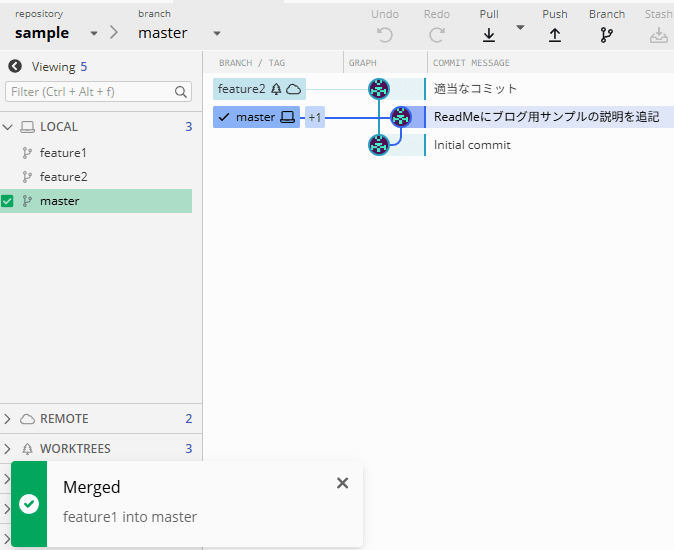
Once the work on feature1 is finished and the rebase is complete, the main branch you originally opened should look like this:
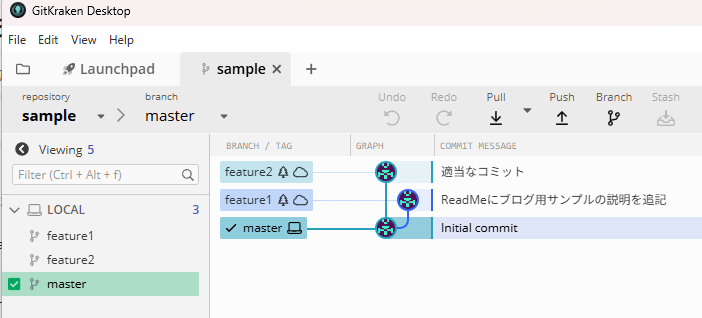
If you are ready to merge feature1, go ahead and perform a fast-forward. Since you haven't been working in the main branch, this should succeed as long as you've properly rebased feature1.
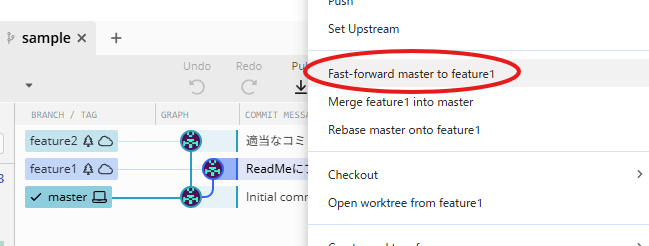
With this, the integration into the main branch—the equivalent of a pull request—is complete.
2.3. Deleting the Worktree and Its Folder
Close the VS Code instance that was opening the worktree folder.
When you delete the worktree using the GitKraken menu, it will take care of deleting the folder and pruning for you. (The branch itself will not be deleted.)
Execute this from the WorkTrees menu on the left.
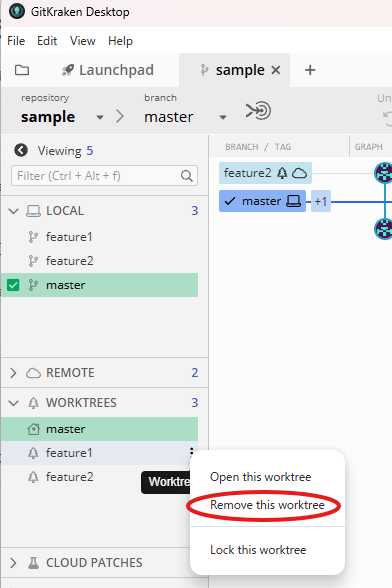
This is much more convenient than doing it all with manual git commands! Just be careful, as deleting the folder will fail if you still have VS Code open. (Though you can always delete it manually later.)
Summary of Steps
By repeating the steps for tasks 1.n and 2.n, you have created a solo git-flow that allows you to clear tasks away quickly!
Although I didn't use it in this explanation, the same thing is possible with Visual Studio.
What is the "Manual Version" in the title?
With the latest update to VS Code, a feature is being introduced to run background agents using git worktree directly within VS Code. I labeled the method introduced in this blog as the "manual version" to differentiate it from that feature.
It is possible that the new VS Code feature will replace this "manual version," but for workflows that require opening multiple windows or using a solo git-flow, this method might still have its merits. I will report back after I have tried out the new feature.
Summary
Even when using GitHub Copilot in editors like Visual Studio or VS Code, you can run multiple tasks simultaneously. It feels like you are executing a git-flow for multiple developers all by yourself.
Regardless of how it feels, I highly recommend this approach as it is very convenient when implementing many small tasks.
Supplementary Note
"Main branch" refers to either main or develop. The differences between git-flow and github-flow are irrelevant to this article, so I have referred to them collectively.
Discussion