iTranslated by AI
Managing Docker Compose via Web UI [Dockge]




Introduction
In this article, I will introduce Dockge, a tool that allows you to easily manage multiple Docker Compose stacks.
In modern software development, deploying and managing applications using container technology is common. However, when self-hosting multiple applications at home or elsewhere, managing Docker Compose can often become complicated. That's where Dockge comes in. Dockge is a convenient tool that allows you to intuitively manage Docker Compose stacks via a GUI.
What is Dockge?
Dockge is a self-hosted Docker Compose management tool. You can easily perform actions such as starting, stopping, and updating Docker Compose stacks from a Web UI. Dockge is developed by Louis Lam, the creator of the monitoring tool "Uptime Kuma," so its user experience is similar to Uptime Kuma. A similar tool is portainer.io, but Dockge is specialized for Docker Compose management and is characterized by its simpler and more intuitive usage.
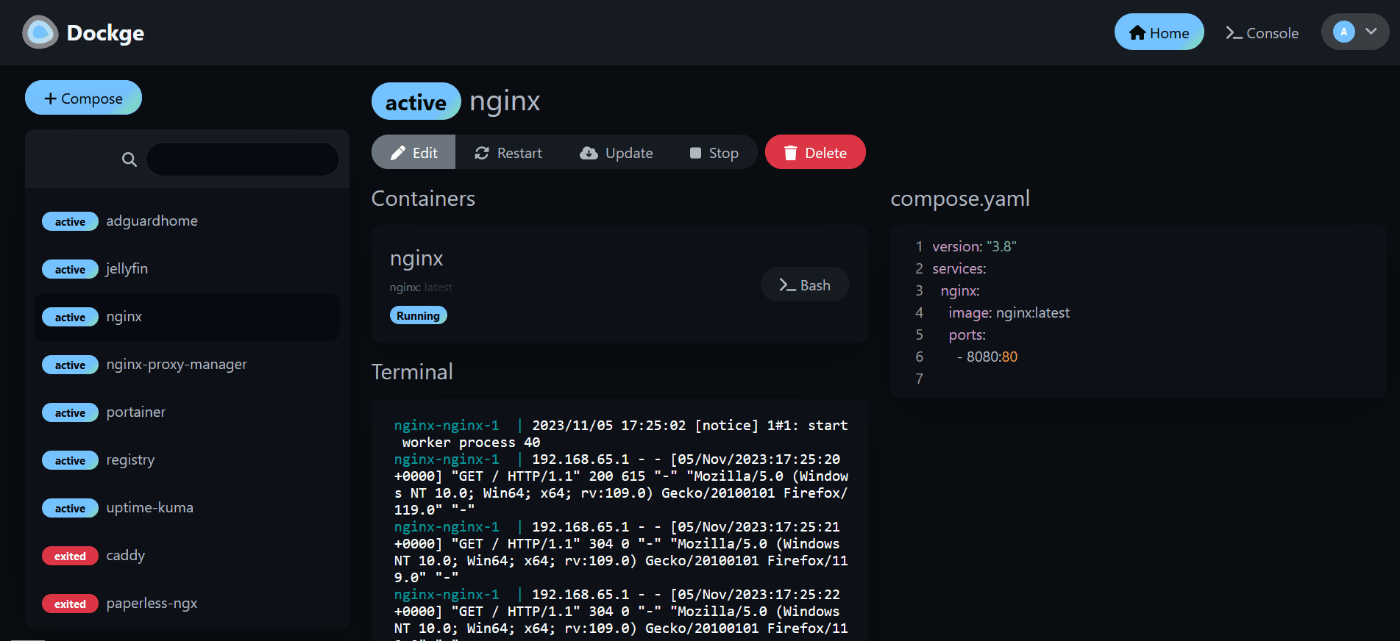
Dockge UI - from GitHub repository
Regarding the pronunciation of "Dockge," the FAQ contains the following description:
"Dockge" is a coinage word which is created by myself. I originally hoped it sounds like
Dodge, but apparently many people called itDockage, it is also acceptable.
(Translation below)
"Dockge" is a word I coined. I originally hoped it would sound likeDodge, but apparently many people call itDockage, which is also acceptable.
Key Features
Managing compose.yaml
You can create, edit, stop, restart, delete, and update images for Docker Compose stacks with simple operations.
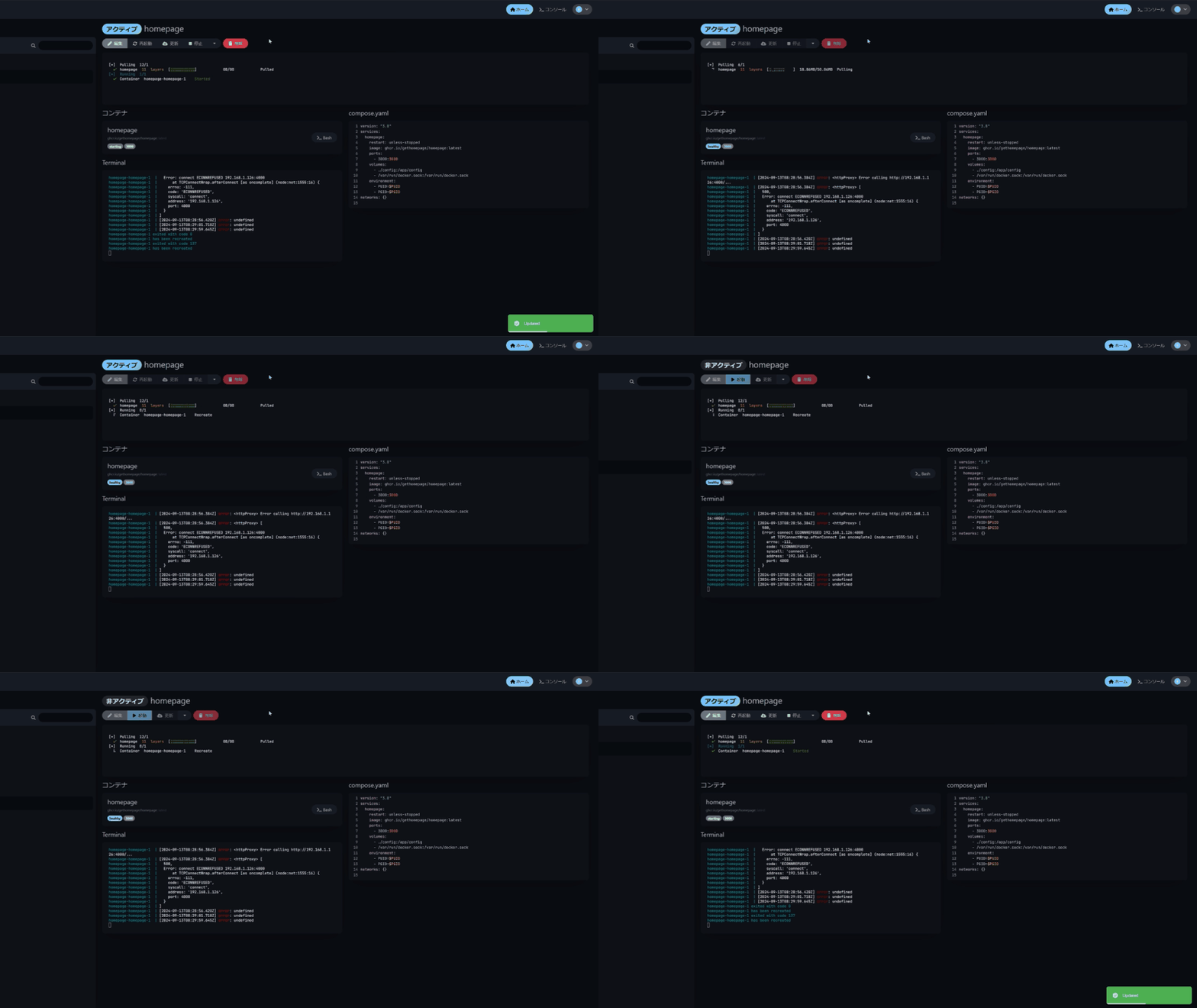
Updating the image for homepage
Web Terminal
You can execute commands directly inside containers from your browser.
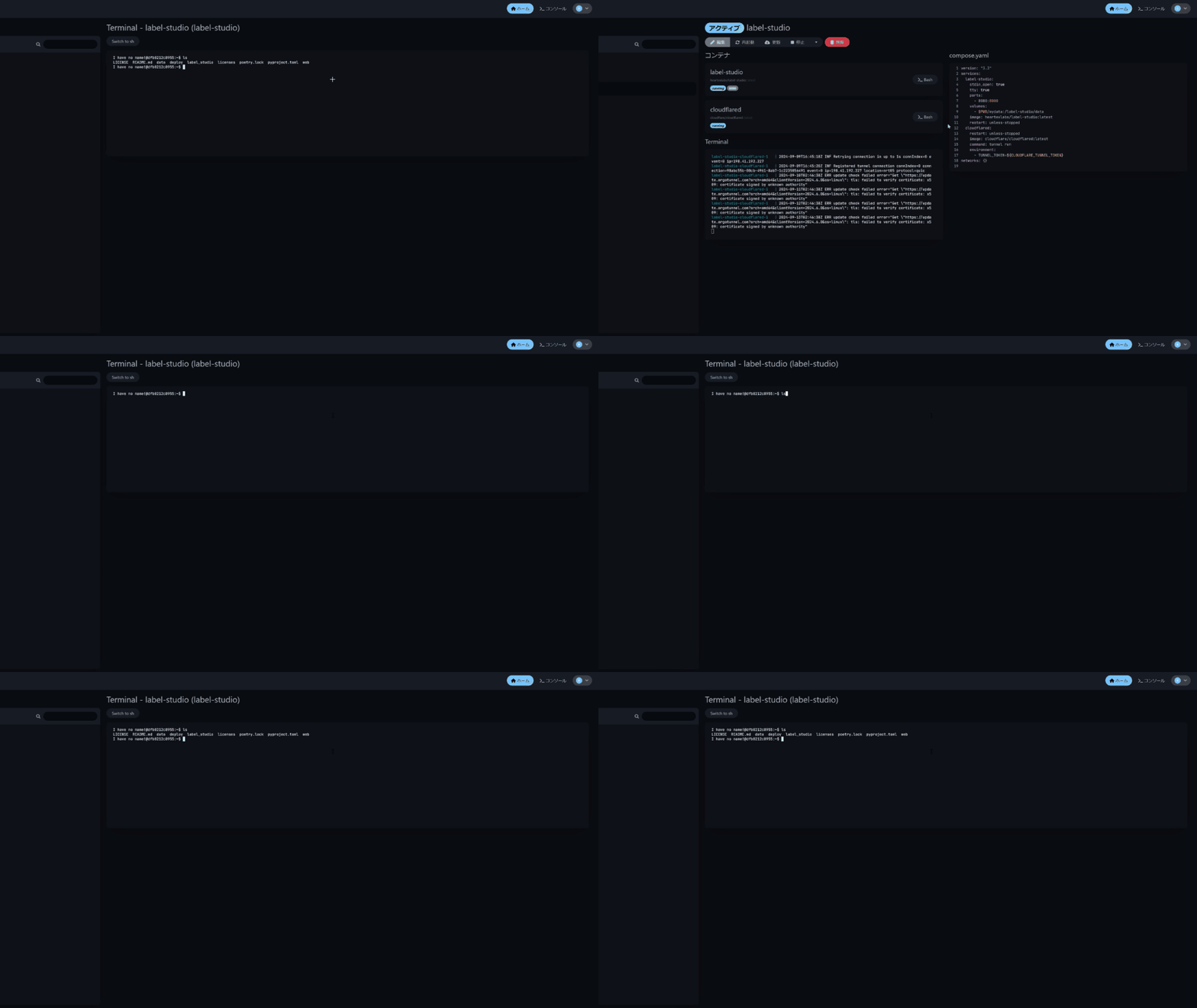
Entering a Label Studio container and running ls
Converting docker run commands to compose.yaml
When you input a docker run ... command, it automatically generates a compose.yaml file based on it.
This is helpful even when a product you want to use doesn't provide a compose.yaml file.
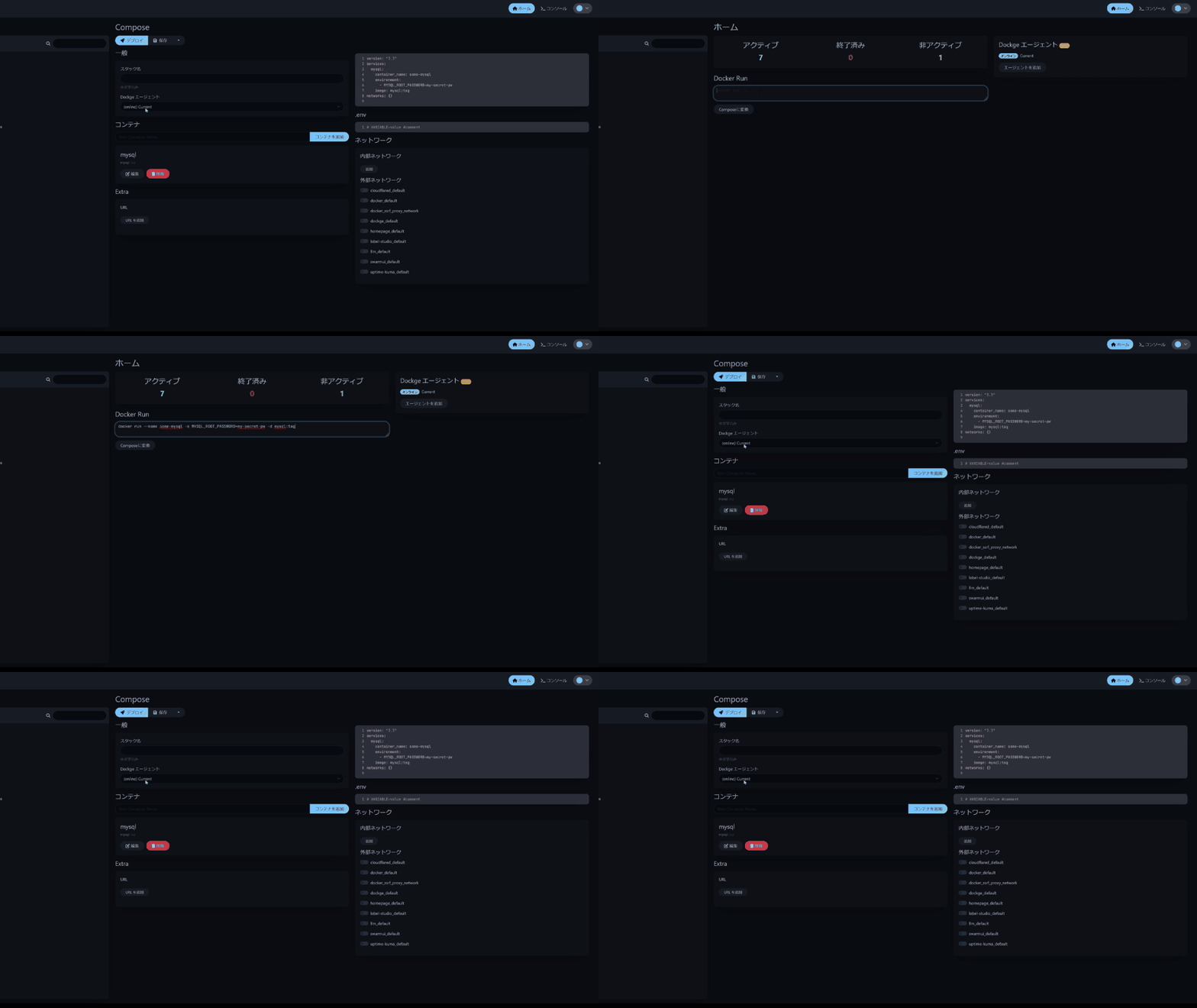
Converting a MySQL startup command into compose.yaml
Conversion Result
docker run --name mysql -e MYSQL_ROOT_PASSWORD=${MYSQL_ROOT_PASSWORD} -d mysql:9.0.1
The above command was converted as follows.
version: "3.3"
services:
  mysql:
    container_name: mysql
    environment:
      - MYSQL_ROOT_PASSWORD=${MYSQL_ROOT_PASSWORD}
    image: mysql:9.0.1
networks: {}
File-based Management
Dockge promotes a stack-oriented approach, managing all Docker Compose stacks under its control on a file basis as shown below. Dockge can be used even if you manage your application configuration files with Git.
# tree -L 1
.
├── cloudflared
├── homepage
├── label-studio
├── swarmui
├── upsnap
└── uptime-kuma
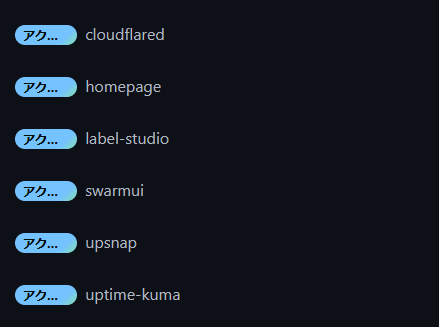
Stacks under management
Installation
System Requirements
The following are required:
- Docker 20+ or Podman
- podman-docker (Podman only)
- CPU architecture: armv7, arm64, amd64
The following are not supported:
- Debian/Raspbian versions Buster or lower
- Windows
Steps
Creating Directories
Create a location for Dockge and the Compose files managed by Dockge. This example shows placing Dockge's compose.yaml in /opt/dockge and the management targets (hereafter stacks) in /opt/stacks. If you change the stack path, please also update the description in compose.yaml mentioned later.
mkdir -p /opt/stacks /opt/dockge
cd /opt/dockge
Creating and Starting compose.yaml
Create a compose.yaml file as follows in /opt/dockge.
A generator is also available on the official website.
services:
  dockge:
    image: louislam/dockge:1
    container_name: dockge
    restart: unless-stopped
    ports:
      - 5001:5001
    volumes:
      - /var/run/docker.sock:/var/run/docker.sock
      - ./data:/app/data
      - /opt/stacks:/opt/stacks
    environment:
      - DOCKGE_STACKS_DIR=/opt/stacks
Once created, start Dockge.
docker compose up -d
Access the specified port (port 5001 in the example) of the machine where Dockge is running.
Usage
Creation
Click Compose in the top left to open the editing screen.
In the "General" section below, enter the stack name. The stack name is a unique name representing this Compose setup.
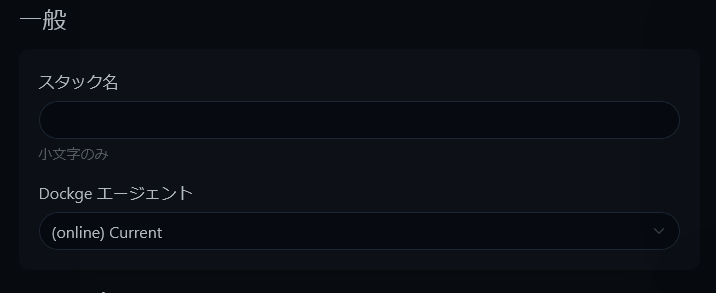
"Dockge Agent" is used when handling Docker Compose across multiple machines.
Next, configure the container in the "Containers" section.
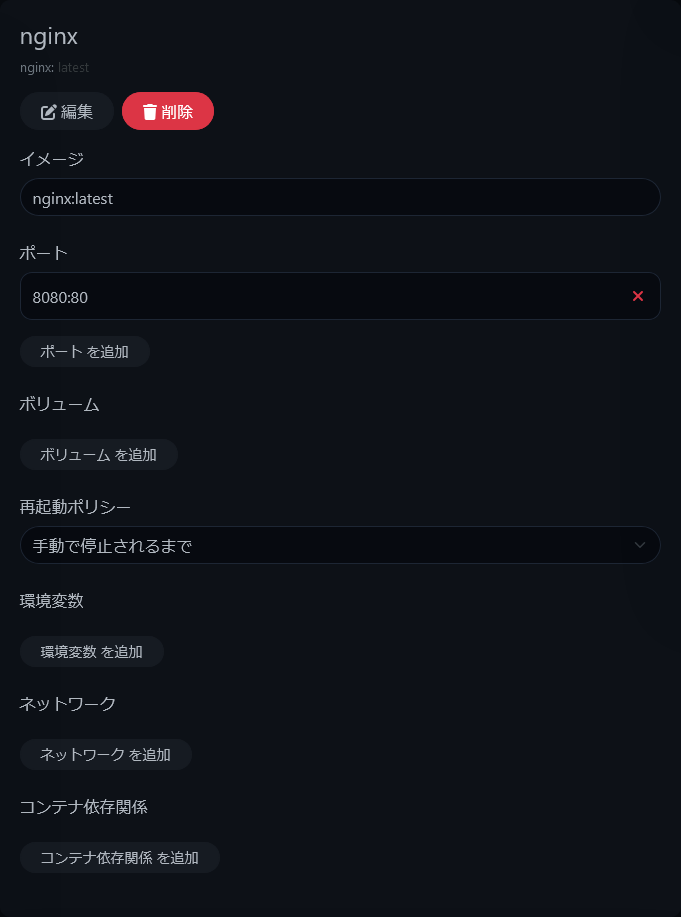
On the right side, you can edit compose.yaml and .env, or configure internal and external networks.

Import
Create a directory (lowercase) of your choice within the stacks directory (in the installation example above, /opt/stacks) and place your compose.yaml inside it.
Now you can manage it with Dockge. If it doesn't show up, click the icon in the upper right and click "Scan Stack Folder."
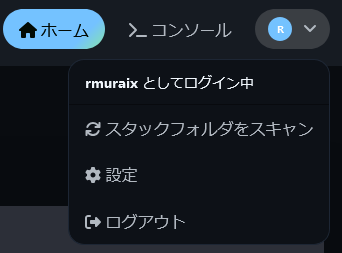
Note
Currently, it seems that it cannot manage stacks if the compose.yaml (or docker-compose.yaml) is not located directly under the directory, as is the case with Dify.
Conclusion
In this article, I introduced Dockge, a tool for managing Docker Compose via a Web UI. With Dockge, you can not only manage containers intuitively through the Web UI but also convert docker run commands into compose.yaml and operate settings and environments flexibly on a file basis.
If you are facing challenges with managing Docker Compose on home servers or similar environments, I highly recommend giving it a try.
References
Discussion