iTranslated by AI
Listing Preset Information for Editor Utility Widgets


Listing, Saving, and Loading Presets
Save presets using a preset name, and enable selection and loading of preset names from a list.
Adding a String Array to the SaveGame Derived Class to Store Preset Names
Add a String array variable to "BP_SaveGamePreset", which is a derived class of SaveGame, to store preset names.

| Name | Type |
|---|---|
| NameArray | String(Array) |

Adding Widgets
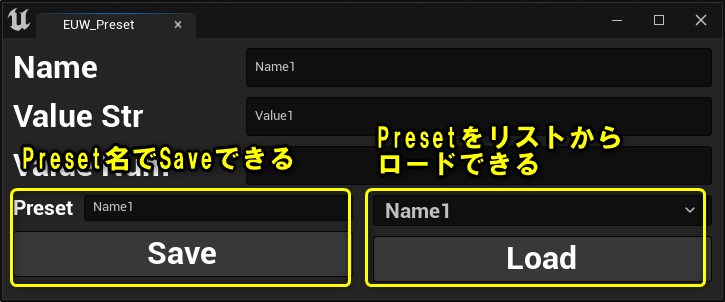
Add a TextBox for entering preset names and a ComboBox for selecting preset names.

Add the widgets as shown in the figure.

Enabling Saving of Preset Names
Add logic to the "On Clicked" event of the Save button.

Add variables.
| Name | Type |
|---|---|
| LocalSaveName | BP_SaveGamePreset |
| NameArrayLocal | String(Array) |

Create a SaveGame file to store preset names.

Save the preset names under the name "SaveNames".

Load "SaveNames".

Add the preset names stored in "SaveNames" to the ComboBox.

Save the input values of the Widget into a SaveGame named with the specified preset name.

Enabling Loading by Preset Name
Add logic to the "On Clicked" event of the Load button.

Update the input values of the Widget if a SaveGame for the preset name exists.

Updating the Preset List When Launching the Editor Utility Widget
Update the ComboBox list if the "SaveNames" SaveGame exists when launching the widget.

Verifying Save and Load
Verify the implemented logic.

Enter values in the Widget, assign a preset name, and click the Save button.

Select the preset name that has been added to the list.

Click the "Load" button with the preset name selected to apply the input values to the Widget.

The saved information is stored as SaveNames.sav and (Preset).sav files in the "(Project Folder)/Saved/SaveGames" folder.

Sample Project (GitHub)
A sample project is available on GitHub.
Discussion