iTranslated by AI
Writing with Re:VIEW




Now that I can output PDFs, I will document the settings for writing.
Changing settings (config.yml)
You can change the Re:VIEW output results in "config.yml".

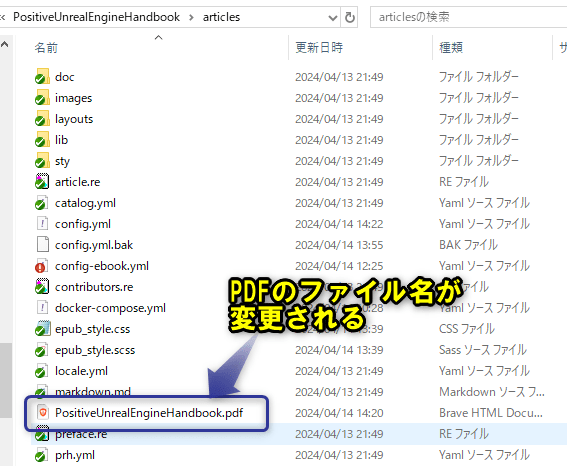
Changing the PDF filename
Changing "bookname" will change the filename of the PDF.
# Book name (used as the file name; use ASCII characters)
# bookname: ReVIEW-Template
bookname: PositiveUnrealEngineHandbook
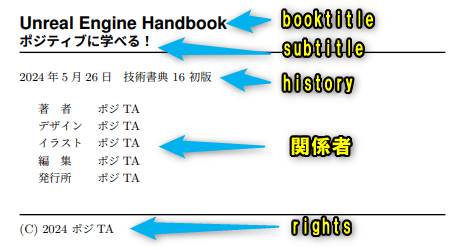
Setting up the cover page
# Book title
booktitle: {name: "Unreal Engine Handbook", file-as: "UnrealEngineHandbook"}
subtitle: {name: "Learn Positively!", file-as: "ポジティブニマナベル"}

# Author name. Multiple authors can be specified separated by ", "
aut: [{name: "PosiTA", file-as: "ポジタ"}]

# a-pbl, pbl: Publisher
pbl: ["PosiTA"]

# Publication date (defaults to execution date if omitted)
date: 2024-05-26

Setting up the colophon (Okuzuke)
The "colophon (Okuzuke)" is the information found near the final page of a book.
# Book title
booktitle: {name: "Unreal Engine Handbook", file-as: "UnrealEngineHandbook"}
subtitle: {name: "Learn Positively!", file-as: "ポジティブニマナベル"}

# Author names. Multiple authors can be specified separated by ", "
aut: [{name: "PosiTA", file-as: "ポジタ"}]

# a-dsr, dsr: Designer
dsr: ["PosiTA"]
# a-edt, edt: Editor
edt: ["PosiTA"]
# a-ill, ill: Illustrator
ill: ["PosiTA"]
# a-pbl, pbl: Publisher
pbl: ["PosiTA"]

# Publication date. Specified as an array in YYYY-MM-DD format. If omitted, "date" is used.
# To specify multiple editions/printings, write as follows:
# [["Date of 1st edition 1st printing", "Date of 1st edition 2nd printing"], ["Date of 2nd edition 1st printing"]]
# It is also possible to place an arbitrary string after the date, separated by a space.
history: [["2024-05-26 Technical Book Festival 16 First Edition"]]
# Copyright notice (multiple entries can be specified as an array)
# rights: (C) 2016 Re:VIEW Developers
rights: (C) 2024 PosiTA
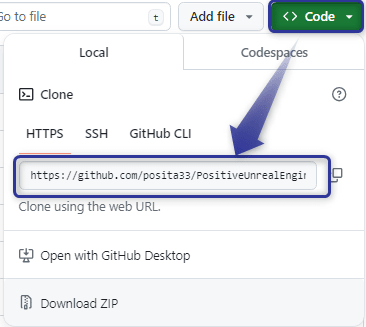
Setting the urnid to the Git URL
Set the Git URL for the urnid.
# Domain used for the unique ID. If omitted, a random UUID based on the time is used.
# urnid: urn:uuid:https://github.com/TechBooster/ReVIEW-Template
urnid: urn:uuid:https://github.com/posita33/PositiveUnrealEngineHandbook.git
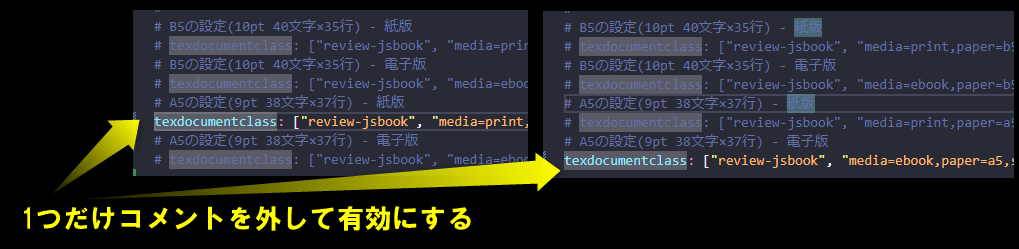
Changing the paper size to A5
By default, the setting is "B5, print-oriented settings".

Uncomment the line for the "A5" setting.
The PDF output results differ between the physical print version "media=print" and the electronic version "media=ebook".

Adding pages and writing the book
Importing Markdown files
If "pandoc" is not installed, it seems you need to install it.
Refer to the following URL for detailed steps:
Configuring page settings (catalog.yml)
Page settings are configured in "catalog.yml".
Markdown files use the extension ".re" instead of ".md".
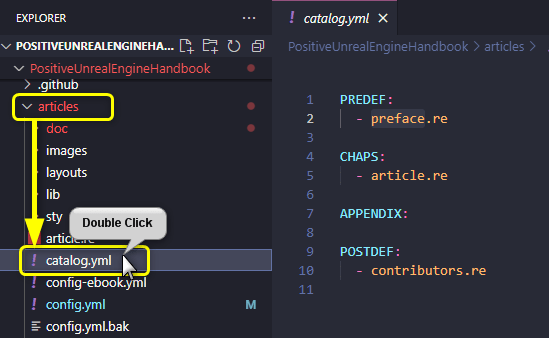
PREDEF:
  - preface.re

CHAPS:
  - article.re

APPENDIX:

POSTDEF:
  - contributors.re

Adding chapters
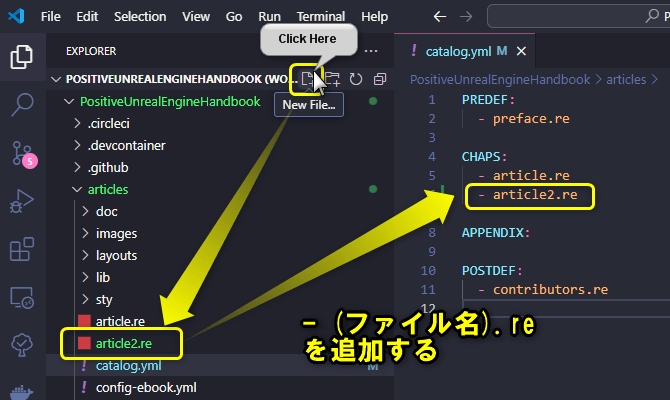
Add a file named "(filename).re" to the "articles" folder.
Add the filename to the "CHAPS" category.
CHAPS:
  - article.re
  - article2.re
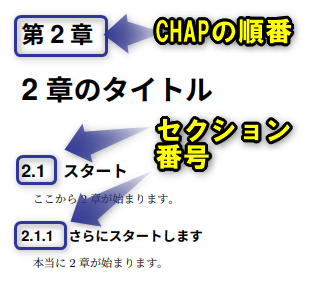
Write the content from Heading 1 to Heading 3.
= Title of Chapter 2

== Start

Chapter 2 starts here.

=== Starting even further

Chapter 2 is really starting.
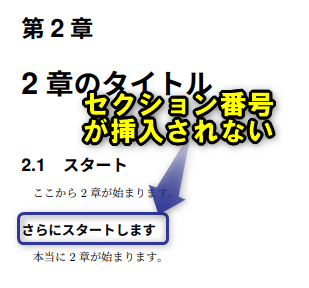
Although not explicitly written in the text, these will be automatically added:
- Chapter 2: Order in CHAPS
- Section number: Order of headings
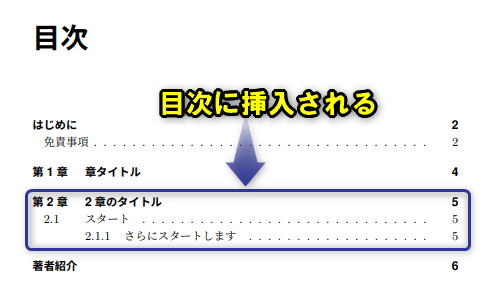
Information up to Heading 3 is automatically inserted.
Adjusting heading levels
# Heading level to be extracted as the table of contents
toclevel: 2

# Numbering settings. To prevent numbering a heading, specify nonum like "==[nonum]"
#
# Heading level to display section numbers in the body
secnolevel: 2

You can adjust the heading level for inserting section numbers with "secnolevel".
You can adjust the heading level for the table of contents with "toclevel".

Notation
It seems easy to understand by checking this PDF "Re:VIEW Starter User's Guide" from time to time.
I will write about the notations I used.
Headings : =
Heading levels can be set by the number of "=". Since they are also linked to the table of contents, the table of contents levels...
= Heading 1

== Heading 2

=== Heading 3
Links : href
@<href>{(URL)}
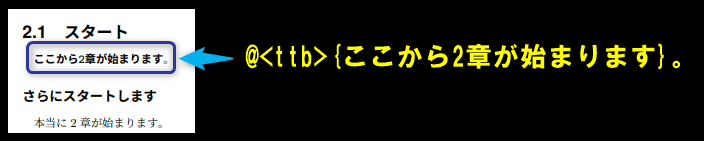
Emphasis : @<ttb>{(text)}
You can emphasize text with "@<ttb>{(text)}".
@<ttb>{Chapter 2 starts here}
Lists : *
Multiple lines starting with " * " are converted into a list.
A leading half-width space is required.
 * List1
 * List2
 * List3
Refer to this URL if you want to use a nested structure.
Page Break : //pagebreak
You can insert a page break using "//pagebreak".
//pagebreak
Since chapters are inserted automatically, you can use a page break to force the page containing the chapter title to be exactly one page and then replace it using Acrobat Pro.
= Title of Chapter 2

Page with chapter title

//pagebreak

== Start

Chapter 2 starts here.

=== Starting even further

Chapter 2 is really starting.

Images : //image[(filename)][(caption)]
Add image files to the "images" folder within the "articles" folder.
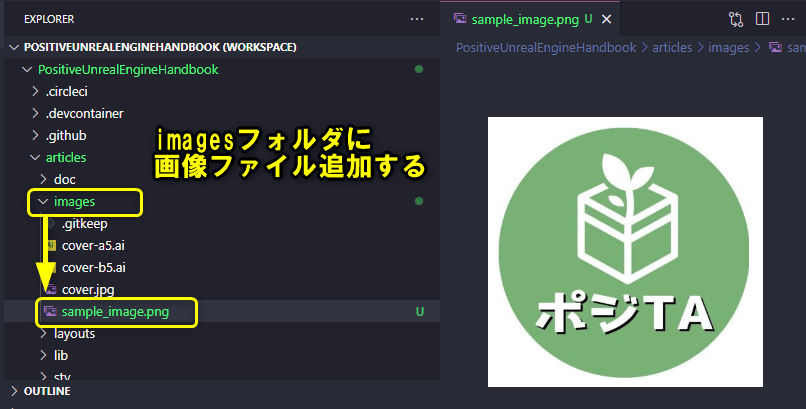
To insert the image "sample_image.png" into the text, write it as follows:
The image is the PosiTA logo. (@<img>{sample_image})

//image[sample_image][PosiTA logo][scale=0.5]{
//}

Footer Citations : //footnote[(Key)][(citation text)]
Use "//footnote" to write citation information in the footer.
You can add citation information by matching the Key characters in "@<fn>{(Key)}" and "footnote[(Key)]".
The image is the PosiTA logo@<fn>{posita_logo}. (@<img>{sample_image})

//image[sample_image][PosiTA logo][scale=0.5]{
//}

//footnote[posita_logo][This is the PosiTA logo.]

Columns: ===[column] (text) ===[/column]
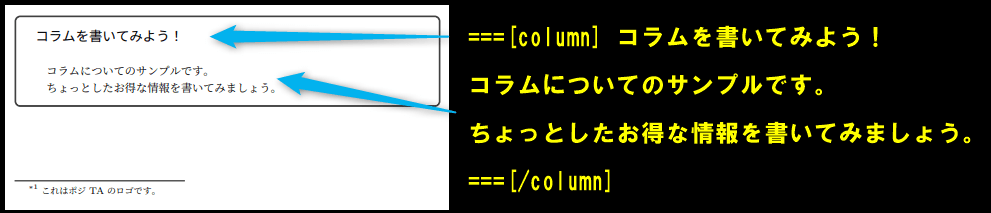
You can add columns to provide small bits of useful information.
===[column] Let's write a column!

This is a sample for a column.

Let's try writing some useful information.

===[/column]
Forced Line Breaks and Blank Lines: @<BR>{} //blankline
Normally, if you don't include a blank line, it's considered part of the same paragraph and won't result in a line break. You can force a line break with "@<BR>{}". (I am using uppercase "BR" here because lowercase would cause Zenn itself to break the line.) If you want to insert a blank line, use "//blankline".
Break the line@<br>{}in the text.
It will not break unless you insert a blank line.

Inserting one blank line changes the paragraph.
//blankline
You can forcibly insert a blank line with blankline.

Program Lists
- //list[identifier][caption][language specification]{ ... //}
- A regular list. The language specification can be omitted.
- //listnum[identifier][caption][language specification]{ ... //}
- A regular list with line numbers. The language specification can be omitted.
- //emlist[caption][language specification]{ ... //}
- A list without sequence numbers. The caption and language specification can be omitted.
- //emlistnum[caption][language specification]{ ... //}
- A list without sequence numbers, with line numbers. The caption and language specification can be omitted.
//list[][HLSL Color]{
/*
   Comment block
   Allows for multi-line comments
*/
// Single-line comment
float3 blue = float3(0.65, 0.85, 1.0); // Blue

// Returns the blue value as the return value
return blue;
//}

Related URLs
Reference URLs
Re:VIEW Starter User's Guide
Discussion