iTranslated by AI
Using Plask to Create AI-Generated Motion Data from a Webcam for Unreal Engine 5


"Plask," a Service That Uses AI to Analyze Videos and Create Motion Data
Plask is a service that uses AI to analyze videos and generate motion data.
I will show you how to use the motion data created in Plask with the UE5 Mannequin.
Project Released on GitHub
I have released the UE5 project on GitHub.
Please feel free to use it.
Signing Up for Plask
Plask is available for free.
Sign up to start using Plask.
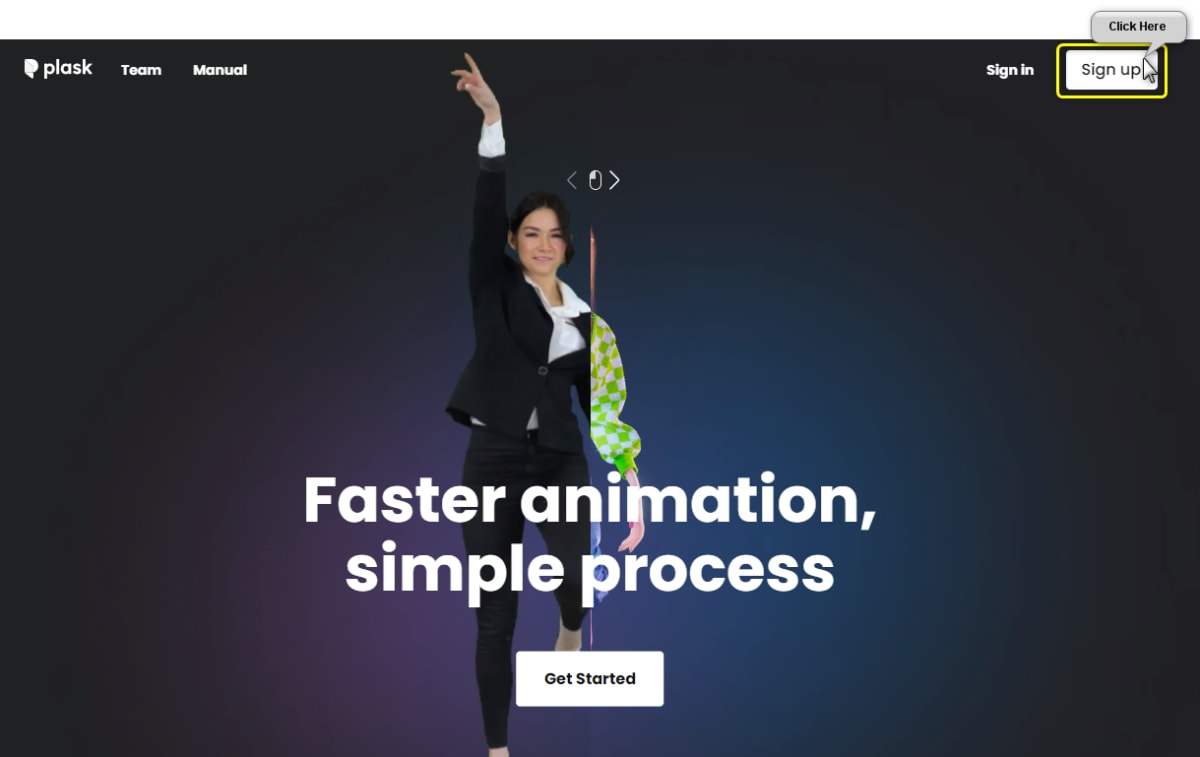
You can sign up using a Google account or an email address.
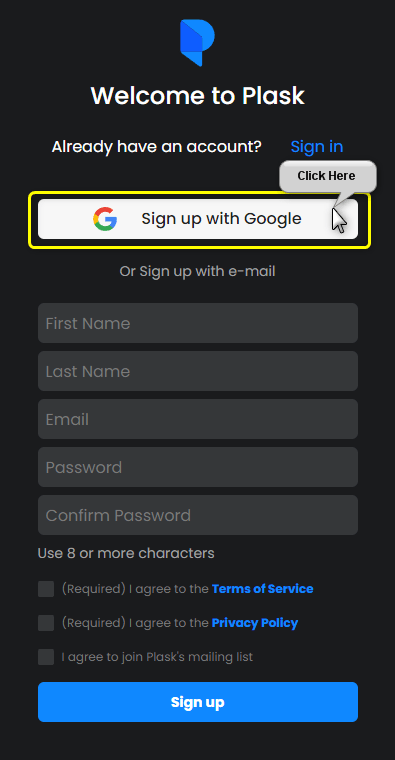
After this, set your account name in the window that appears for choosing an account name.
Capturing Motion Video from a Webcam with Plask
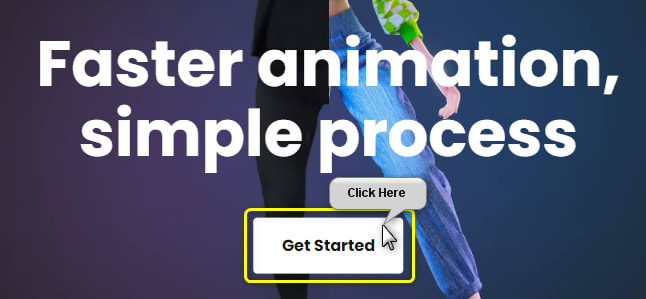
Click [Get Started] on the top page.
Click the [camera icon] in the top right.
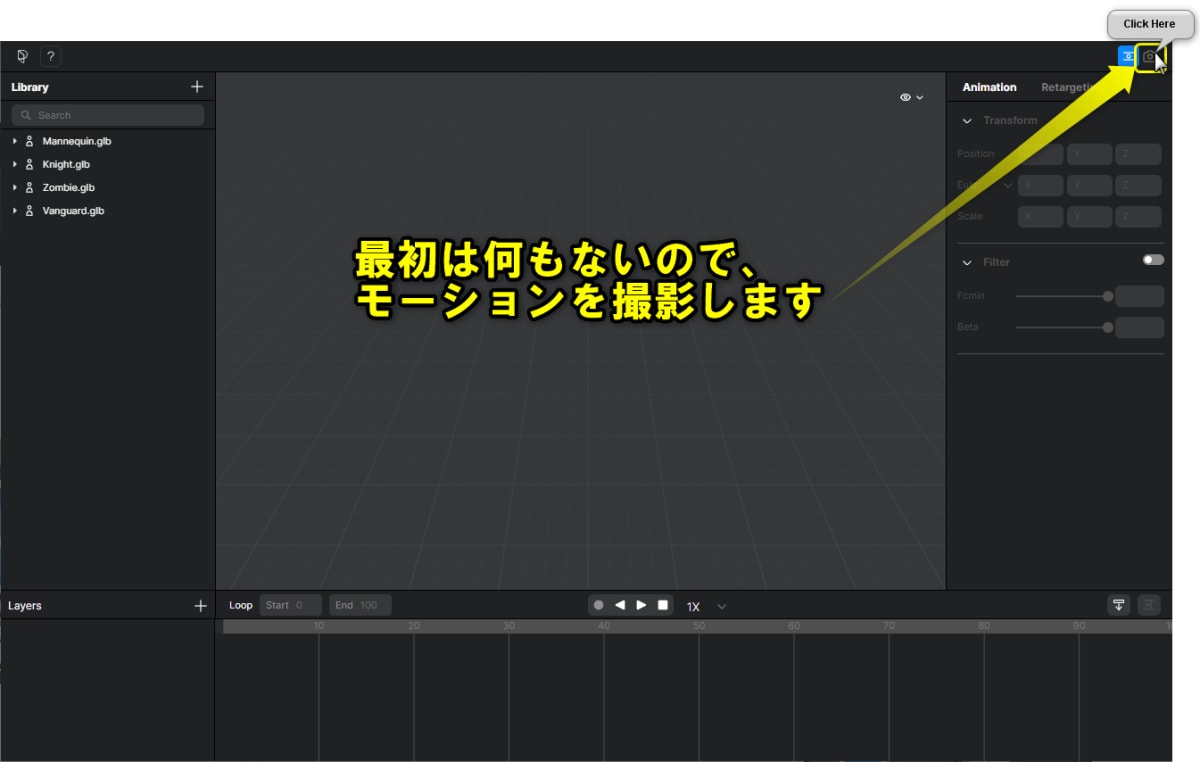
The webcam footage will be shown in the gray area.
You can select which webcam to use from the [Camera] menu in the top right.
Once the webcam is set up, click the "Record button (red circle)."
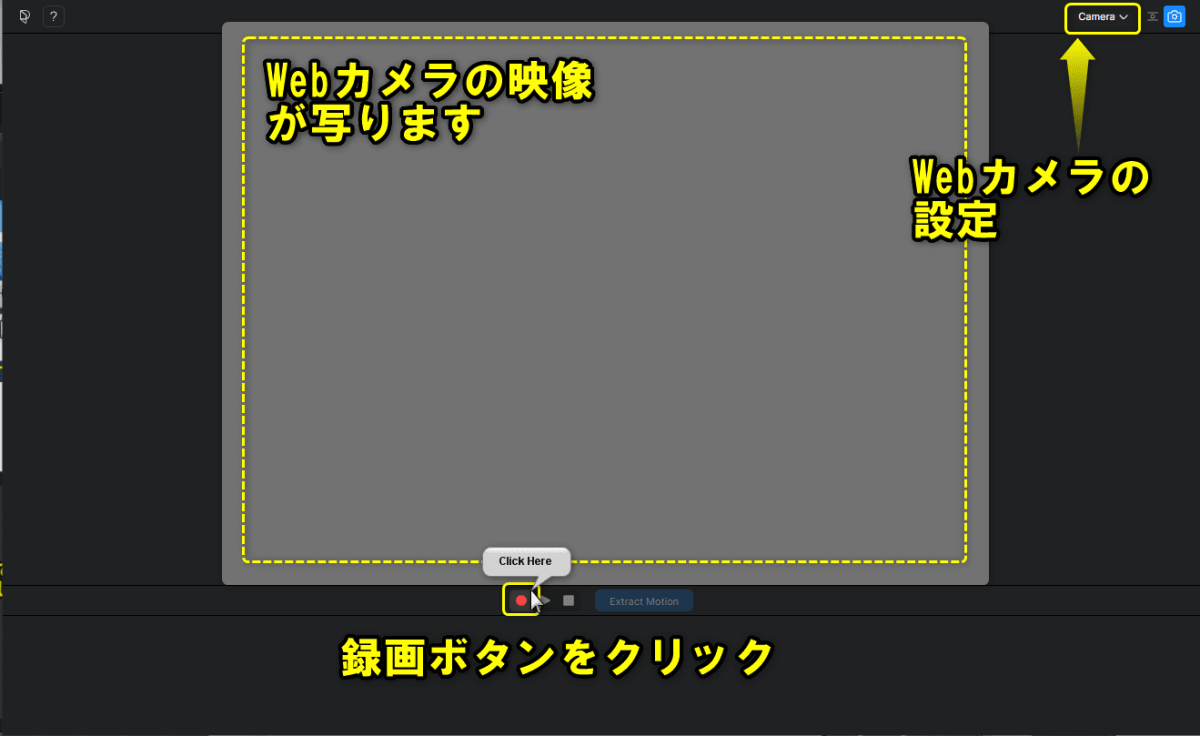
To stop recording, click the "Record button (red circle)" again.
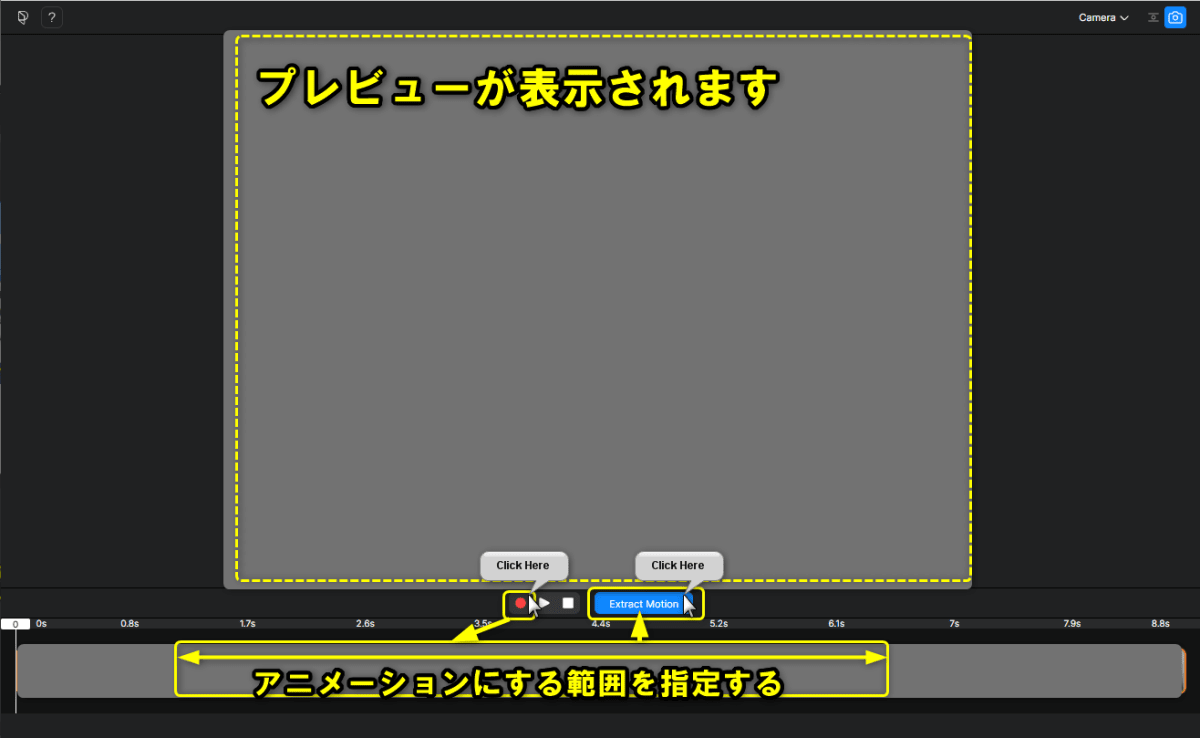
Once the recording is complete, a preview will be displayed.
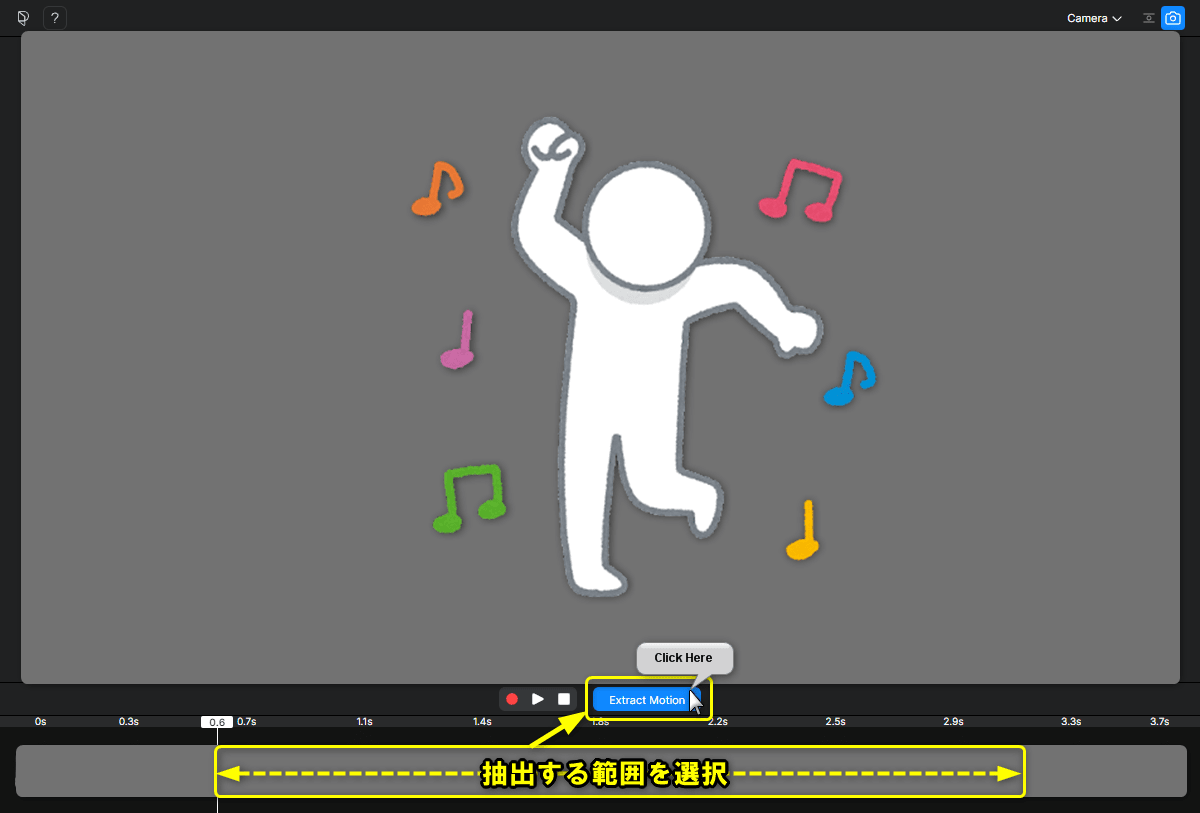
Specify the range you want to turn into an animation on the timeline at the bottom.
Once the range is specified, click "Extract Motion."
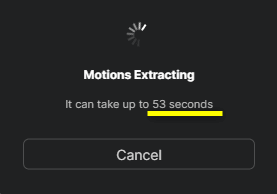
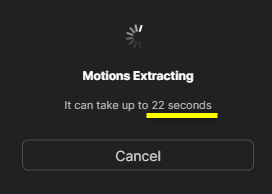
Motion extraction will begin. The estimated time for completion will be displayed.
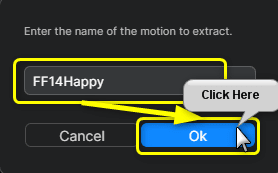
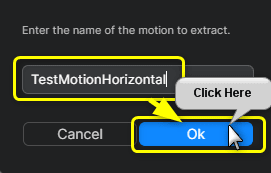
After the motion extraction is finished, a dialog for setting the motion name will appear.
Set the motion name and click the [OK] button.
Extracting Motion Data from Smartphone Videos with Plask
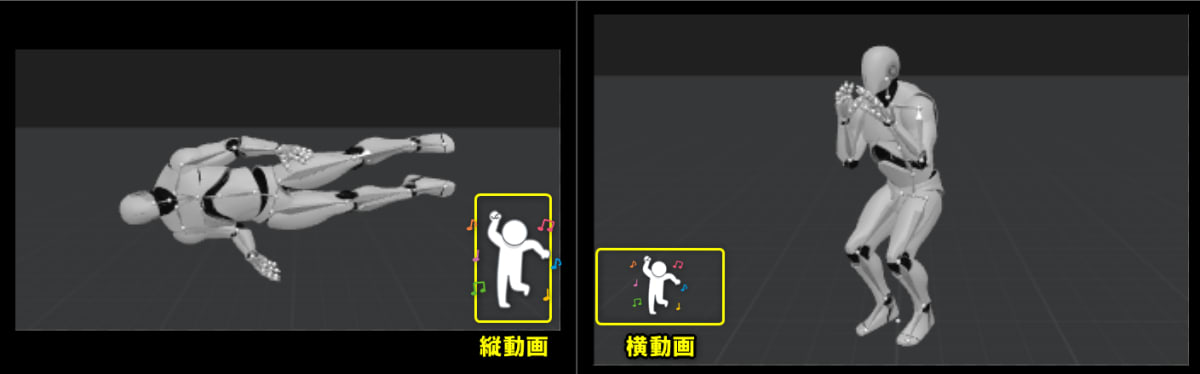
Procedure for extracting motion data from a video
I referred to the video on the official Plask channel for extracting motion data from videos.
Thank you!
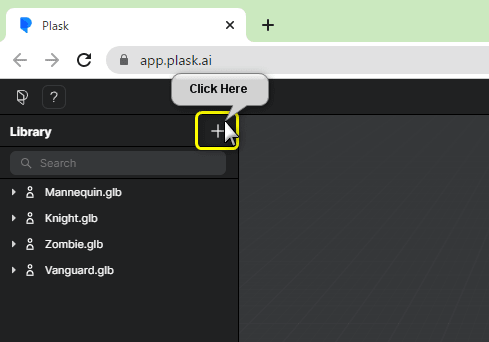
Click the [+] button in the [Library].
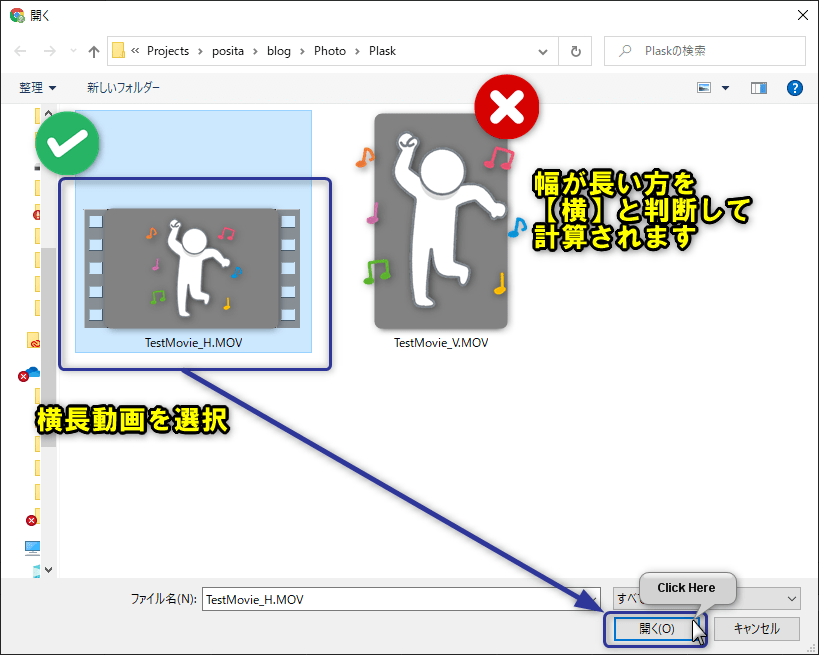
Select the video from which you want to extract motion.
Please select a landscape video as the wider side is judged as the width.
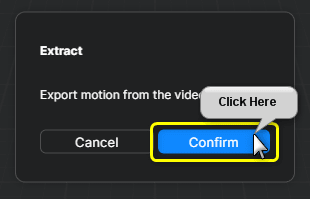
A dialog to confirm extraction will appear; click the [Confirm] button.
The process is the same as with the webcam.
Select the range to extract and click the [Extract Motion] button.
Set the motion name and click the [OK] button.
The time required for extraction will be displayed.
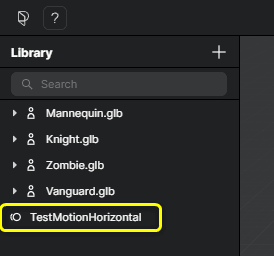
The set motion name has been added to the Library panel.
Applying the Captured Animation to the Plask Mannequin
After extracting the motion, you will return to the initial screen.
Drag and drop "Mannequin_glb" from the "Library" on the left into the Viewport.
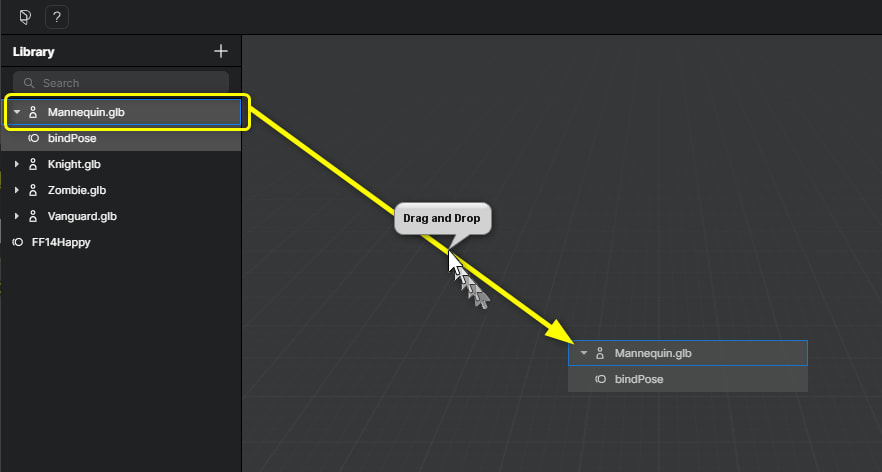
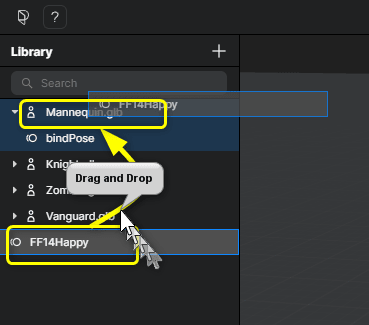
Drag and drop the motion name you just set onto "Mannequin_glb".
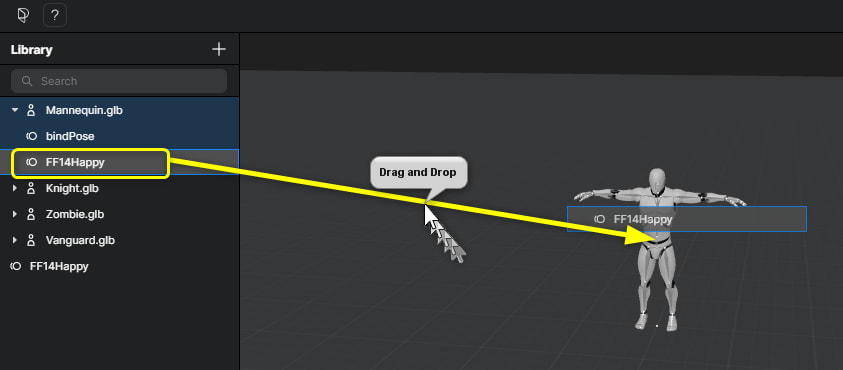
Drag and drop the "Motion Name" inside "Mannequin_glb" onto the Mannequin in the center of the Viewport.
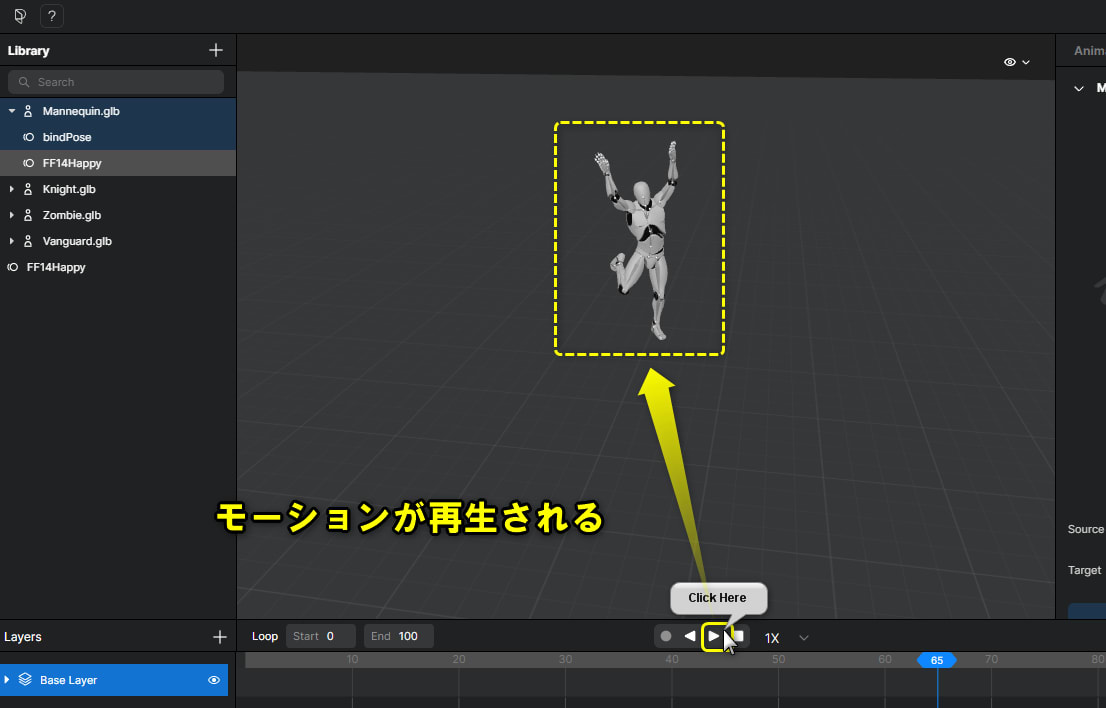
Click the play button on the timeline to play the motion.
Exporting Plask Motion Data to FBX
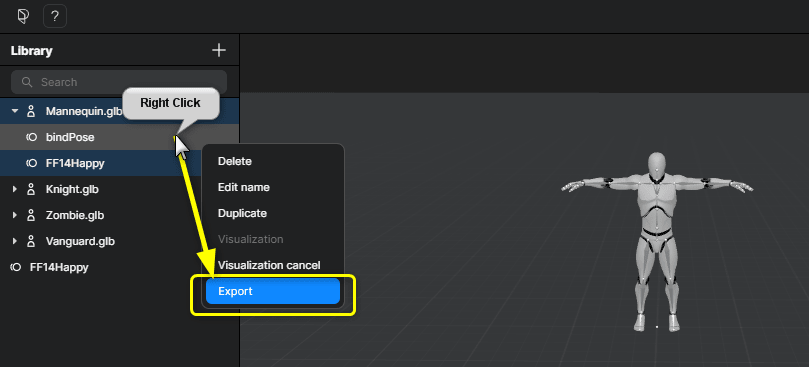
Right-click the motion name inside "Mannequin_glb" > Export
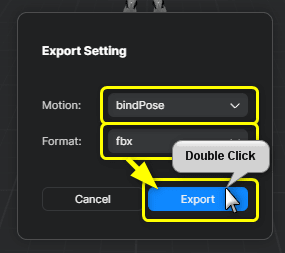
Configure the settings in the table and click the [Export] button.
| Property | Value |
|---|---|
| Motion | bindPose |
| Format | FBX |
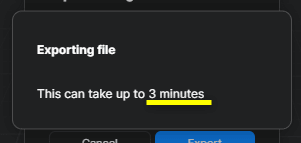
The time required for export will be displayed.
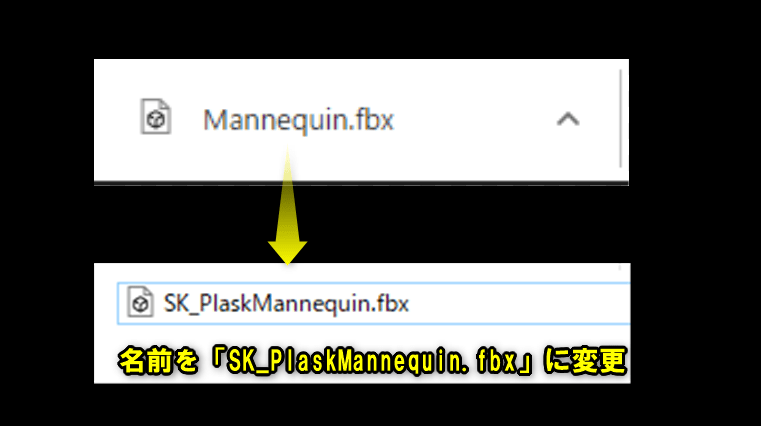
The FBX will be downloaded once the export is complete.
Set the name to "SK_PlaskMannequin.fbx".
Next, export the motion with the assigned motion name.
Right-click the motion name inside "Mannequin_glb" > Export
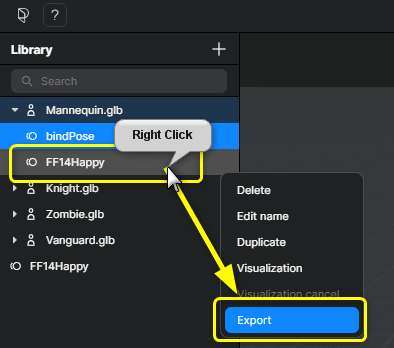
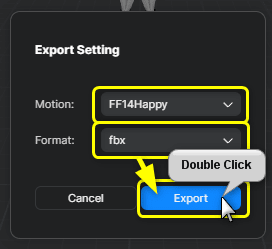
Configure the settings in the table and click the [Export] button.
| Property | Value |
|---|---|
| Motion | (Set motion name) |
| Format | FBX |
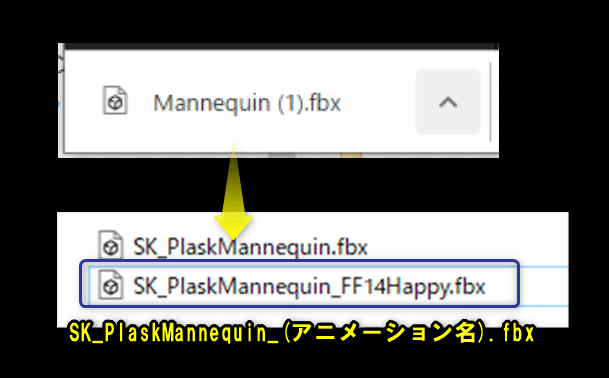
Set the name to "SK_PlaskMannequin_(Motion Name).fbx".
Plask Manual
There are other things you can do in Plask, so I will try them out when I find some time.
Tutorial videos are available on their YouTube channel.
Importing Plask Motion into the Mannequin in UE5
I will import the motion exported from Plask into UE5.
Creating a UE5 Project
Create a project in UE5 EA.
Since we will use "SK_Mannequin," select the "ThirdPerson" template.
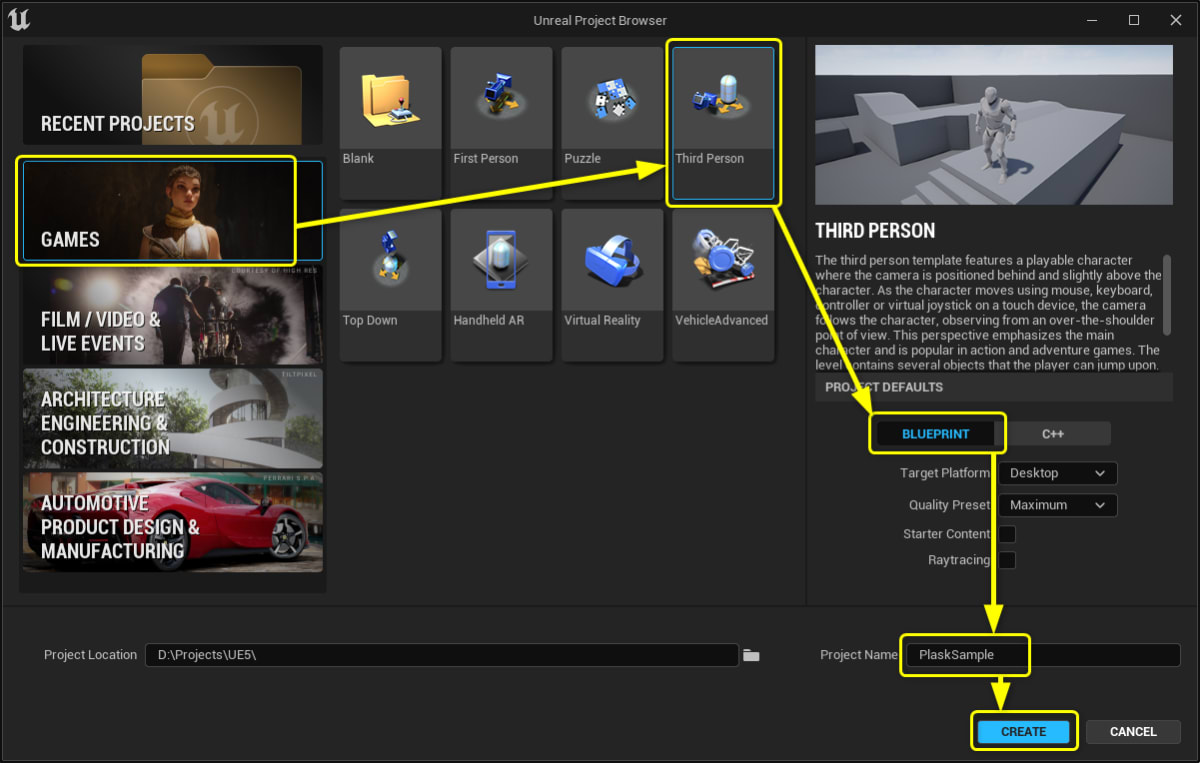
Once the project is created, create a folder for importing "Plask" motions.
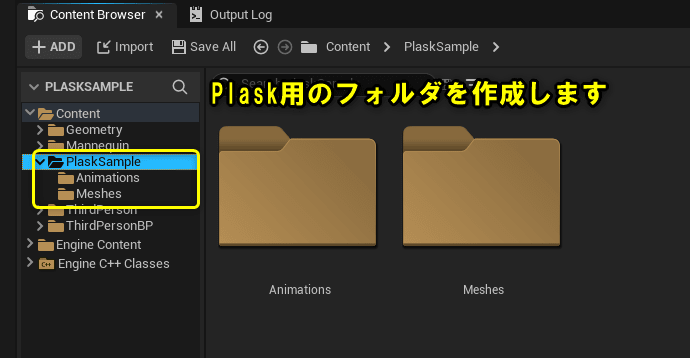
Importing "SK_PlaskMannequin.fbx" as the Base Pose
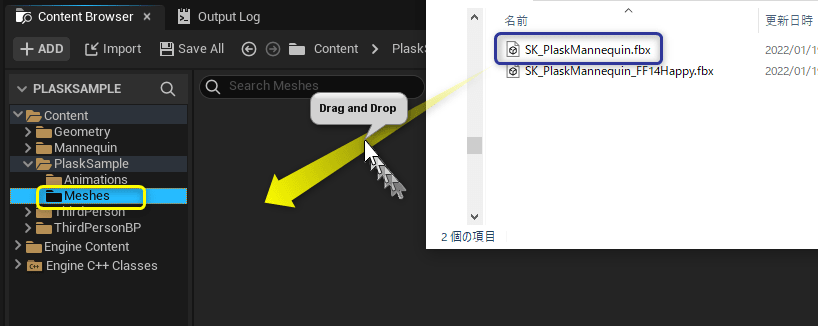
First, import the FBX "SK_PlaskMannequin.fbx," which will serve as the Base Pose.
Import it into the "Meshes" folder you created.
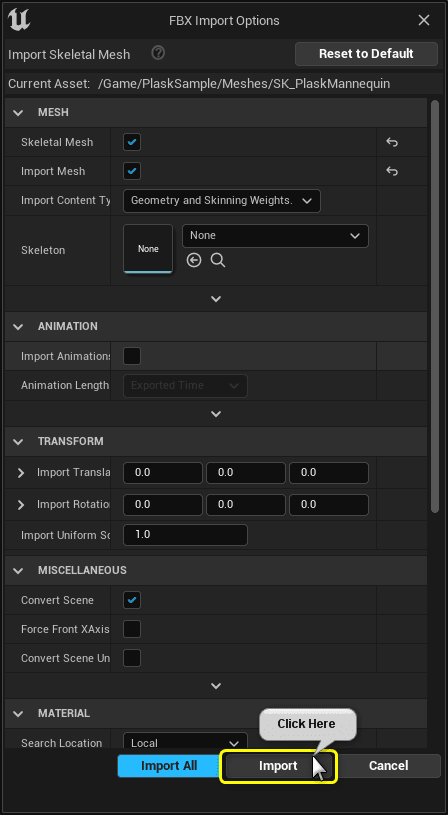
Click the [Import] button without changing any settings.
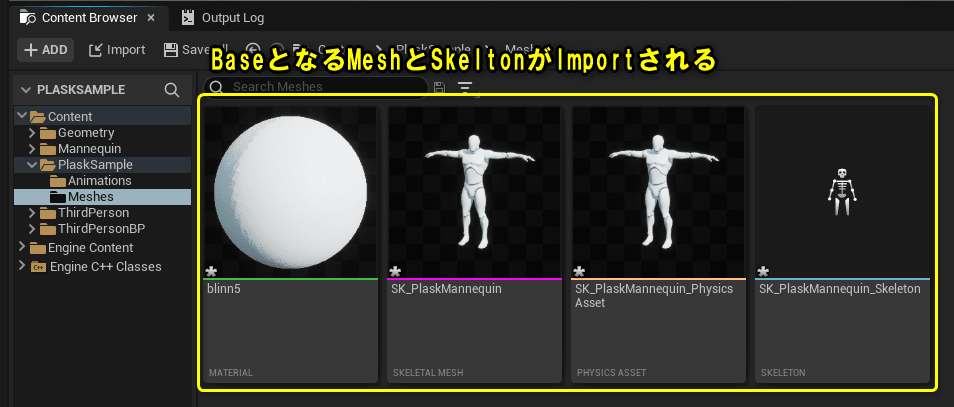
The mesh and skeleton that serve as the Base Pose have been imported.
Importing Motions Created in Plask
Import the motion "SK_PlaskMannequin_(Motion Name).fbx" created in Plask into the "Animations" folder.
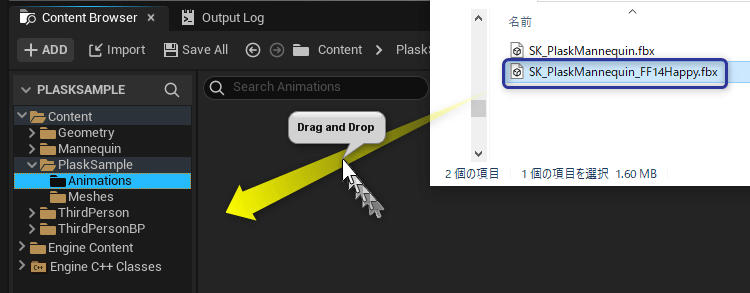
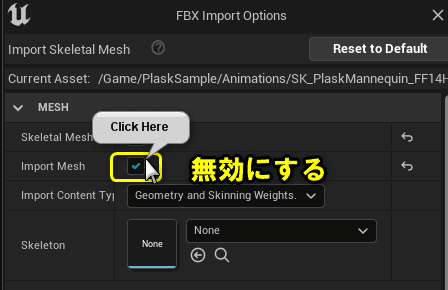
Uncheck [Import Mesh].
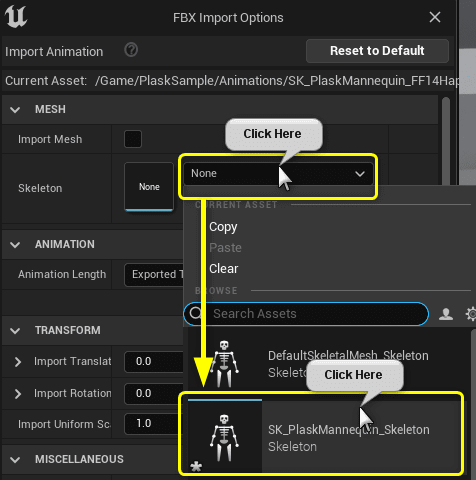
Set [Skeleton] to "SK_PlaskMannequin_Skeleton".
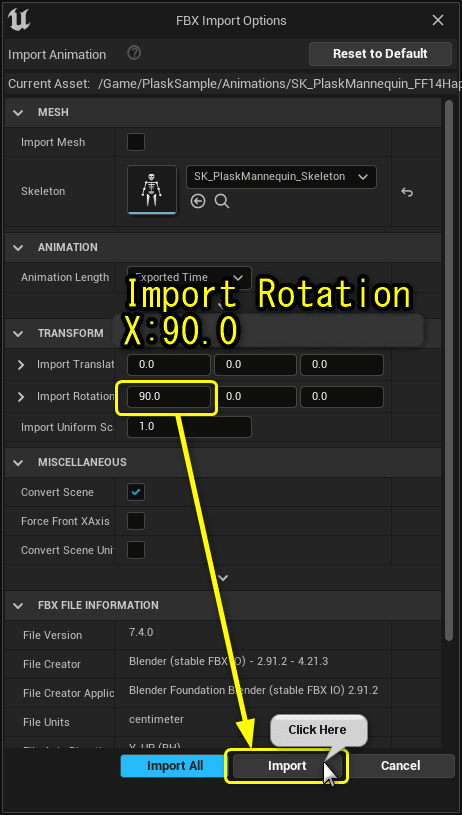
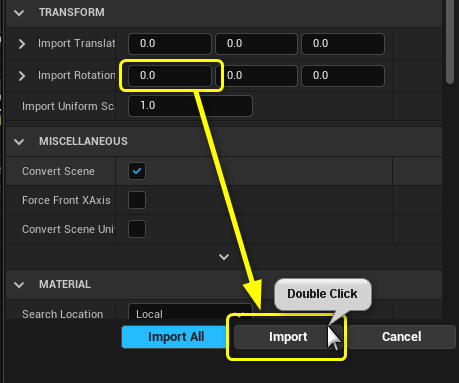
Set [Import Rotation] X to [90.0].
I will explain how to fix this later even if you forget to set it.
The motion has been imported.
Double-click to open it, and the motion created in Plask will play.
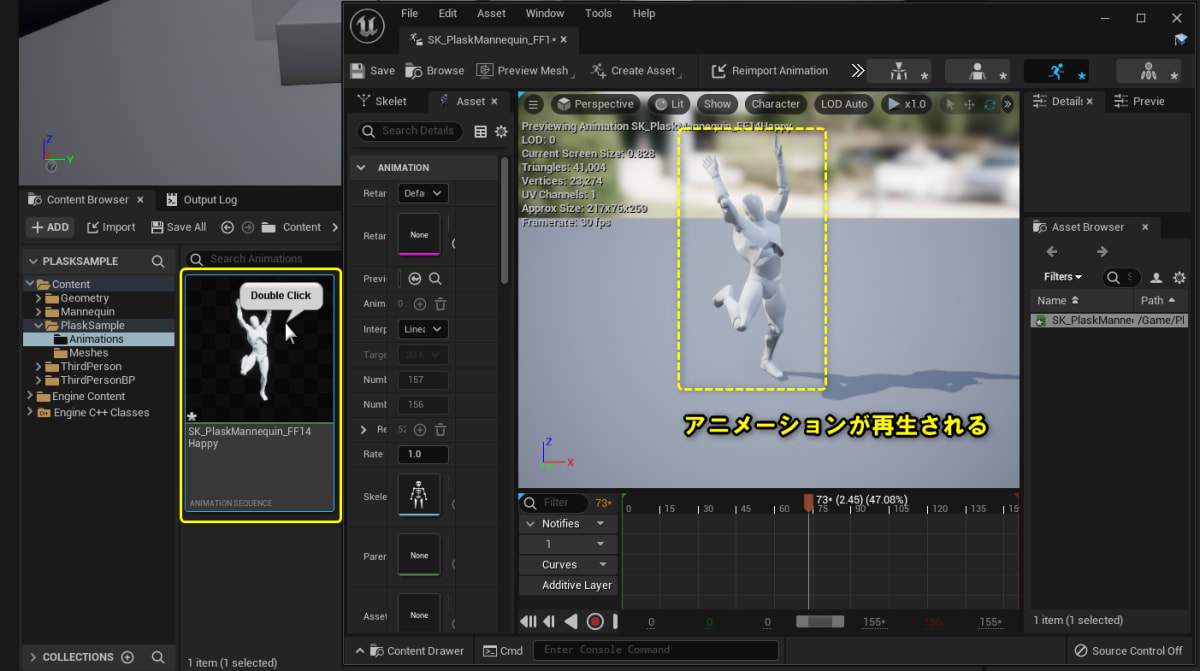
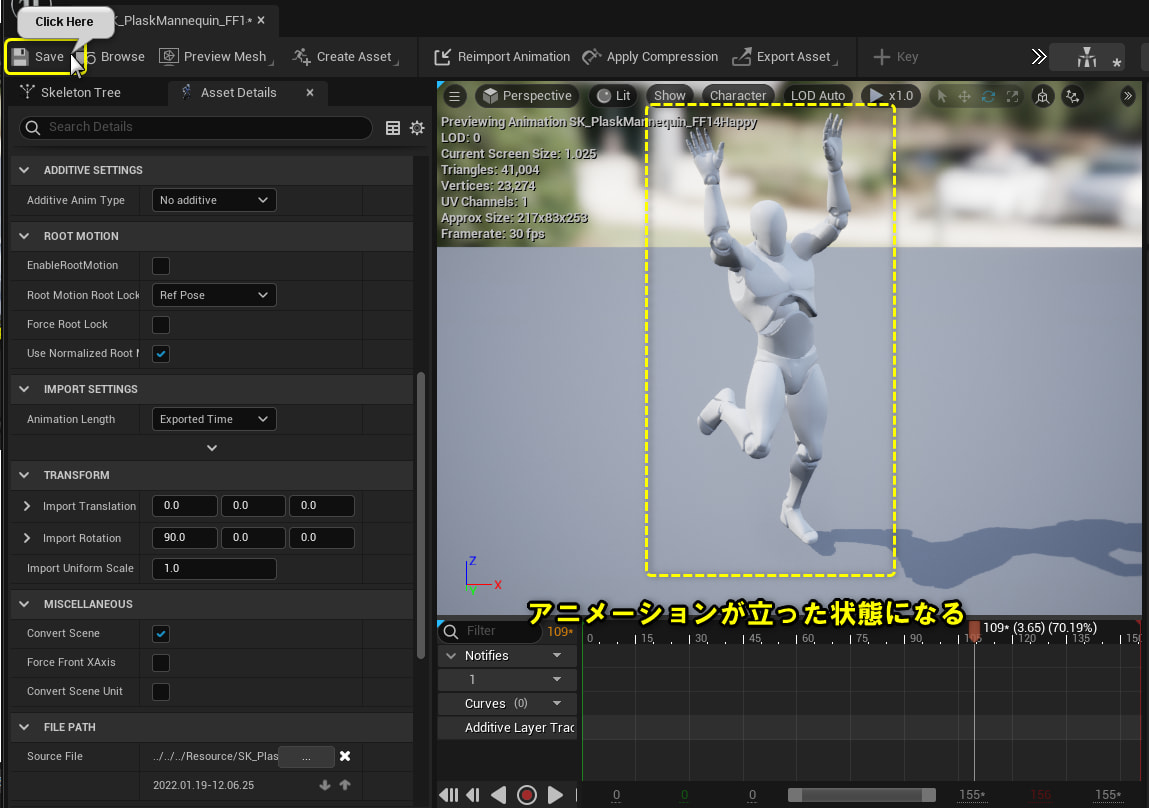
If Imported with Import Rotation X: 0.0
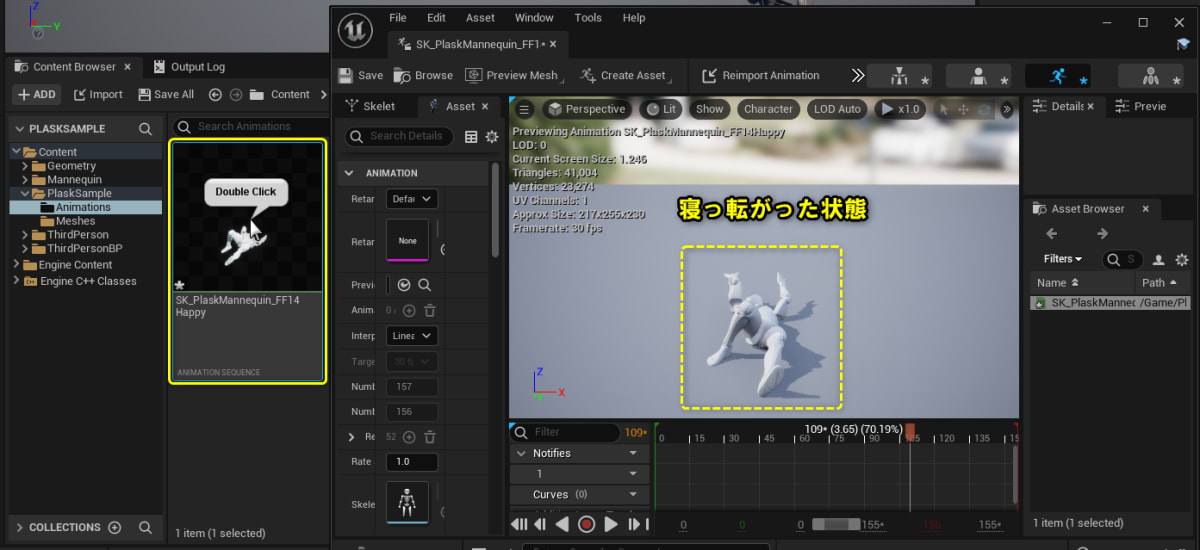
This is how to handle it if you didn't configure [Import Rotation] during the FBX import.
If you import it this way, the Mannequin in the motion will animate as if it's lying down.
In the settings on the left, set [Import Rotation] X to [90.0].
Then click the [Reimport Animation] button.
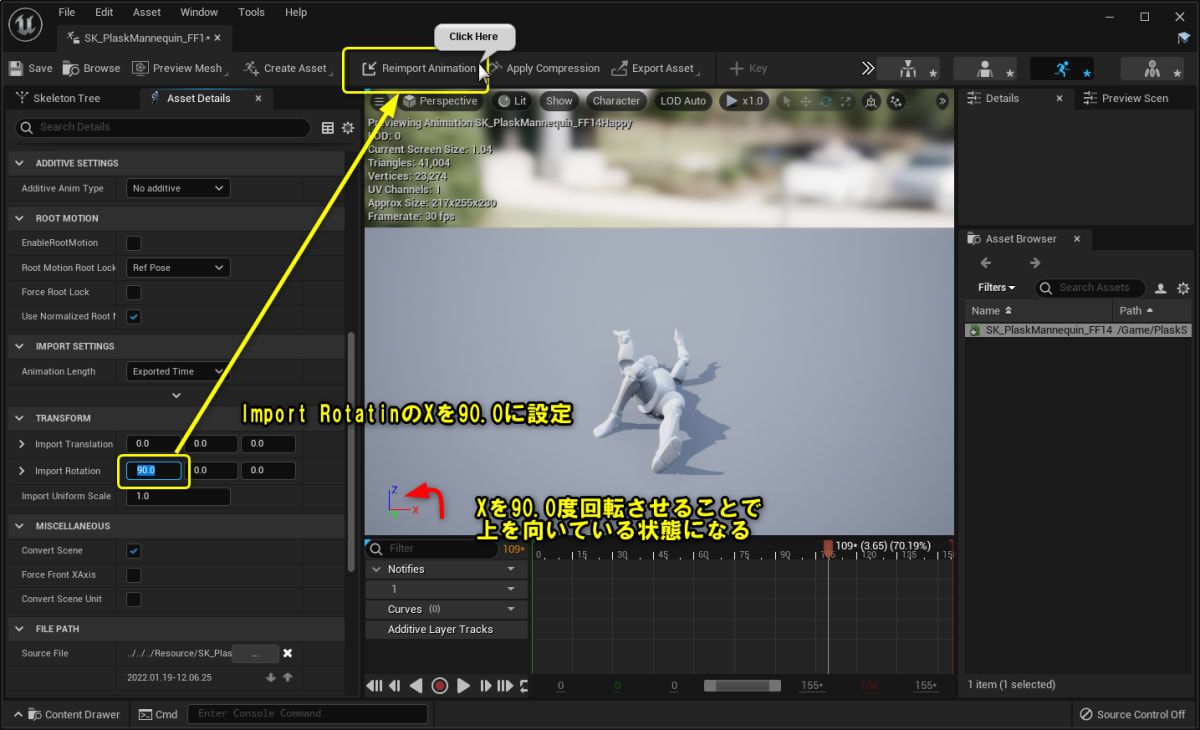
The Mannequin in the motion will now play in a standing position.
Click the [Save] button.
The method for importing Unity's Y-Up models or motions was helpful here.
Plask uses the UE Mannequin, but it is internally built to be used in Unity.
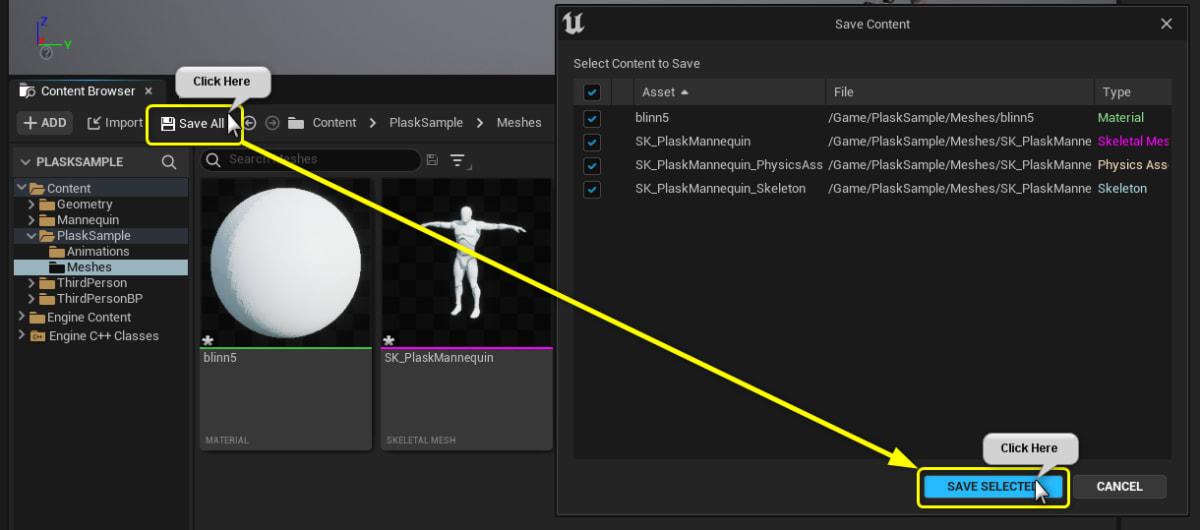
Save All
Let's save everything once here.
Retargeting Plask Animation to Mannequin in UE5
Now that we've imported the motion created in Plask and the Base Pose FBX, let's make the Plask motion work on the UE5 Mannequin.
Plask Mannequin is Similar to Mixamo
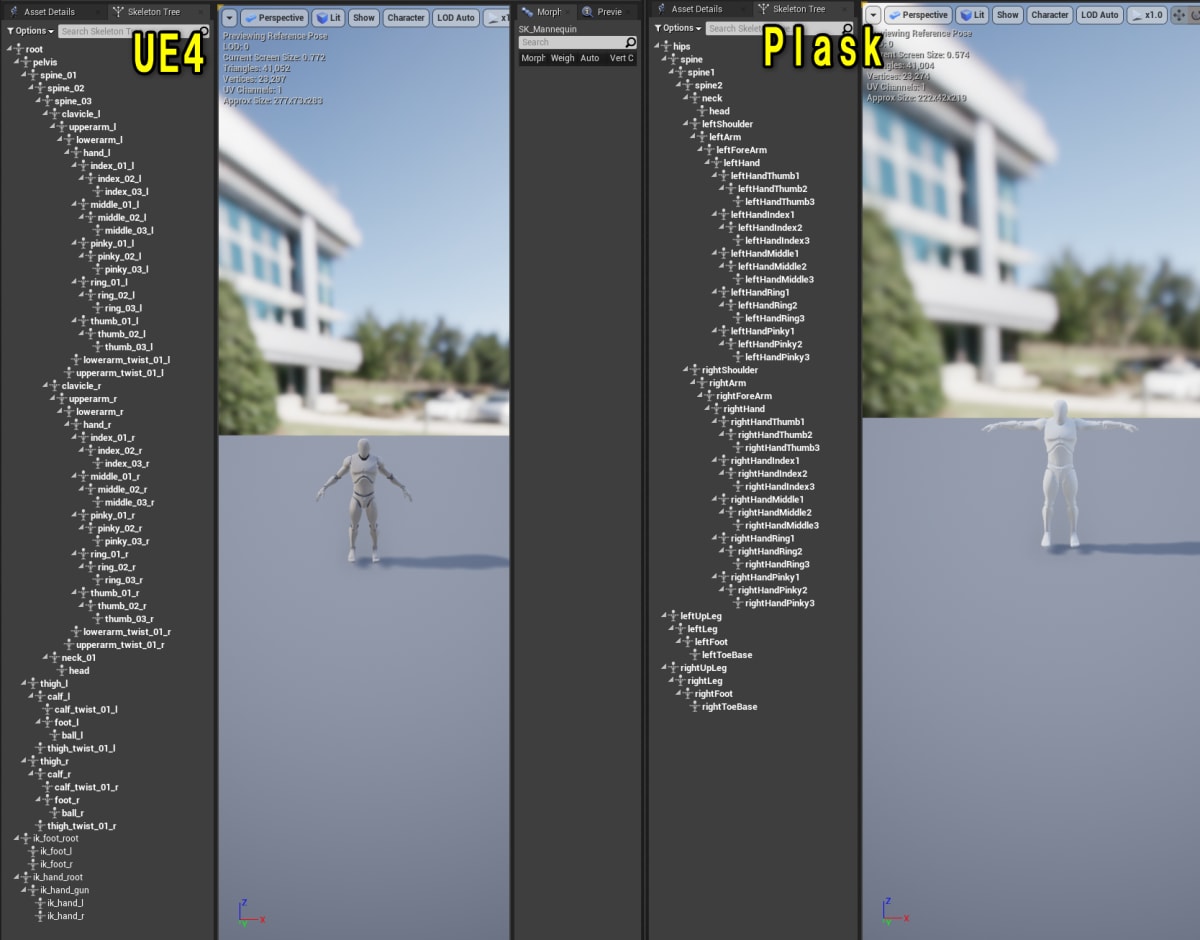
I compared the skeleton tree structures of the Unreal Engine SK_Mannequin and the Plask Mannequin.
The Plask side has a structure that looks like it would move immediately with Unity's "Unity Humanoid Avatar."
I determined that the method for moving Mixamo animations in Unreal Engine would be the closest approach.
I referred to "How to Retarget and Use Animations from Mixamo to UE5 (UE4)."
Thank you!
"Unreal Engine 5 Textbook" is wonderful.
I am currently using it as a reference while creating books on Zenn.
Setting Up the Rig for SK_PlaskMannequin
Configure the settings to map different skeletons so they can be retargeted.
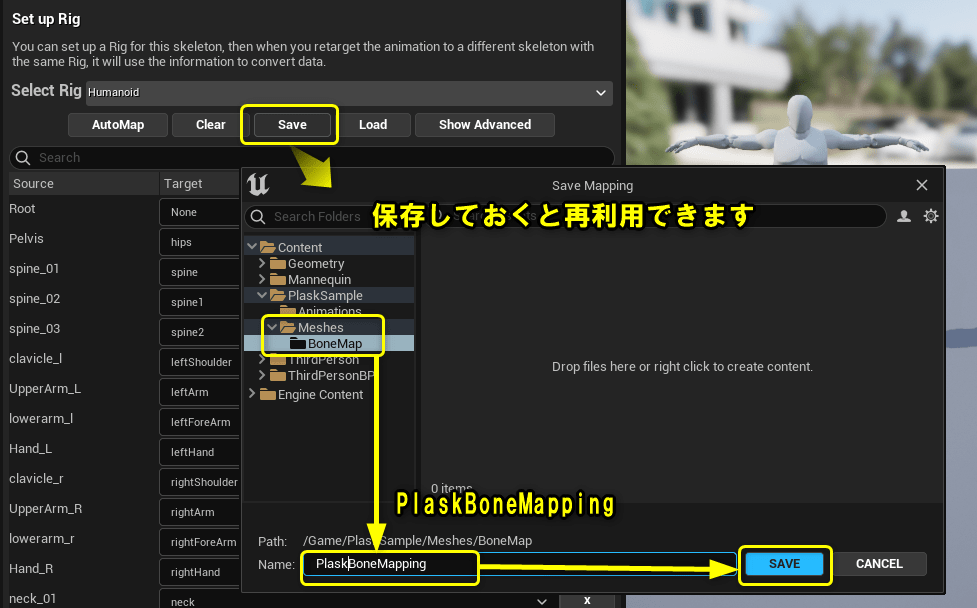
Open "SK_PlaskMannequin" and open the "Retarget Manager".
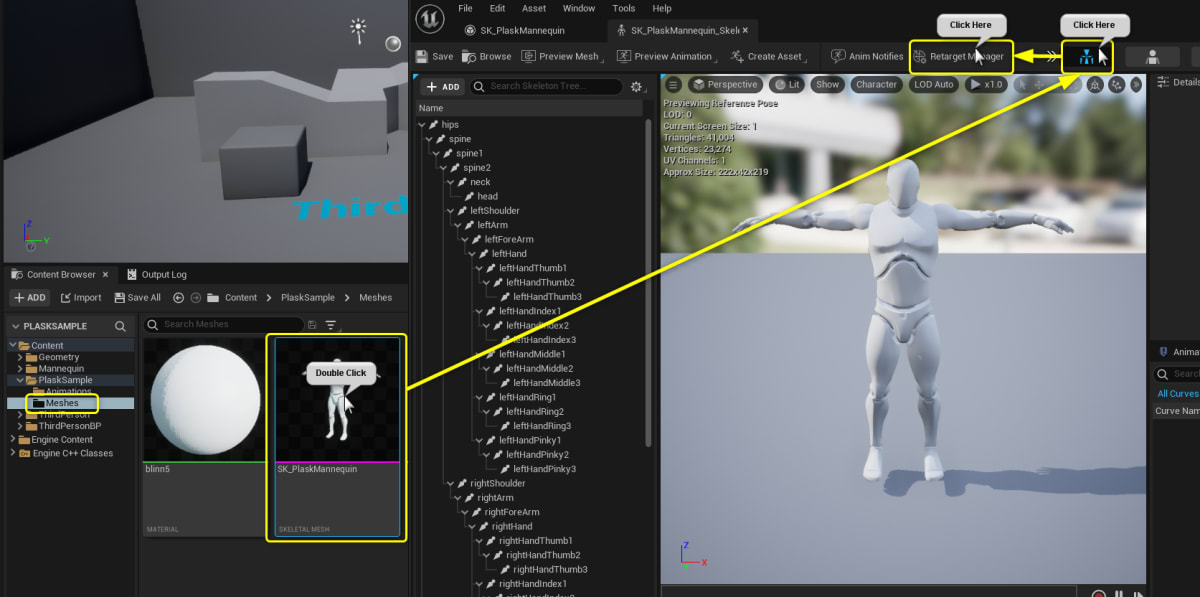
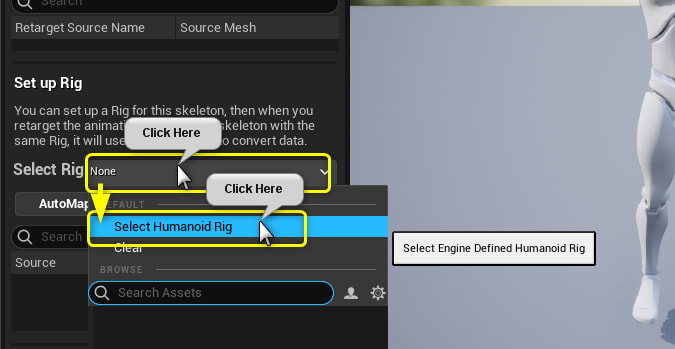
Set [Select Rig] in the [Set up Rig] category to [Humanoid Rig].
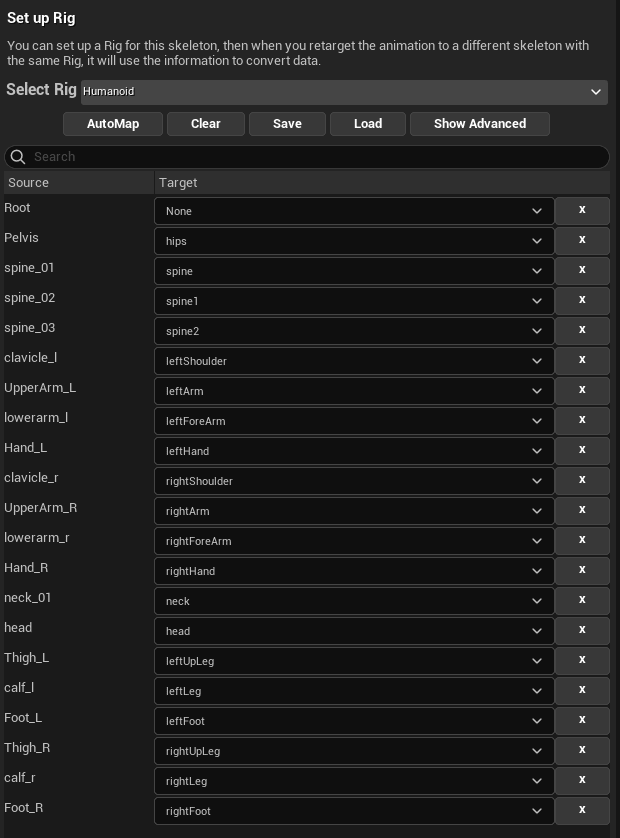
Configure the targets to correspond as shown in the diagram.
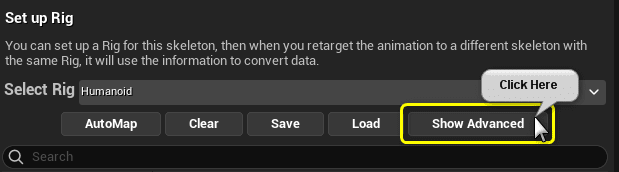
Once configured, click the [Show Advanced] button.
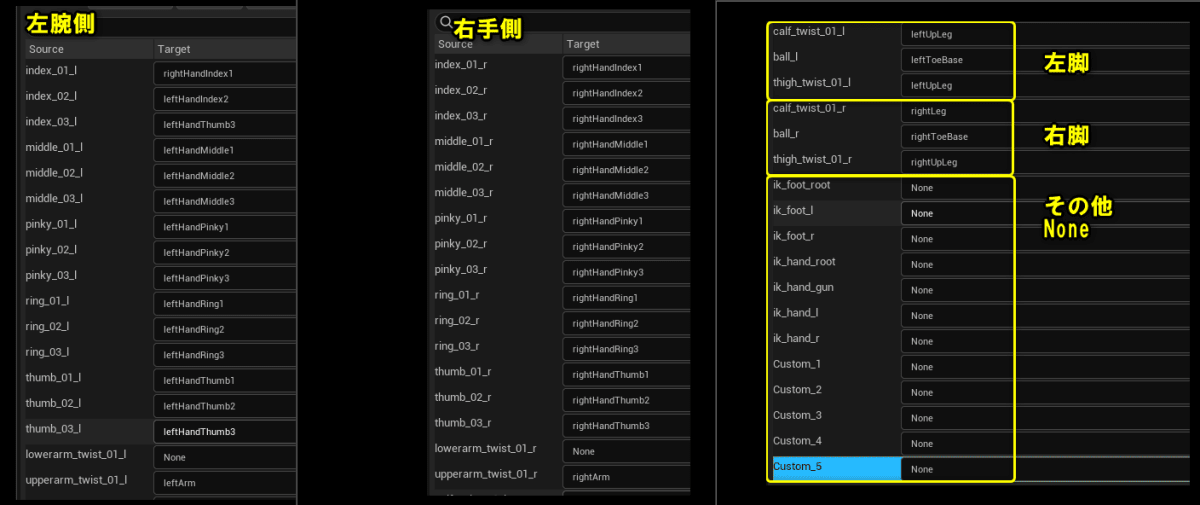
Configure the targets to correspond as shown in the diagram.
The right hand is particularly easy to get wrong, so check carefully while setting it.
By saving the mapping information using the [Save] button, you can load the same settings later using the [Load] button.
Configuring the Set up Rig for SK_Mannequin
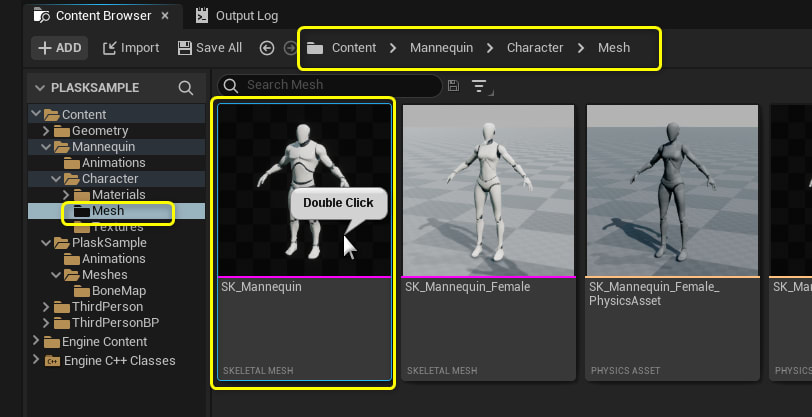
Configure the Set up Rig on the "SK_Mannequin" side.
Open "SK_Mannequin".
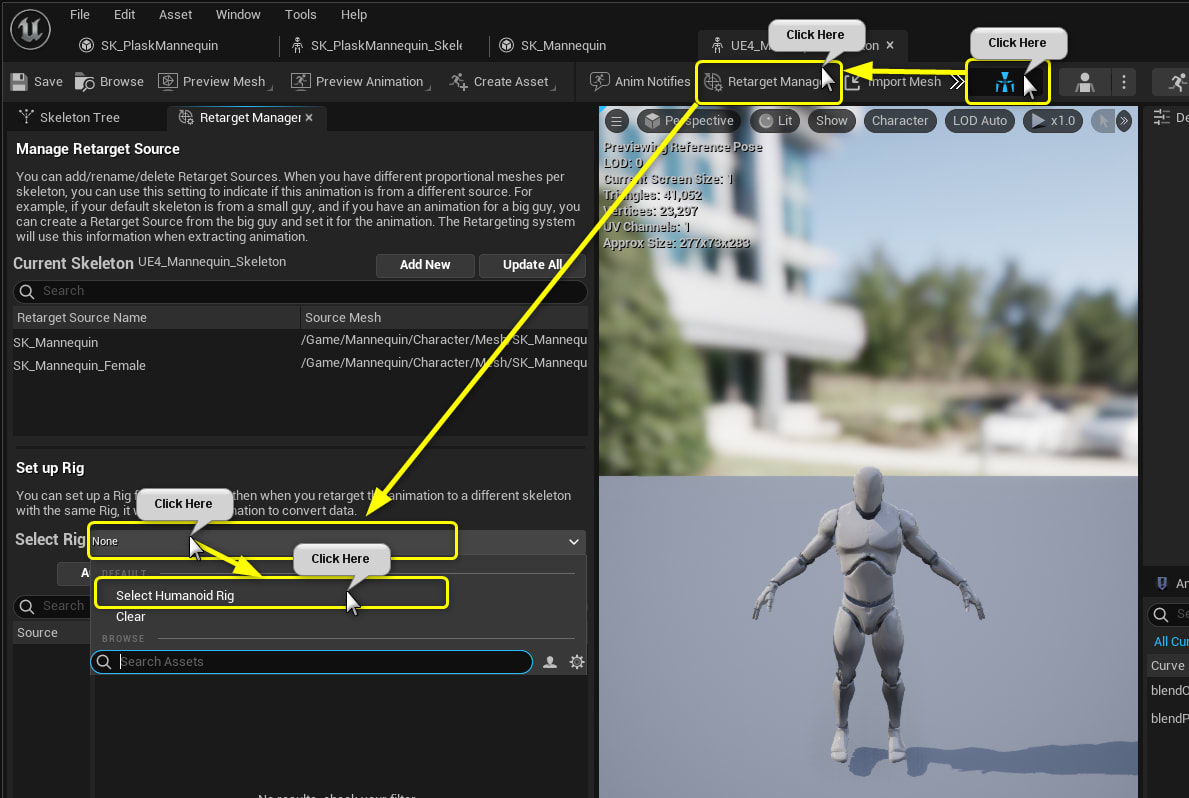
Open the "Retarget Manager" and set [Select Rig] in the [Set up Rig] category to [Humanoid Rig].
This is set automatically, so no changes are needed.
Changing SK_Mannequin's Base Pose to T-Pose
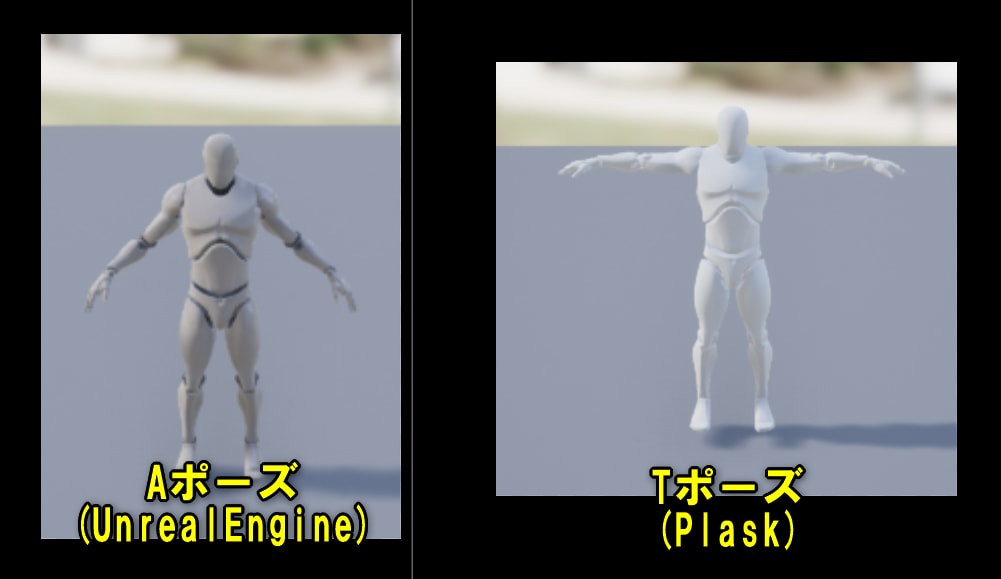
"SK_Mannequin" and "SK_PlaskMannequin" have different Base Poses.
If you perform retargeting like this, the motion will break.
Someone on AnswerHub shared a Motion FBX that makes "SK_Mannequin" a T-Pose for download.
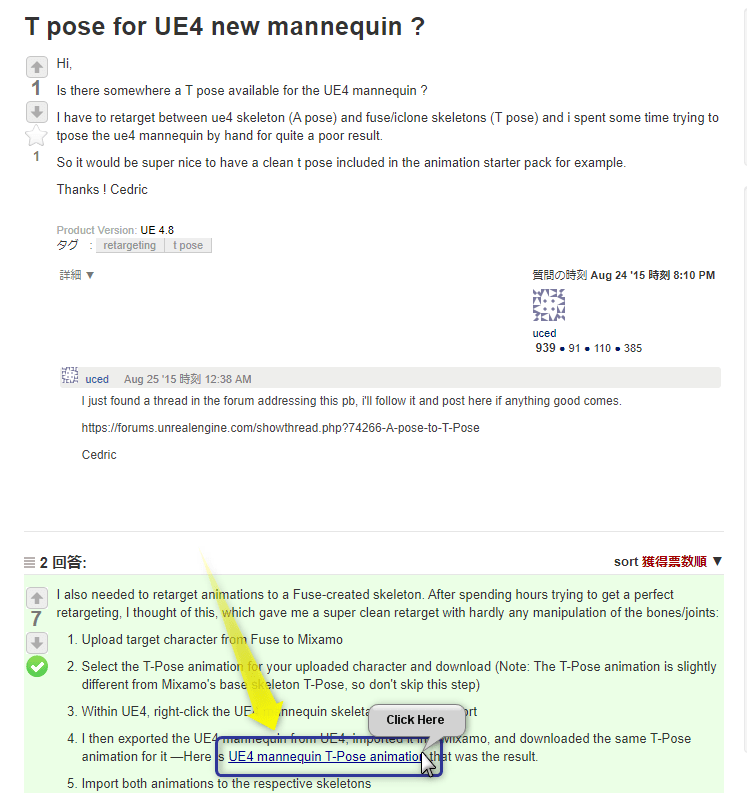
Import the downloaded "T_Pose_UE4_Mannequin.FBX" into the "Animations" folder.
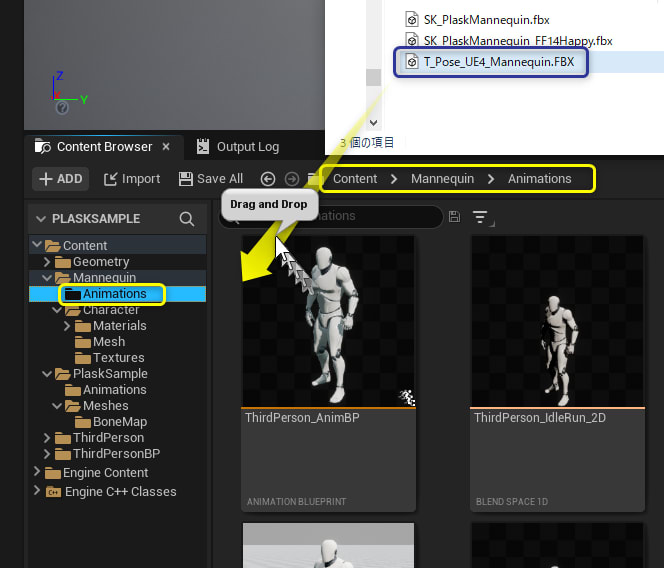
Set [Skeleton] to [UE4_Mannequin_Skelton].
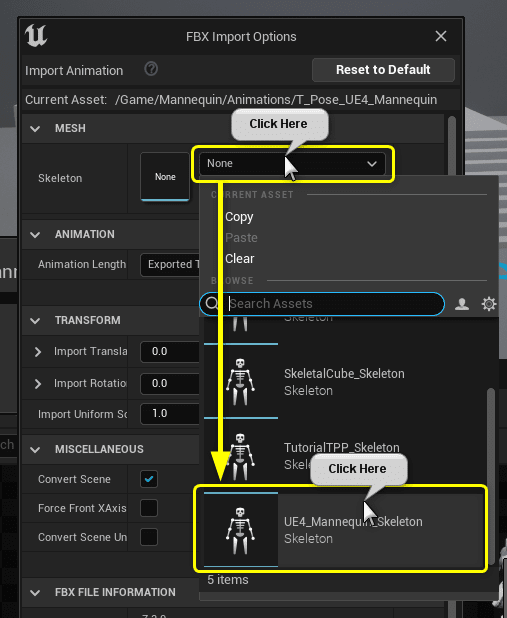
Click [Import].
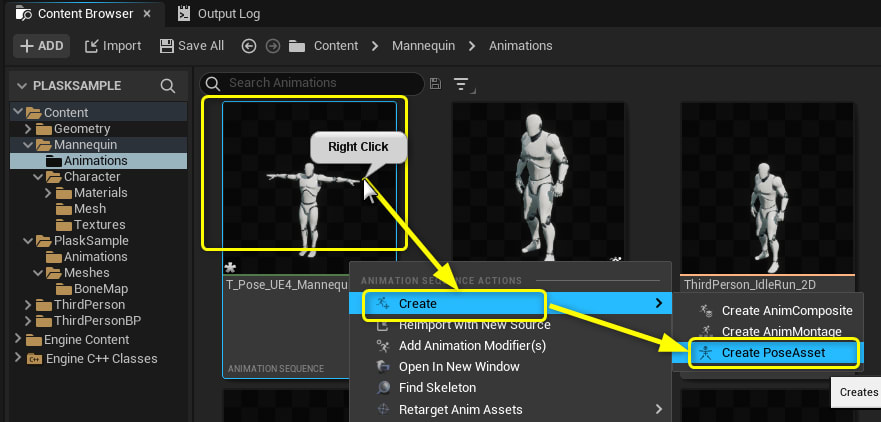
Right-click "T_Pose_UE4_Mannequin" and select Create > Create PoseAsset.
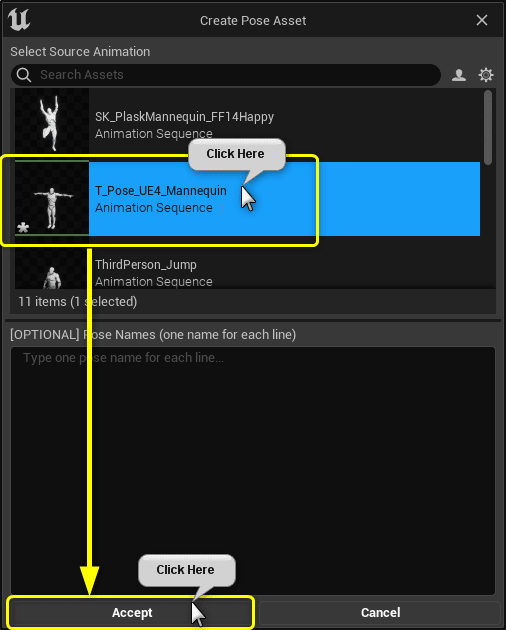
Select "T_Pose_UE4_Mannequin" and click the [Apply] button.
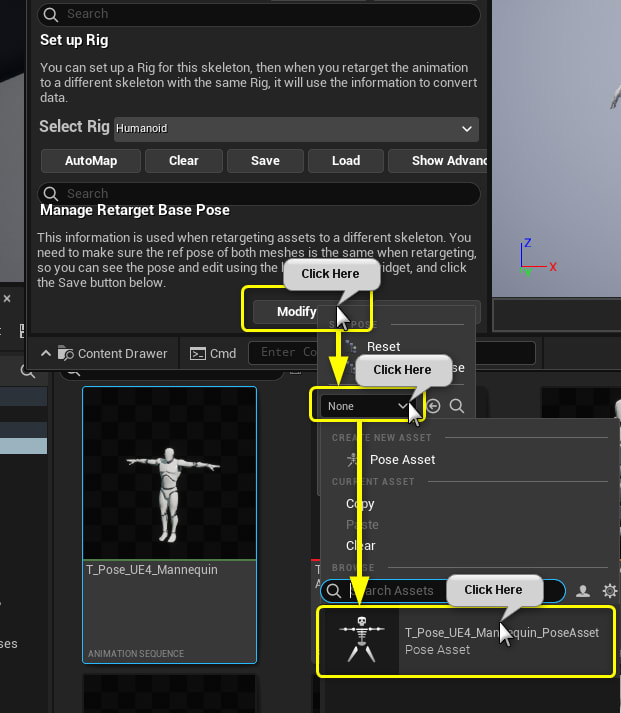
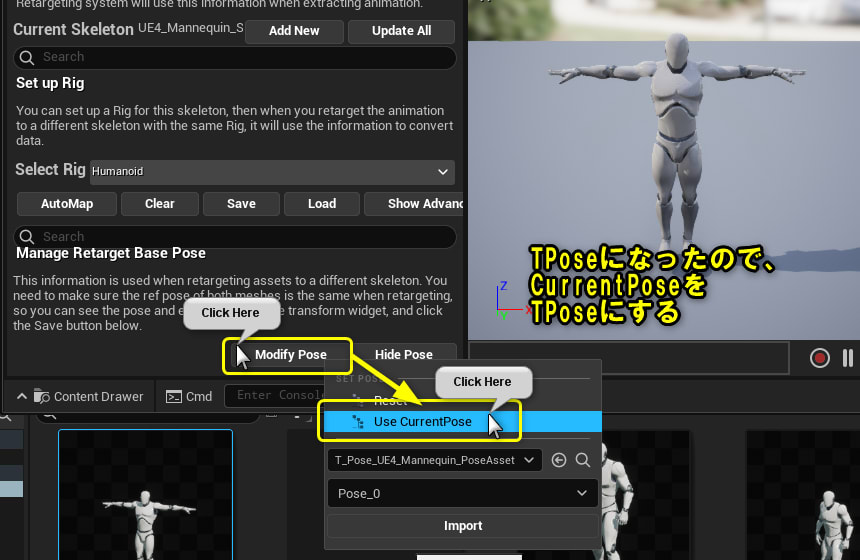
Click the [Modify] button in the [Set up Rig] category of the "Retarget Manager" and select "T_Pose_UE4_Mannequin_PoseAsset".
Click the [Import] button.
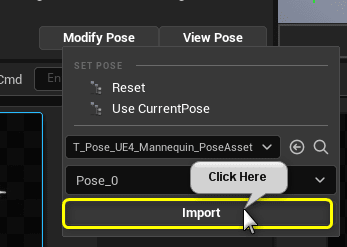
The SK_Mannequin in the Viewport will change to a T-Pose.
Click the [Modify] button again and select [Use CurrentPose].
Now the Base Pose of "SK_Mannequin" has changed from A-Pose to T-Pose, matching the T-Pose of "SK_PlaskMannequin".
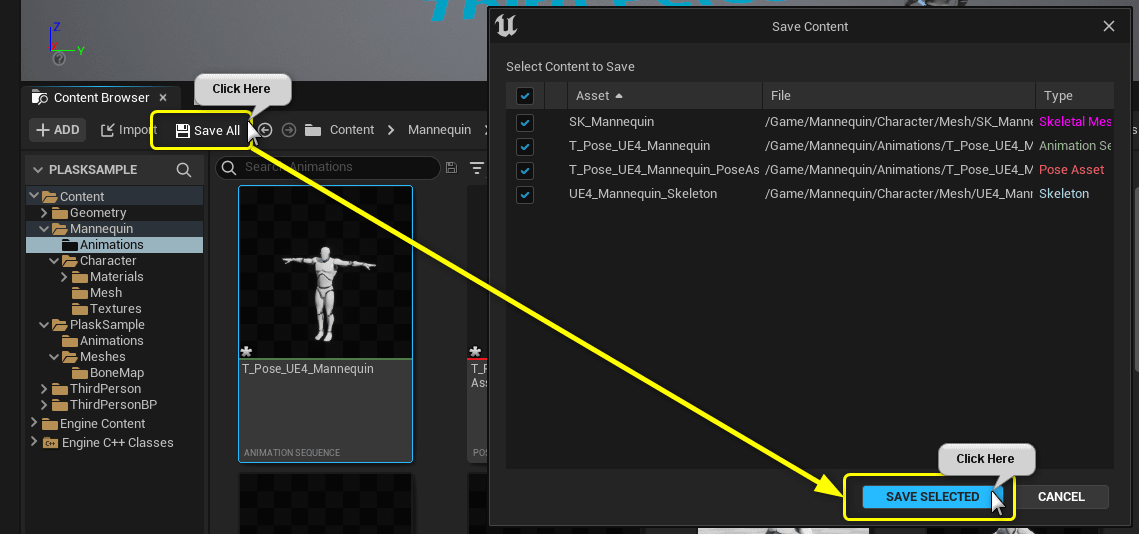
Save All
Let's save the whole project once here.
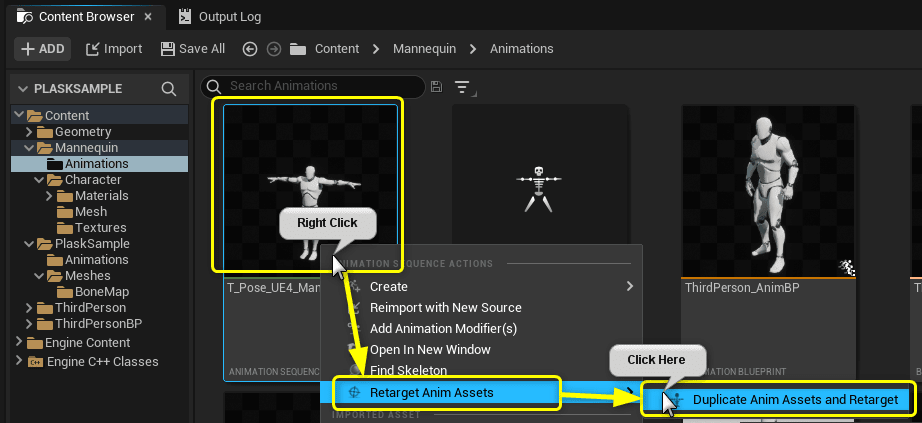
Retargeting Plask Animations
Now that you have successfully imported the motions created in Plask and the Base Pose FBX, let's make the Plask motion work on the UE5 Mannequin.
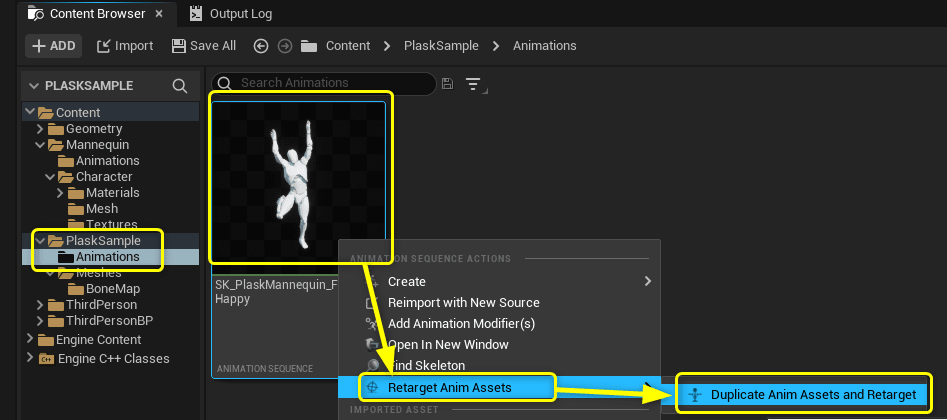
Any animation from "SK_Mannequin" would work, but right-click "T_Pose_UE4_Mannequin" and select [Retarget Anim Assets] > [Duplicate Anim Assets and Retarget].
Select "SK_PlaskMannequin" and click the [Retarget] button.
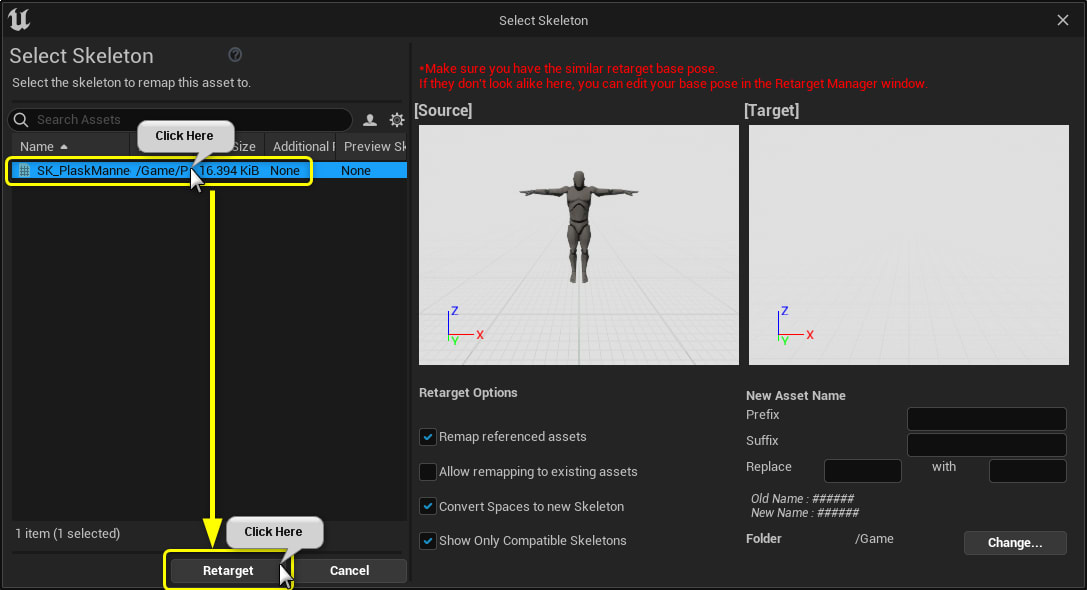
Right-click the motion created in Plask and select [Retarget Anim Assets] > [Duplicate Anim Assets and Retarget].
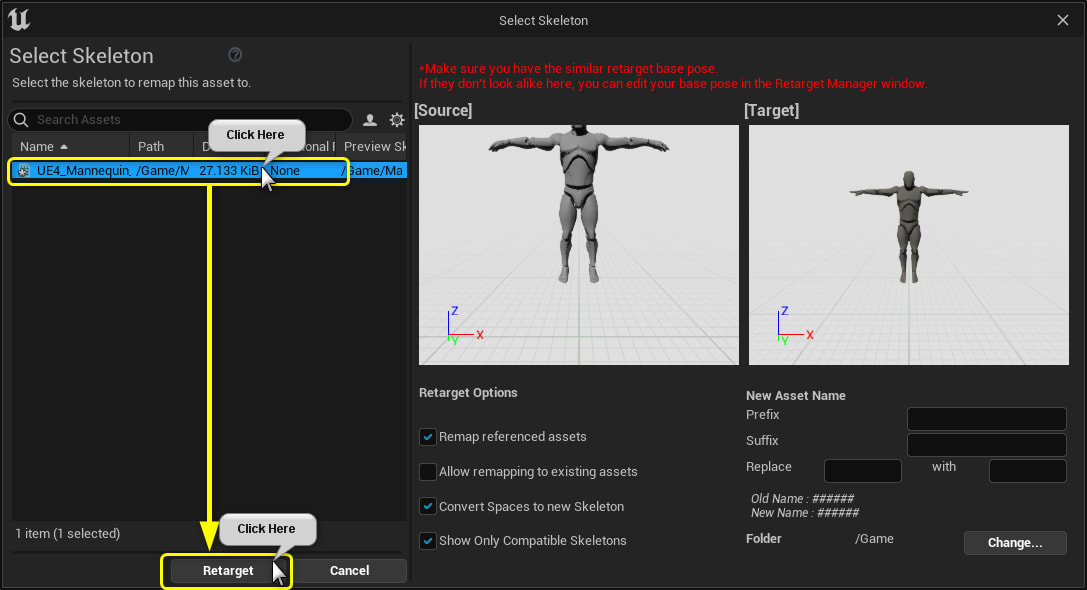
Select "UE4_Mannequin_Skelton" and click the [Retarget] button.
The Plask motion retargeted to SK_Mannequin will be created directly under the "Contents" folder.
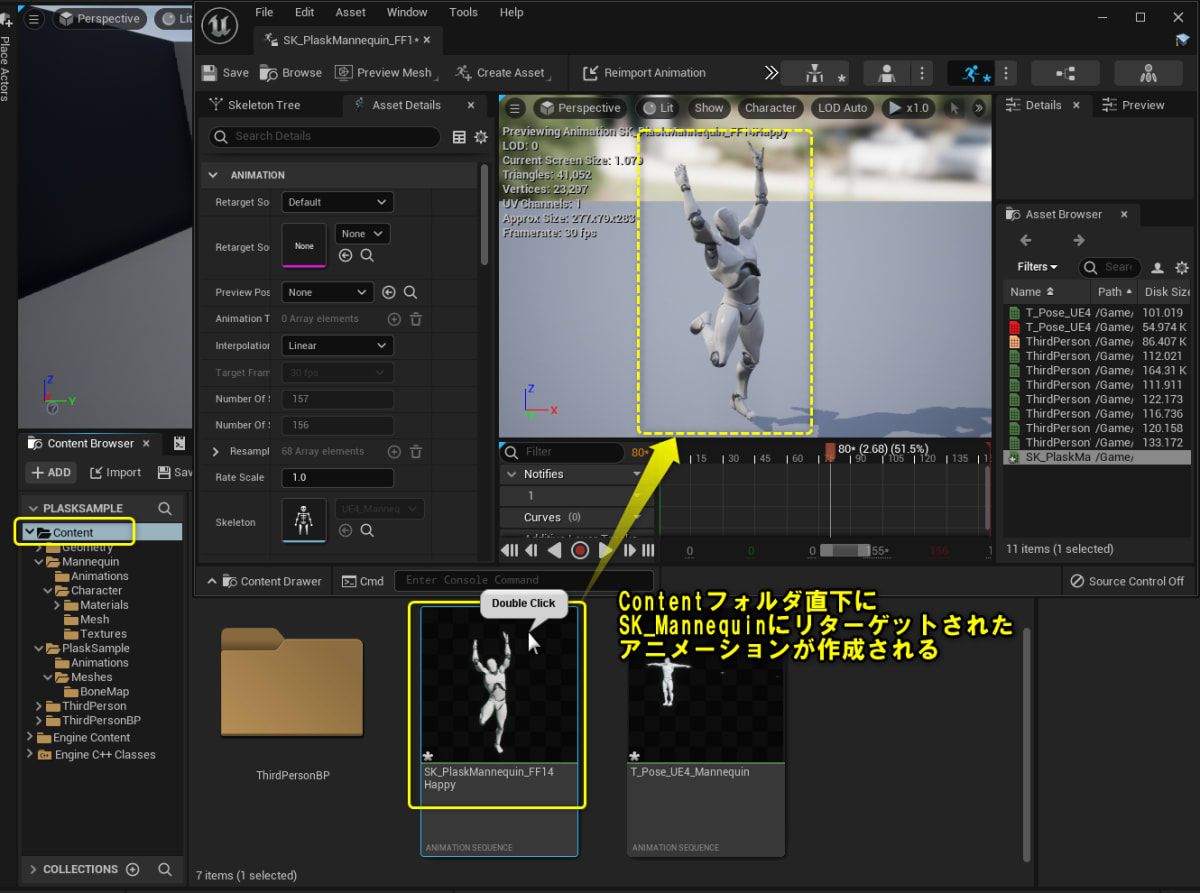
Now, motions created with Plask can be used with generic models like SK_Mannequin.
Summary
The equipment needed to create motion from Plask is just a "PC and a webcam."
While it's not extremely high-precision, it's impressive that this level of accuracy can be achieved with such affordable equipment.
Because of its ease of use, you can do things you might have only wished for before:
- Aligning expectations/visions
- Posing for still images
Perhaps its biggest advantage is that it can be used as a storyboard for motion.
We need to get along with artificial intelligence!
Discussion
すごく参考になりました!ありがとうございます!
かなり細かいところなんですが、

👇こちらのサムネの
inport→importかと思います!バグ報告ありがとうございます!
早速画像修正しました。
いつも前向きなツイートと見やすいショート動画楽しく拝見させていただいてます。
見て頂いてるんですね。ありがとうございます!!