iTranslated by AI
Where Is the Google Analytics Tracking ID?


To begin with, Tracking IDs do not exist in the current new admin screen.
I noticed that Zenn can be linked with Google Analytics, so I decided to give it a try. I had forgotten, but I found traces of a previous attempt to use it that I had given up on. Like Google Analytics and Google Domains, Google tends to create UIs that look good but are hard to understand. When I tried to start, it seemed that the Google Analytics specifications had changed due to updates in the last year or two, leaving me wondering where the heck the tracking ID was. Since old articles are prominent, I'll summarize the registration flow as of March 19, 2022.
Flow to Obtain the Measurement ID
It follows roughly the same steps as this article. If you access Google Analytics and proceed as follows, the Measurement ID should be displayed at the end.
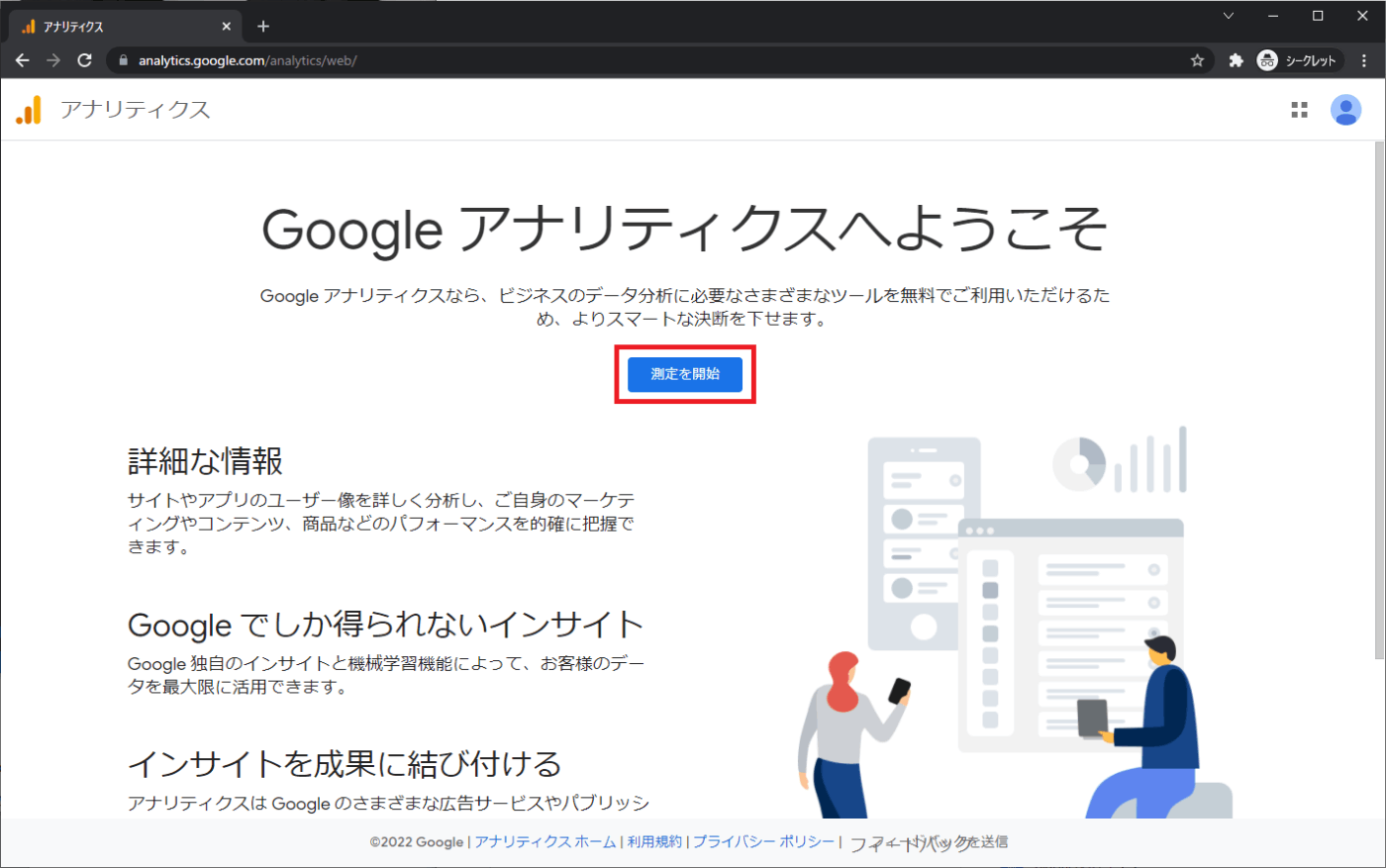
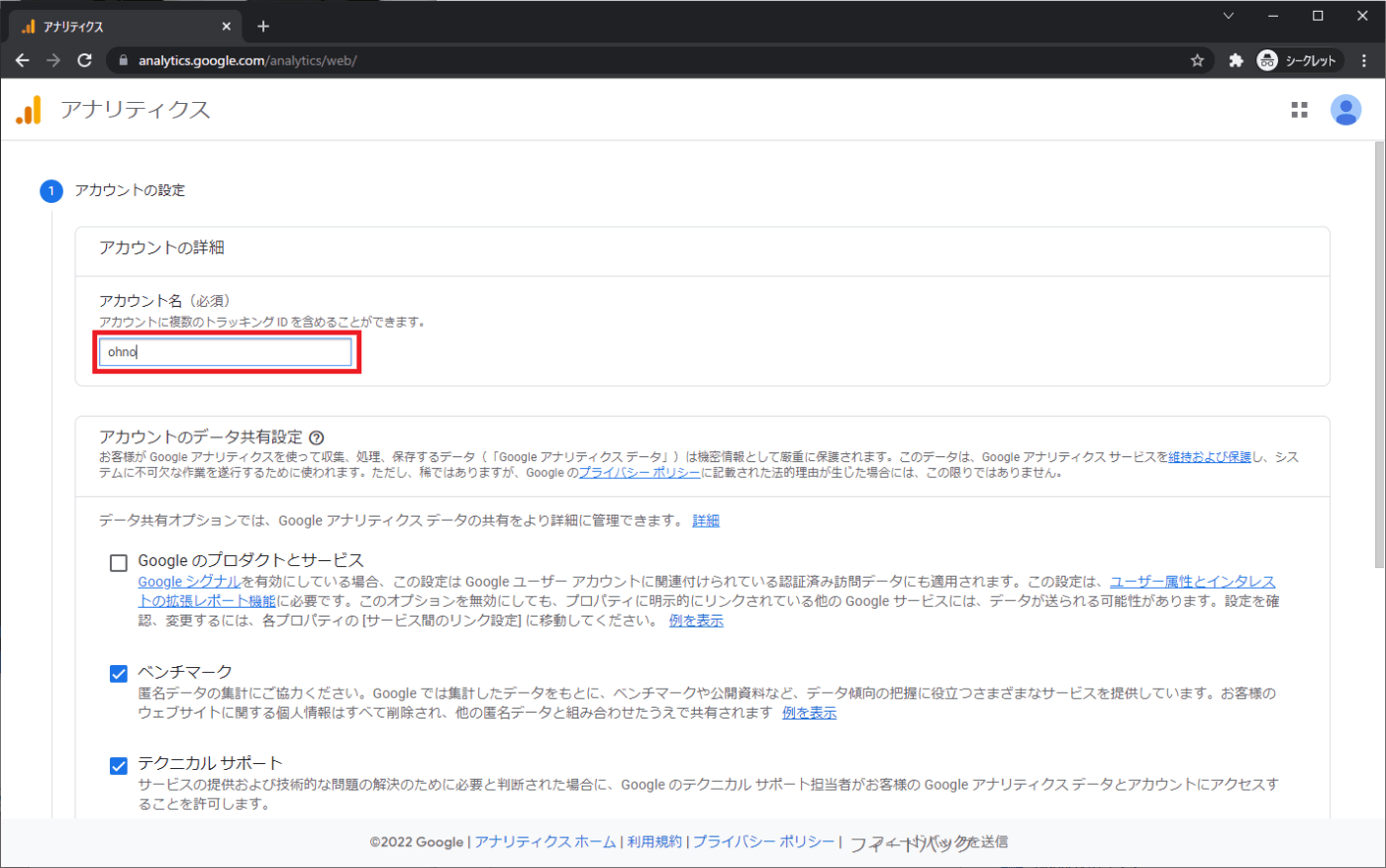
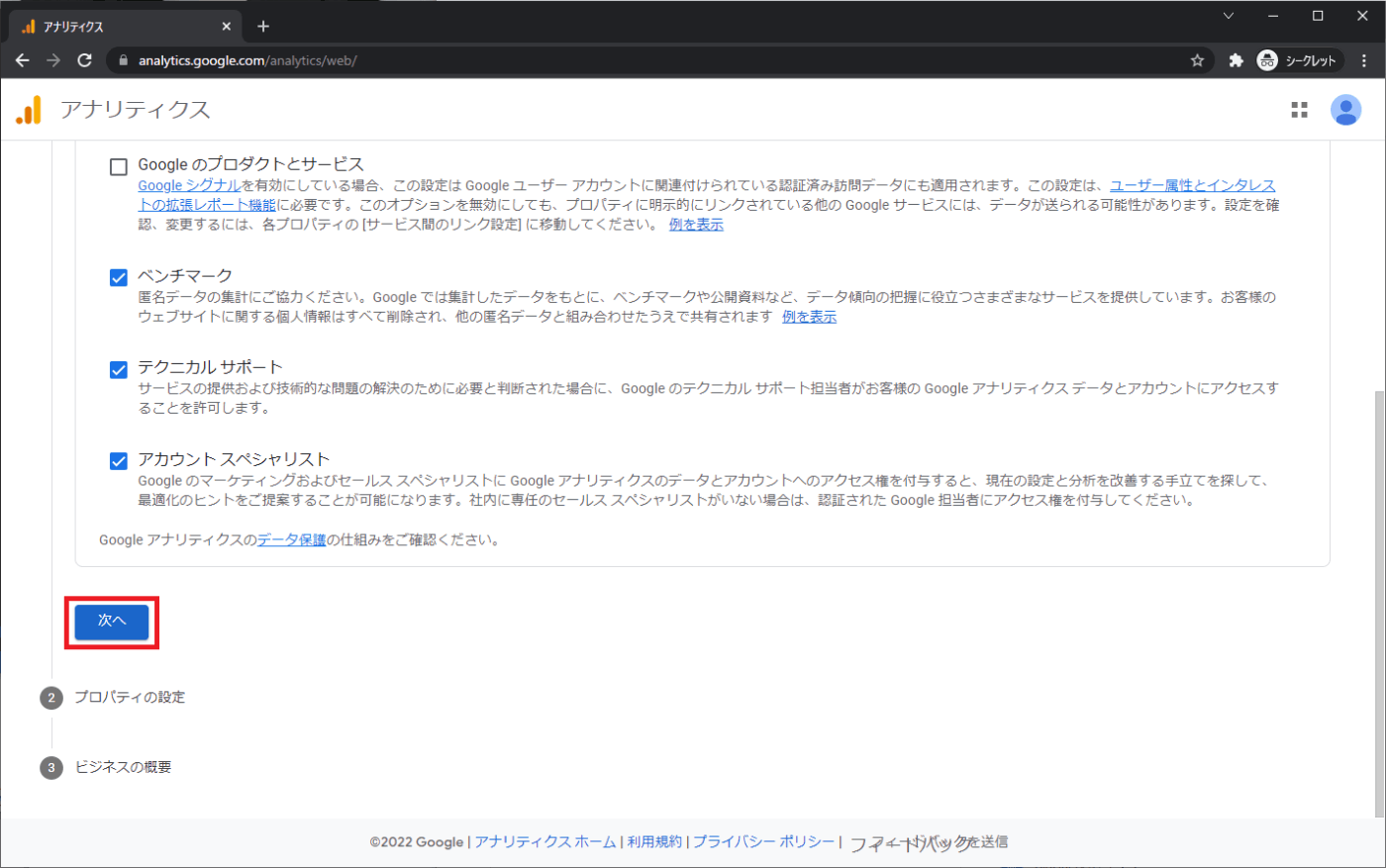
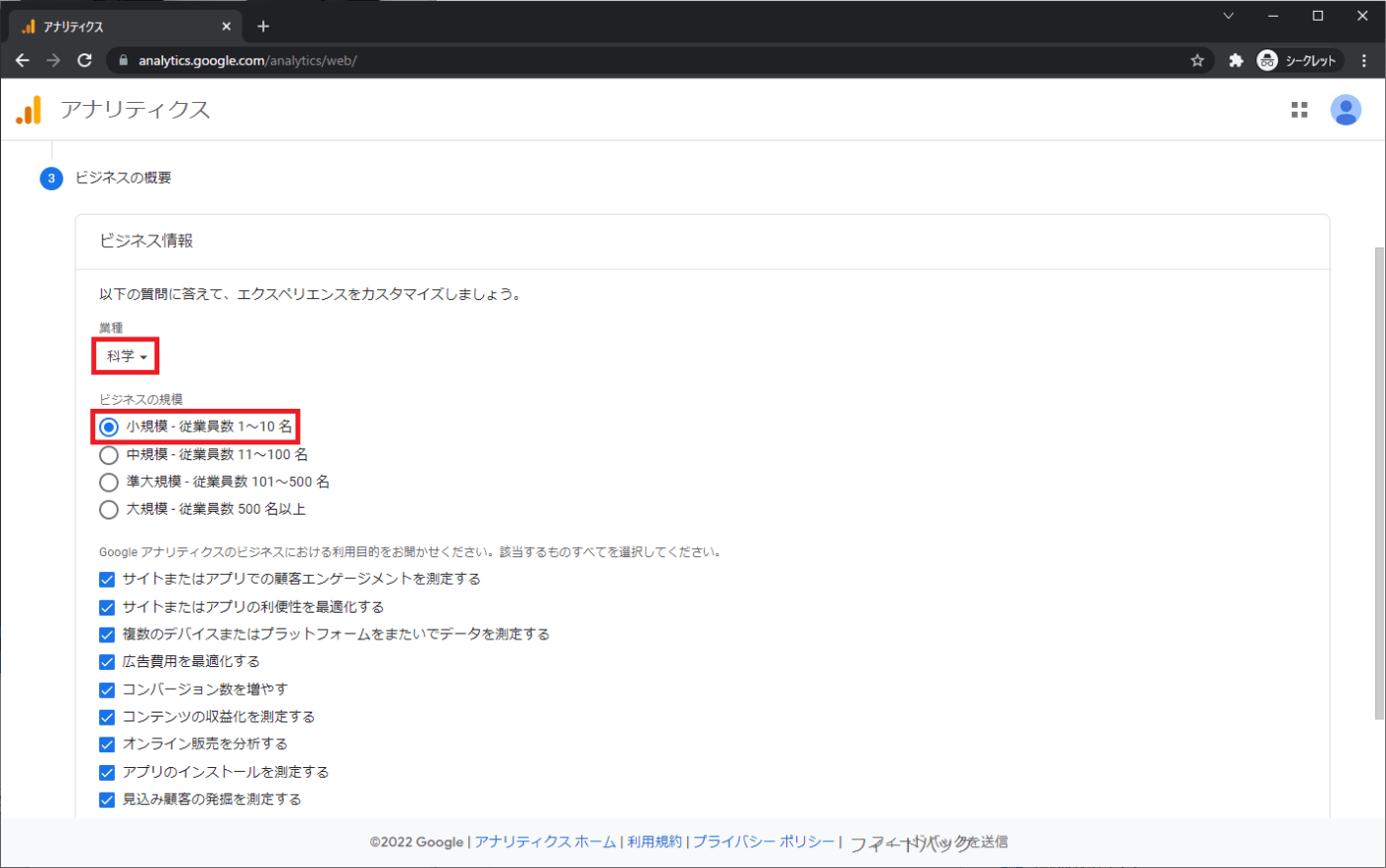
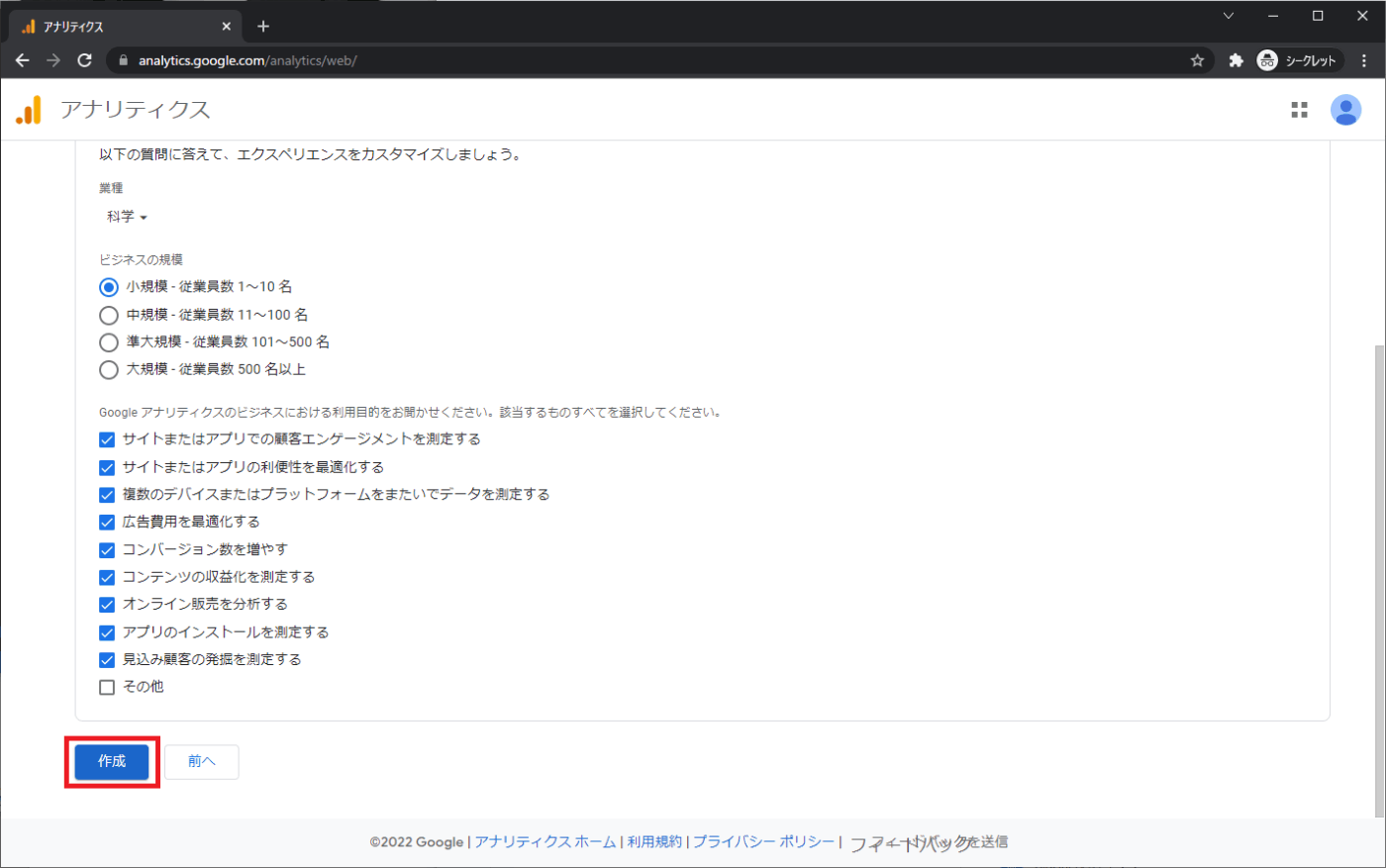

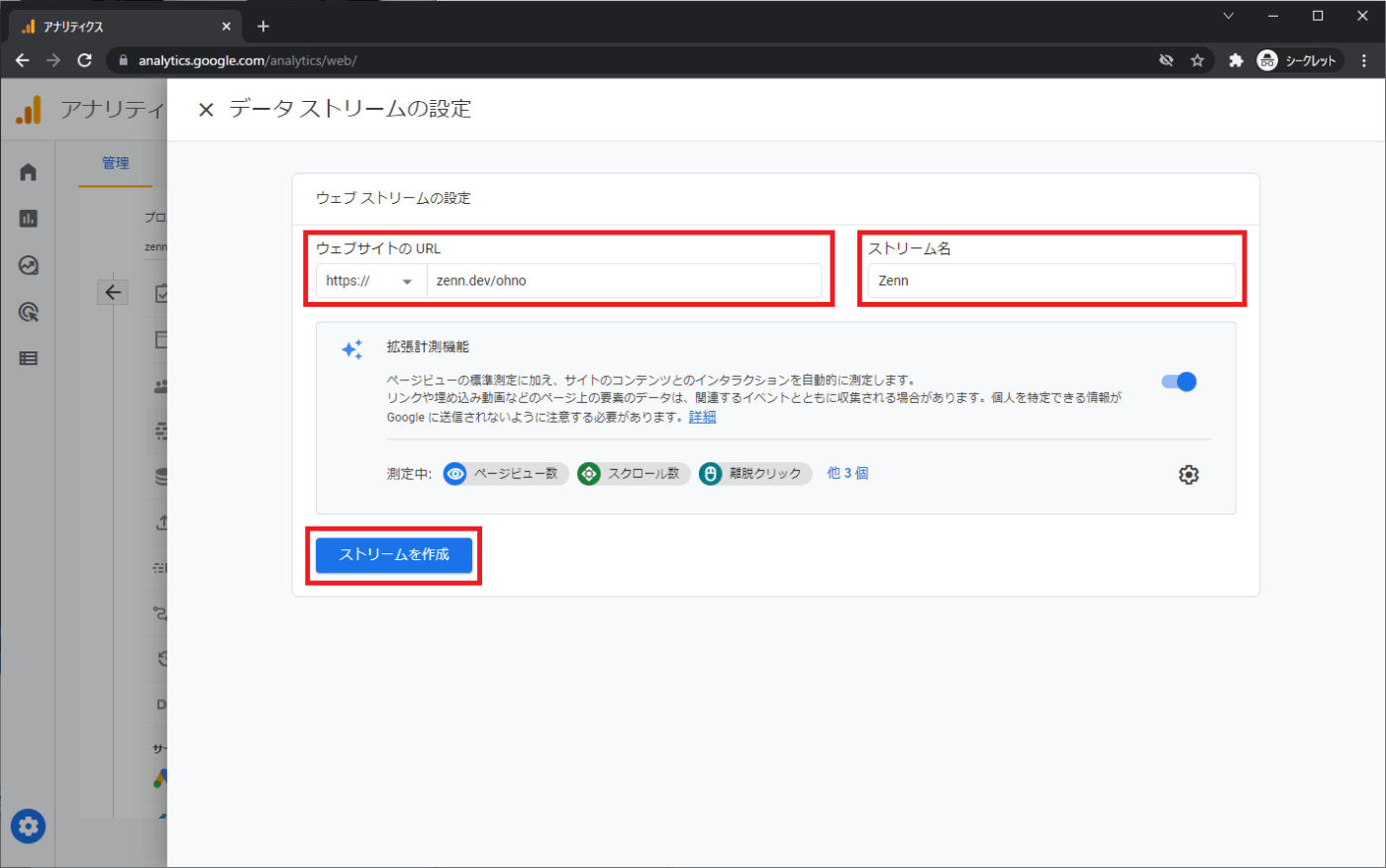

This Measurement ID is the most important piece of information.
Where the heck is the Tracking ID?
When you Google it, you'll see talk about registering a Tracking ID, which makes you wonder, "Where the heck is the Tracking ID?" It seems the specifications changed in the last year or two, and to begin with, Tracking IDs do not exist in the current new admin screen. If you absolutely need a Tracking ID, it seems you need a setting to use the old version. When searching for "Tracking ID missing," I found several articles likely written by others facing the same issue. The conclusion is that the Measurement ID replaces the Tracking ID. Use the Measurement ID that was just displayed.
Where the heck is the Measurement ID?
If you're using it for the first time, you can just follow the flow above, but it can be confusing if you stop midway or if it's not your first time. You can reach the Measurement ID by following these steps.

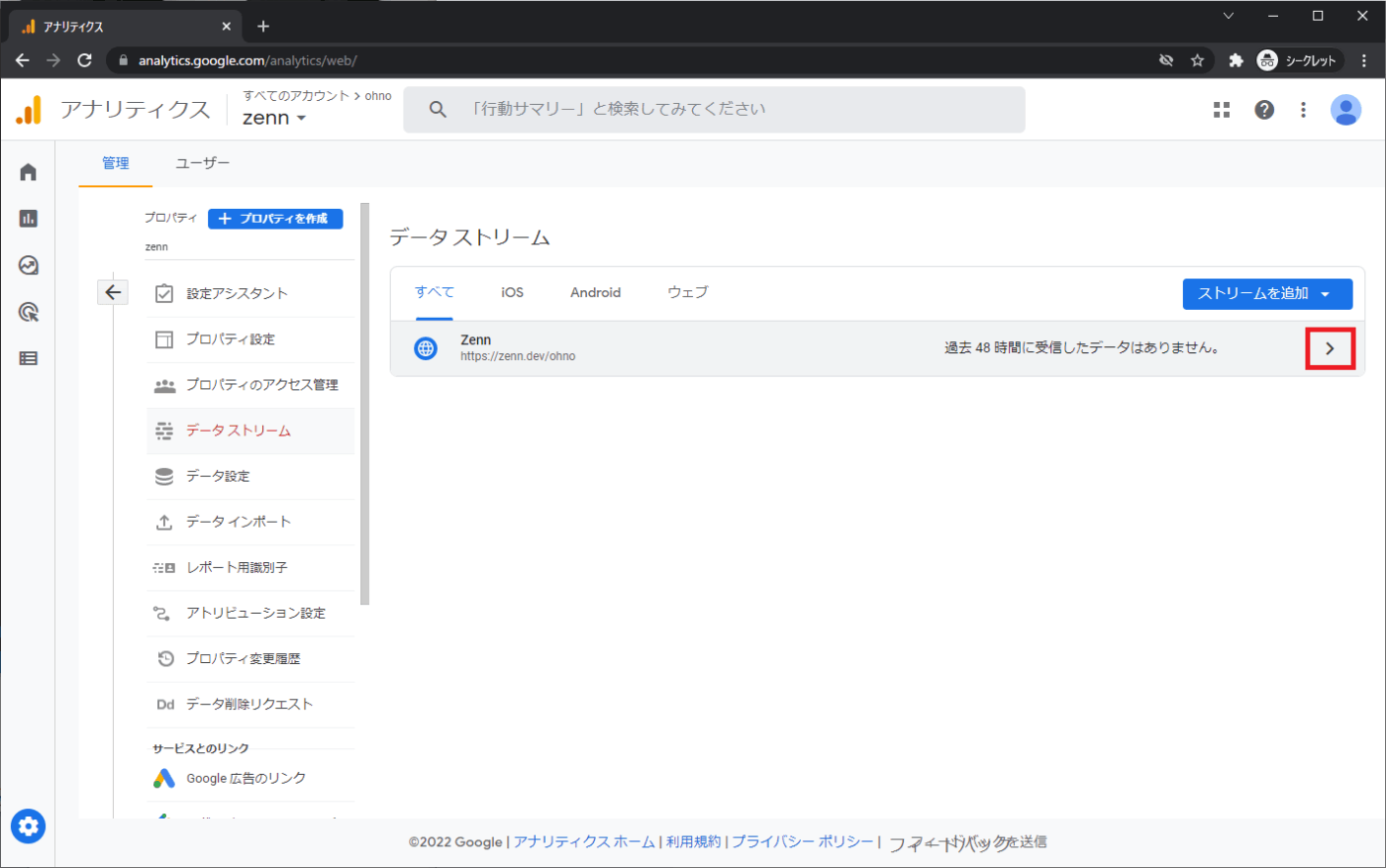
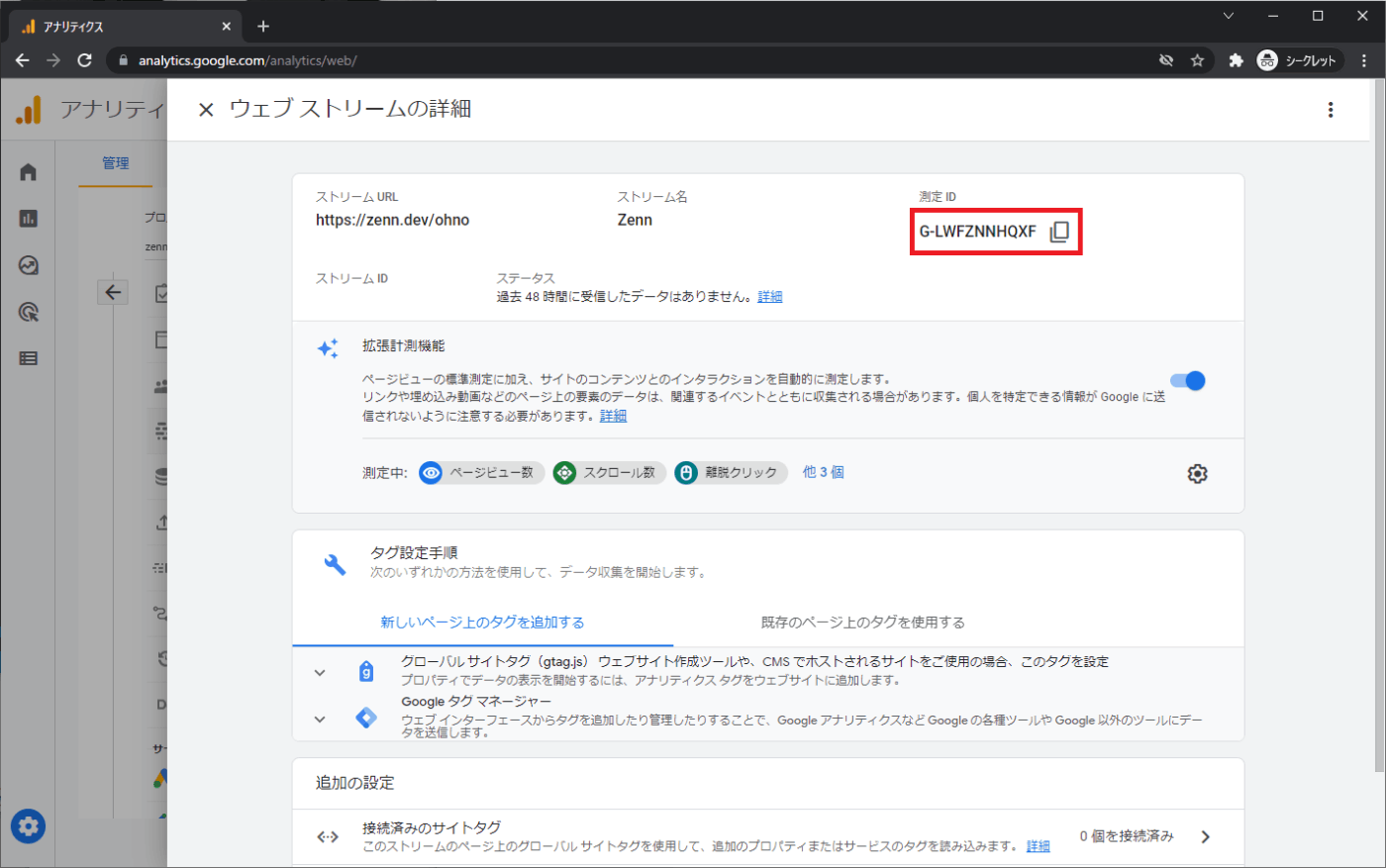
Registration on Zenn
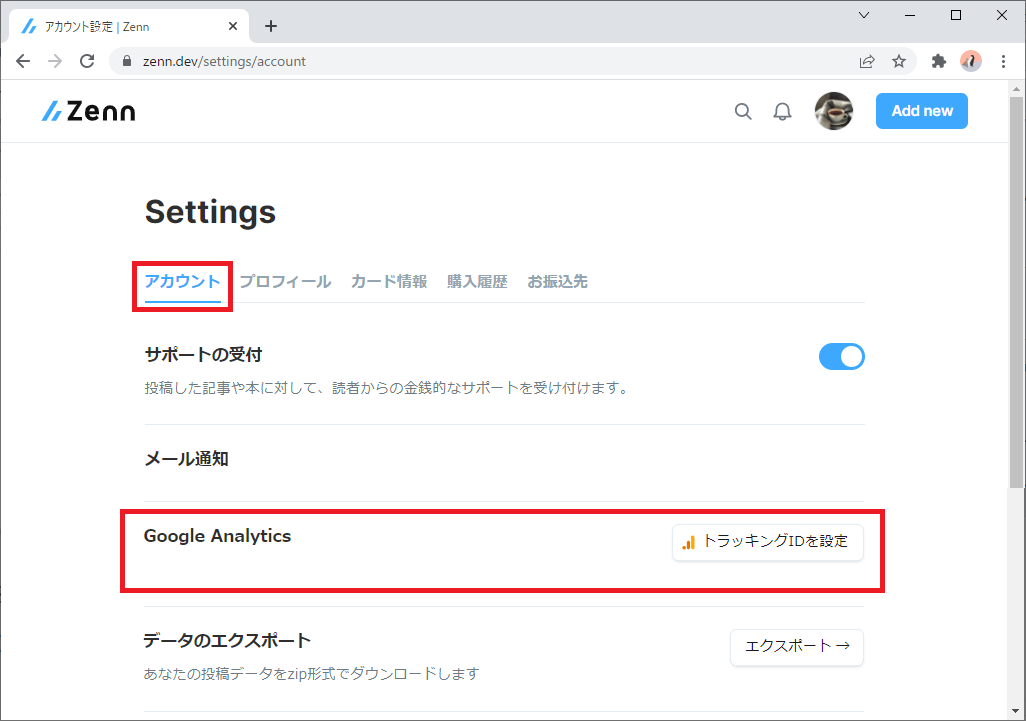
You can register by following these steps: Profile screen > Edit profile > Account > Google Analytics.

Rewriting Scripts
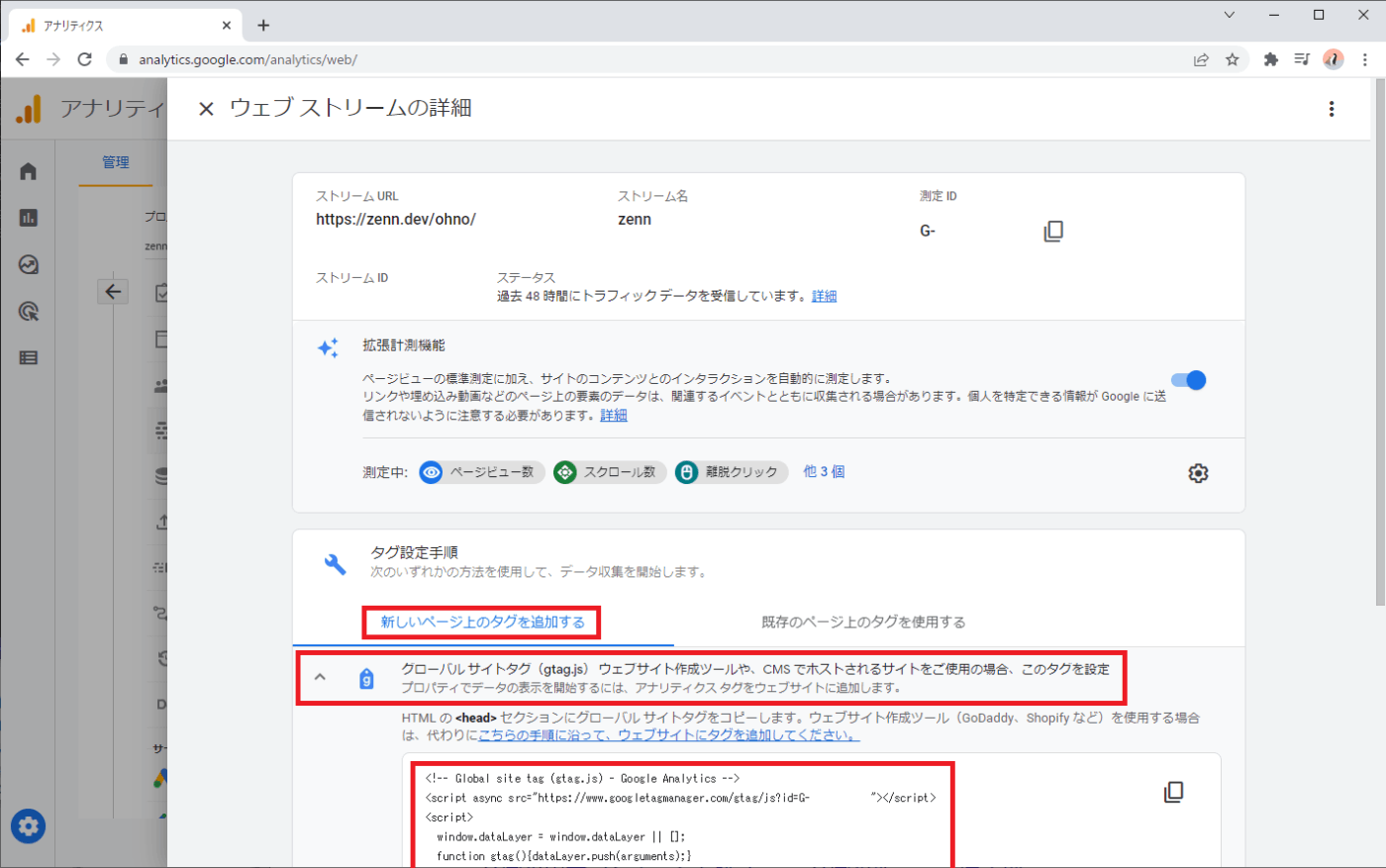
Not only has the Tracking ID changed to a Measurement ID, but the script embedded in the page has also changed. While this isn't necessary for Zenn, if you're embedding it on your own website, there is an explanation in the official documentation, so rewrite it accordingly. Simply embed the script found slightly below the Measurement ID page mentioned earlier.
Using with the WordPress Theme "The Thor"
In the WordPress theme The Thor, you can set it up by copying and pasting the Measurement ID into Dashboard > Appearance > Customize > Basic Settings > Access Analysis Settings > Google Analytics Tracking ID. However, perhaps because I hadn't updated the theme or because it isn't supported yet, it didn't work properly. I tried rewriting the contents of inc/_analyticstracking.php according to the official documentation, and that solved the issue.
<!-- Global site tag (gtag.js) - Google Analytics -->
<script async src="https://www.googletagmanager.com/gtag/js?id=<?php echo get_option('fit_bsAccess_gaid'); ?>"></script>
<script>
  window.dataLayer = window.dataLayer || [];
  function gtag(){dataLayer.push(arguments);}
  gtag('js', new Date());

  gtag('config', '<?php echo get_option('fit_bsAccess_gaid'); ?>');
</script>
Discussion