iTranslated by AI
WSL: Exchanging Files between Windows and Linux


This is also explained in the book mentioned above.
Accessing Linux from Windows
I will explain how to set it up so that you can access the Linux home directory using only Windows Explorer operations.
- On the Linux side, use
cdto return to the home directory. - On the Linux side, run
explorer.exe ..to launch Windows Explorer (subsequent operations are on the Windows side).
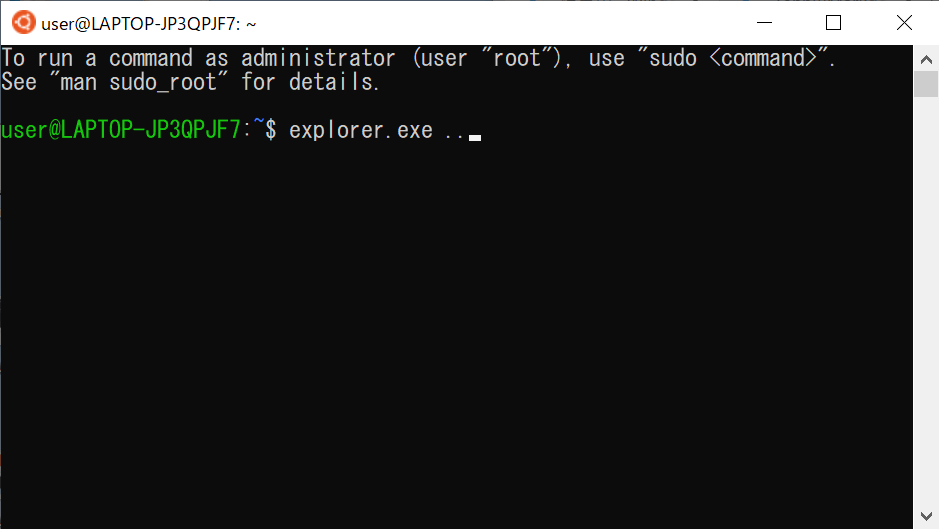
- On the Windows side, right-click the folder with the same name as your Linux username (the Linux home directory) and Pin to Quick access or Create shortcut. You can move the shortcut to any location you like.

Simply drag and drop the files you want to transfer into the shortcut you created. Conversely, if you want to extract files from the Linux home directory or transfer them to Windows, all operations can be handled solely through Explorer.
Accessing Windows from Linux
Operating from the Windows side as described above is sufficient for exchanging files. However, for those who want to use a shell or manipulate files via the Linux command line, the following method is also available. All the following operations are performed on the Linux side.
- Move to the Windows desktop (and verify you can) with
cd /mnt/c/Users/username/Desktop/.

- Run
lsto check if you can access the Windows desktop. - Run
cdto return to the home directory. - Create a symbolic link with
ln -s /mnt/c/Users/username/Desktop/ desktop.

- Run
cd desktopandlsto verify you can access the Windows desktop.
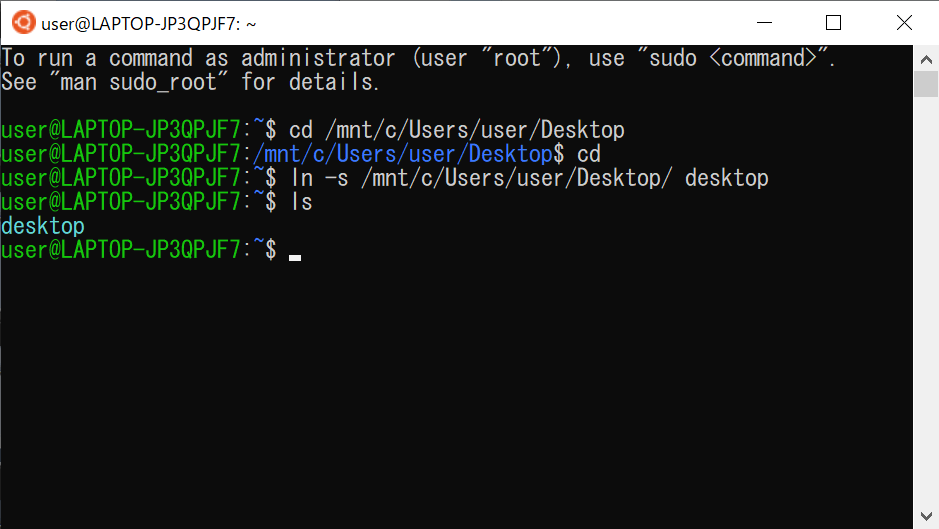
As shown, creating a symbolic link to the Windows desktop in the WSL home directory is very convenient.
Discussion