iTranslated by AI
Adding an RSS Reader to Your Hugo Site Easily with React and TypeScript


Introduction
When I investigated how to develop an RSS reader to integrate into a Hugo website using TypeScript, I discovered that the latest version of Hugo has ESBuild built-in, and it offers very generous support for JavaScript development environments. Although not introduced in this article, it seems that Babel is also available.
Furthermore, since NPM packages can be used, development follows the same workflow as typical web development, making it very easy to work with various libraries.
In this article, I decided to document the process of developing with JavaScript in Hugo, using the development of an RSS reader as an example, while also sharing the insights I gained along the way.
Note: While this article focuses on how to develop with JavaScript in Hugo, if you are specifically interested in how to integrate an RSS reader into your website, I recommend skipping to "Implementing an RSS Reader with Hugo's Data Templates".
Setting up a JavaScript (React + TypeScript) Development Environment in Hugo
First, there is nothing special you need to do for the TypeScript build because you can leave it to ESBuild. Therefore, you only need to install the packages required for React development.
Run the following command in the root directory of your Hugo project to create a package.json, and then install the necessary packages for React development.
npm init -y
npm install --save react react-dom
Once the package installation is complete, let's create a TSX file at assets/js/App.tsx.
import * as React from "react";
import * as ReactDOM from "react-dom";

function App() {
    return (
        <>
        Hello React!
        </>
    );
}

ReactDOM.render(
    <App />,
    document.getElementById("react")
);
As you can see from the code above, the rendering target is set to a DOM node with the id of react. Therefore, you need to prepare the corresponding DOM node on the Hugo side. The HTML template for that would be as follows:
<!-- ... -->

<!-- Specify the resources to be used -->
{{ with resources.Get "js/App.tsx" }}

<!-- Prepare a div element with the id 'react' -->
<div id="react"></div>

<!-- Specify Hugo options for building TSX with ESBuild -->
{{ $options := dict "targetPath" "js/app.js" "minify" true "defines" (dict
"process.env.NODE_ENV" "\"development\"") }}

<!-- Execute the TSX build with the specified Hugo options -->
{{ $js := resources.Get . | js.Build $options }}

<!-- Load the built JS with SRI enabled for security -->
{{ $secureJS := $js | resources.Fingerprint "sha512" }}
<script
  src="{{ $secureJS.Permalink }}"
  integrity="{{ $secureJS.Data.Integrity }}"
></script>

{{ end }}

<!-- ... -->
Add the above HTML description to the page where you want to embed the RSS reader.
When you access the corresponding page in this state, you should see something like this:
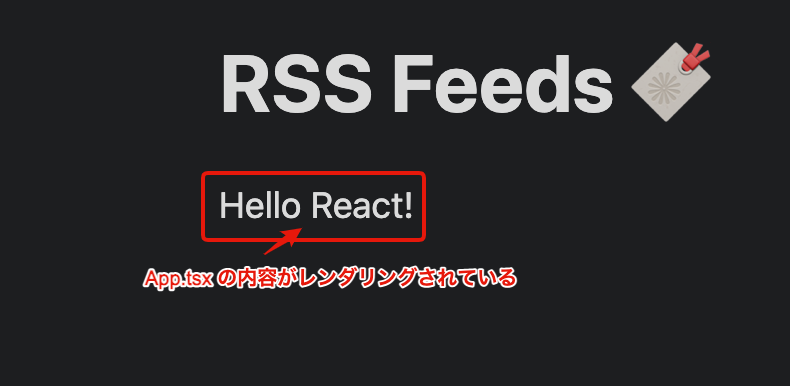
The content defined in App.tsx is displayed on the screen
With this, the React + TypeScript development environment is set up.
Implementing an RSS Reader
All that's left is to proceed with the development of the RSS reader following the typical web frontend development workflow.
Preparing the RSS Feeds to Load on the Website
As a preliminary step, create a batch process to pre-download the RSS feeds you want to load on your website. We will create this batch using NPM. Since we've introduced NPM, we'll quickly create the simple batch for use with Hugo using JavaScript.
First, install a few packages required for script creation.
# Install a package to convert HTML to text and an RSS feed parser
npm i -D --save html-to-text rss-parser
The actual code is as follows. The file extension is .mjs because I want to use Top-Level Await.
import { writeFileSync } from 'fs';

import pkg from 'html-to-text';
const { htmlToText } = pkg;

import Parser from 'rss-parser';
const parser = new Parser();

// Set the RSS feed information you want to load on your own blog
const rssFeed = {
    Zenn: {
        rss_url: 'https://zenn.dev/nikaera/feed',
        profile_url: 'https://zenn.dev/nikaera',
    },
    Qiita: {
        rss_url: 'https://qiita.com/nikaera/feed.atom',
        profile_url: 'https://qiita.com/nikaera',
    }
}

try {
    const jsonFeed = {}

    // Function to cut the description in the RSS feed to 73 characters and append ... at the end
    const spliceContent = (content) => `${htmlToText(content).slice(0, 73)}...`

    // Iterate through the information defined in the rssFeed variable
    for (const [site, info] of Object.entries(rssFeed)) {

        // Get necessary information from the RSS feed URL
        const feed = await parser.parseURL(info.rss_url);

        // Extract only the necessary information from the items registered in the RSS feed
        const items = feed.items.map((i) => {
            return {
                title: i.title,
                content: spliceContent(i.content),
                url: i.link,
                date: i.pubDate
            }
        })

        // Store the retrieved content in jsonFeed
        const { rss_url, profile_url } = info
        jsonFeed[site] = { rss_url, profile_url, items };
    }

    // Finally, output the content stored in jsonFeed as a JSON string to static/rss.json
    writeFileSync('./static/rss.json', JSON.stringify(jsonFeed));
} catch(err) {
    console.error(err);
}
Next, register it in scripts in package.json to make it executable as a command.
{
    "scripts": {
        "update-rss": "node ./scripts/update-rss.mjs"
    }
}
Now, by running npm run update-rss, you can output the RSS feed content to static/rss.json as a JSON file to be used for display on your blog. Also, since the JSON file is output to the static folder, it can be accessed at http://localhost:1313/rss.json.
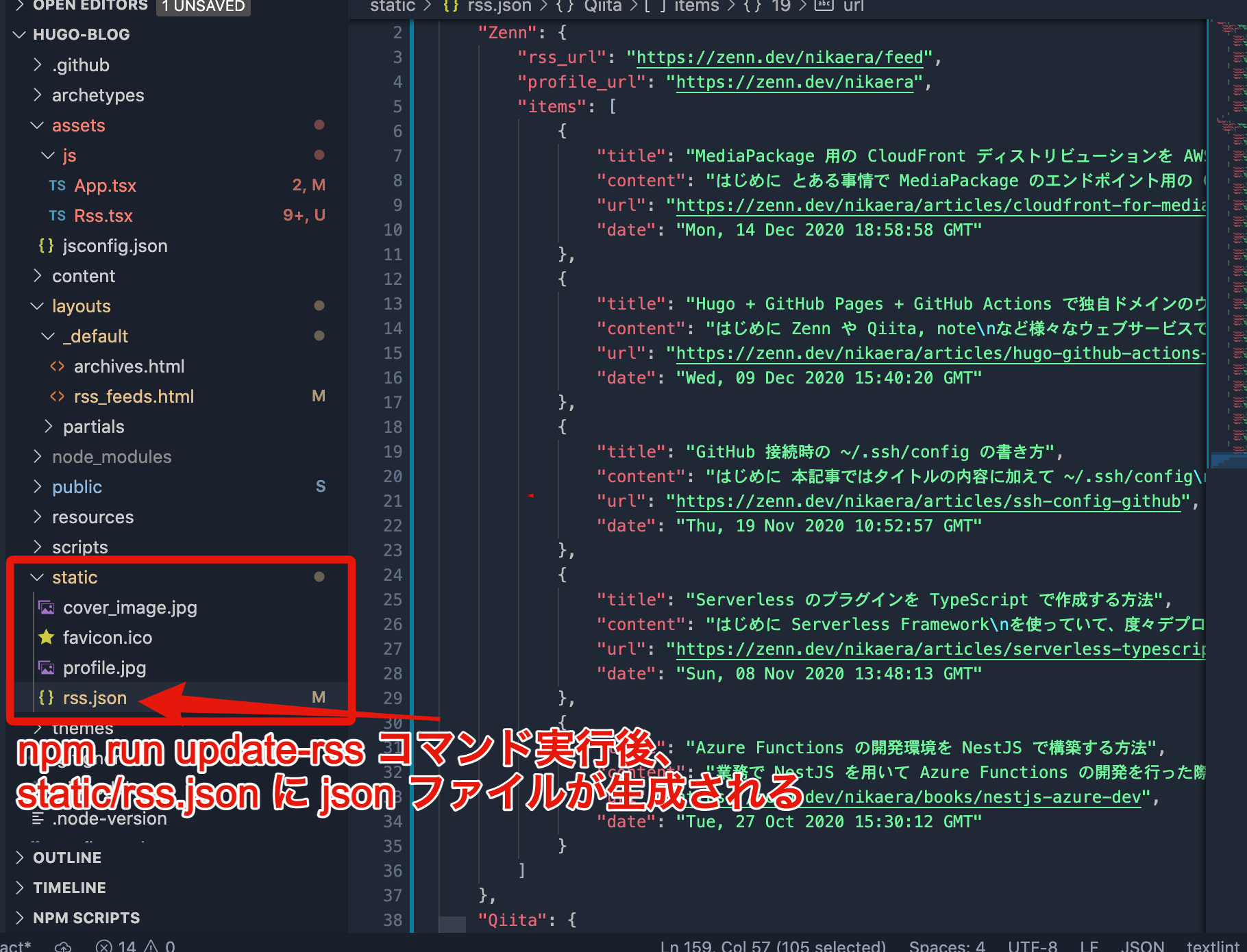
rss.json output by running npm run update-rss
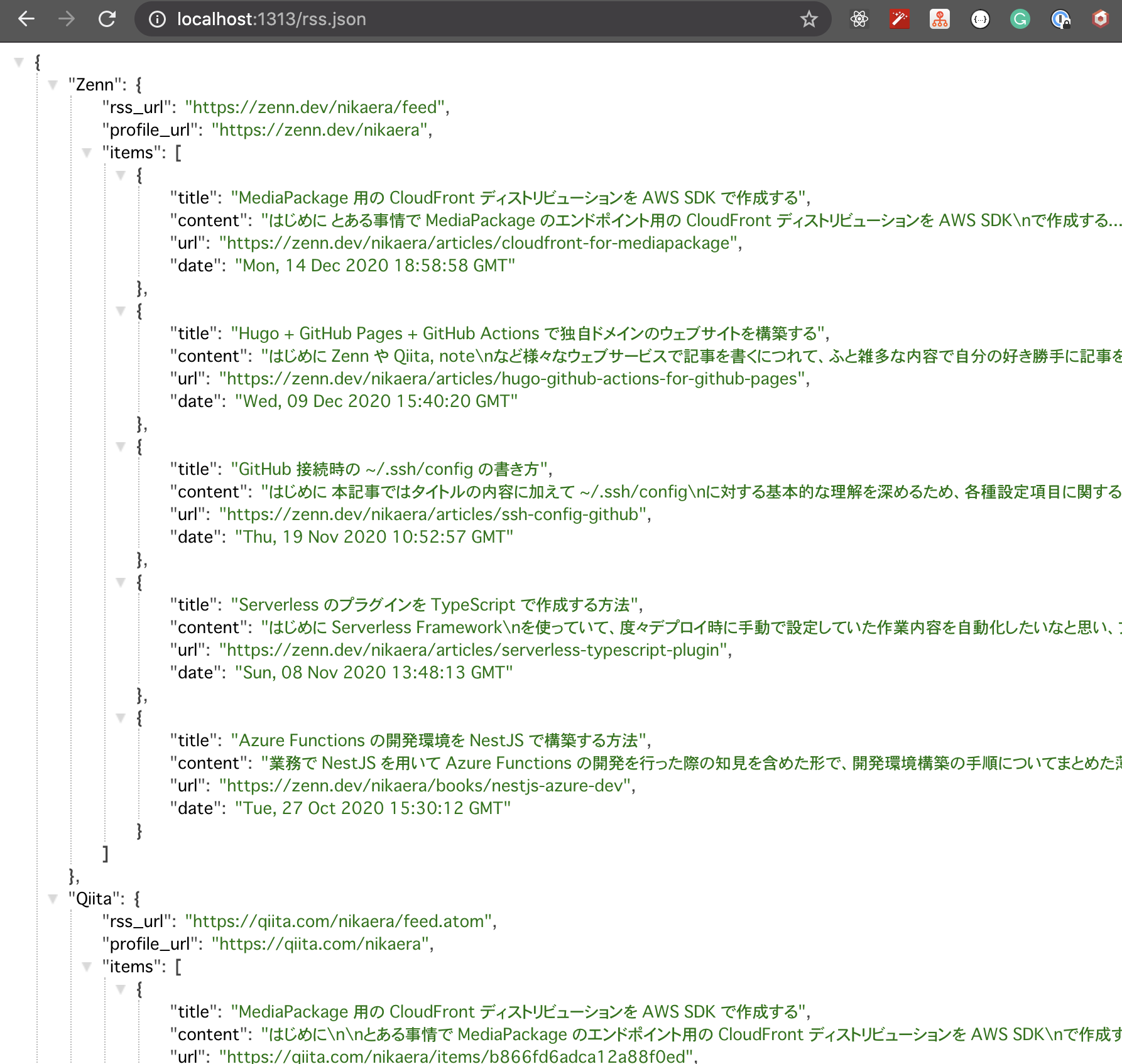
Confirming that the output rss.json is accessible by visiting http://localhost:1313/rss.json
Implementing the RSS Reader with React + TypeScript
Now that the preparations are complete, let's get started on creating the RSS reader.
Below is the code for an RSS reader intended to be embedded in a page using the archives template from hugo-PaperMod, one of the Hugo themes.
import React, { useMemo, useState } from 'react'
import * as superagent from 'superagent';
const Rss = (props) => {
const [feed, setFeed] = useState({});
const { name } = props;
useMemo(() => {
(async () => {
try {
const res = await superagent.get('/rss.json');
setFeed(res.body[name]);
} catch (err) {
console.error(err);
}
})()
}, [name]);
if (!("items" in feed)) return null
return (
<div className="archive-month">
<h3 className="archive-month-header">
<a href={feed.profile_url} target="_blank" rel="noopener noreferrer">{name}</a> - <a href={feed.rss_url} target="_blank" rel="noopener noreferrer">RSS</a>
</h3>
<div className="archive-posts">
{feed.items.map((item) => {
return <div className="archive-entry" key={item.url}>
<h3 className="archive-entry-title">{item.title}</h3>
<div className="archive-meta">{item.date} - {item.content}</div>
<a className="entry-link" href={item.url} target="_blank" rel="noopener noreferrer"> </a>
</div>
})}
</div>
</div>
)
}
export default Rss
Next, modify assets/js/App.tsx to import assets/js/Rss.tsx and display it on the screen.
import Rss from './Rss';

import * as React from "react";
import * as ReactDOM from "react-dom";

function App() {
    return (
        <>
            <div class="archive-year">
                <h2 class="archive-year-header">
                    Tech 🦾
                </h2>
                <Rss name="Zenn" />
                <Rss name="Qiita" />
            </div>
        </>
    );
}

ReactDOM.render(
    <App />,
    document.getElementById("react")
);
Now, when you view the page where the RSS reader is embedded, you should see a screen like this:
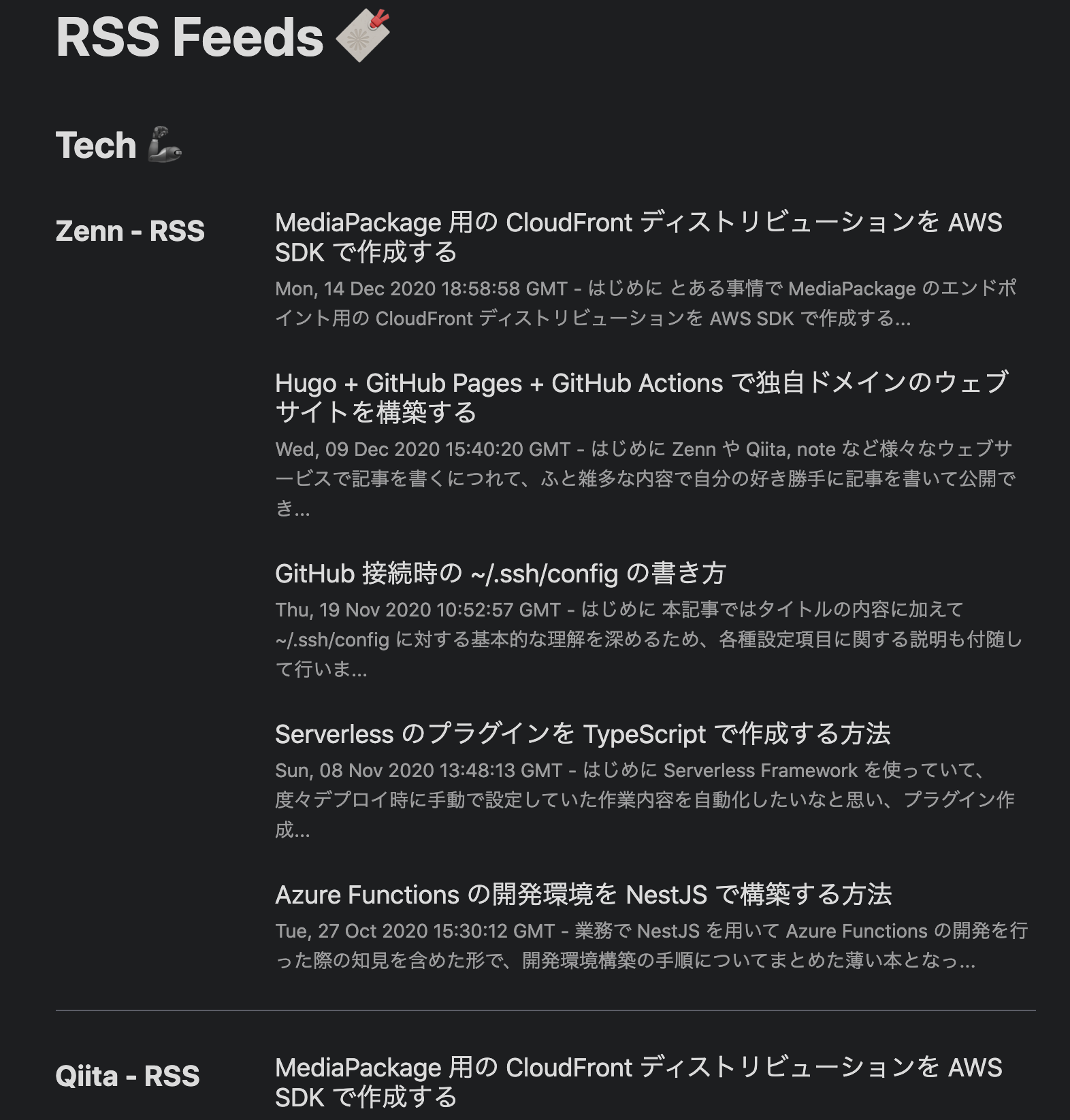
Screen showing the RSS reader using the archives template in hugo-PaperMod
If you want to add other RSS feeds, you can do so by adding the information to the rssFeed variable in scripts/update-rss.mjs and defining <Rss name="<RSS Feed name defined in the rssFeed variable>" /> in App.tsx.
Automatically Updating RSS Feed Content
While you can reflect the latest RSS feed content on your page by running npm run update-rss locally to update and publish static/rss.json, it is a tedious task to do manually every time.
Therefore, we will automate the update of static/rss.json using the schedule feature of GitHub Actions.
Creating the GitHub Actions Workflow File
The actual workflow file is as follows. The content set in the schedule field is the execution schedule for the workflow. In this case, I set it to run every 12 hours.
name: update rss json file

on:
  push:
    branches:
      - main  # Set a branch name to trigger deployment
  schedule:
    - cron: '0 */12 * * *' # Set to update once every half day

jobs:
  build:
    runs-on: ubuntu-18.04
    steps:
      - uses: actions/checkout@v2
        with:
          ref: main
          submodules: true  # Fetch Hugo themes (true OR recursive)
          fetch-depth: 0    # Fetch all history for .GitInfo and .Lastmod

      - name: Use Node.js 14.10.1
        uses: actions/setup-node@v1
        with:
          node-version: 14.10.1

      - name: Install dependencies
        run: npm install

      - name: Update RSS Feeds
        run: npm run update-rss

      - name: Commit files
        run: |
          git config --local user.email "action@github.com"
          git config --local user.name "GitHub Action"
          git add static/rss.json
          STATUS=$(git status -s)
          if [ -n "$STATUS" ]; then
            git commit -m "Update rss.json `date +'%Y-%m-%d %H:%M:%S'`" -a
            git push origin main
          fi
After adding the above workflow file to the project and pushing it to the remote repository, wait for the workflow to be triggered.
Once the workflow successfully completes, a commit like the one below should have been added.
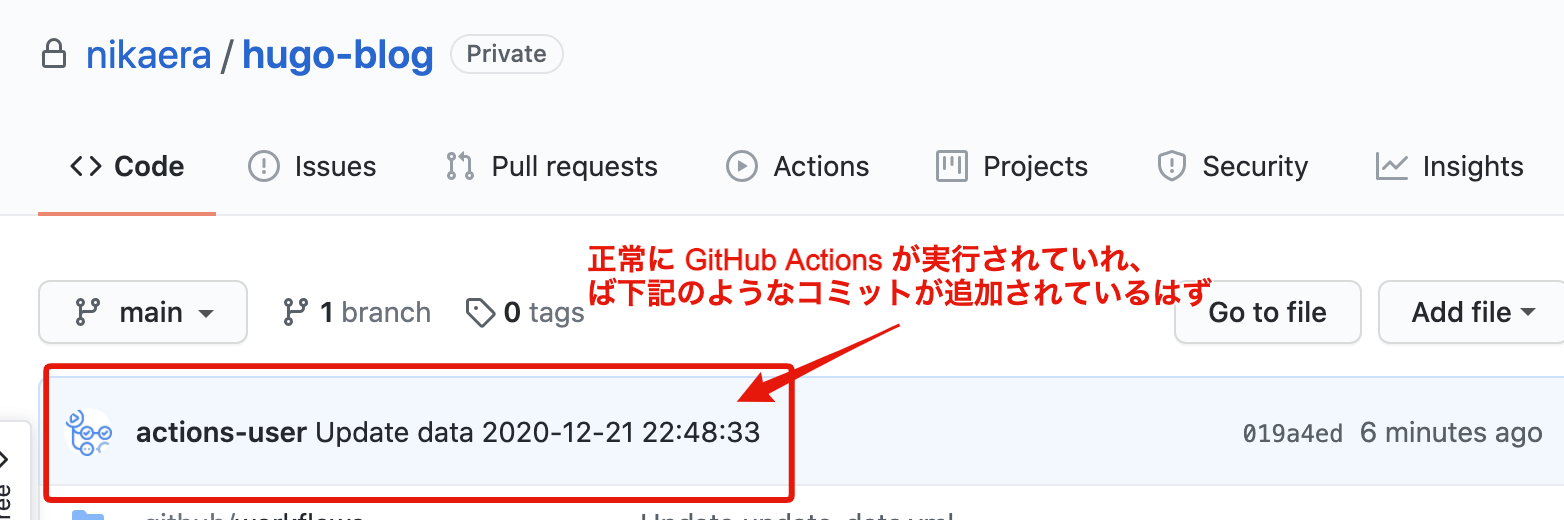
GitHub Actions updating the JSON file and committing

Confirming in the commit details that the JSON file was successfully updated
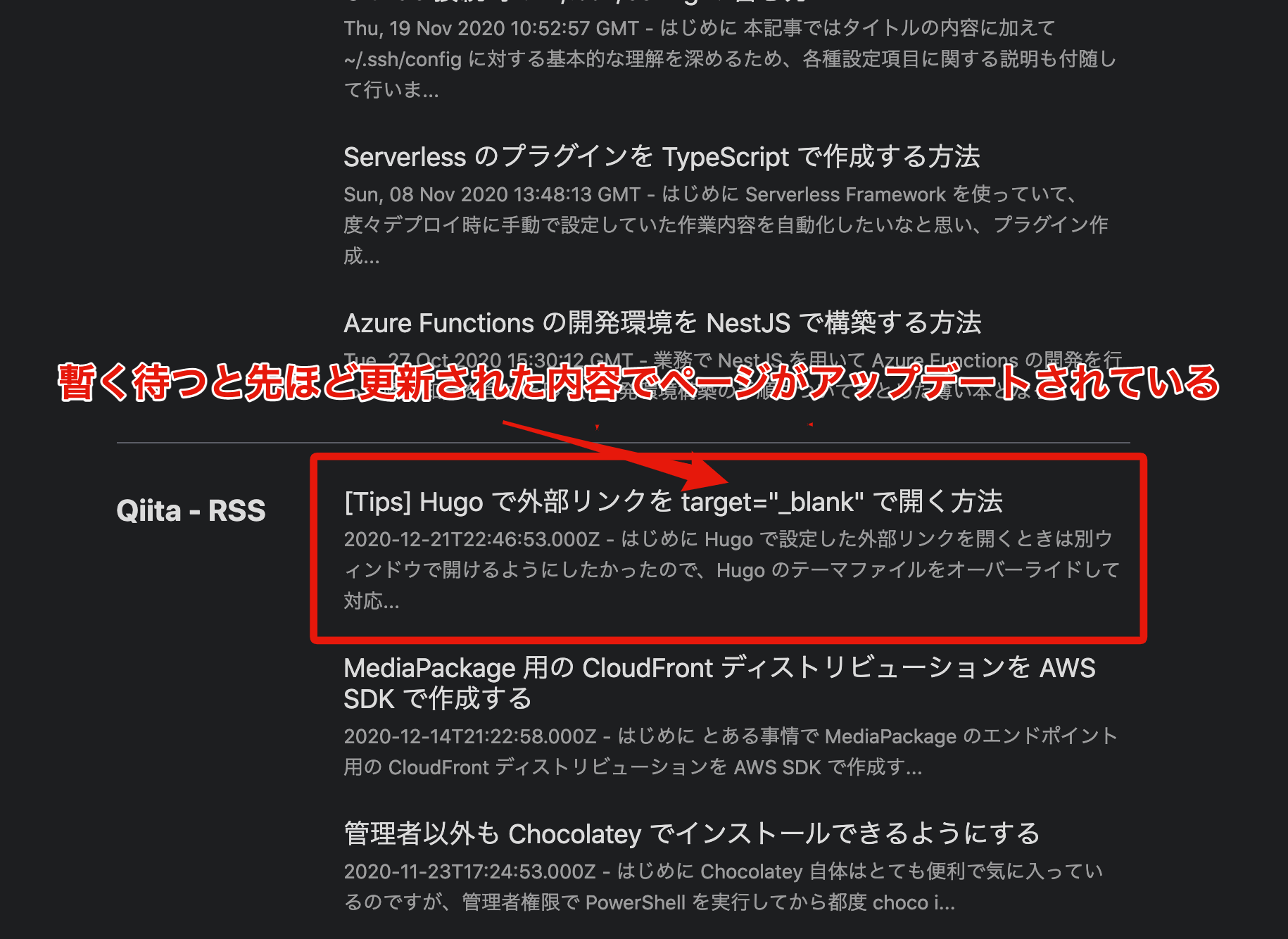
Confirming that the page is updated after building and deploying Hugo following the commit
Now, whenever you write an article on Zenn, Qiita, or elsewhere, you no longer need to manually update static/rss.json to reflect the latest content on your page.
(Side Note) Implementing an RSS Reader with Hugo's Data Templates
Incidentally, Hugo has a mechanism called Data Templates, and I later learned that by using this, you can actually implement an RSS reader within HTML templates without needing JavaScript.
Finally, I will describe how to implement an RSS reader using Data Templates.
First, rewrite the contents of scripts/update-rss.mjs.
import { writeFileSync } from 'fs';

import pkg from 'html-to-text';
const { htmlToText } = pkg;

import Parser from 'rss-parser';
const parser = new Parser();

const rssFeed = {
    Zenn: {
        rss_url: 'https://zenn.dev/nikaera/feed',
        profile_url: 'https://zenn.dev/nikaera'
    },
    Qiita: {
        rss_url: 'https://qiita.com/nikaera/feed.atom',
        profile_url: 'https://qiita.com/nikaera'
    }
}

try {
    const jsonFeed = {}

    const spliceContent = (content) => `${htmlToText(content).slice(0, 73)}...`
    for (const [site, info] of Object.entries(rssFeed)) {
        const feed = await parser.parseURL(info.rss_url);
        const items = feed.items.map((i) => {
            console.log(i);
            return {
                title: i.title,
                content: spliceContent(i.content),
                url: i.link,
                date: i.pubDate
            }
        })
        const { rss_url, profile_url } = info
        jsonFeed[site] = { rss_url, profile_url, items };

        /*
        The final JSON file destination will be the data folder, output per RSS feed
        Example: ./data/Qiita.json, ./data/Zenn.json, etc.
        */
        writeFileSync(`./data/${site}.json`, JSON.stringify(jsonFeed[site]));
    }
} catch(err) {
    console.error(err);
}
Running the above will output files to data/Qiita.json and data/Zenn.json.
When using Hugo's Data Templates, files in json, yaml, or toml format placed within the data folder can be read by Go's HTML templates.
For example, if you want to load a JSON file placed at data/Qiita.json, you can do so in a Go template with a description like $Qiita := $.Site.Data.Qiita.
Next, rewrite the page where you were embedding the RSS reader as follows:
<!-- ... -->

<!-- Remove all React-related descriptions -->
<!--
{{ with resources.Get "js/App.tsx" }}
<div id="react"></div>
{{ $options := dict "targetPath" "js/app.js" "minify" true "defines" (dict "process.env.NODE_ENV" "\"development\"") }}
{{ $js := resources.Get . | js.Build $options }}
{{ $secureJS := $js | resources.Fingerprint "sha512" }}
<script src="{{ $secureJS.Permalink }}" integrity="{{ $secureJS.Data.Integrity }}"></script>
{{ end }}
-->

<div class="archive-year">
  <h2 class="archive-year-header">Tech 🦾</h2>
  <div class="archive-month">
    <!-- Load contents of data/Zenn.json -->
    {{ $Zenn := $.Site.Data.Zenn }}
    <h3 class="archive-month-header">
      <a
        href="{{ $Zenn.profile_url }}"
        target="_blank"
        rel="noopener noreferrer"
        >Zenn</a
      >
      -
      <a href="{{ $Zenn.rss_url }}" target="_blank" rel="noopener noreferrer"
        >RSS</a
      >
    </h3>
    <div class="archive-posts">
      <!-- Iterate through the article information stored in the array -->
      {{- range $Zenn.items }}
      <div class="archive-entry" key="{{ .url }}">
        <h3 class="archive-entry-title">{{ .title }}</h3>
        <div class="archive-meta">{{ .date }} - {{ .content }}</div>
        <a
          class="entry-link"
          aria-label="{{ .content }}"
          href="{{ .url }}"
          target=" _blank"
          rel="noopener noreferrer"
        ></a>
      </div>
      {{- end }}
    </div>
  </div>
  <div class="archive-month">
    <!-- Load contents of data/Qiita.json -->
    {{ $Qiita := $.Site.Data.Qiita }}
    <h3 class="archive-month-header">
      <a
        href="{{ $Qiita.profile_url }}"
        target="_blank"
        rel="noopener noreferrer"
        >Qiita</a
      >
      -
      <a href="{{ $Qiita.rss_url }}" target="_blank" rel="noopener noreferrer"
        >RSS</a
      >
    </h3>
    <div class="archive-posts">
      <!-- Iterate through the article information stored in the array -->
      {{- range $Qiita.items }}
      <div class="archive-entry" key="{{ .url }}">
        <h3 class="archive-entry-title">{{ .title }}</h3>
        <div class="archive-meta">{{ .date }} - {{ .content }}</div>
        <a
          class="entry-link"
          aria-label="{{ .content }}"
          href="{{ .url }}"
          target=" _blank"
          rel="noopener noreferrer"
        ></a>
      </div>
      {{- end }}
    </div>
  </div>
</div>

<!-- ... -->
Also, if you were updating the RSS feed information using a GitHub Actions workflow, you will need to update the .github/workflows/update-rss.yml file as well.
name: update rss json file

on:
  push:
    branches:
      - main  # Set a branch name to trigger deployment
  schedule:
    - cron: '0 */12 * * *'

jobs:
  build:
    runs-on: ubuntu-18.04
    steps:
      - uses: actions/checkout@v2
        with:
          ref: main
          submodules: true  # Fetch Hugo themes (true OR recursive)
          fetch-depth: 0    # Fetch all history for .GitInfo and .Lastmod

      - name: Use Node.js 14.10.1
        uses: actions/setup-node@v1
        with:
          node-version: 14.10.1

      - name: Install dependencies
        run: npm install

      - name: Update RSS Feeds
        run: npm run update-rss

        # Change the content added by Git to the data folder
        # git add static/rss.json -> git add data/
      - name: Commit files
        run: |
          git config --local user.email "action@github.com"
          git config --local user.name "GitHub Action"
          git add data/
          STATUS=$(git status -s)
          if [ -n "$STATUS" ]; then
            git commit -m "Update data folder `date +'%Y-%m-%d %H:%M:%S'`" -a
            git push origin main
          fi
With this, you have migrated from an RSS reader created with JavaScript to one created using Hugo's Data Templates.
Conclusion
I discovered that developing with React + TypeScript in Hugo seemed easy, which got me excited, and I went ahead and created an RSS reader for my own blog in that spirit.
However, I later realized that using Hugo's Data Templates is the best approach for implementing an RSS reader as described in this article. Still, I consider it a win because I gained a better understanding of development techniques using JavaScript in Hugo.
Now that I know the JavaScript development environment in Hugo is quite comprehensive, I'll feel free to create more ideas and incorporate them into my blog. Currently, I'm thinking about making something interesting with WebGL/WebVR.
Reference Links
- esbuild - An extremely fast JavaScript bundler
- Data Templates | Hugo
- Functions Quick Reference | Hugo
- JavaScript Building | Hugo
- Introducing Hooks – React
- rbren/rss-parser: A lightweight RSS parser, for Node and the browser
- html-to-text/node-html-to-text: Advanced html to text converter
-
If my understanding is incorrect, please let me know in the comments. ↩︎
Discussion