iTranslated by AI
Building VSCode Extensions with deno.land/x/vscode


This is an article for Day 10 of the Deno Advent Calendar 2023.
Deno is really convenient, isn't it? You can run TypeScript without complex configurations, and as mentioned in the Day 1 article, you can even run the Zenn CLI with Deno. (When I tried it just now, it worked on macOS, but for some reason, a type error occurs on Windows 😢)
I love how you can import TypeScript from URLs starting with https://. It's also easy to benchmark different versions of the same package by importing them separately.
By the way, have you ever created a VSCode extension? In this article, I will explain how to create and publish a VSCode extension using Deno instead of Node.js.
What are VSCode Extensions?
Visual Studio Code (VSCode for short) is an open-source text editor developed by Microsoft. VSCode extensions are what allow you to extend almost every feature of this editor. Official Documentation
For example, the Git Graph extension displays Git branches in a graph, and Code Spell Checker detects spelling errors. There is even an image editor called Luna Paint — Image Editor. Thanks to the Deno extension, we get various autocompletions when writing Deno code.
Just because it is a "VSCode extension" doesn't mean it only works in VSCode.
- VSCodium, which is VSCode without Microsoft's tracking code.
- GitPod, an online IDE.
- Cursor, a recently popular editor designed around AI.
Extensions can be run in these environments.
Also, if it follows the Web Extensions specification, it can run on the web version of VSCode at https://vscode.dev/. You can even run it on https://github.dev/, which opens when you press the . key in a GitHub repository.
↓ Running the Python extension, which has some features compatible with Web Extensions, on vscode.dev.

GitHub Codespaces is a similar service, but since it starts a container on GitHub's servers, it can run extensions even if they aren't Web Extensions. However, it costs money after a certain amount of use.
Structure of a VSCode Extension
Ultimately, extensions are uploaded to the registry in a file format called VSIX, which is like a zip file containing multiple files and folders. You just need to output the following file structure:
-
package.json
Contains the extension name, author, license, list of commands provided by the extension, feature list, path to the main code, etc.
-
README.md
Description of the extension. This is displayed on the extension's page.
-
CHANGELOG.md
Change history. Displayed on the extension's page (you can publish without this).
-
Main code
The file name is the path specified in package.json. It must be written in JavaScript. If you don't need Web Extension support, you can also require Node.js standard modules. -
Icon image
The file name is the path specified in package.json. Displayed on the extension's page.
In other words, you don't necessarily need Node.js for development.
Sample Extension
To illustrate this, I created an extension that adds a custom editor that stretches the Deno dinosaur based on the file size.
Doesn't look like the Deno dinosaur...? I didn't have enough time to polish it that much 😢
I used the Custom Editor API to create the custom editor.
How to Develop VSCode Extensions
The official documentation suggests installing yo or generator-code, but they are unnecessary if you prepare the files and build scripts yourself.
First, describe the extension's name, developer name, license, and the features it provides in the package.json file that is loaded first. Type definitions aren't provided (and I haven't made them yet), so let's write it while referring to the documentation.
You describe the features provided by the extension in contributes. When a feature described here is needed, the activate function in the JavaScript file specified in browser (or main for features not supporting Web Extensions) is called.
Since there are TypeScript syntax and imports, I'm calling deno.land/x/esbuild and deno.land/x/esbuild_deno_loader within the build script to convert it into JavaScript for VSCode extensions. Although not strictly necessary for this sample extension since its features are completed with just SSR, I also build scripts that run within the WebView using esbuild.
Why deno.land/x/vscode is Necessary
Confusingly, the VSCode API is imported using require("vscode"), even though it's not a Node.js environment.
For example, by writing this, you can display a message in the notification area at the bottom right.
require("vscode").window.showInformationMessage("Hello World!");
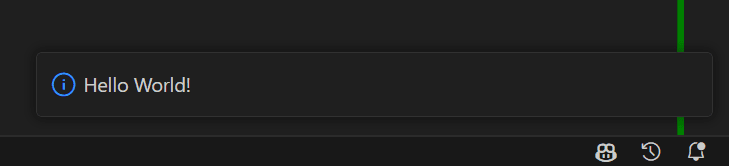
While the type definitions for this VSCode API are published on npm as @types/vscode, the vscode npm package itself is deprecated and useless! Therefore, it cannot be imported and used directly in Deno.
So, I created deno.land/x/vscode, which is adjusted for use in Deno. I update it manually every time the VSCode version is bumped. I updated it today too.
When I say "manually," I mean I use Rust's SWC to parse and generate TypeScript code from the type definition files published on GitHub—tasks like splitting classes into types and values. It wasn't possible to fully automate, so I've made some manual corrections.
Here are my notes on how to use SWC:
Interestingly, SWC can not only parse TypeScript code but also generate it. I found and reported a bug, perhaps because it's not widely used for generation. It was fixed immediately. It's a very active project—no wonder it's used inside Deno.
How to Register a Custom Editor
You can register a custom editor by passing the CustomEditorProvider—which includes settings for how to handle opening and saving the custom editor—to vscode.window.registerCustomEditorProvider inside the activate function.
Scripts inside the WebView
While scripts inside a WebView cannot call the full VSCode API directly, the API for sending messages is simply attached to the window object. Therefore, you can use the type definitions just by type-importing the npm package vscode-webview.
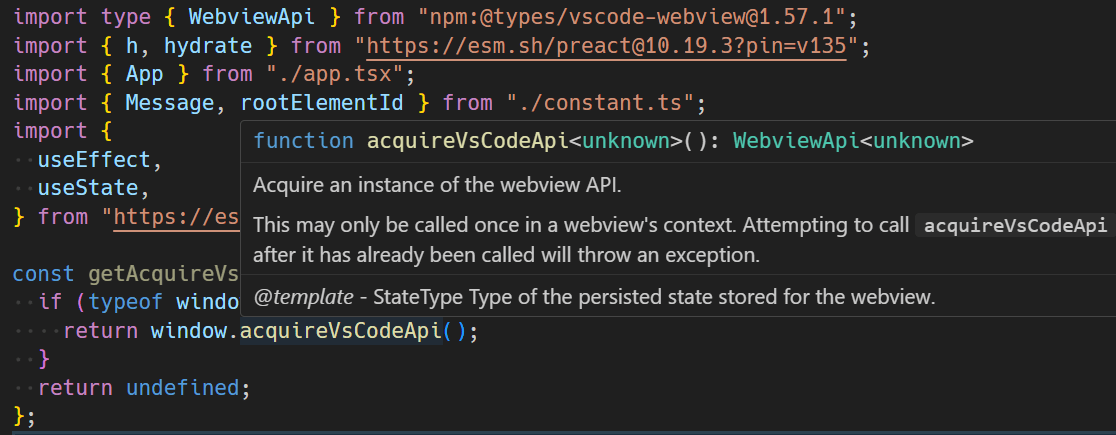
You can receive messages using addEventListener("message", (e) => { ... }).
How to Debug
Since the settings are described in https://github.com/narumincho/vscode-file-size-counter/blob/main/.vscode/launch.json, you can debug using VSCode's "Run and Debug" feature. It is the play icon in the left menu.
Creating a VSIX File for Distribution
After moving the current directory to the location of the created files, it would have been great if the VSIX file could be created using the following command, but it did not work on Windows due to a type error...
deno run -A npm:@vscode/vsce package
Until Deno's Node.js compatibility improves, we'll have to settle for running it with Node.js 🥺
npm install -g @vscode/vsce
vsce package
How to Publish VSCode Extensions
While you can have users install the extension via the "Install from VSIX..." menu in VSCode, uploading it to a registry makes it searchable and simplifies the distribution of updates.
- For VSCode, vscode.dev, and GitHub Codespaces: VSCode on Visual Studio Marketplace
- For VSCodium and GitPod: Open VSX Registry
There are actually two major registries. Occasionally, some extensions are only published on the Visual Studio Marketplace, making them unavailable for VSCodium or GitPod. The Deno extension is published to both—very thorough!
- For Visual Studio Marketplace: https://marketplace.visualstudio.com/items?itemName=denoland.vscode-deno
- For Open VSX Registry: https://open-vsx.org/extension/denoland/vscode-deno
Please refer to the documentation for publishing methods:
After creating a namespace in the Open VSX Registry, you need to create an issue in the specified repository claiming ownership of that name to get a verification mark.
Here is the ownership claim issue I created for "narumincho":
Summary
Implementing a VSCode extension is relatively straightforward using esbuild and the deno.land/x/vscode package I created.
While it's unfortunate that VSIX files cannot currently be created with Deno, I think it's still easier than dealing with TypeScript configurations in Node.js. I highly recommend trying out Deno when developing your next VSCode extension.
Addendum
Referring to https://qiita.com/access3151fq/items/b0599c02eced0d6bd0c9, I was also able to build using https://deno.land/x/emit instead of esbuild.
This might be better since it uses SWC, just like Deno does.
Discussion