iTranslated by AI
Making Neovim Speak



Introduction
I'm not good at English at all.
I'm so bad at it that I just recently wrote an article called "I decided to translate in Neovim".
Now that I'm finally able to translate within Neovim, I thought, why not learn the pronunciation at the same time?
So, I decided to make Neovim talk.
say command
I wondered if there was even a way to make the terminal speak, and upon looking into it, it seems there's a command called say.
It's included by default on macOS. On Ubuntu, you can install it with sudo apt-get install gnustep-gui-runtime.
It speaks with the following command. Amazing!
say -v [Preferred Voice] "Words you want to speak"
I'll start by selecting a voice.
Go to System Settings > search for "Spoken Content" > System Voice > Manage Voices (or the "i" icon after the update) and pick your favorite.
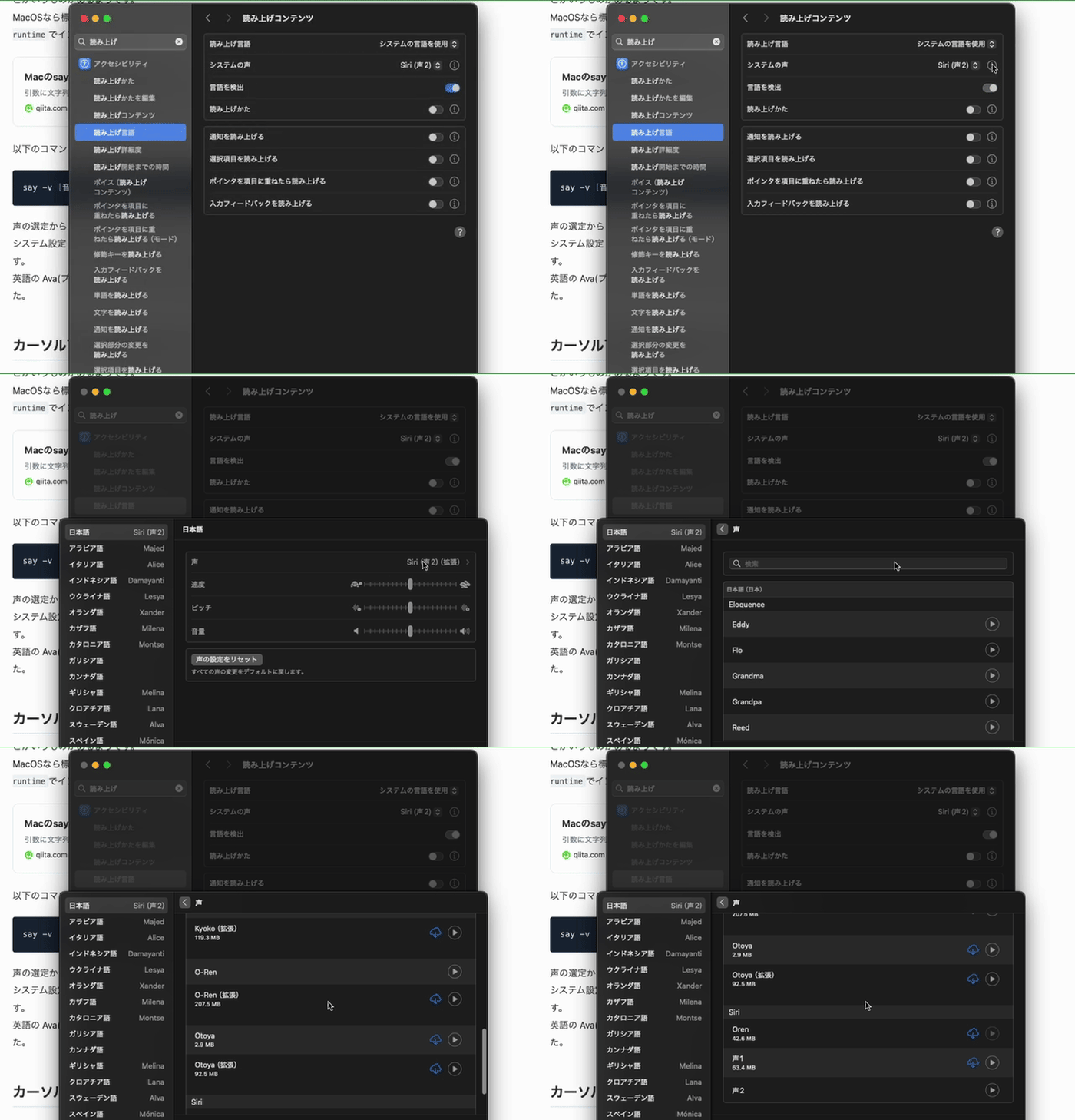
The English voice "Ava (Premium)" sounds quite natural and nice, so I decided to use that.
Speaking the word under the cursor
Let's try using the say command in Neovim right away.
By setting it up as follows, <leader>say will speak the word under the cursor.
The characters under the cursor can be retrieved using <cword>.
-- say command
keymap("n", "<leader>say", function()
  local current_word = vim.fn.expand("<cword>")
  vim.api.nvim_feedkeys(":!say -v Ava " .. current_word .. "\n", "n", false)
end, { desc = "say command" })
This is handy when you want to quickly check the pronunciation!
The usage of <cword> in this article is also recommended.
Side note: Examples of utilizing `<cword>` to make life a bit better
- Open the URL or file under the cursor
keymap("n", "gh", function()
  local cfile = vim.fn.expand("<cfile>")
  if cfile:match("^https?://") then
    os.execute("open '" .. cfile .. "'") -- for macOS
  else
    vim.cmd("normal! gF!")
  end
end, { desc = "link open" })
- Open the GitHub repository under the cursor
When installing plugins using lazy.nvim, you might write code like this:
return {
  -- Plugin name
  "vim-jp/vimdoc-ja",
}
By setting it up as follows, you can open the plugin's GitHub repository by placing the cursor on the plugin name and pressing <leader>gR.
keymap("n", "<leader>gR", function()
  local github_repogitory_name = vim.fn.expand("<cfile>")
  if github_repogitory_name:match(".+/[^/]+") then
    os.execute("open 'https://github.com/" .. github_repogitory_name .. "'") -- for macOS
  else
    vim.cmd("normal!, gF!")
  end
end, { desc = "GitHub repository" })
Translating and reading the original English text aloud
By setting it up as follows, you can have the original English text read aloud while translating the selected range.
      {
        "<leader>tj",
        function()
          -- Yank the selection in visual mode and save it to a register
          vim.cmd('normal! "vy')
          local selected_text = vim.fn.getreg("v")
          -- Execute the vim-translator command
          vim.cmd("'<,'>TranslateW")
          -- Pass the register contents to the say command and execute asynchronously
          vim.uv.spawn("say", { args = { "-v", "Ava", selected_text } }, function() end)
        end,
        mode = "v",
        desc = "Read aloud the selected text using say command and register",
      },
If you just execute the say command, Neovim becomes unresponsive during the reading.
By using vim.uv.spawn to execute it asynchronously, I made it possible to operate Neovim even while it's reading aloud.
TranslateW is a command from the translation plugin vim-translator that I introduced in my previous article.
Highlighting the text being read
The say command has an --interactive option that highlights the part being read.
I tried to reproduce this in Neovim.
However, since I couldn't think of a way to highlight in real-time as nicely as --interactive, I decided to execute the say command word by word.
Since it reads one word at a time, it seems good for practicing pronunciation while checking each word slowly.
      {
        "<leader>tj",
        function()
          -- Yank the selection
          vim.cmd('normal! "vy')
          -- Store the register content in a variable
          local selected_text = vim.fn.getreg("v")
          local words = vim.split(selected_text, "%s+")

          -- Get the start line and column of the selection
          local start_line = vim.fn.line("'<")
          local start_col = vim.fn.col("'<")
          local current_search_pos = 1

          -- Highlight a specific word
          local function highlight_word(word_start_col, word_end_col, line)
            -- Clear previous matches
            vim.fn.clearmatches()
            -- Highlight
            vim.fn.matchaddpos("Search", { { line, word_start_col, word_end_col - word_start_col + 1 } })
          end

          -- say command
          local function spawn_say(index)
            if index <= #words then
              local word = words[index]

              -- Calculate the word's position based on the text within the selection
              local word_start_col, word_end_col = string.find(selected_text, word, current_search_pos, true)
              if word_start_col == nil then
                return
              end

              current_search_pos = word_end_col + 1

              -- Highlight the word
              vim.schedule(function()
                if start_line then
                  highlight_word(start_col + word_start_col - 1, start_col + word_end_col - 1, start_line)
                end
              end)

              vim.uv.spawn("say", { args = { "-v", "Ava", word } }, function()
                spawn_say(index + 1)
              end)
            else
              -- Clear the highlight after reading finishes
              vim.schedule(function()
                vim.fn.clearmatches()
              end)
            end
          end

          spawn_say(1)
        end,
        mode = "v",
        desc = "Read aloud the selected text using say command and highlight words",
      },
Somehow reading all at once instead of word by word (Work in progress...)
A drawback of reading word by word is that you can't hear how the pronunciation changes when words are linked together. The code below forcibly matches the highlighting speed to the say command. Since the speed is specified manually, the highlighting still gets out of sync.
      {
        "<leader>tj",
        function()
          vim.cmd('normal! "vy')
          local selected_text = vim.fn.getreg("v")
          local words = vim.split(selected_text, "%s+")

          -- Set reading speed (words per minute)
          local reading_speed_long = 160 -- Speed for normal words
          local reading_speed_short = 300 -- Speed for short words
          local reading_speed_fast_words = 350 -- Speed for relatively fast words
          local initial_highlight_delay = 1000 -- Delay to display the first word longer
          local sentence_end_delay = 600 -- Delay at the end of a sentence
          local symbol_delay = 100 -- Delay setting for words containing symbols

          -- Define a list of words to be read relatively fast
          local fast_words = { "and", "the", "of", "in", "on", "to", "is", "it", "at", "by" }

          -- Add commas and colons to the pattern for determining the end of a sentence
          local sentence_end_chars = "[%.%?%!%,%:,%(]" -- Symbols for end of sentence (. ? ! , :)

          -- Pattern for detecting words containing symbols
          local symbol_chars = "[%+%/]" -- Words containing symbols (+ or /)

          -- Get the line and column of the current visual mode selection
          local start_line = vim.fn.line("'<") -- Start line of the selection
          local start_col = vim.fn.col("'<") -- Start column of the selection
          local current_search_pos = 1 -- Manage the search start position

          -- Function to check if a word is in the list of relatively fast words
          local function is_fast_word(word)
            for _, fast_word in ipairs(fast_words) do
              if word == fast_word then
                return true
              end
            end
            return false
          end

          -- Check if the word ends with sentence-ending punctuation (including ( and :)
          local function is_sentence_end(word)
            return string.find(word, sentence_end_chars .. "$") ~= nil
          end

          -- Check if the word contains special symbols
          local function contains_symbol(word)
            return string.find(word, symbol_chars) ~= nil
          end

          -- Highlight a word
          local function highlight_word(word_start_col, word_end_col)
            vim.fn.clearmatches()
            vim.fn.matchaddpos("Search", { { start_line, word_start_col, word_end_col - word_start_col + 1 } })
          end

          -- Clear highlights
          local function clear_highlight()
            vim.fn.clearmatches()
          end

          -- Execute say command
          local function read_text()
            vim.uv.spawn("say", { args = { "-v", "Ava", selected_text } }, function()
              vim.schedule(function()
                clear_highlight()
              end)
            end)
          end

          -- Function to apply highlighting to words sequentially
          local function highlight_sequentially(index)
            if index > #words then
              -- Clear highlight after all words are highlighted
              clear_highlight()
              return
            end

            -- Set the start and end positions of the current word within the selected text
            local word = words[index]
            local word_start_col, word_end_col = string.find(selected_text, word, current_search_pos, true)
            if word_start_col then
              -- Update search position and set the next word's position
              current_search_pos = word_end_col + 1

              -- Highlight the current word
              vim.schedule(function()
                highlight_word(start_col + word_start_col - 1, start_col + word_end_col - 1)
              end)
            end

            local time_per_word
            if index == 1 then
              -- For the first word, display it specially longer
              time_per_word = initial_highlight_delay
            elseif is_fast_word(word) then
              -- For words read relatively fast
              time_per_word = 60000 / reading_speed_fast_words
            elseif #word <= 3 then
              -- For short words of 3 characters or less, highlight at high speed
              time_per_word = 60000 / reading_speed_short -- Time for short words
            else
              -- For normal words, highlight at normal speed
              time_per_word = 60000 / reading_speed_long -- Time for normal words
            end

            -- For end-of-sentence words, apply a specially long highlight
            if is_sentence_end(word) then
              time_per_word = time_per_word + sentence_end_delay
            end

            -- For words containing symbols, apply a special delay
            if contains_symbol(word) then
              time_per_word = time_per_word + symbol_delay
            end

            -- Move to the next word
            vim.defer_fn(function()
              highlight_sequentially(index + 1)
            end, time_per_word) -- Move to the next word with the calculated time
          end

          -- Start reading the full text with the say command
          read_text()

          -- Highlighting
          highlight_sequentially(1)
        end,
        mode = "v",
        desc = "Read aloud the selected text using say command and highlight each word sequentially",
      },
Specifying the speed manually is an endless task, so it's probably better to achieve it in a different way.
Conclusion
Come to think of it, maybe I should just highlight using a popup or floating window like say --interactive...? By the time I thought of that, I had run out of time 😢
Neovim is just so fun to play around with indefinitely!!
Discussion