iTranslated by AI
[C#] Getting Started with Source Generators using VS2022




C# has a metaprogramming feature called Source Generators.
Simply put, it's a feature where:
- Before compilation is executed (while a human is coding)
- the Source Generator automatically writes C# source code on its own.
Due to its nature as metaprogramming, it is not a feature used by everyone. I believe information for beginners is very scarce.
On top of that, it even requires a development environment different from the norm.
Because of this, I think it is very difficult to even reach the starting line of "development." (Reference: Traces of struggling to reach the starting line)
Therefore, skipping the theory, I will provide only the steps for "how to set up your development environment."
(I will not explain why it needs to be done this way in this article. Please understand.)
Also, please note that this information is as of December 2023. It is very likely to change in the future.
.NET Compiler SDK Installation
Install the ".NET Compiler SDK" using the Visual Studio Installer.

Most people probably don't have this SDK installed. (It's understandable, as you usually don't need it.)
Creating a New Project
Create a new Class Library targeting ".net standard 2.0".

You cannot use .NET 6 or .NET 8. Be sure to select ".net standard 2.0".
Overwriting the csproj File
Once you have created the project, open the project file and overwrite it with the following content.
Before Changes
<Project Sdk="Microsoft.NET.Sdk">
  <PropertyGroup>
    <TargetFramework>netstandard2.0</TargetFramework>
  </PropertyGroup>
</Project>
After Changes
<Project Sdk="Microsoft.NET.Sdk">
  <PropertyGroup>
    <TargetFramework>netstandard2.0</TargetFramework>
    <LangVersion>12</LangVersion>
    <ImplicitUsings>enable</ImplicitUsings>
    <AnalyzerLanguage>cs</AnalyzerLanguage>
    <Nullable>enable</Nullable>
    <TargetsForTfmSpecificContentInPackage>$(TargetsForTfmSpecificContentInPackage);PackBuildOutputs</TargetsForTfmSpecificContentInPackage>
    <IncludeBuildOutput>false</IncludeBuildOutput>
    <DevelopmentDependency>true</DevelopmentDependency>
    <IncludeSymbols>false</IncludeSymbols>
    <SuppressDependenciesWhenPacking>true</SuppressDependenciesWhenPacking>
    <IsRoslynComponent>true</IsRoslynComponent>
  </PropertyGroup>
  <ItemGroup>
    <PackageReference Include="Microsoft.CodeAnalysis.CSharp" Version="4.8.0" PrivateAssets="all" />
    <PackageReference Include="Microsoft.CodeAnalysis.Analyzers" Version="3.3.4">
      <PrivateAssets>all</PrivateAssets>
      <IncludeAssets>runtime; build; native; contentfiles; analyzers; buildtransitive</IncludeAssets>
    </PackageReference>
  </ItemGroup>
  <!-- for nuget publish -->
  <Target Name="PackBuildOutputs" DependsOnTargets="SatelliteDllsProjectOutputGroup;DebugSymbolsProjectOutputGroup">
    <ItemGroup>
      <TfmSpecificPackageFile Include="$(TargetDir)\*.dll" PackagePath="analyzers\dotnet\cs" />
      <TfmSpecificPackageFile Include="@(SatelliteDllsProjectOutputGroupOutput->'%(FinalOutputPath)')" PackagePath="analyzers\dotnet\cs\%(SatelliteDllsProjectOutputGroupOutput.Culture)\" />
    </ItemGroup>
  </Target>
</Project>
Adding an IncrementalGenerator Class
The class name is arbitrary. Please use any name you like.
The content can be empty.
using Microsoft.CodeAnalysis;

[Generator(LanguageNames.CSharp)]
public partial class HogeGenerator : IIncrementalGenerator
{
  public void Initialize(IncrementalGeneratorInitializationContext context)
  {
    //TODO
  }
}
When you write the code above, an RS1036 warning may appear in the error list.
RS1036 'HogeGenerator': Projects containing analyzers or source generators must specify the property '<EnforceExtendedAnalyzerRules>true</EnforceExtendedAnalyzerRules>' HogeSourceGenerator
Looking at the warning text, it seems to suggest making a setting in the csproj file, but in my experience, setting it caused it to stop working. So, even though it feels wrong, please ignore it and proceed with your work.
Adding a Unit Test Project
Add a test project such as xUnit and reference the SourceGenerator project. Note that you can use .NET 6 or .NET 8 for the test project. (There is no need to make the test project .NET Standard 2.0.)
Then, open the unit test's csproj and modify it as follows:
Before Changes (Excerpt of project reference only)
<ItemGroup>
  <ProjectReference Include="HogeSourceGenerator.csproj" />
</ItemGroup>
After Changes
<ItemGroup>
  <ProjectReference Include="HogeSourceGenerator.csproj" />
  <ProjectReference Include="HogeSourceGenerator.csproj">
    <OutputItemType>Analyzer</OutputItemType>
    <ReferenceOutputAssembly>false</ReferenceOutputAssembly>
  </ProjectReference>
</ItemGroup>
It references the same project twice, but this is correct.
Adding and Selecting a Debug Profile
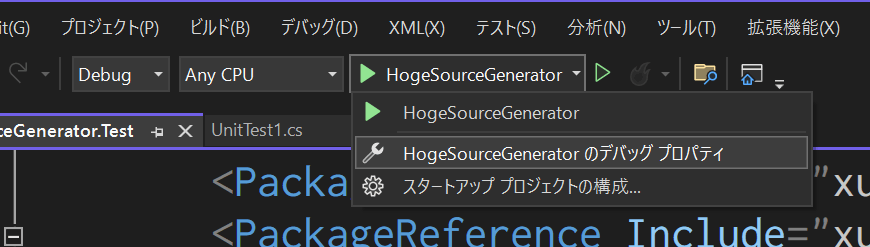
Click on the Debug properties. The location is a bit hard to find, so please refer to the image below.
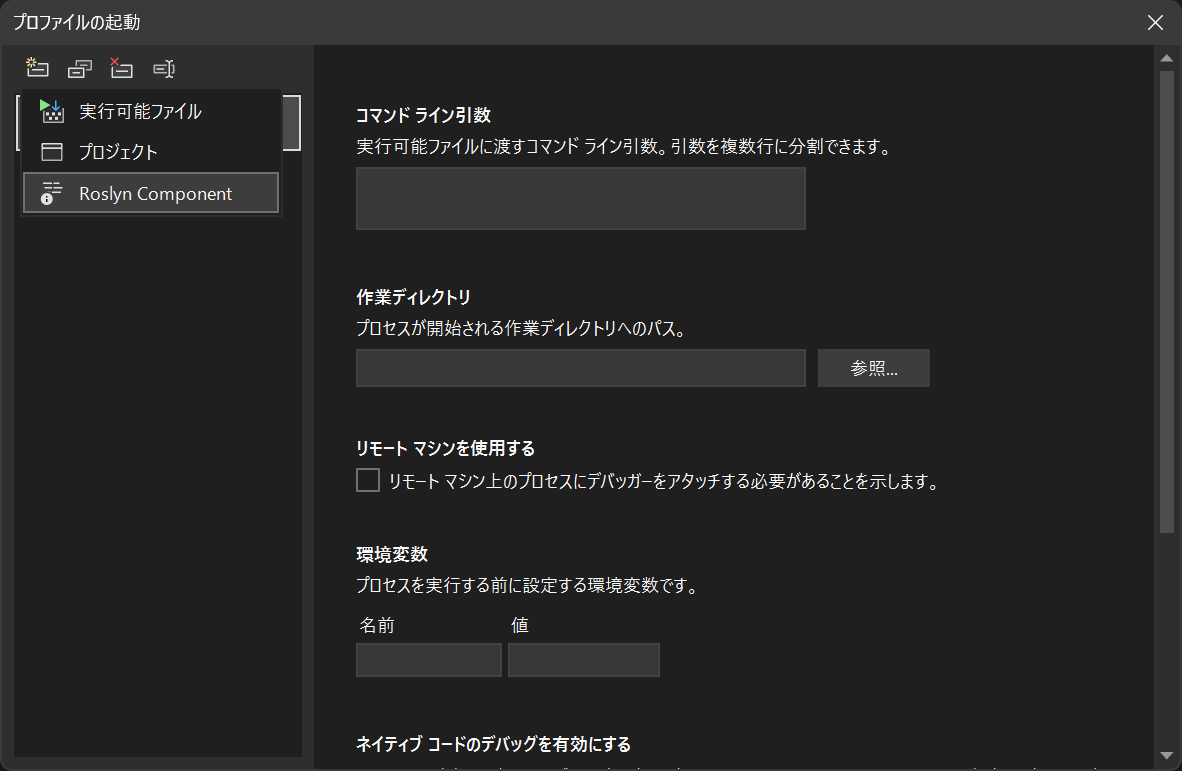
Create a new profile with "Roslyn Component".
Add the test project you just added to the "Target Project" field.
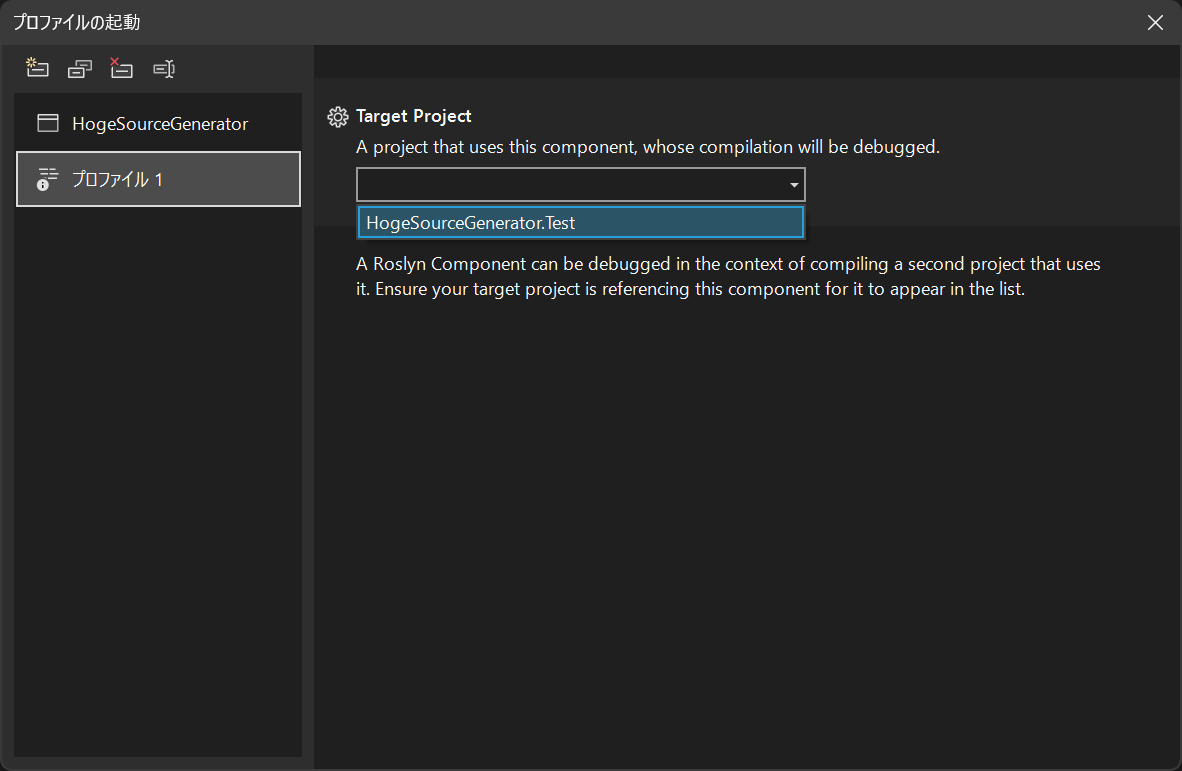
Once you have done this, close the dialog.
Then, change the debug profile.
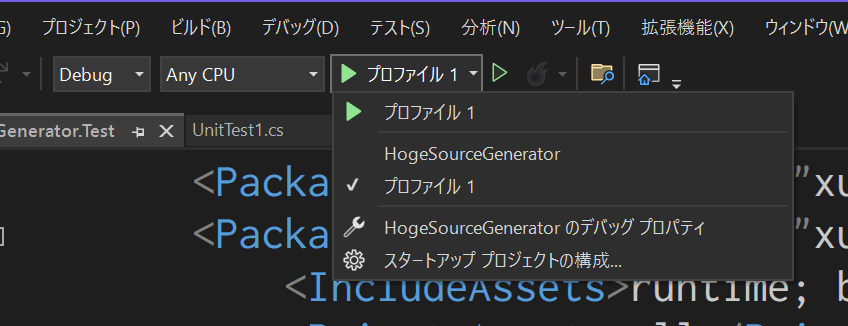
Starting Debugging
Now, all that's left is to add a breakpoint to HogeGenerator and start debugging.
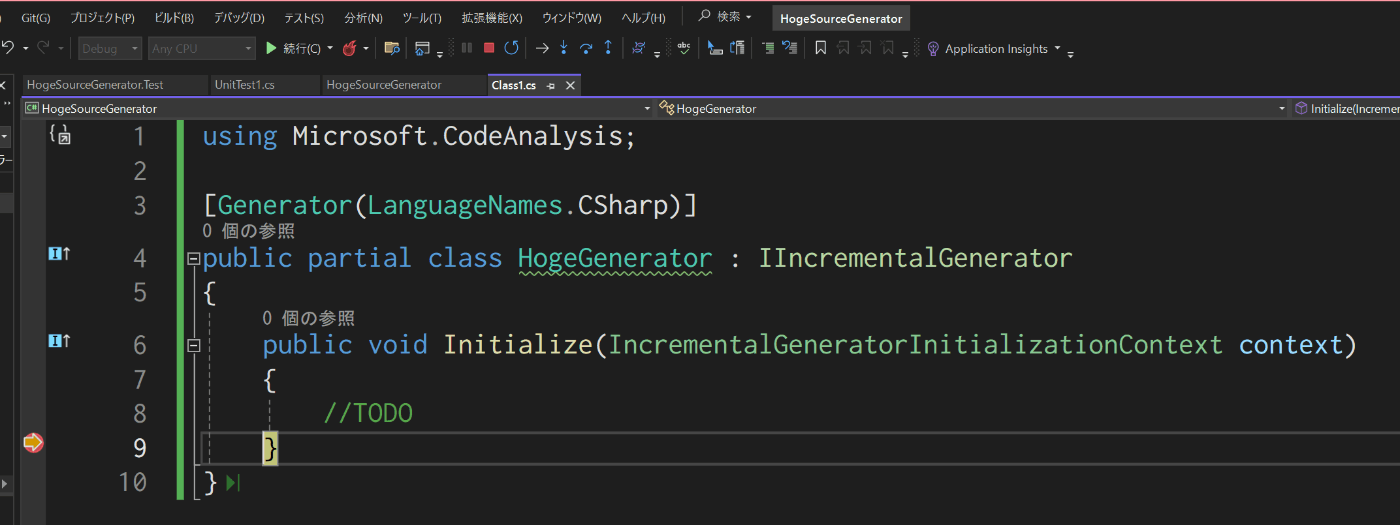
If the execution hits the breakpoint, the environment setup is successful.
Moving Forward...
Now that you've come this far, you're at the starting line. All that's left is to start developing.
This is as far as I will go in this article.
I'll conclude by introducing some other sites.
Reference Sites for Environment Setup
2022 C# (Incremental) Source Generator Development Methods
It was extremely helpful. My article is essentially just a write-up of the steps from the post above.
Reference Sites for Development Methods
PrivateProxy
This is an OSS created by Mr. neuecc, whom I also mentioned in the "Reference Sites for Environment Setup."
Refer here for an overview of the library.
Released PrivateProxy, a library utilizing .NET 8 UnsafeAccessor
I have released a library called PrivateProxy. In short, it's a library for accessing private fields/properties/methods.
After reading the site above, please check the following source code.
This will give you a rough idea of what to do and how to do it.
Downloading the PrivateProxy source code and running it in debug mode is also very effective.
Points to Note During Development
The following are precautions specific to the "development" phase. These issues do not occur when using the library.
Part 1
A red circle mark will appear on the analyzer, but please don't worry about it.
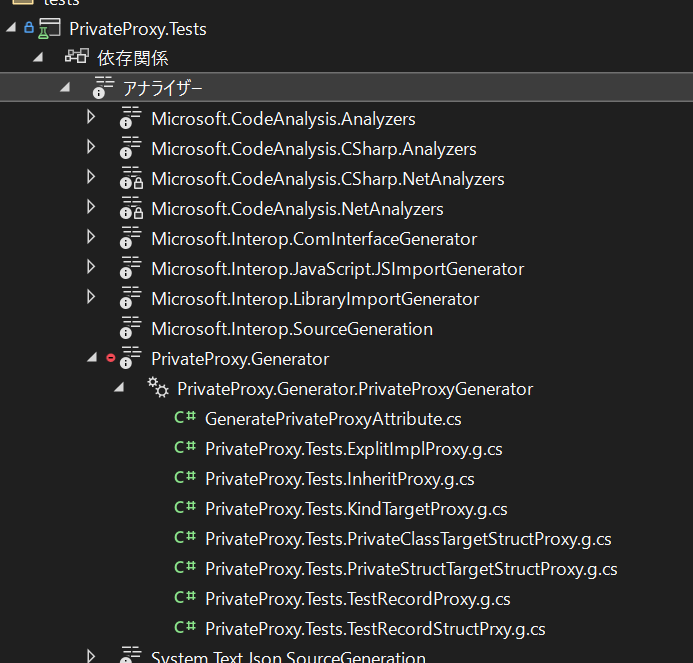
Part 2
The automatically generated source code will be displayed in the analyzer. This source code has the following characteristics:
- It is created automatically whenever you open Visual Studio.
- It will not be updated even if you change the code in the IncrementalGenerator class.
If you want to update it, please close the project file once and then reopen it.
Discussion