iTranslated by AI
Fixing Visual Studio Crashes and Errors Caused by CPU Issues


Introduction
For a while, I had been troubled by Visual Studio errors.
IntelliSense stops working at startup, color themes fail, freezing during use, crashes, etc... These problems continued to prevent me from focusing on my work. I have finally identified a point that might be the cause, so I am writing this article to document it.
What was happening
The main phenomenon I encountered was that Visual Studio would throw an error at startup, and the editor's features would mostly stop working.
The error occurred with the following message: "Feature '...' is currently unavailable due to an internal error."

When viewing the stack trace, you can see exceptions like the following:
StreamJsonPrc.ConnectionLostException: The JSON-RPC connection with the remote party was lost before the request could complete.

Summarizing the trial and error I've done so far based on these errors:
- It doesn't change even if I try to reinstall Visual Studio.
- The version of Visual Studio doesn't matter.
- It occurs only in large-scale development projects. It does not occur in small projects that have just been created.
- Editor extensions are not related.
I understood up to this point, but I couldn't identify the core cause.
Hardware factor?
While browsing Twitter (X) to see if similar problems were occurring, I hit upon an article.
Apparently, app crashes caused by some Intel CPUs have been reported, and similar crashes have been confirmed in Visual Studio as well.
The problem has been confirmed in many machines equipped with "Core i9 13900K" or "Core i9 14900K", and it is said that similar problems may occur in machines equipped with other Intel CPUs.
The crash problem is not caused by Oodle or the game's implementation, but is caused by hardware-related problems of Intel CPUs. Specifically, it is said to be caused by "a very small number of individual units of the models where the problem has been confirmed" becoming unstable and executing incorrect instructions when they reach a specific clock rate and power consumption.
According to RAD Game Tools, the problem with Intel CPUs does not only affect Oodle, but crashes due to similar problems have also been confirmed in software such as "RealBench", "CineBench", "Prime95", "Handbrake", and "Visual Studio".
By the way, the CPU I am using is "Core i9-14900KF", which matches the reported series.
Considering the situation so far, I thought, "Isn't the cause of the errors I'm encountering this CPU problem?" and decided to take the measures recommended by RAD.
Trying the Countermeasures
RAD recommends several countermeasures, but this time I applied a solution by using the "Intel Extreme Tuning Utility (XTU)" to limit the performance cores.
As a precaution, I must state that I take no responsibility if you choose to carry out these countermeasures.
Other workarounds involve using a tuning utility or changing BIOS settings. Note that if done incorrectly, these could damage your system. The changes we recommend here are, to the best of our knowledge, completely safe, but you are solely responsible for any damage or loss resulting from changing these settings from their factory defaults.
1. Install XTU
Install the XTU provided by Intel.
2. Enable Undervolt Protection in BIOS
After running XTU, a popup should appear, and the following will likely be required:
Ensure you have the latest BIOS patch, latest Windows update, and have Undervolt Protection enabled in BIOS
Assuming the latest updates are already installed, the next step is to enable Undervolt Protection in the BIOS.
Boot into your computer's BIOS, search for the "Undervolt Protection" item (using the search box or similar), and set it to Enabled.
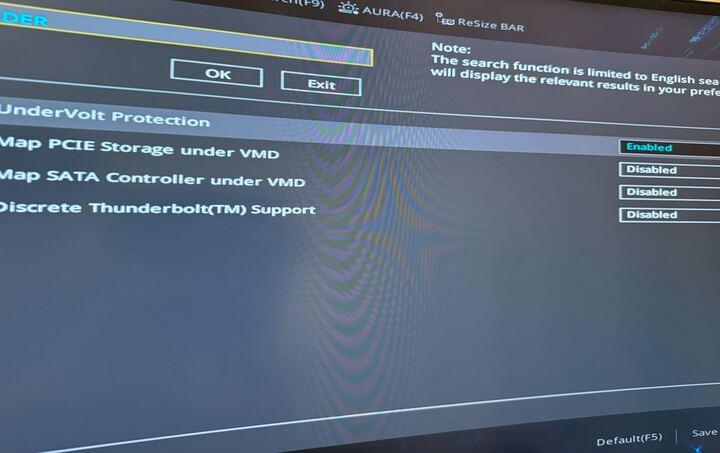
This completes the BIOS configuration.
3. Lower the Performance Core Ratio to x55–x53 in XTU
Lower the Performance Core Ratio in XTU. According to RAD's report, lowering it to around x55–x53 is effective.
A workaround reported as successful for many people is to use Intel XTU and lower the performance core multiplier from x55 to x54 or x53.
I applied the setting by lowering the multiplier to x54.
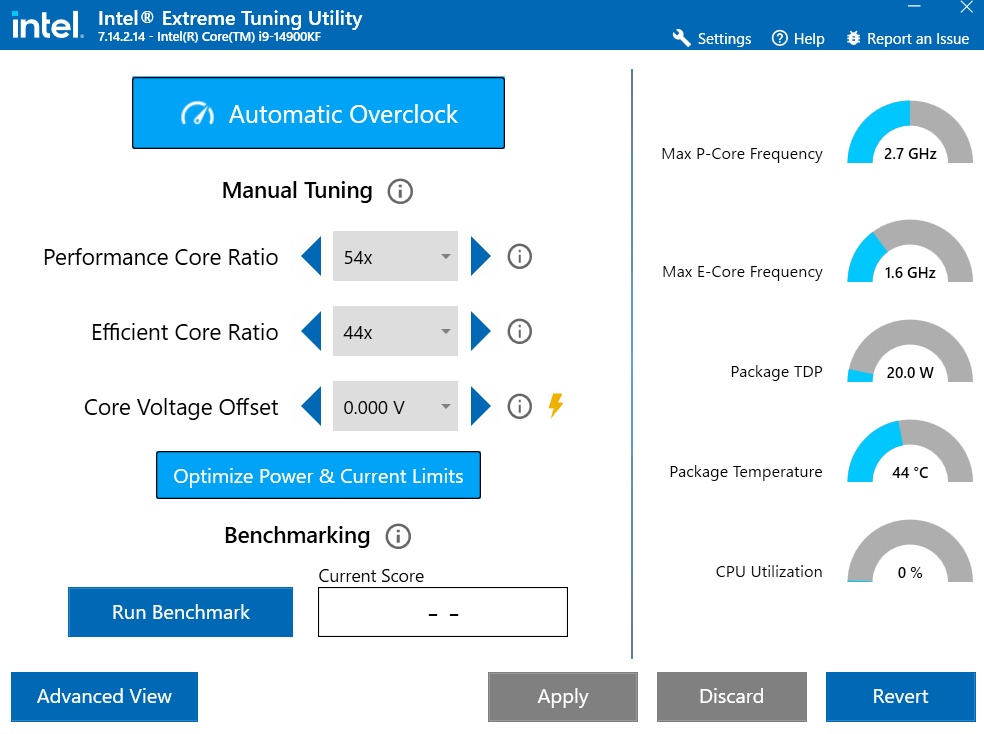
This completes the countermeasures for Visual Studio crashes.
Current Status
Two weeks have passed since I implemented the fix with XTU, and so far, the errors I was experiencing have not occurred, and I am able to continue developing comfortably in Visual Studio.
In particular, while the fans used to spin quite intensely during Visual Studio startup and compilation, it has been surprisingly quiet since the fix.
I will add updates if there are any changes in the situation.
Discussion