iTranslated by AI
Remapping CapsLock to Ctrl on Windows




TL;DR
Save the following content as Caps2Ctrl.reg and then install it.
Windows Registry Editor Version 5.00

[HKEY_LOCAL_MACHINE\SYSTEM\CurrentControlSet\Control\Keyboard Layout]
"Scancode Map"=hex:00,00,00,00,00,00,00,00,02,00,00,00,1d,00,3a,00,00,00,00,00
Manual Steps
The Registry Editor will handle everything.
Launching the Registry Editor
The shortest path is to press [Win]+[R], type regedit, and hit [Enter].

Launching the Registry Editor via the shortest path
Adding the Key
From the left pane, select HKEY_LOCAL_MACHINE\SYSTEM\CurrentControlSet\Control\Keyboard Layout. In the right pane, you should see (Default) REG_SZ (value not set).
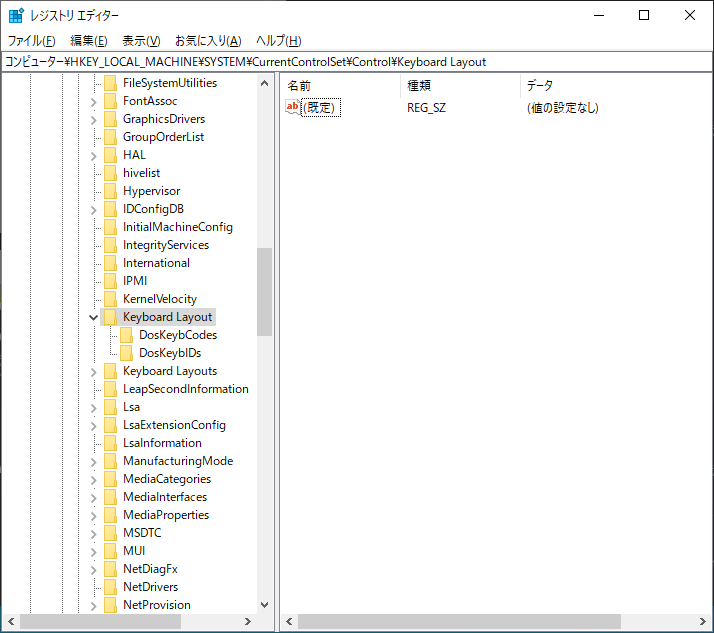
Navigated to the level where the key will be added
In this state, right-click in the right pane and select New (N) → Binary Value (B). Name the value Scancode Map. Double-click the newly created value and enter the data. The value is 00,00,00,00,00,00,00,00,02,00,00,00,1d,00,3a,00,00,00,00,00.
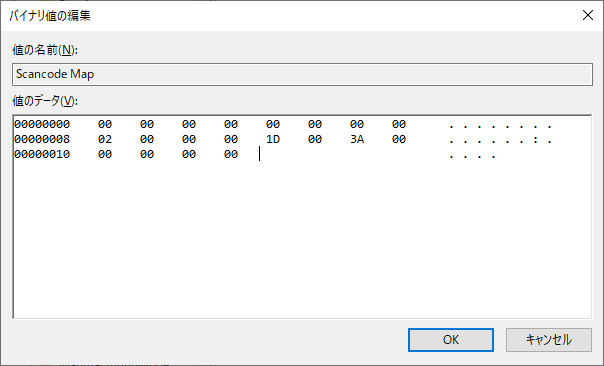
Entering the value
Restarting
Exit the Registry Editor and restart Windows. After the restart, CapsLock should surely function as Ctrl.
Meaning of the Values Registered in the Registry
Each value is written in little-endian and has the following meanings:
| Value | Meaning |
|---|---|
| 00 00 00 00 | Version information (always 0) |
| 00 00 00 00 | Flag information (always 0) |
| 02 00 00 00 | Number of entries + 1 |
| 1D 00 3A 00 | Treat 003Ah (CapsLock) input as 001Dh (LeftCtrl) |
| 00 00 00 00 | Terminator |
Conclusion
That's all.
References
- chtenb, et al. Map capslock to control in Windows 10. Super User. 2021-01-18. (accessed 2022-08-03).
Discussion