iTranslated by AI
Using Large Japanese Fonts on FreeBSD vt




Introduction
Recent FreeBSD versions use vt(4) as the virtual terminal console driver. This replaces the previous syscons(4) driver and offers rich features such as Unicode support including CJK characters, rendering via graphics mode, and integration with KMS video drivers (supporting switching with X Window System). The support for displaying CJK characters is particularly attractive, enabling Japanese display by using appropriate fonts that include kanji.
While several fonts are distributed online to enable Japanese display[1], these fonts are typically around 16 pixels high and appear very small on modern high-resolution displays. Additionally, my eyesight has steadily declined over the past few years, making it much harder to solve this problem by simply squinting at the display as I used to.
In this article, I will explain the process of using "Hibiya 32" from the KH Dot Font series by Keitaro Hiraki as a large Japanese font to enable Japanese display on the virtual terminal console.
Environment
Xorg is installed to run FontForge. Additionally, the drm-kmod driver for Intel Graphics is installed to run the X Window System. You may need a web browser to download the fonts.
% uname -a
FreeBSD MacBook.kusaremkn.com 13.2-RELEASE FreeBSD 13.2-RELEASE releng/13.2-n254617-525ecfdad597 GENERIC amd64
% cat /etc/os-release
NAME=FreeBSD
VERSION="13.2-RELEASE"
VERSION_ID="13.2"
ID=freebsd
ANSI_COLOR="0;31"
PRETTY_NAME="FreeBSD 13.2-RELEASE"
CPE_NAME="cpe:/o:freebsd:freebsd:13.2"
HOME_URL="https://FreeBSD.org/"
BUG_REPORT_URL="https://bugs.FreeBSD.org/"
Preparing Hibiya 32
Hibiya 32 is included in the KH Dot Font series distributed by Jikasei Font Koubou. These fonts are available under the SIL Open Font License 1.1. First, let's download the complete set of these fonts[2].
% fetch -o khdotfont-20150527.7z 'https://ja.osdn.net/frs/chamber_redir.php?m=rwthaachen&f=%2Fusers%2F8%2F8545%2Fkhdotfont-20150527.7z'
The downloaded file is compressed in 7-zip format, so it needs to be extracted. Since FreeBSD's tar(1) can handle 7-zip format, we will use it to extract the files.
% mkdir khdotfont
% tar xvfC khdotfont-20150527.7z khdotfont
The font file for Hibiya 32 is the one named KH-Dot-Hibiya-32.ttf among the extracted files.
% ls -l khdotfont/KH-Dot-Hibiya-32.ttf
-rw-r--r--  1 mkn  mkn  4120480 May 28  2015 khdotfont/KH-Dot-Hibiya-32.ttf
Preparing FontForge
The Hibiya 32 font file prepared above is in TrueType font format. To use it with vt(4), it must be converted to a format compatible with vt(4) (hereafter referred to as VFNT format), which requires going through the TTF → BDF → VFNT conversion process. We will install FontForge for the TTF → BDF conversion task. Installing via pkg is the easiest method.
# pkg install fontforge
TTF → BDF Conversion
From here, we will perform the TTF → BDF conversion using FontForge.
Loading the font file
First, open the Hibiya 32 TrueType font file in FontForge. This TrueType font contains bitmap font data. When you start FontForge, it will ask whether to load it; select 32 and then click Yes.
% fontforge khdotfont/KH-Dot-Hibiya-32.ttf

Select 32 and load the bitmap font
When the font is loaded, a list of glyphs is displayed, but these are outline fonts and might look blurry. If this bothers you, you can display the bitmap font by selecting 32 pixel bitmap near the bottom of the View menu.

Displaying the bitmap font
Deleting unnecessary glyphs
First, delete glyphs that are unnecessary for the VFNT format. If these glyphs remain, issues will occur during the BDF → VFNT conversion.
The unnecessary glyphs are at the bottom of the list. Select the three glyphs indicated by red ? icons, and select Detach & Remove Glyphs... from the Encoding menu. Once the glyphs are successfully deleted, the content of the squares will change to a gray X mark.

Deleting unnecessary glyphs (bottom left three)
Making the font recognize it's a monospace font
Next, let the font file recognize that it is a monospace font. If you skip this step, issues will also occur during the BDF → VFNT conversion.
Select Font Info from the Element menu and navigate to the General section of the dialog. Uncheck Scale Outlines and Has Vertical Metrics, and set the Interpretation value to Japanese.

General settings
Next, move to the OS/2 section and set the PFM Family value to Monospace. Within the same section, move to the Panose tab and set the Proportion value to Monospaces.
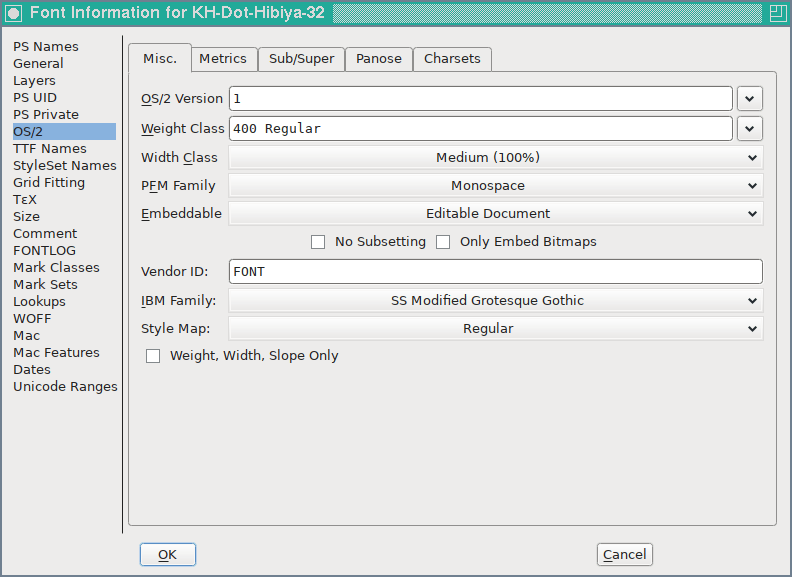
OS/2 Misc. tab settings
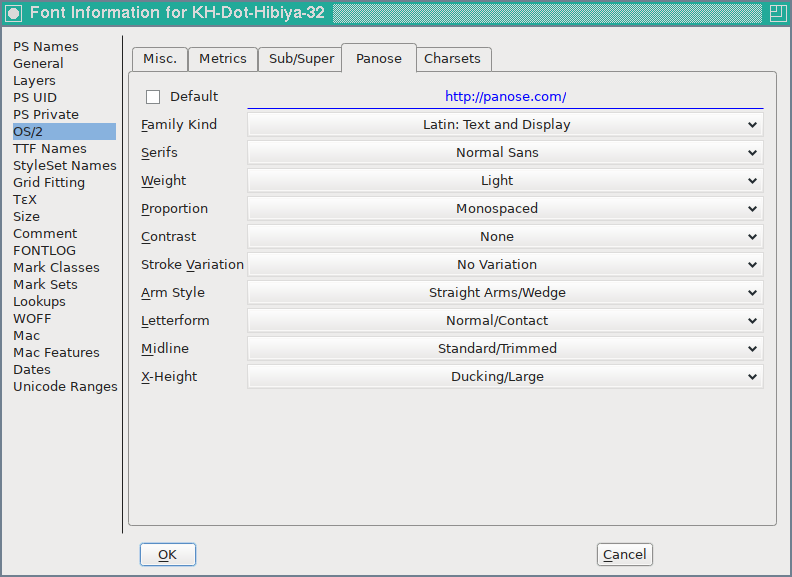
OS/2 Panose tab settings
After completing these settings, click OK to confirm.
BDF font settings
Next, configure the BDF font settings.
Select Other Info and then BDF Info from the Element menu. Click New... in the dialog, select SPACING from the list, and set its value to C. Then, click OK to confirm the settings.

BDF font settings
Exporting the BDF font
Finally, export the BDF font.
Select Generate Fonts... from the File menu. In the filename input field, enter a name with an asterisk () at the end, such as **KH-Dot-Hibiya-.bdf** (the asterisk will be replaced by the pixel count, like 32, during file generation). Of the two dropdown menus below, set the left one to No Outline Font and the right one to BDF. When you click Generate, a dialog named BDF Resolution will appear; select Guess and click OK.

Exporting the BDF font
At this point, FontForge's job is complete.
BDF → VFNT Conversion
To convert the BDF format font file into a format usable by vt(4), use vtfontcvt(8). If the conversion completes without issues, it will finish silently.
% vtfontcvt -o KH-Dot-Hibiya-32.fnt KH-Dot-Hibiya-32.bdf
Applying the Font
At this point, the font is complete. To use the finished font, use vidcontrol(1). Log in from the virtual terminal console and execute the following; the font should switch.
% vidcontrol -f KH-Dot-Hibiya-32.fnt
Troubleshooting
This section explains commonly encountered errors and their solutions.
font spacing "C" (character cell) required
One error displayed by vtfontcvt(8) is as follows:
% vtfontcvt -o output.fnt errorfont.bdf
vtfontcvt: font spacing "C" (character cell) required
This error occurs when the font file does not recognize itself as a monospace font. Referring to Making the font recognize it's a monospace font to give it that recognition will solve the issue.
bitmap with unsupported DWIDTH 0 0 at line XXXX
One error displayed by vtfontcvt(8) is as follows:
% vtfontcvt -o output.fnt errorfont.bdf
vtfontcvt: bitmap with unsupported DWIDTH 0 0 at line 269290
This error occurs when the font file contains glyphs with a width of 0 pixels. Hibiya 32 has glyphs named .null and nonmarkingreturn, which have a width of 0 pixels. Referring to Deleting unnecessary glyphs to remove these unnecessary glyphs will solve the issue.
broken char header at line XXXX!
One error displayed by vtfontcvt(8) is as follows:
% vtfontcvt -o output.fnt errorfont.bdf
vtfontcvt: broken char header at line 2737!
This error occurs when the font file contains vertical metrics information. This can be solved by unchecking Has Vertical Metrics as described in Making the font recognize it's a monospace font.
Characters not displayed or partially missing
Some characters, such as the tilde (~) and the Greek letter pi (π), may not display correctly.

Some characters do not display correctly
Hibiya 32 does not include some glyphs, including the tilde. To display these characters, you need to add the glyphs yourself. Additionally, many ambiguous-width characters, such as π, have full-width properties. Therefore, depending on the application, parts of the characters may appear clipped.
Want to use it even more!
Please feel free to use it as much as you like.
Want to use this font by default
You can. First, copy the generated VFNT format font file to /usr/share/vt/fonts/. Then, add the font settings to /etc/rc.conf.
# cp KH-Dot-Hibiya-32.fnt /usr/share/vt/fonts/.
# sysrc font8x16="KH-Dot-Hibiya-32.fnt"
Want to use Hibiya 24
You can. However, in Deleting unnecessary glyphs, please also delete the glyphs for vertical writing.

Glyphs to delete (Hibiya 24)
Conclusion
That's it.
References
- Jikasei Font Koubou. KH Dot Font Series. Jikasei Font Koubou. Updated 2015-05-25. (accessed 2023-05-28).
- FreeBSD Project. vt(4). FreeBSD Manual Pages. 2022-07-21. (accessed 2023-05-28).
- Dai ISHIJIMA. Converting Japanese BDF fonts for use on FreeBSD 10.x vt(4) consoles. Network Users' Group ``wheel''. 2015-10-11, updated 2015-11-10. (accessed 2023-05-28).
- FreeBSD Project. vtfontcvt(8). FreeBSD Manual Pages. 2020-08-02. (accessed 2023-05-28).
- FreeBSD Project. vidcontrol(1). FreeBSD Manual Pages. 2022-04-06. (accessed 2023-05-28).
Discussion