iTranslated by AI
Developing Experimental Features for Mozc at Keyboard Input Hackathon 2023




A hackathon event called Keyboard Input Hackathon 2023 was held in Akihabara for two days starting from 2023-04-22. I applied as one of the participants and created experimental features for Mozc, so I would like to introduce the details of my development.
Development Contents
- Feature to temporarily hide the IME UI
- Feature to assign regular keys to IME functions
- Customization settings to enable thumb-shift input (NICOLA layout)
Slide Materials
Feature to temporarily hide the IME UI
With this feature, you can temporarily hide the character string being input and the conversion candidate window of the IME. Once the conversion string being input is finalized, the feature is deactivated, and the UI will be displayed again. This is useful, for example, when sending a set of key events to the IME from a specialized custom keyboard and treating the IME's conversion result as input (e.g., a keyboard that can input Kanji or Emojis).
Mozc has a feature to convert and input arbitrary characters by entering the Unicode code point following "U+" (e.g., U+9C39 → 鰹). By utilizing this and sending key events from a custom keyboard as shown below, it becomes possible to input characters that cannot be directly typed from the keyboard.
| Key Event | Description |
|---|---|
| IME_ON | Kana key |
| U+9C39 | Keycode for 鰹 (6 characters) |
| Convert | Space key |
| Finalize | Enter key |
| IME_OFF | Alphanumeric key |
However, in this case, the IME UI is displayed even during input, causing the UI to flicker on the input screen.

The IME UI appears like this during input
During the hackathon, I created a "feature to temporarily hide the IME UI" to make it appear as though arbitrary characters are being input directly from a custom keyboard.
For example, if this feature is assigned to F17, the sequence of keycodes to be sent would be as follows:

Assigning the IME hide feature to F17 (this is an experimental feature with code changes)
| Key Event | Description |
|---|---|
| IME_ON | Kana key |
| IME Hide ON | F17 key |
| U+9C39 | Keycode for 鰹 (6 characters) |
| Convert | Space key |
| Finalize | Enter key |
| IME_OFF | Alphanumeric key |
With this, pressing a key on the custom keyboard now allows it to behave as if an arbitrary character was input directly.
In Mozc, the conversion engine and the UI client communicate through a protocol defined by Protocol Buffers. The feature is implemented by removing part of the data in the protocol sent from the conversion engine to the UI client.
Actual Commit
Since this was a change made during a hackathon event, tests and exception handling have been omitted.
Feature to assign regular keys to IME functions
When customizing IMEs or key layouts, it sometimes becomes convenient to assign IME functions to regular character keys (such as A or %). For example, there are IMEs that switch to alphanumeric input mode using the L key, or Kana layouts that use the Y key instead of Backspace.
During the hackathon, I extended Mozc's GUI tool to allow regular character keys to be assigned to functions.

Assigning functions to character keys (this is an experimental feature with code changes)
Actual Commit
Actually, even at this point, Mozc allows assigning regular character keys to functions.
Although there is no guarantee of operation, you can use this feature by manually editing the configuration file.
Customization settings for Thumb-shift input (NICOLA layout)
During the hackathon, I implemented a demo that enables thumb-shift input (NICOLA layout) by utilizing Mozc's Romaji input customization feature.
One of the characteristics of thumb-shift input is simultaneous key pressing. This simultaneous input has already been realized, and for example, Akira.K provides a service to implement layouts such as the Shin-Geta layout.
In addition to these simultaneous input methods, thumb-shift input requires simultaneous pressing with the "Henkan" (Convert) and "Muhenkan" (Non-convert) keys. Until now, only simultaneous pressing between character keys was supported, and function keys such as "Henkan" and "Muhenkan" were not.
Therefore, at the hackathon, I extended the GUI to enable simultaneous pressing with function keys.

Assigning F18 and F19 to character input keys (this is an experimental feature with code changes)
I also performed a GUI extension during the hackathon to allow setting the timeout duration for determining simultaneous key presses.
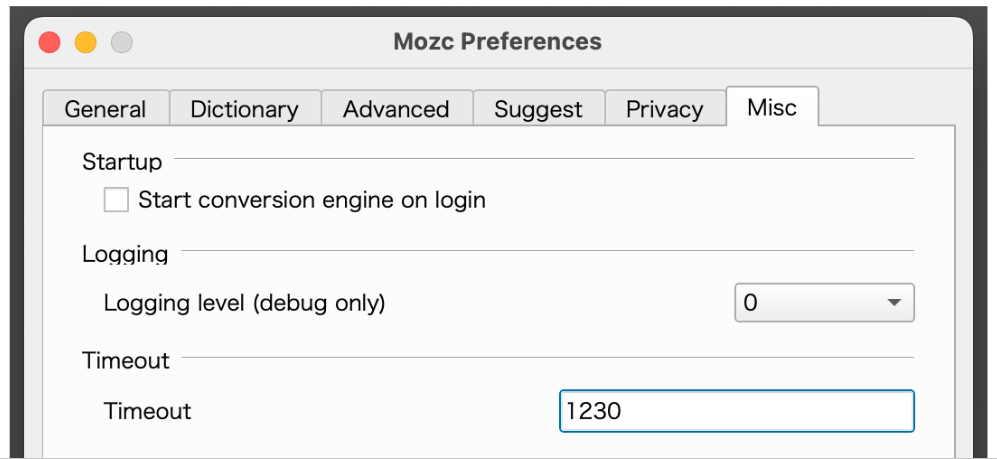
Setting the timeout duration (this is an experimental feature with code changes)
And finally, I customized the Romaji table for thumb-shift (NICOLA layout) to complete it.

Rule table for thumb-shift (NICOLA layout)
Actual Commit
Even in the current version of Mozc, features for assigning regular function keys to character input and timeout settings already exist. While there is no guarantee of operation, you can use these features by manually editing the configuration file.
Mechanism of Thumb-shift Input (NICOLA Layout)
Now, I will explain in more detail how the simultaneous input required for thumb-shift input is realized in Mozc. I will explain it in four parts in order.
- General Romaji input customization mechanism
- Mechanism for realizing simultaneous input
- Mechanism for using function keys for character input
- Creating a Romaji conversion table for thumb-shift
1. Mozc's General Romaji Input Customization Mechanism
Simultaneous input is realized by customizing Mozc's Romaji conversion table. Before explaining the simultaneous input method, I will explain how to customize the Romaji conversion table in Mozc.
Basic Input and Output
Basic conversion methods such as "a → あ" or "ka → か" are configured by specifying each as input and output. This is a common way to customize Romaji.
| Input | Output |
|---|---|
| a | あ |
| ka | か |
"Next Input" for Realizing State Transitions
However, in Romaji, the expression "tta → った" is a bit complex. While it can be realized by writing each in "Input" and "Output", some challenges remain.
- Need to create separate rules for "
ttta→ っった" and "tttta→ っっった". - Under the "
tta→ った" rule, typingttdoes not display "っ" yet (the entire "った" is not displayed until the fullttais entered).
To solve these challenges, an item called "Next input" is provided. Using "Next input", "tta → った" can be represented as follows:
| Input | Output | Next input |
|---|---|---|
| tt | っ | t |
| ta | た |
The combination "tt, っ, t" means, "If tt is input, convert it to 'っ' and then treat t as an input character."
Let's look at the input of tta in order.
| Input | Display | Description |
|---|---|---|
| t | t | There is no conversion rule for t alone, so t remains as an input character. |
| t | っt | Following the tt rule, "っ" is output, and t as the next input remains as an input character. |
| a | った | Following the ta rule, "た" is output. |
To make the behavior easier to understand, let's use different characters for "Input" and "Next input".
| Input | Output | Next input |
|---|---|---|
| xx | っ | t |
| ta | た |
Let's look at the input of xxa in order.
| Input | Display | Description |
|---|---|---|
| x | x | There is no conversion rule for x alone, so x remains as an input character. |
| x | っt | Following the xx rule, "っ" is output, and t as the next input remains as an input character. |
| a | った | Following the ta rule, "た" is output. |
Please note that the character displayed after entering the second x is t.
"Next Input" for Voiced Consonant Processing in Kana Input
In Kana input, where "t → か" and "@ → ゛", the rule "t@ → が" applies.
| Input | Output |
|---|---|
| t | か |
| t@ | が |
| @ | ゛ |
| 3 | あ |
If written straightforwardly like this, Mozc will not display "か" as an output character even when t is input. This is because it is ambiguous whether it will be t or t@, so the input character t is displayed as is. If you then input 3, it becomes t3, the ambiguity of t is resolved, and "かあ" is output.
Now, by applying "Next Input", we can achieve the following:
- Display "か" when
tis input alone. - Display "が" when
@is subsequently input.
| Input | Output | Next input |
|---|---|---|
| t | か | |
| か@ | が | |
| @ | ゛ | |
| 3 | あ |
The conversion table has changed as follows:
- For the input
t, treatかas the next input. - For the input
か@, set "が" as the output.
With this change, pressing t is treated the same as inputting か. Therefore, か is displayed on the screen as the input character. And with the rule か@, if you subsequently input @, you can now convert it to "が".
2. Mechanism for Realizing Simultaneous Key Input in Mozc
To realize simultaneous input, a mechanism is needed to determine whether keys were pressed simultaneously or sequentially. In Mozc, this is achieved using a special key that represents a time break.
Timeout Special Key
Mozc has a feature that inserts a special key to represent a break in input if there is no input for a certain period of time. For convenience, we call this special key the "timeout special key" and represent it as {!}.
For example, if you press a and then press b after a while, {!} is also input at the same time as b is pressed. In other words, the input becomes a{!}b.
Since the input becomes ab when a and b are pressed simultaneously:
-
abis a simultaneous stroke. -
a{!}bis a sequential stroke.
This allows the system to distinguish between them (the same applies to ba).
This timeout key feature is off by default and cannot be changed from the GUI, but it can be specified in milliseconds by directly modifying the configuration file.
Conversion Table for Simultaneous Input
I experimented with setting up the Romaji conversion table by combining this timeout key to make simultaneous input work in Mozc.
For example, suppose we want to realize the following simultaneous input for characters a and b.
| Keypress | Output |
|---|---|
| a only | あ |
| b only | い |
| ab simultaneous | う |
The Romaji conversion table in this case would be as follows. {!} represents the timeout key.
| Input | Output | Next input |
|---|---|---|
| a | あ | |
| あ{!} | あ | |
| あb | う | |
| b | い | |
| い{i} | い | |
| いa | う |
Let's explain the operation of this table with a few examples.
Inputting only a
-
あ, which is defined as the next input fora, is used as the input character. - On-screen display: "あ"
Simultaneous pressing in the order ab
- For
a,あis treated as the input character, and theあbrule is applied along with the nextb. - On-screen display: "う" is displayed after "あ" appears momentarily.
Simultaneous pressing in the order ba
- For
b,いis treated as the input character, and theいarule is applied along with the nexta. - On-screen display: "う" is displayed after "い" appears momentarily.
Inputting b after a while after inputting a
- First,
あ, defined as the next input fora, is used as the input character. - Then, when
bis pressed, the timeout special key{!}is handled as input first. - Therefore, the
あ{!}rule is applied first, followed by thebrule. - On-screen display: "あ" is displayed by the input of
a, and it becomes "あい" with the input ofb.
3. Mechanism for using function keys for character input
To realize thumb-shift input, it is also necessary to handle input via "thumb-shift keys" within the Romaji conversion rules. A "thumb-shift key" is not a key that inputs a character by itself, but a function key similar to "F1" or "BS". Also, on keyboards without dedicated thumb-shift keys, the "Henkan" (Convert) and "Muhenkan" (Non-convert) function keys are often used instead.
While these function keys are not supported by default in Mozc's Romaji conversion table, it is possible to assign function keys to character input by manually editing the configuration file.
By assigning the Precomposition (state before input) and Composition (state during input) functions of the function key you want to use as a character key to InsertCharacter, you can input special keys representing function keys. For example, the F1 key would be represented as {f1} and the Henkan key as {henkan}. These special keys are treated as a single character.
Special keys assigned as character input keys also need to be defined in the Romaji conversion table. Otherwise, they will be ignored as invalid input.
| Input | Output | Next input |
|---|---|---|
| {f1} | あ |
In the above definition, pressing the F1 key will result in the input of "あ". Note that depending on the environment, the F1 key may not be sent to Mozc. In that case, you may need to change OS settings or use a different key.
4. Creating a Romaji conversion table for thumb-shift
Now that we have all the components, let's create a Romaji table for thumb-shift.
In thumb-shift, the y key performs the following actions:
| Keypress | Output |
|---|---|
Single tap of y
|
ら |
Simultaneous tap of Left thumb-shift and y
|
ぱ |
Simultaneous tap of Right thumb-shift and y
|
よ |

For convenience, if we represent the "Left thumb-shift" as the special key {L} and the "Right thumb-shift" as {R}, the Romaji conversion table would be as follows. {!} represents the timeout special key.
| Input | Output | Next input |
|---|---|---|
| y | ら | |
| ら{!} | ら | |
| ら{L} | ぱ | |
| {L}y | ぱ | |
| ら{R} | よ | |
| {R}y | よ | |
| {!} | ||
| {L}{!} | ||
| {R}{!} |
The first six lines are the settings for y, and the last three lines are the settings related to the timeout special key for the entire table, not just for y.
The overall view of the table can be confirmed from the GitHub commit. In this commit, F18 is assigned to the left thumb-shift key and F19 to the right thumb-shift key.
User Experience
When I had someone who actually uses thumb-shift input try it out, I received the comment: "It's a bit unrefined, but I can input using thumb-shift. It looks like it would get even better if the simultaneous press detection time was adjusted."
Summary
Since I was blessed with the great opportunity of the Keyboard Input Hackathon, I created several experimental features to show that such things become possible when you tinker with Mozc a little.
It was a very stimulating and meaningful two days, as I was able to exchange opinions and learn new things from the other participants. Thank you very much to all the participants, organizers, and sponsors.
References
Discussion