iTranslated by AI
Scheduling Zoom Meetings with kintone and Power Automate


This article is for day 23 of the kintone Advent Calendar 2023.
Article Overview
When a record is registered in kintone, a Power Automate cloud flow calls the Zoom API to reserve a meeting room.
If you are interested in implementing the contents of this article in your own company, please feel free to contact us through the kintone Spot Development Free Consultation Form.
Reference Articles
I struggled quite a bit with the initial setup of the Zoom API, but I was saved by this article.
If you want to follow the proper steps, I highly recommend checking it out!
kintone-Zoom Integration Self-Study Day 1
Overall Workflow
- Perform initial API setup in Zoom.
- Create a kintone app.
- Receive a webhook in Power Automate.
- Obtain a Zoom access token.
- Reserve a meeting room using the access token.
- Return the reservation result to kintone as a comment.
Perform Initial API Setup in Zoom
First, perform the initial setup on the Zoom side. Refer to the following URL for Zoom's official help:
Internal apps (Server-to-server)
Details -> App Marketplace

Develop -> Build APP
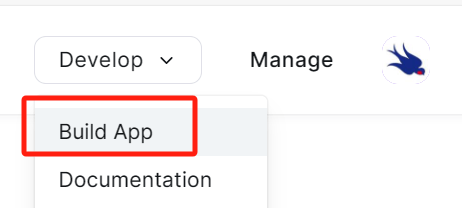
We will use Server-to-Server OAuth this time. It seems it was called JWT APP until recently.

Enter a name.

Record the Account ID, Client ID, and Client Secret. You will use them later.

Fill in the Information and Feature sections appropriately (e.g., company name).

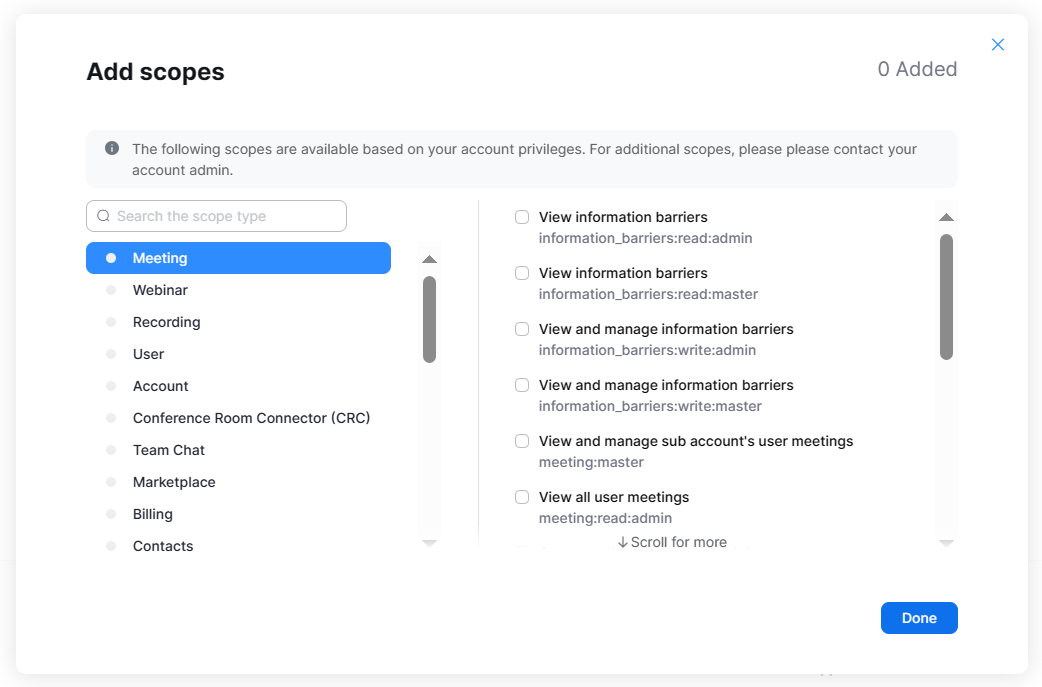
Specify the scopes. It is best to limit these to the minimum necessary, but I selected all scopes when I encountered issues. You should avoid doing this for production apps.
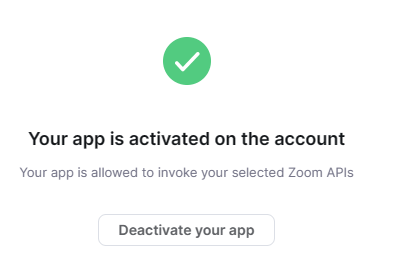
Once setup is complete, it will be displayed as shown below.
Create a kintone App
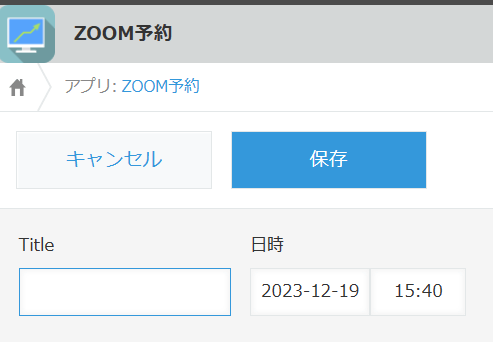
Create an app like this.
Receive Webhook in Power Automate
Use the kintone connector. A webhook is sent when a record is added.

Obtain Zoom Access Token
Use the HTTP connector to obtain a Zoom access token.
Refer to the following URL for Zoom's official help:
Server-to-Server OAuth
The HTTP connector looks like the image below:
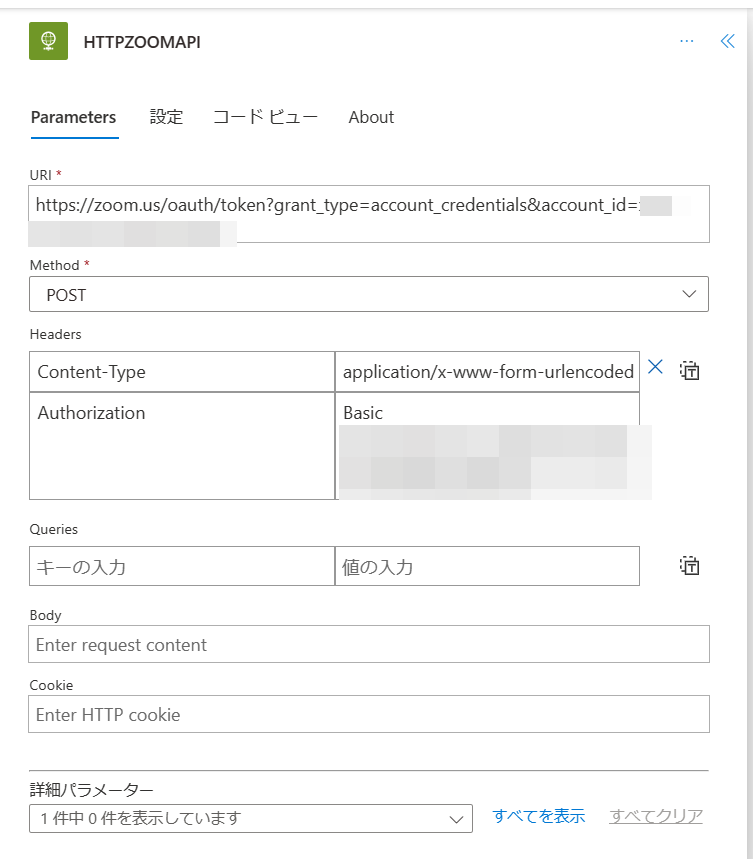
Key points are as follows:
- Content-Type is application/x-www-form-urlencoded
- Authorization is "Basic " followed by the Base64 encoded string of client_id:client_secret
- grant_type is account_credentials
- account_id is specified as is
Reserve a Meeting Room Using the Access Token
Use the HTTP connector to reserve a Zoom meeting room.
Use the Create a Meeting API. Refer to the following URL for Zoom's official help:
The HTTP connector looks like the image below:
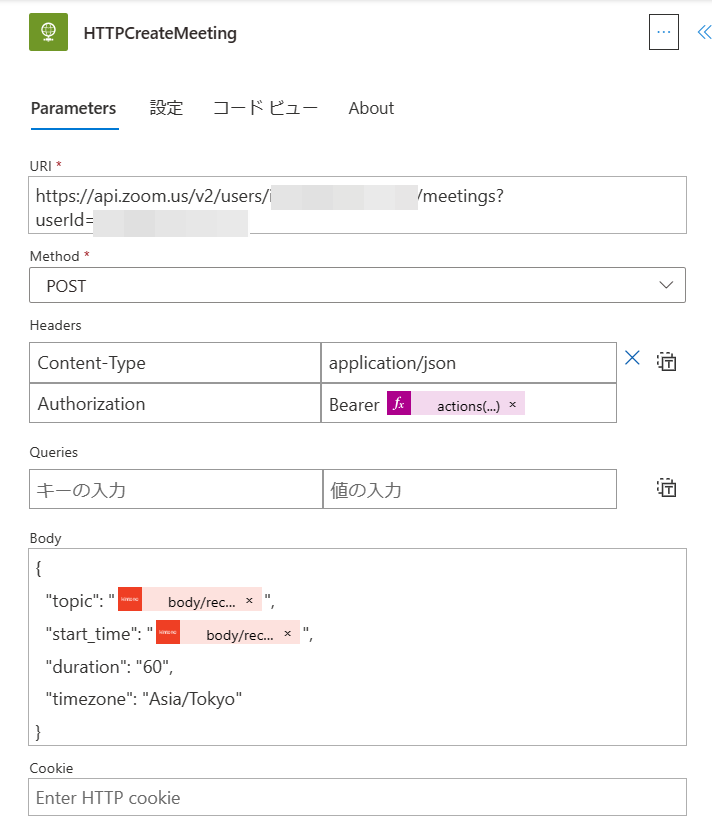
Key points are as follows:
- Include the userId in the URL itself in the format: POST /users/{userId}/meetings.
- Content-Type is application/json
- Use the access token obtained earlier for Authorization.
- Assign kintone values to topic and start_time.
- I should have properly considered the time zone, but I skipped it. For a production-ready setup, you would need to be mindful of kintone's time zone.
- There are many more parameters in the Create a Meeting API, but I skipped them.
- Various values are returned from the API. While I'm only using join_url this time, there were many other items like id, start_url, and settings that could be useful for a more robust setup.
Return the Reservation Result to kintone as a Comment
Use the kintone comment API to write the meeting URL back to kintone.
The official help for the comment API can be found here:
The HTTP connector looks like the image below:
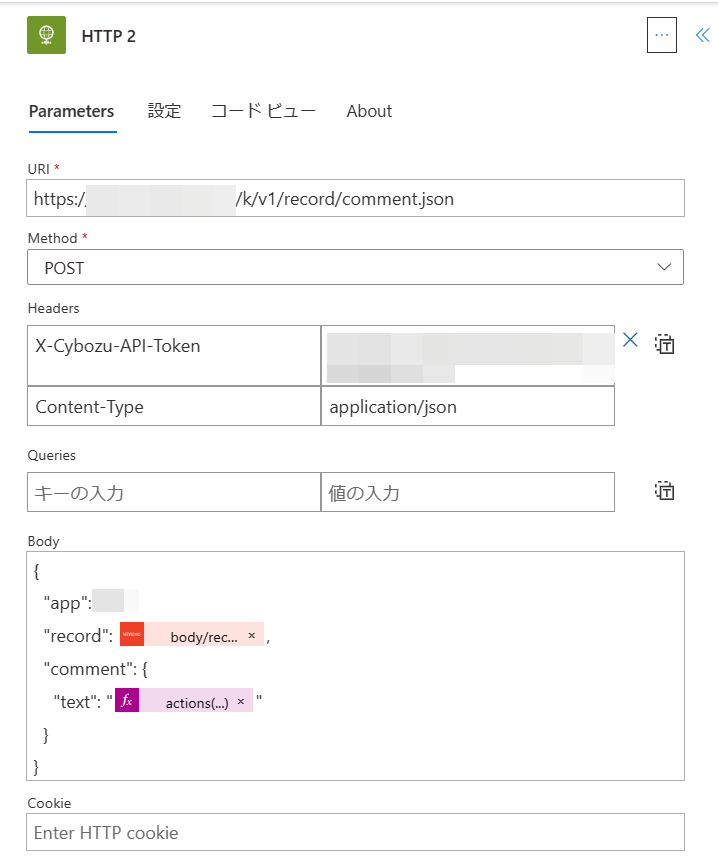
Key points are as follows:
- An API token is used.
- For "Record", specify the record number sent by the webhook.
- For "text", specify the meeting URL (join_url) returned from the Zoom API Create a Meeting.
Demo
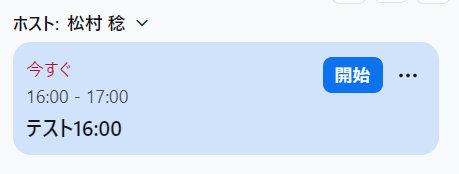
When you register a record in kintone, the generated Zoom URL is returned as a comment.
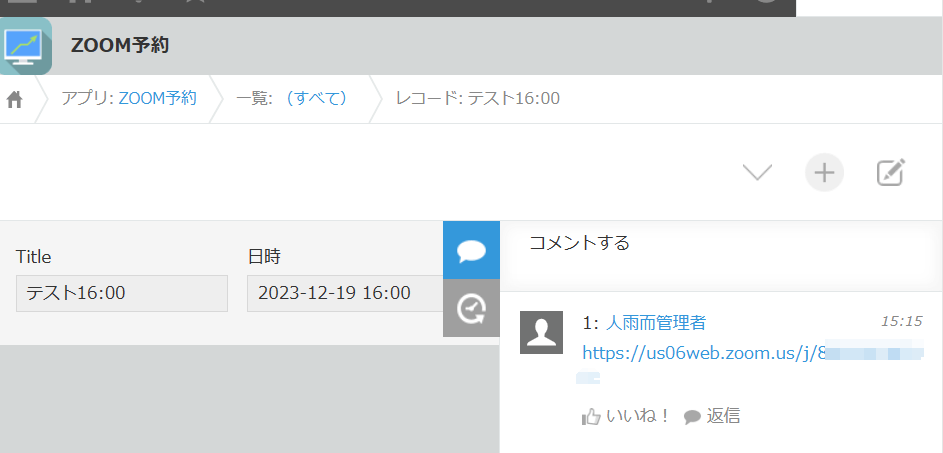
The meeting reservation was also successfully created. Glad to see it working.
Extra
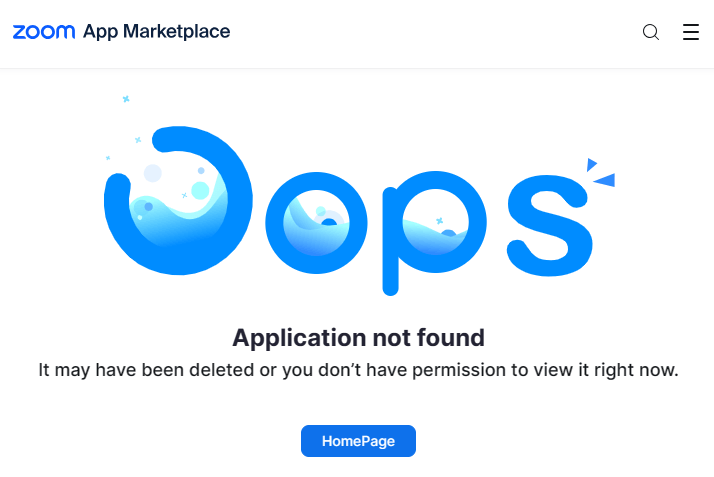
There seems to be a dedicated Zoom connector for Power Automate cloud flows, and I intended to use it, but it didn't work.

When I tried to create a connection, the error shown below appeared. If anyone has successfully used it, please let me know.
Contact us via the form: kintone Spot Development Free Consultation Form
Discussion