iTranslated by AI
Integrating Microsoft Teams Meeting Information with kintone (Power Automate)


Article Overview
I tried integrating Teams meeting information into kintone using Power Automate cloud flows.
This covers the preliminary investigation and basic integration steps up to the point just before detailed implementation.
If you are interested in implementing the content of this article in your own company, please feel free to contact us via the kintone Spot Development Free Consultation Form.
Objectives
- Create a meeting in Teams.
- Integrate that information into kintone using Power Automate.
- Update kintone when changes are made to the Teams meeting information.
- Delete the kintone record when the Teams meeting information is deleted.
The key point is that I want to handle not only new meetings but also modifications and deletions.
Power Automate Trigger
When a Teams meeting is created, an event seems to be generated because the information is also added to the calendar.
Therefore, we will use a trigger related to events.
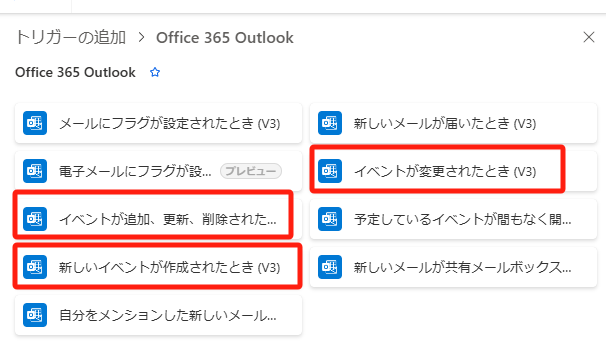
As shown in the figure above, three options seem usable: "When a new event is created," "When an event is modified," and "When an event is added, updated, or deleted." Since we want to handle deletions this time, let's use "When an event is added, updated, or deleted."
Issue of the Trigger Firing Multiple Times
As a known issue (Trigger known issues and limitations), when new meeting information is registered in Teams, the Power Automate trigger fires multiple times. The four trigger executions in the image below show the behavior when a single meeting is added.

This trigger provides three types of actions (added, updated, deleted). The breakdown in the image above shows it firing four times: updated > added > updated > updated. Incidentally, this might happen three times (added > updated > updated), or follow a pattern where updated > updated is followed by added after a delay of about a minute. I also recall instances where "added" wasn't triggered at all. In short, it is inconsistent.
While I won't go into fine-grained implementation here, for professional use, I think the following approaches would be necessary (provided as rough notes for reference):
- On "added": Insert a record into kintone, provided it doesn't already exist.
- On "updated": Also perform an insert into kintone, but if the record already exists, update it. Additionally, compare the last modified date from the Teams side and skip the update if the date is older.
kintone Receiving App
We will set it up simply with two fields. In a production environment, you would likely split these fields further to process the data.

Power Automate Cloud Flow
A simple configuration consisting of a trigger and a connector.
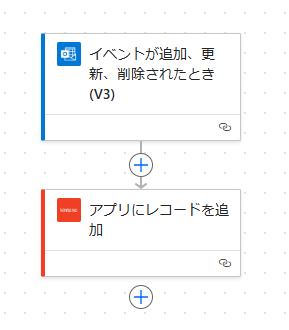
Trigger (When an event is added, updated, or deleted)
By default, it fires on any action: addition, update, or deletion.

With the right settings, you can make it fire only on deletion, but I'll skip that detail here as it's not the main focus of this article.
Also, while I'm focusing only on Teams meetings here, this is an event-related trigger, so it will likely fire when a regular appointment is added. You'll need to configure the firing conditions properly.
Writing to kintone
Select the fields to write as shown below. You can identify which action (add, update, or delete) occurred using the "Action Type."

The available fields are listed in the URL below. The ones you'll likely use most are Subject, Start Time, End Time, Action Type, Web Link, Required Attendees, Last Modified Time, and Body. It seems we have everything we need for the integration.
GraphCalendarEventClientWithActionType
Operation Verification
- Add a meeting in Teams

- Information is added to kintone (Since the event fires multiple times, multiple rows are inserted)

- The content looks like this

When a meeting is deleted in Teams, a record like the following is inserted.
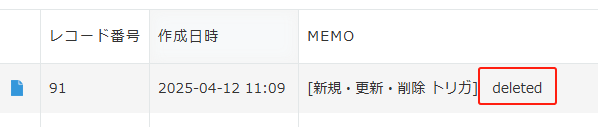
Now that I have confirmed the basic integration with kintone is working, with some further processing, it should be possible to integrate with something like Calendar Plus as well.
The foundation for integrating Teams meeting information into kintone using Power Automate is now in place.
I believe what matters most is what you do with this, so I plan to incorporate it into various workflows.
Contact us via the form here: kintone Spot Development Free Consultation Form
Discussion