iTranslated by AI
[C#] Recommended for Beginners! Let's Use Code Analyzers! [.NET]




What is a Code Analyzer?
It is a tool that tells you about "bad C# coding practices" that beginners often tend to do!
"Bad" refers to things like this:
- Slow
- Bug-prone
- Dangerous (security risks)
- Inconsistent coding style
Ah, that! Exactly what beginners want to be told first!
And what's more! It doesn't just tell you; it automatically fixes it for you...!! (Refactoring)
(Well, for some parts...)
Available for Free from the Start
You can use it just by installing the .NET SDK.
And it's free!
Wait, so free means... it costs zero, for real!?
Works with VS Code too
While people often say, "Beginners should use the full Visual Studio (especially VS Community)," code analyzers also work with the Visual Studio Code (VS Code) + C# Dev Kit extension.
Full Visual Studio is massive and slow to install, so personally, I recommend the lightweight VS Code!
They tell you things even AI doesn't!
These days, you might often get help from AI... but there are times when a code analyzer is actually better.

What AI (like ChatGPT or Copilot) teaches you are styles like these:
- Styles that everyone commonly writes
- Styles from a little while ago
Common writing styles... means they might sometimes recommend mistakes that everyone commonly makes. Yikes. AI doesn't judge whether something is "correct"; it judges based on "whether everyone is using it"...
Also, since they aren't always up to date with the latest info, they won't tell you about things like 'collection expressions' introduced in C# 12.0 (especially ChatGPT). Even though they are super handy!
Regardless of this specific example, AI code tends to feel slightly outdated... It's like an older guy trying way too hard to use the latest slang just because it's trending...

A code analyzer, however, will suggest collection expressions.
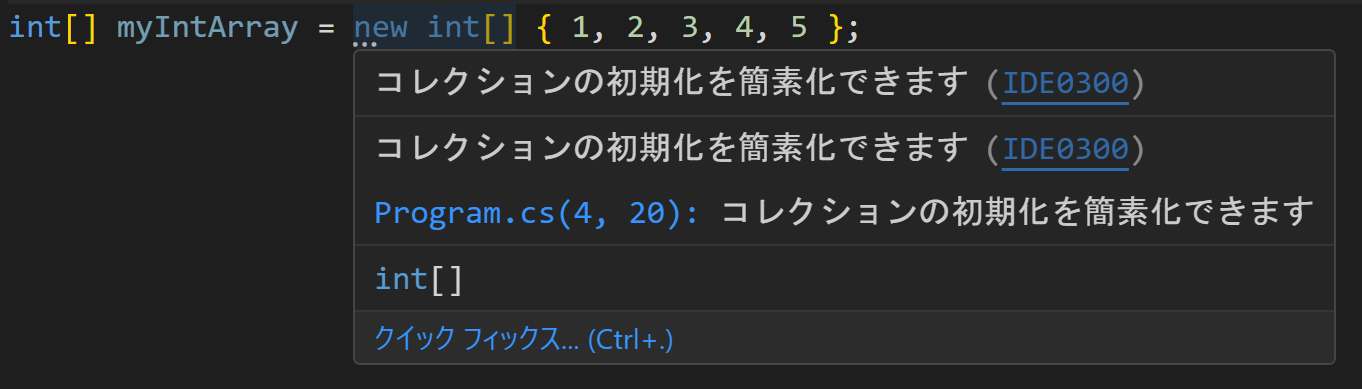
If you click the 💡 icon, you can even fix it automatically.

Instead of relying solely on AI, it might be faster to let AI write the rough draft and then use a code analyzer to polish it up.
How to Configure
Per Project
When you create a C# project, a file named [Project Name].csproj is created.
For example, if you create a console application (the kind that runs in a black terminal window) using dotnet new console, it looks like this:
<Project Sdk="Microsoft.NET.Sdk">

  <PropertyGroup>
    <OutputType>Exe</OutputType>
    <TargetFramework>net8.0</TargetFramework>
    <ImplicitUsings>enable</ImplicitUsings>
    <Nullable>enable</Nullable>
  </PropertyGroup>

</Project>
Open this csproj in VS Code and add two lines inside the PropertyGroup!
Line 1: Enable Code Analyzers
This single line enables the standard code analyzers in the .NET SDK.
+ <EnableNETAnalyzers>true</EnableNETAnalyzers>
You can start using it with just this!
Line 2: Adjust Strictness
Add a second line to further fine-tune the strictness!
+ <AnalysisLevel>latest-All</AnalysisLevel>
Doing this makes it as nagging as a mother-in-law who checks for dust with her finger and says, "Oh my, it hasn't been cleaned at all! I wonder what kind of upbringing you had?"!!!

Aargh!!!! Cut it out!!!!
latest-Recommended or latest-Minimum might be a better choice.
| AnalysisMode | Strictness Level |
|---|---|
Minimum |
Since it's called "Minimum," you might think it flags fewer items, but it supposedly flags more than Default... |
Recommended |
This is the recommended setting. |
All |
"Oh my, it hasn't been cleaned at all! I wonder what kind of upbringing you had?" |
latest refers to the latest .NET version (if you're using .NET 8.0, then 8.0 = C# 12.0). Setting it to 6.0 would provide suggestions equivalent to .NET 6.0 (= C# 10.0).
After Configuration
Save it once you've added it.
In some cases, it might not be reflected immediately.
(In VS Code, it often becomes active by running the "Developer: Reload Window" command.)
The added csproj
<Project Sdk="Microsoft.NET.Sdk">

  <PropertyGroup>
    <OutputType>Exe</OutputType>
    <TargetFramework>net8.0</TargetFramework>
    <ImplicitUsings>enable</ImplicitUsings>
    <Nullable>enable</Nullable>

    <EnableNETAnalyzers>true</EnableNETAnalyzers>
    <AnalysisLevel>latest-Minimum</AnalysisLevel>
  </PropertyGroup>

</Project>
Per Solution
The settings above need to be added to each individual project's csproj file. What a pain!
So, if you have many projects, let's configure them all at once.
Create a file named Directory.Build.props or Directory.Build.targets in a higher-level directory and write the contents we just discussed. Projects in lower-level directories will then read them automatically.
Since .props is read before .csproj, using .props is likely better for code analyzers.
<Project>
  <PropertyGroup>
      <EnableNETAnalyzers>true</EnableNETAnalyzers>
      <AnalysisLevel>latest-Minimum</AnalysisLevel>
  </PropertyGroup>
</Project>
Suppressing Warnings
There are several ways to do this!
I'll leave the full explanation to that excellent article! Here are some supplementary notes:
- Suppress via EditorConfig
- Suppress at the class or method level using attributes
- Suppress within a specified range
Suppressing via EditorConfig
You can set this for the entire project.
What's great is that you can adjust the severity to things like suggestion or error rather than just completely suppressing it!
Setting it to suggestion so you can judge case-by-case is often a good idea.
# Completely suppress this one
dotnet_diagnostic.CA1707.severity = none
# Get a prompt asking "Should this be fixed?"
dotnet_diagnostic.CA1707.severity = suggestion
# Treat as an error
dotnet_diagnostic.CA1707.severity = error
Suppressing at the Class or Method Level Using Attributes
This is the next most common method.
You can use SuppressMessageAttribute to specify and suppress warnings at the class or method level.
It should also work for arguments or return values.
using System.Diagnostics.CodeAnalysis;

[SuppressMessage("Category", "ID")]
void MyFunction(int arg1, string arg2)
{
	//...
}
-
Category is something like the name of the code analyzer.
- It seems it works even without specifying a category.
-
ID is the short version (like
CAXXXX) and is fine.- As long as the ID matches, it will be suppressed.
Suppressing within a Specified Range
In VS Code, you can use it from the 💡 icon, but it's surprisingly cumbersome.
#pragma warning disable CA1303 // Do not pass literals as localized parameters
Console.WriteLine("Hello, World!");
#pragma warning restore CA1303 // Do not pass literals as localized parameters
I Want to Learn Even More...

In addition to the standard code analyzers (.NET Analyzers), you can enable even more suggestions!
Non-standard analyzers are added like libraries via NuGet.
By writing it in Directory.Build.props, you can enable it for all sub-directories.
<ItemGroup>
		<PackageReference Include="Roslynator.Analyzers" Version="4.7.0">
			<IncludeAssets>runtime; build; native; contentfiles; analyzers; buildtransitive</IncludeAssets>
			<PrivateAssets>all</PrivateAssets>
		</PackageReference>
</ItemGroup>
Roslynator
This is an amazing tool that makes everything "just right" on its own!
The official ones plus this might be all you ever need...
The analyzers are divided into the following three, so try installing all of them:
Roslynator.Analyzers
Roslynator.CodeAnalysis.Analyzers
Roslynator.Formatting.Analyzers
NetFabric.Hyperlinq.Analyzer
It tells you all about LINQ-related things!
Meziantou.Analyzer
This analyzer points out a wide variety of things, though it can be a bit noisy!
I recommend enabling it selectively.
Microsoft.Unity.Analyzer
This one is for Unity!
xUnit / NUnit
There are also code analyzers for testing libraries! There are two types: the library's official ones and those released by Microsoft.
There is also a version released by Roslynator.
xUnit
NUnit
MSTest
Summary!
- Beginners should let code analyzers teach them all sorts of things!
- ChatGPT and Copilot are like "slightly out-of-touch uncles." Use them in combination.
- Be sure to adjust the level of strictness!
- There are many different analyzers available beyond the official ones!
Discussion