iTranslated by AI
Establishing a Daily Routine with Google Home and Google Apps Script


Introduction
In these times, I believe many of you are living a stay-at-home life with your entire family.
One thing I've noticed while working from home is that since there is no school, our daily rhythm tends to fall apart.
Does this happen to you? Both parents and children suffer physical and mental damage if they don't maintain a "regular lifestyle."
Wake up at a set time in the morning.
Do your studies and work.
Go to bed early at night.
I want to maintain a regular routine and spend my time with a stable mind.
Probably, you could do this with just IFTTT without making a script in GAS, but I wanted to manage everything in a list using a Spreadsheet.
Therefore, I would like to introduce a chime—or rather, an alarm system—that we use in our home, built using Google Home and Google Apps Script (GAS).
By the way, my home environment is set up like this.

Also, here are the phrases I want to push-call at each respective time.
| Alarm | Push Message |
|---|---|
| 6:00:00 AM | It is HH:MM. It's morning! Let's wake up. |
| 6:30:00 AM | It is HH:MM. It's about time to wake up. I'm wide awake! |
| 7:00:00 AM | It is HH:MM. Seriously, it's time to get up. How about some exercise or language study? |
| 8:00:00 AM | It is HH:MM. Let's eat breakfast. |
| 10:00:00 AM | It is HH:MM. How about taking a break soon? |
| 12:00:00 PM | It is HH:MM. Let's start preparing lunch. |
| 1:00:00 PM | It is HH:MM. Let's eat lunch. |
| 3:00:00 PM | It is HH:MM. Is it about time for a snack? |
| 5:30:00 PM | It is HH:MM. Let's start preparing dinner. |
| 6:30:00 PM | It is HH:MM. Let's eat dinner. |
| 8:30:00 PM | It is HH:MM. Let's take a bath. |
| 10:00:00 PM | It is HH:MM. It's about time to sleep. I'm going to bed. Good night. |

1) Preparation on the IFTTT Side
1-1) Go to My Services

1-2) Configure Webhooks

Go to Webhooks > settings
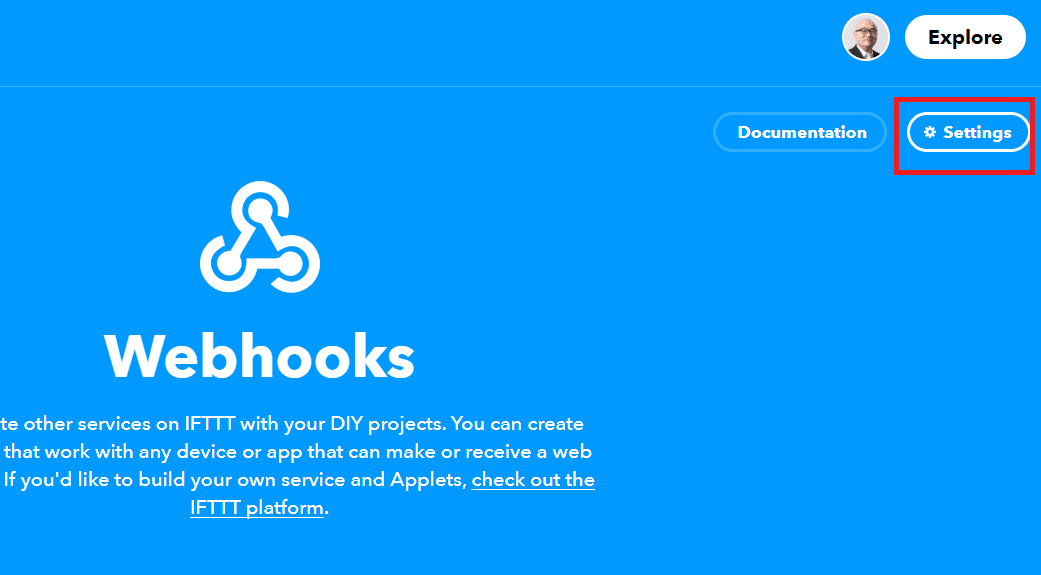
Copy the URL in the red box below and paste it into your browser's address bar to proceed.
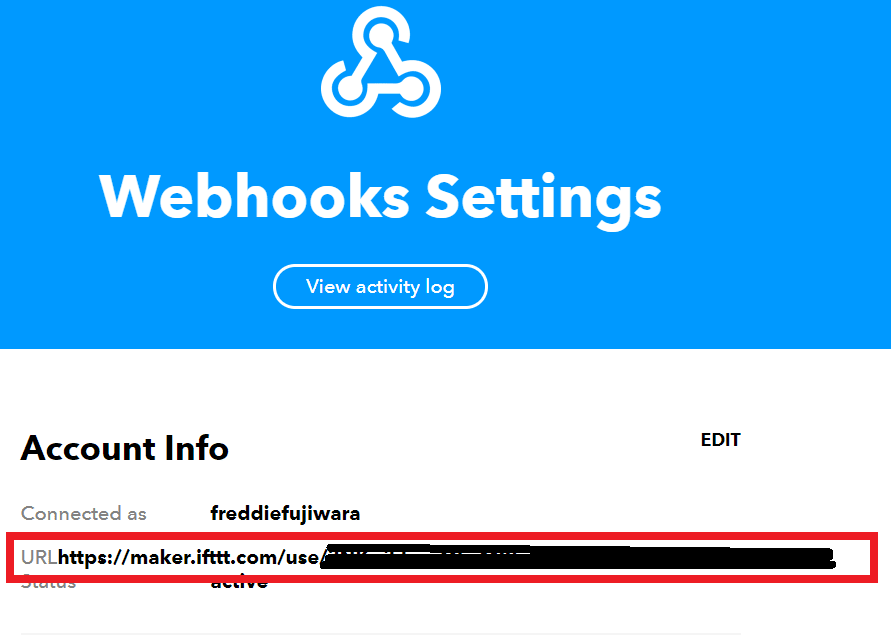
Once transitioned, change the part that says "{{event}}" to the right of "Trigger" to "alarm", and copy the URL to the right of "curl -X POST".

2) Preparation on the Google Side
2-1) Create a Spreadsheet
In the Spreadsheet, create the sheet you want to use as a trigger as follows:
- Column A: The time you want to set the alarm
- Column B:
=ENCODEURL(CONCATENATE(HOUR(A12)," o'clock ",MINUTE(A12)," minutes. Some message"))

2-2) Create GAS
From the Spreadsheet created above, select Tools > Script editor.

2-3) Implement GAS
In the section outlined in red below,

Please change the IFTTT URL part to the one you copied in step 1-2) and save it.
function myFunction() {
	// !!please set your ifttt webhook url!!
	var IFTTT = 'https://maker.ifttt.com/trigger/the_url_you_saved_earlier';
	// get data from spread sheet
	var labels = SpreadsheetApp.getActiveSheet().getDataRange().getValues();
	// for all labes;
	for (var v = 0; v < labels.length; v++) {
		if (labels[v].length < 2) {
			return;
		}

		// calculate the time difference between now and target
		var now = new Date();
		var target = new Date(labels[v][0]);
		// adjust target's YYYY/MM/DD to current YYYY/MM/DD
		target.setFullYear(now.getFullYear());
		target.setMonth(now.getMonth());
		target.setDate(now.getDate());

		// trigger "alarm" if the difference is within 50 secs
		if (Math.abs(now - target) < 50 * 1000) {
			//  POST IFTTT if you've got "alarm"
			Logger.log(IFTTT);
			var res = UrlFetchApp.fetch(IFTTT, {
				'muteHttpExceptions': true,
				'method': 'post',
				'contentType': 'application/json',
				'payload': JSON.stringify({
					"value1": labels[v][1]
				})
			});
			Logger.log("Response:" + res);
		}
	}
}
2-4) Test execution of GAS
Click the triangle arrow button.
The first time you run it, a pop-up will appear to link with Google Spreadsheet and GMail. Please allow all permissions to connect.

2-5) Set GAS Trigger
Finally, click here
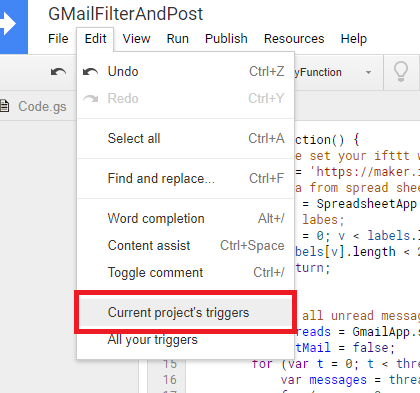
Click "+Add Trigger" and set up a new trigger as follows:

Demo

Closing
Thank you everyone for reading until the end.
How did you like it?
I would be happy if this helps you maintain a regular lifestyle even a little bit.
If you liked it, please give it an LGTM!
Discussion