iTranslated by AI
Using run-pty for In-Session Debugging When Starting Rails with bin/dev


🤔 Problem Statement
When developing Rails applications using jsbundling-rails or solid_queue, you typically start multiple processes by running bin/dev by default.
However, when you try to start a debugging session using the debug gem, it doesn't work as-is, and you usually have to open a separate terminal to connect via rdbg. I found that a bit tedious and was looking for another approach when I discovered that I could manage multiple processes using run-pty. So, I've decided to give it a try.
🎁 Installation
Let's get started right away.
Since run-pty is installed via package.json, we'll add it using yarn. If you use a different manager, just change this part accordingly.
yarn add -D run-pty
Installation is now complete.
You define the processes you want to run by creating a file named run-pty.json in the project root. Let's try creating a simple JSON file for now. The following file starts the processes for booting the Rails server and starting solid_queue jobs.
[
  {
    "command": ["bin/rails", "server"]
  },
  {
    "command": ["bin/jobs"]
  }
]
Once the file is set up as shown above, let's run it.
yarn run-pty run-pty.json
When you execute this, a dashboard will start up as shown in the image below.
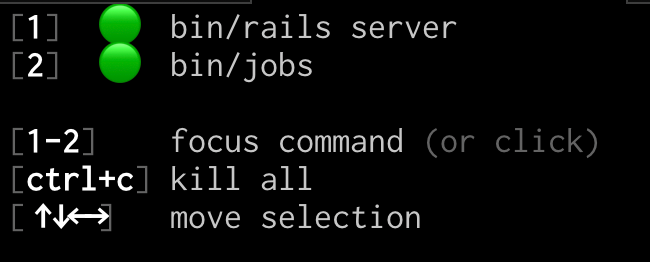
To see the status of the Rails server, press 1 (or click the "1" section), and the logs will start streaming in.
🟢 bin/rails server
=> Booting Puma
=> Rails 8.0.1 application starting in development
=> Run `bin/rails server --help` for more startup options
Puma starting in single mode...
* Puma version: 6.6.0 ("Return to Forever")
* Ruby version: ruby 3.4.2 (2025-02-15 revision d2930f8e7a) +YJIT +PRISM [arm64-darwin24]
*  Min threads: 3
*  Max threads: 3
*  Environment: development
*          PID: 47071
* Listening on http://127.0.0.1:5500
* Listening on http://[::1]:5500
Use Ctrl-C to stop

[ctrl+c] kill (pid 47071)
[ctrl+z] dashboard
Pressing Ctrl+c on this screen terminates only the Rails server process. To restart it, simply press 1 and Enter again.
Now, as indicated in the logs, let's return to the dashboard by pressing Ctrl+z. Pressing Ctrl+z brings you back to the main view.
To shut down all processes, press Ctrl+c from the dashboard screen.
With this, we can now launch multiple processes simultaneously. Also, regarding the problem statement mentioned earlier, when debugging with binding.irb using the debug gem, you can now interact with the session directly by entering the Rails server process, eliminating the need to connect via rdbg 🎉
Finally, let's rewrite the bin/dev file so it can be started normally.
#!/usr/bin/env ruby
exec "yarn", "run-pty", "run-pty.json", *ARGV
Great job! 😁
Other Options
run-pty.json allows you to customize the appearance of the dashboard and other settings. While you should check the GitHub README for a full list of options, I'll highlight a few parts that were a bit less obvious.
run-pty.json can be customized in more detail. For example:
[
  {
    "command": ["bin/rails", "server"],
    "status": {
      "Listening on": null
    },
    "defaultStatus": ["⏳", "S"]
  },
  {
    "command": ["yarn", "build", "--watch"],
    "status": {
      "\\[watch\\] build finished": null
    },
    "defaultStatus": ["⏳", "S"]
  },
  {
    "command": ["yarn", "build:css", "--watch"],
    "status": {
      "Done in": null
    },
    "defaultStatus": ["⏳", "S"]
  }
]
Let's look at each field.
First, command is the same as the simple version, so I'll skip it.
Next is status. You can specify multiple key-value pairs here. When a log line matches a key, the dashboard will display the corresponding emoji or character.
For example, if the string "Listening on" appears in the logs after running bin/rails server, it will display null, which defaults to the 🟢 success indicator.
If you defined it as "Listening on": ["🚀", "S"], the 🚀 emoji would be displayed instead when that string is logged.
So, what is the second string in the array (e.g., "S")? It's the character displayed in environments where emojis are disabled (such as Windows or when the NO_COLOR environment variable is set).
Finally, defaultStatus specifies what is displayed while the process is running. The first emoji is shown by default, and like before, the second character is used when emojis are disabled.
Using these settings is quite handy as you can change the status display when errors occur in each process.
📒 References
While I was researching this, I found an issue on the Rails repository discussing alternatives to foreman.
It seems they want to avoid adding too many dependencies, so the approach using run-pty might not be accepted officially, but it was educational to learn about the overmind gem through the discussion.
Discussion